

Launch your first campaign
You can build and review a campaign privately before anyone sees it. Work through the steps below, then test both the campaign data pipeline and the public signup page before you share the link.
Still planning the campaign? The KickoffLabs strategy guides can help you choose an offer and referral goal. Come back here when you are ready to set it up.
1. Create a private draft
Section titled “1. Create a private draft”- Select Campaigns in the dashboard, then + New campaign.
- Choose the campaign type and the recipe closest to your goal. The recipe determines the starting mechanics and page structure; you can change details in the designer.
- Describe what you are launching or giving away and what visitors should do. Use a focused campaign brief.
- Expand Customize your draft (optional) to choose a tone, Compact or Long Form, a site URL to borrow its look, or a starter style.
- Review What we’ll set up, then select Create my draft. Generation may take about a minute. The draft stays private until you publish.
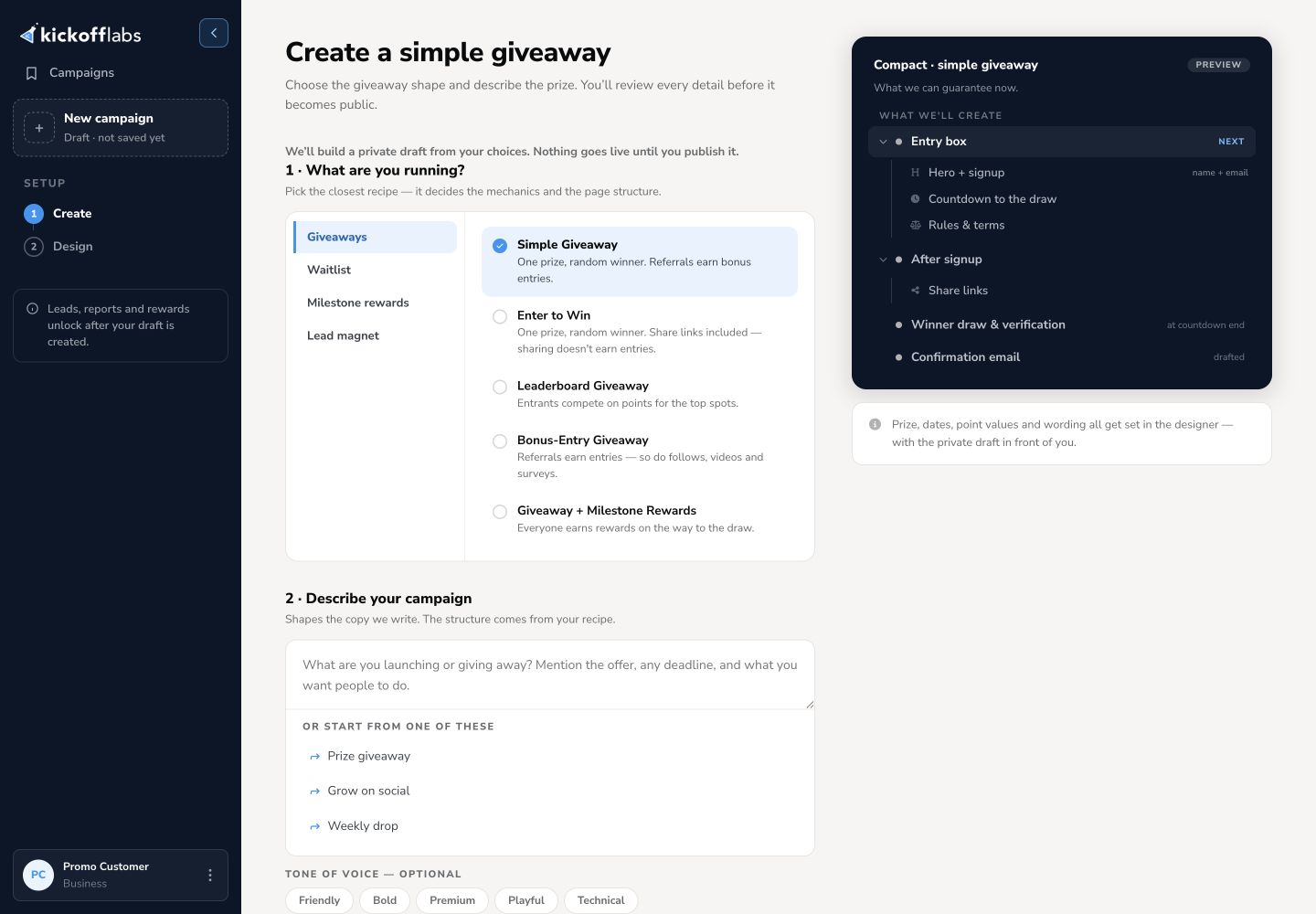
The screenshot shows a giveaway example. The recipes and setup details change with the campaign type you choose.
2. Review the page in the designer
Section titled “2. Review the page in the designer”The KickoffLabs designer opens the generated draft. Use Signup and Post-signup to review what visitors see before and after joining. Select text or a section to edit it. Open Settings to review the signup form, layout, post-signup confirmation, fonts, and colors.
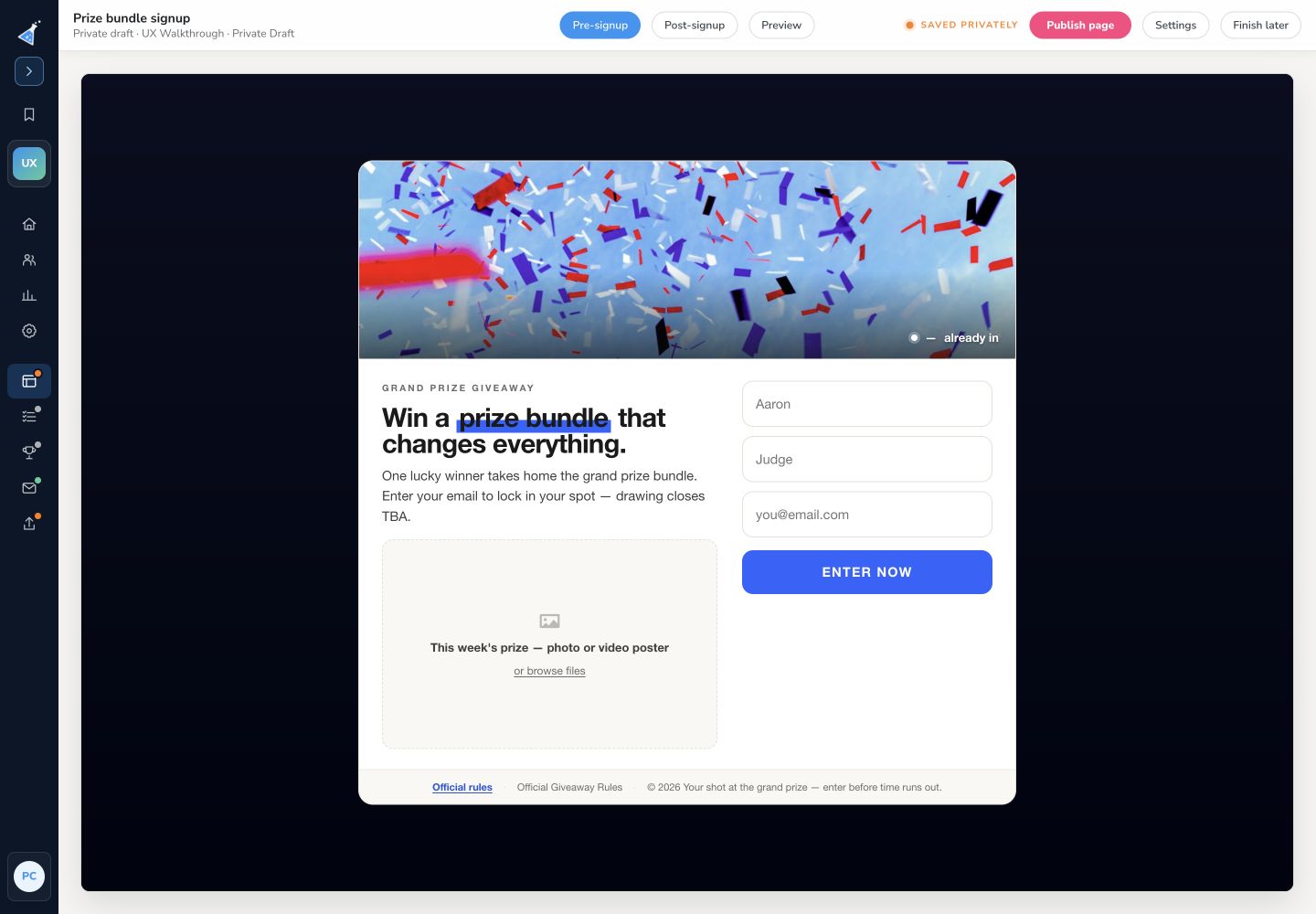
Changes to the designer’s page content save as a private draft. Select Preview to check the saved draft as a first-time visitor, a new entrant, and a returning entrant, on desktop and mobile. Page setup options such as search listing, link previews, tracking, and custom HTML are reached through Page settings; the designer says those settings go live when saved.
Before publishing, check the offer, dates, form fields, confirmation, referral message, rewards, and any required terms. See the page editor guide for the editing controls.
3. Publish the page
Section titled “3. Publish the page”Select Publish page when the draft is ready. Publishing makes that page’s saved draft the live version. If your campaign has more than one page, check each page’s status in Pages & forms or Publish & test; pages publish individually.
On the first publish, the designer opens the page’s Share page screen when publishing completes. It shows the page’s status and live URL; while publishing is still in progress, wait for it to finish before sharing. If you later edit and republish, you remain in the designer and can use Done or Share & embed to open the Share screen. Do not send traffic while the signup source is still a draft or publishing. See what the Share screen offers.
4. Run the campaign signup test
Section titled “4. Run the campaign signup test”Open Publish & test. Under Run a campaign signup test, enter an email address you use for testing and select Run signup test. This creates or updates a real lead through the campaign pipeline. Check for Test Passed, then select Open lead to confirm it is in the correct campaign.
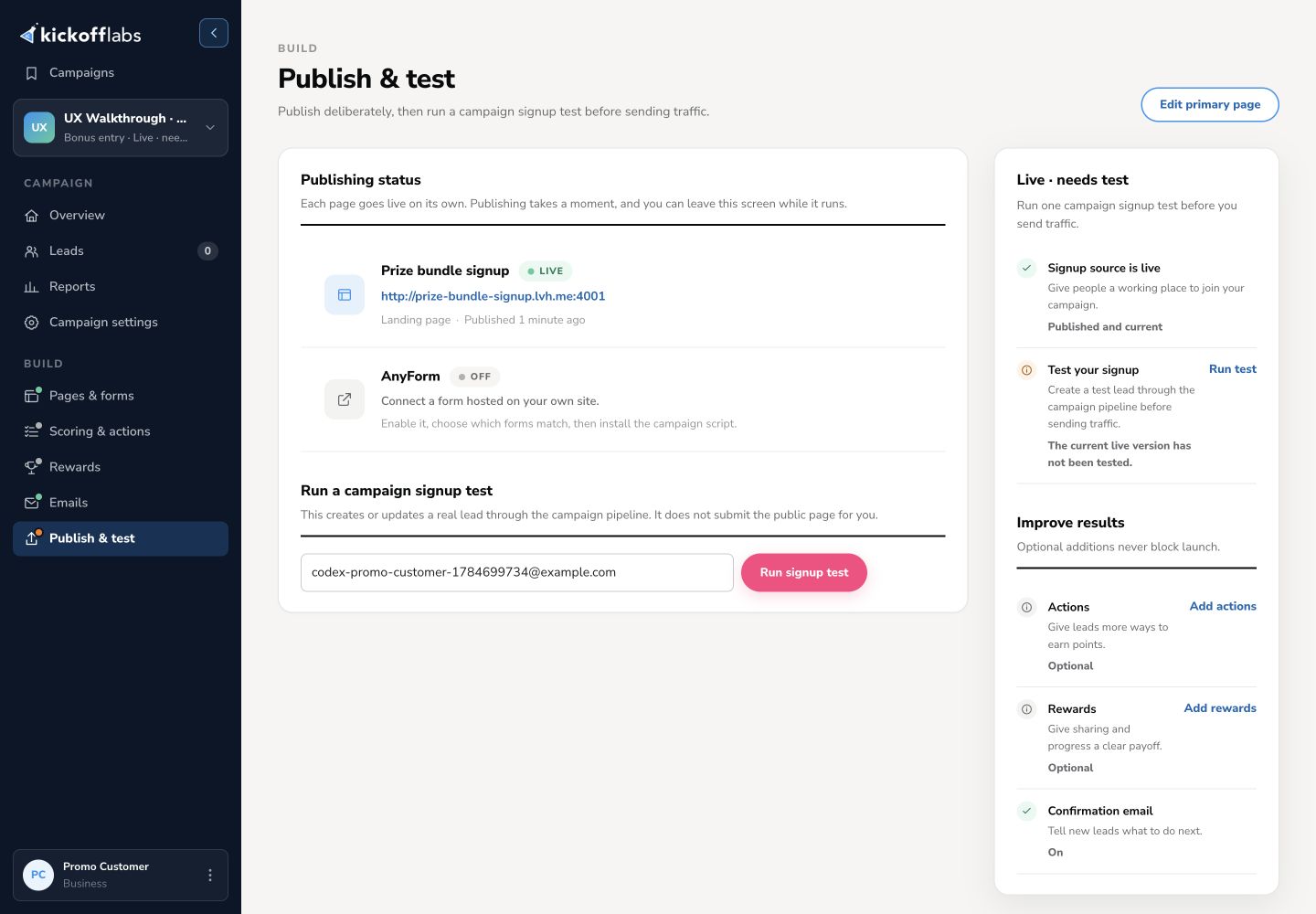
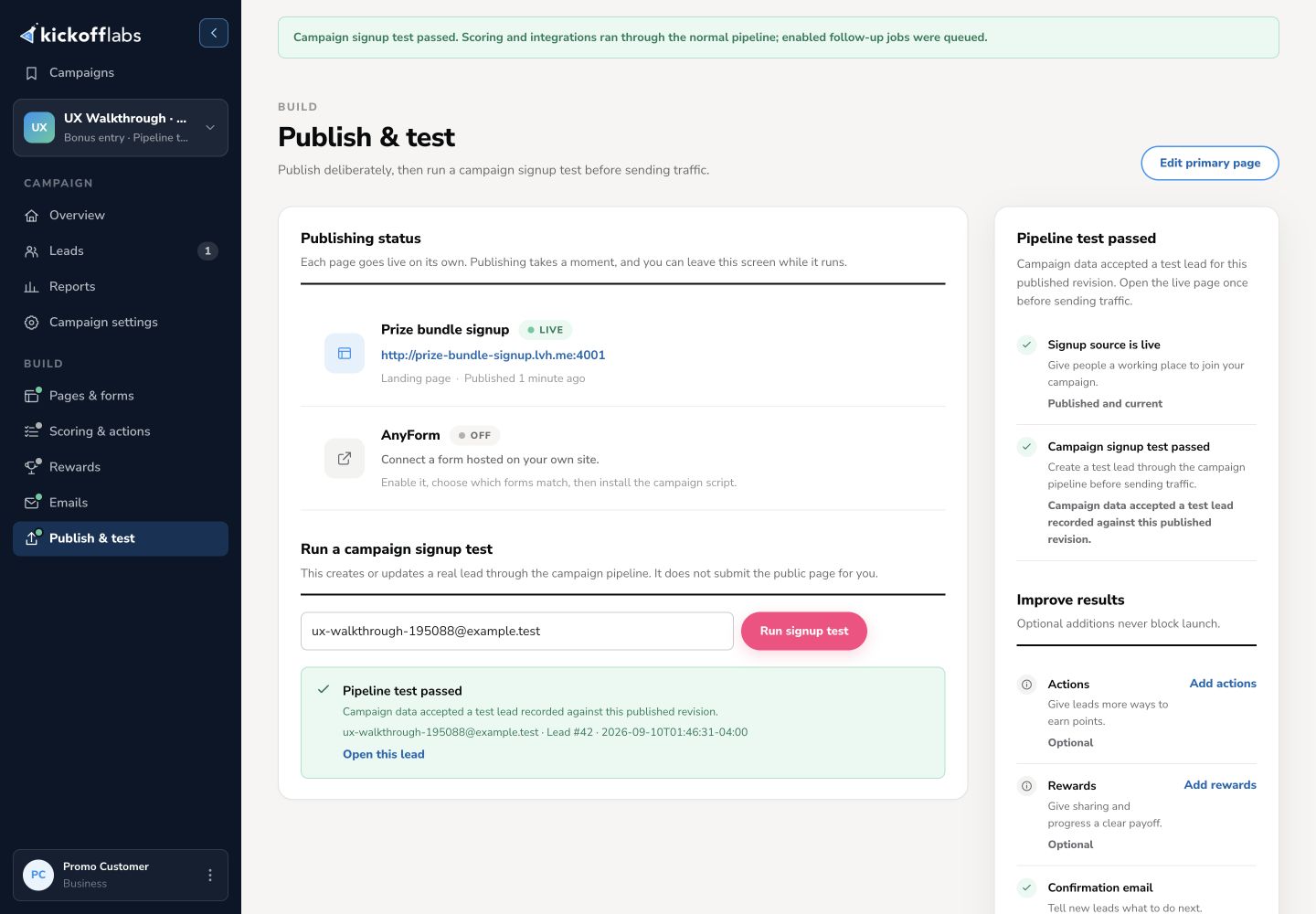
This test checks the campaign pipeline; it does not submit the public page. Open the live page yourself, submit its form with another test address, and check the signup confirmation, personal sharing link, and lead record. If you change and republish the page, test the new live version again.
For publishing status and the two separate tests, see Publish and test a campaign.
5. Share and monitor
Section titled “5. Share and monitor”Once the live page works, check your domain and tracking setup, then copy its public URL from the Share page screen. You can return there through Pages & forms → ⋯ → Share page on the page’s row. Return to Overview, Leads, and Reports to monitor signups and referrals. Review email and integration status separately; some features require plan access or additional account setup.
Related guides:
Need help? Email support@kickofflabs.com with the campaign URL, the test lead email, the step that failed, and a screenshot of what you saw.