

Getting Started With KickoffLabs Pages
Strategy guide: Want the bigger campaign playbook behind this setup? Read Referral Programs.
KickoffLabs enables you to publish landing pages using our drag and drop designer. Starting with our preset templates you can drag and drop new content, sections, or contest parts to match your brand or combine two or more different contest types. In the Document there will be:
- A walkthrough on how to generate a KickoffLabs page to edit
- The difference in KickoffLabs page types
- Publishing your KickoffLabs pages to a custom domain/subdomain of your choosing or using our default .kickoffpages.com subdomain Follow-along in our video walkthrough or follow the steps below to Get Started!
Launching the
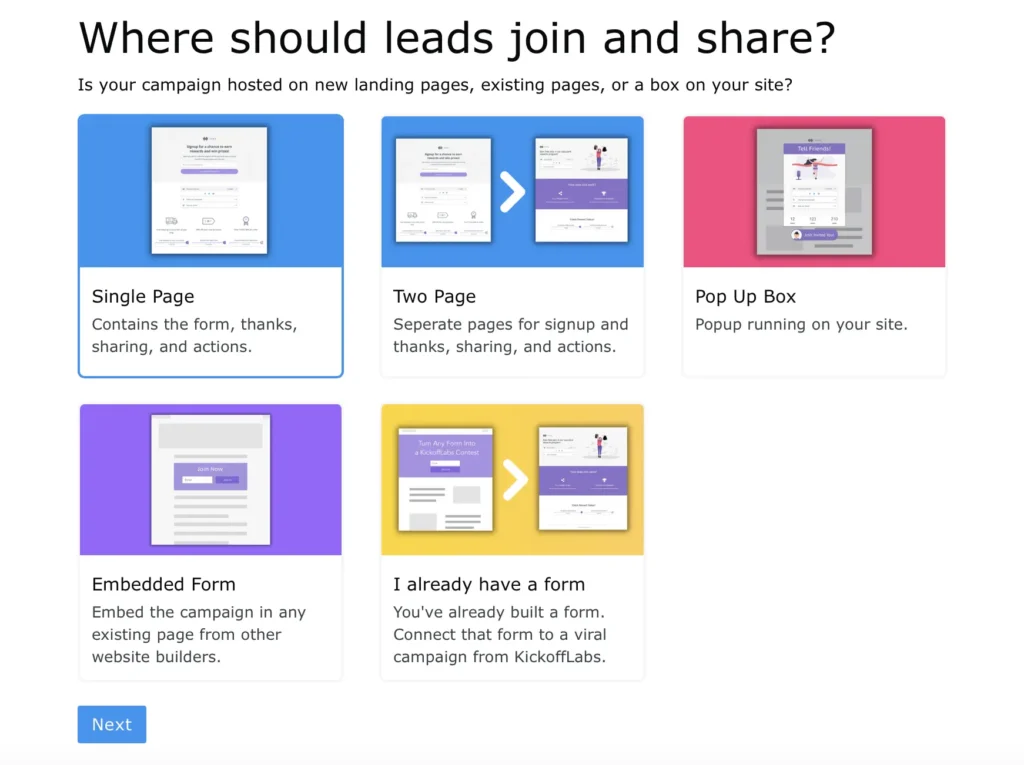
Section titled “Launching the”KickoffLabs Editor When You Chose a Landing Page Flow When you first sign-up to KickoffLabs, or create a new campaign, we’ll walk you through selecting your flow. Our onboarding process will pre-set the scoring/actions/rewards based on the campaign type that you select, making it easier to launch your campaign faster! KickoffLabs now offers over 30 campaign types to choose from. Below we’ve pulled a few examples of the types of campaigns that can be created with KickoffLabs. Learn more about choosing a campaign type here. During the initial campaign set-up, if you selected a Single Page or Two Page landing page setup for where leads should sign-up, follow along with the below steps. If you instead chose a pop-up, embed, or Anyform your dashboard will look slightly different.
Dashboard Overview After you’ve finished the onboarding flow, you will be taken to your…
Section titled “Dashboard Overview After you’ve finished the onboarding flow, you will be taken to your…”campaign dashboard. The Campaign dashboard is where all of your campaign settings/leads/integrations/pages are housed. You can learn more about the dashboard here, but to go over a few:
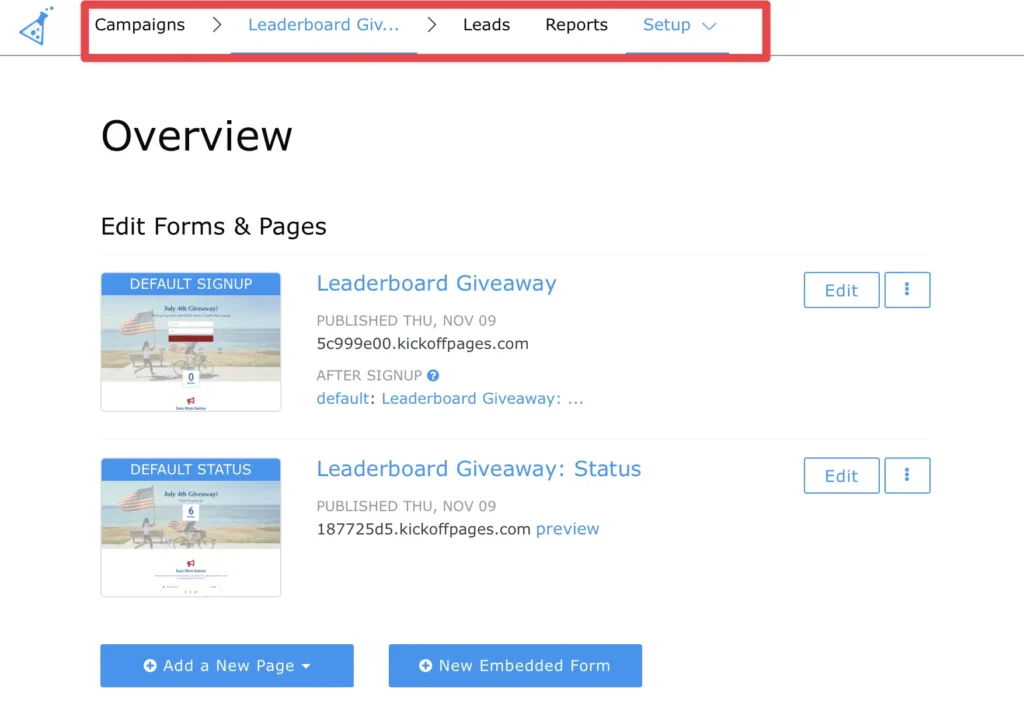
**Campaigns: **This will take you out to the main list of campaigns that you’ve created at KickoffLabs. **Leads: **The Lead section is where all leads who have signed up in a campaign are housed. **Reports: **Access in-depth reporting for you campaign’s pages/anyform/contest box. **Setup: **This is where all of the campaign wide settings are housed such as any tracking scripts, default social share text, and advanced fraud detection.
Campaign Wide Contest Set-up
Section titled “Campaign Wide Contest Set-up”The campaign wide settings are housed below the landing pag…
es. This is where you can set the scoring, actions, emails and rewards for the campaign.
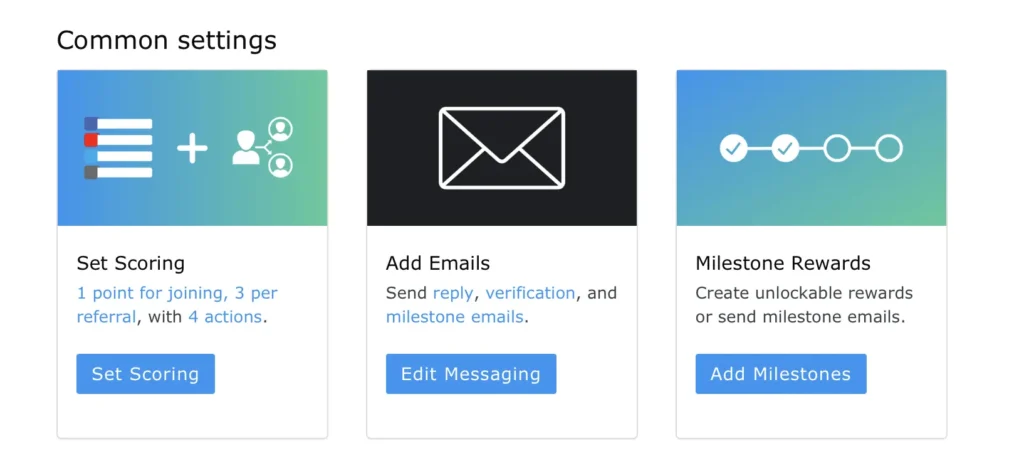
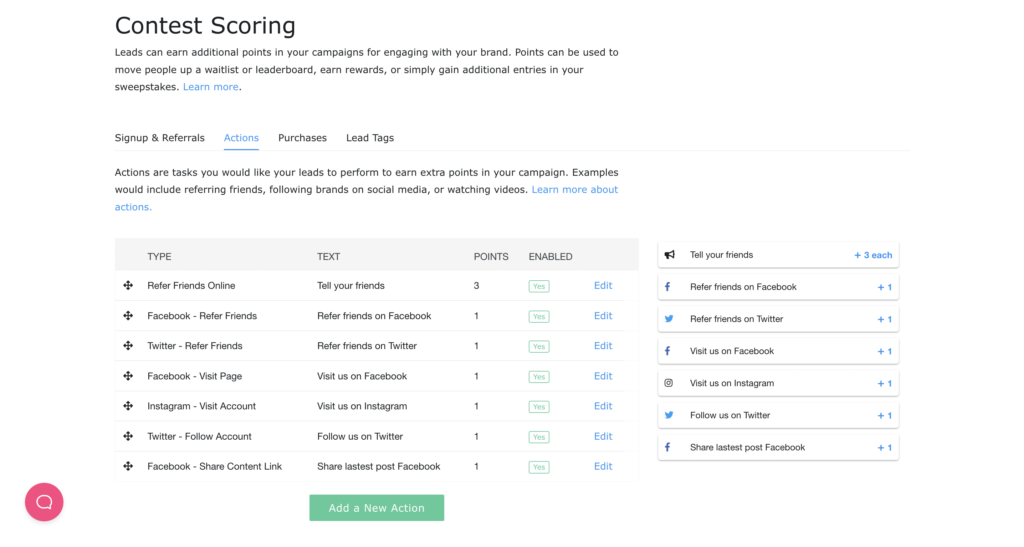
Set Scoring - This section allows you to customize the overall scoring of the campaign, set actions, and also houses optional Shopify Rewards Purchase Tracking and Lead Tags.
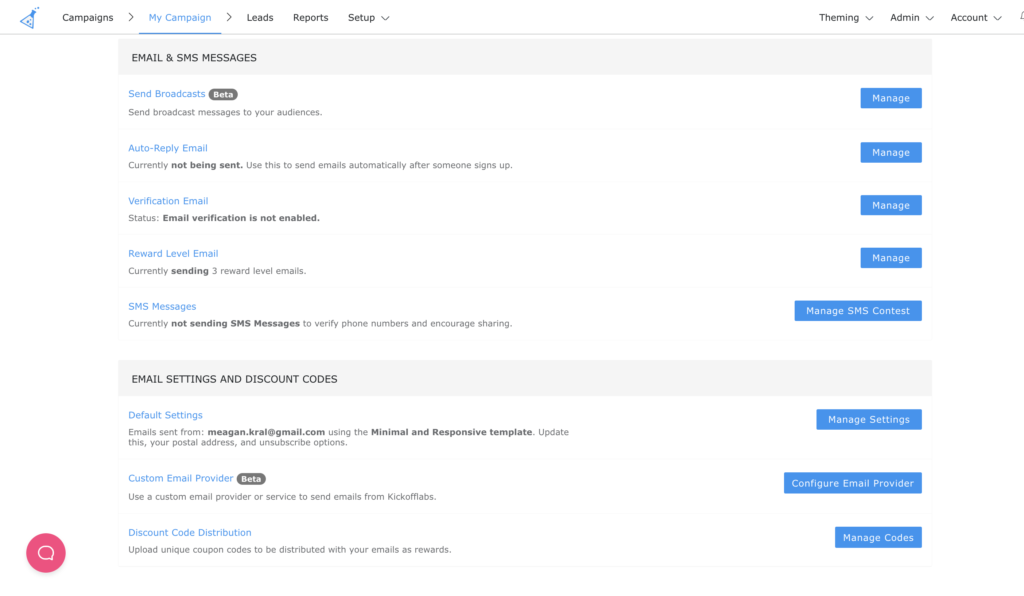
Messaging - This section houses all of the messaging options at KickoffLabs such as: SMS, braodcast mails, auto-reply, reward level, and verification emails. You can also customize an email template or your from settings.
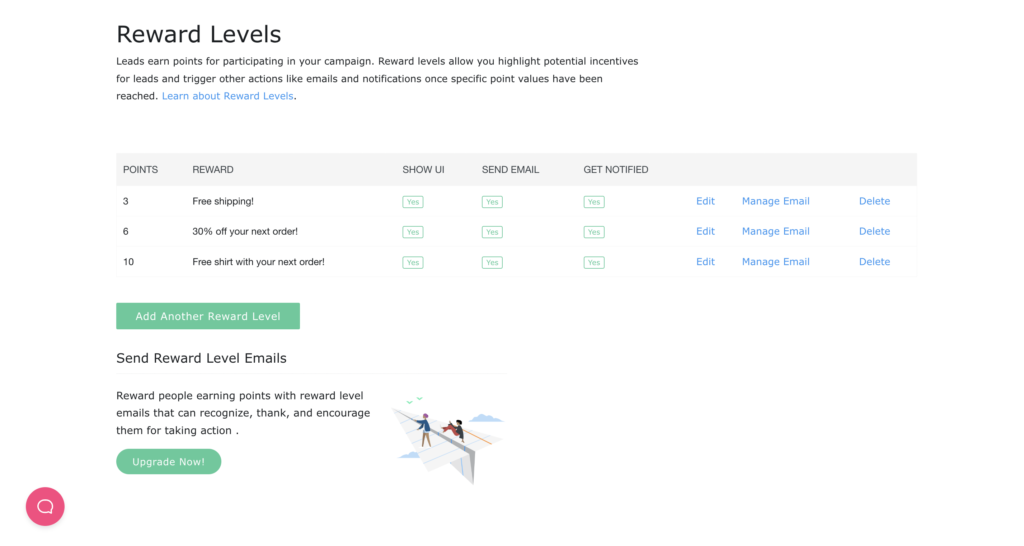
Milestone Rewards This area will display specific settings for the campaign type that you selected. In this example, since we selected the Reward Level campaign, the Milstone Reward settings will display.
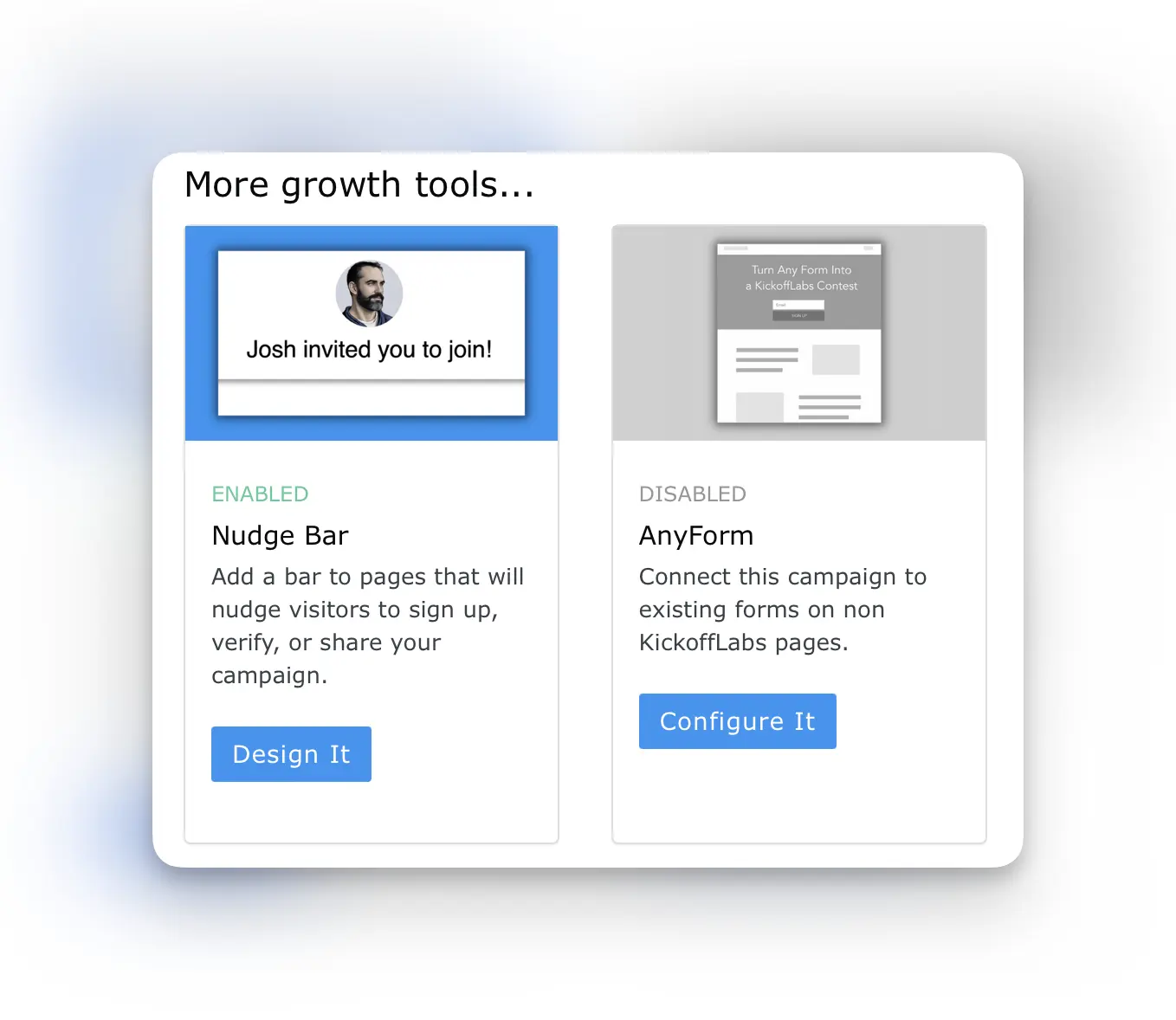
More Growth Tools Below the Common Settings we house the [Nudge Bar ](https://support.ki…
Section titled “More Growth Tools Below the Common Settings we house the [Nudge Bar ](https://support.ki…”ckofflabs.com/documentation/managing-your-campaign/customizing-nudge-bar)and the Anyform.
KickoffLabs Page Editor
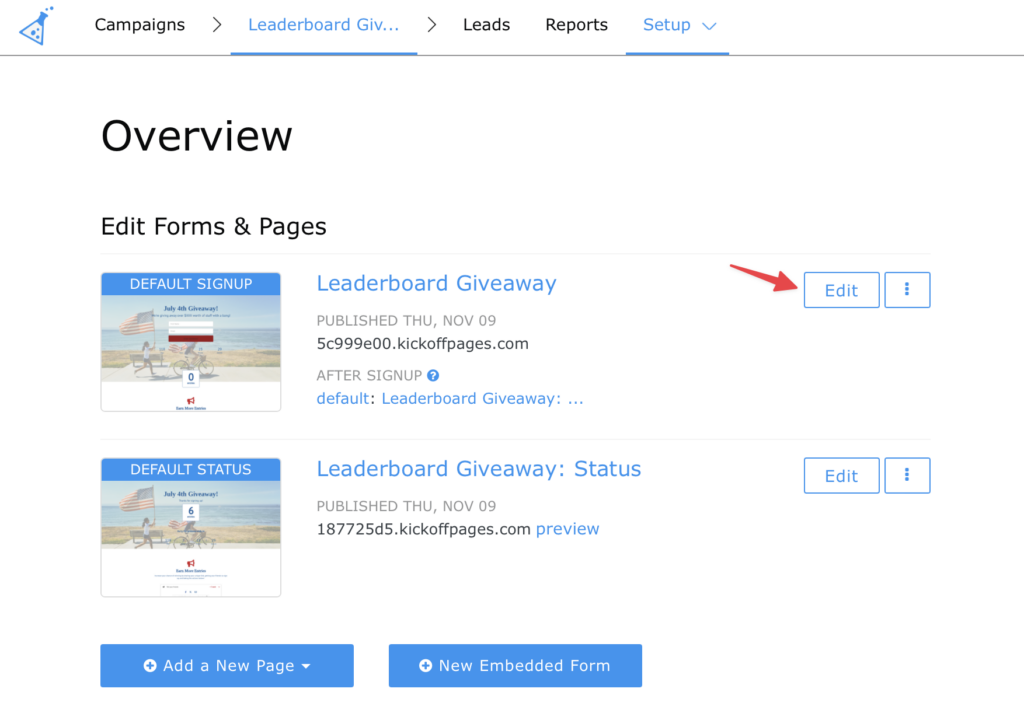
Section titled “KickoffLabs Page Editor”Back at the top of your dashboard, you can choose to edit the pa…
ge or view the live page to test things out. By default, we publish the pages to a .kickoffpages.com subdomain to make it easy for testing. In this example, we chose a KickoffLabs landing page + status page Leaderboard Giveaway set-up.
While we have an in-depth editor tutorial here, we’ve provided a brief overview of some of the options available with a multi-level reward campaign below
Launching the
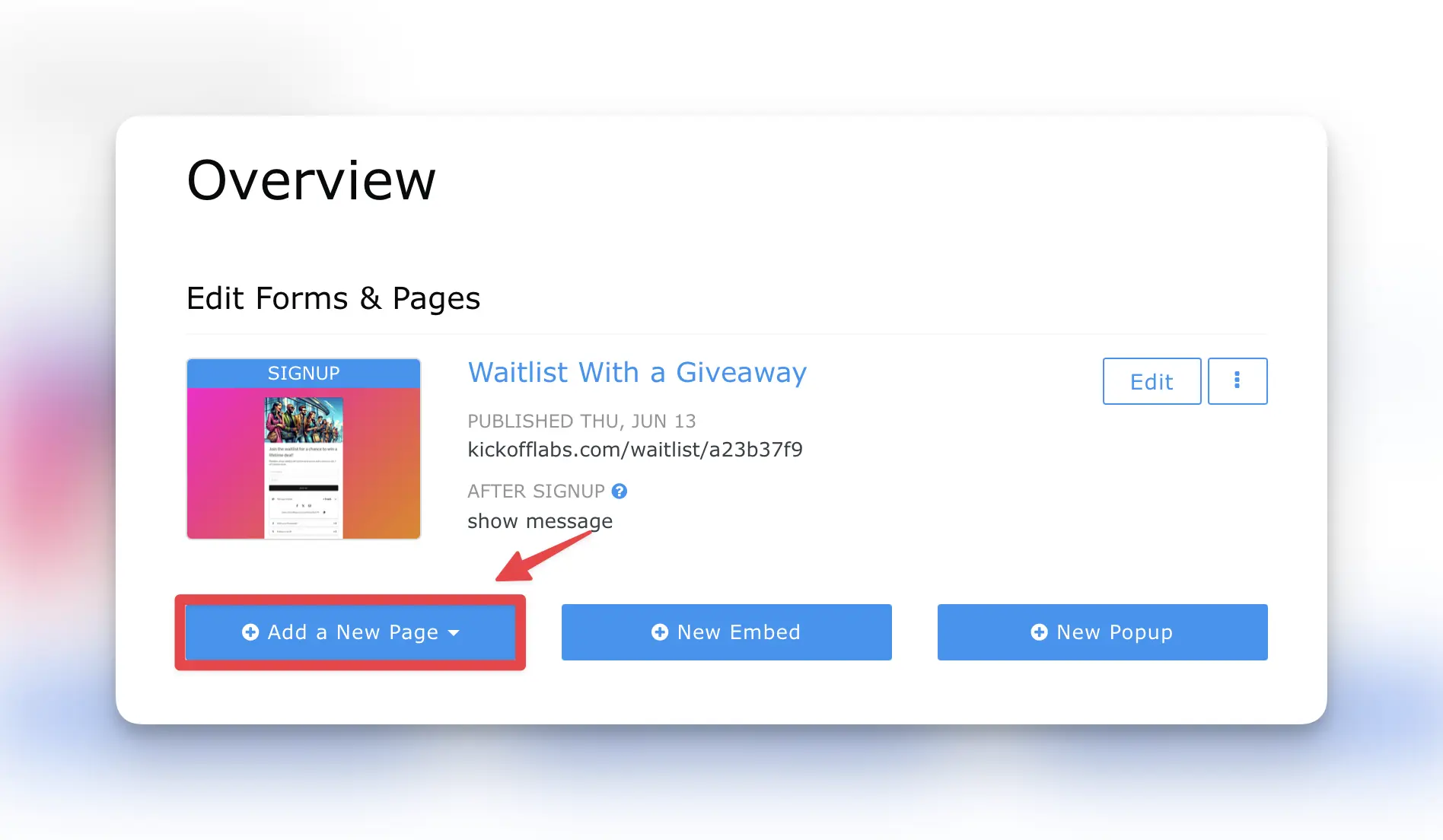
Section titled “Launching the”KickoffLabs Editor When You Chose an Anyform, Popup or Embed Flow If you instead chose the Anyform/Embed/Popup Box during the initial set-up, you still have access to create and edit KickoffLabs pages. They will just be moved to the end of the dashboard where you can select to add templates.
Pre-Set Widgets
Section titled “Pre-Set Widgets”This will vary depending on what campaign type you chose initially durin…
g the onboarding flow. In our Multi-Level Reward campaign example, we add a few widgets by default. Actions These are additional actions that leads can take outside of KickoffLabs for additional (optional) points. For example, tweeting about the contest, or sharing via SMS. KickoffLabs currently offers over 50 platform actions to choose from. Learn more about configuring actions here.

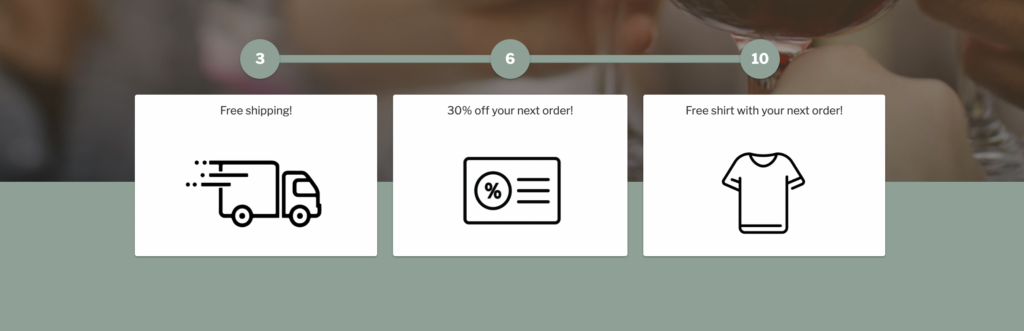
Reward Tracker KickoffLabs automatically tracks how many people each of your leads has referred into your campaign using their unique sharing links on Facebook, Twitter, or other social networks. You can set rewards based on point milestones, optionally include an image of the prize, and trigger an email to leads as they unlock each milestone. Learn more about configuring your campaign rewards here.
Page Level Customization
Section titled “Page Level Customization”Replacing a logo
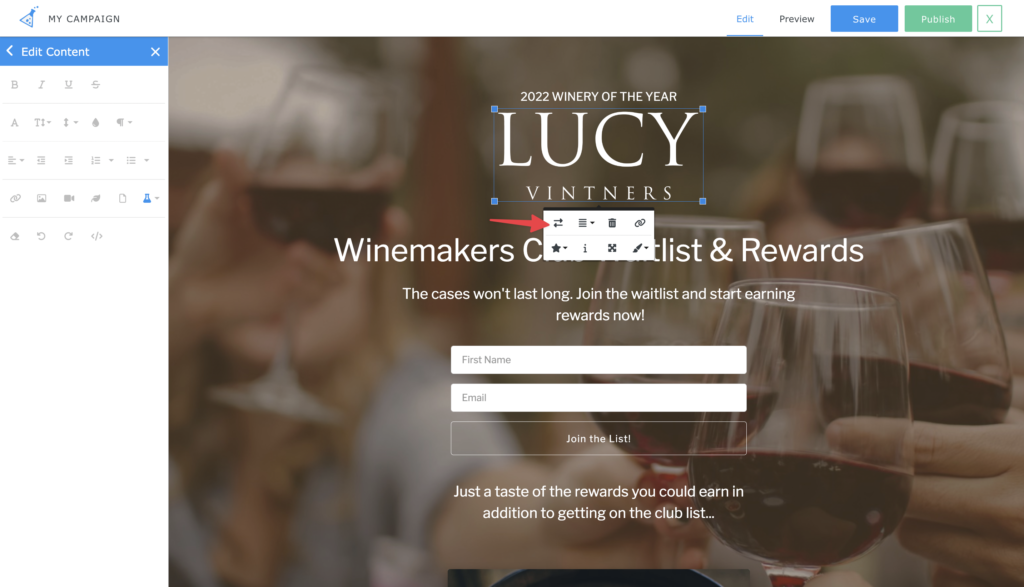
Section titled “Replacing a logo”Most KickoffLabs templates include a logo placeholder.
This can easily be swapped out by hovering over the logo and editing to replace the image with your own.
Editing a Form
Section titled “Editing a Form”
By default, our templates include a first name + email field on the form. You can hover over to edit and add any additional custom fields to your form. View all of the form options available here. Keep in mind, best practice is to keep the forms short with the main focus being getting the lead’s email/phone number. If you’d like to ask lead’s additional questions, we also have a post-sign-up option.
Changing the Default Confirmation
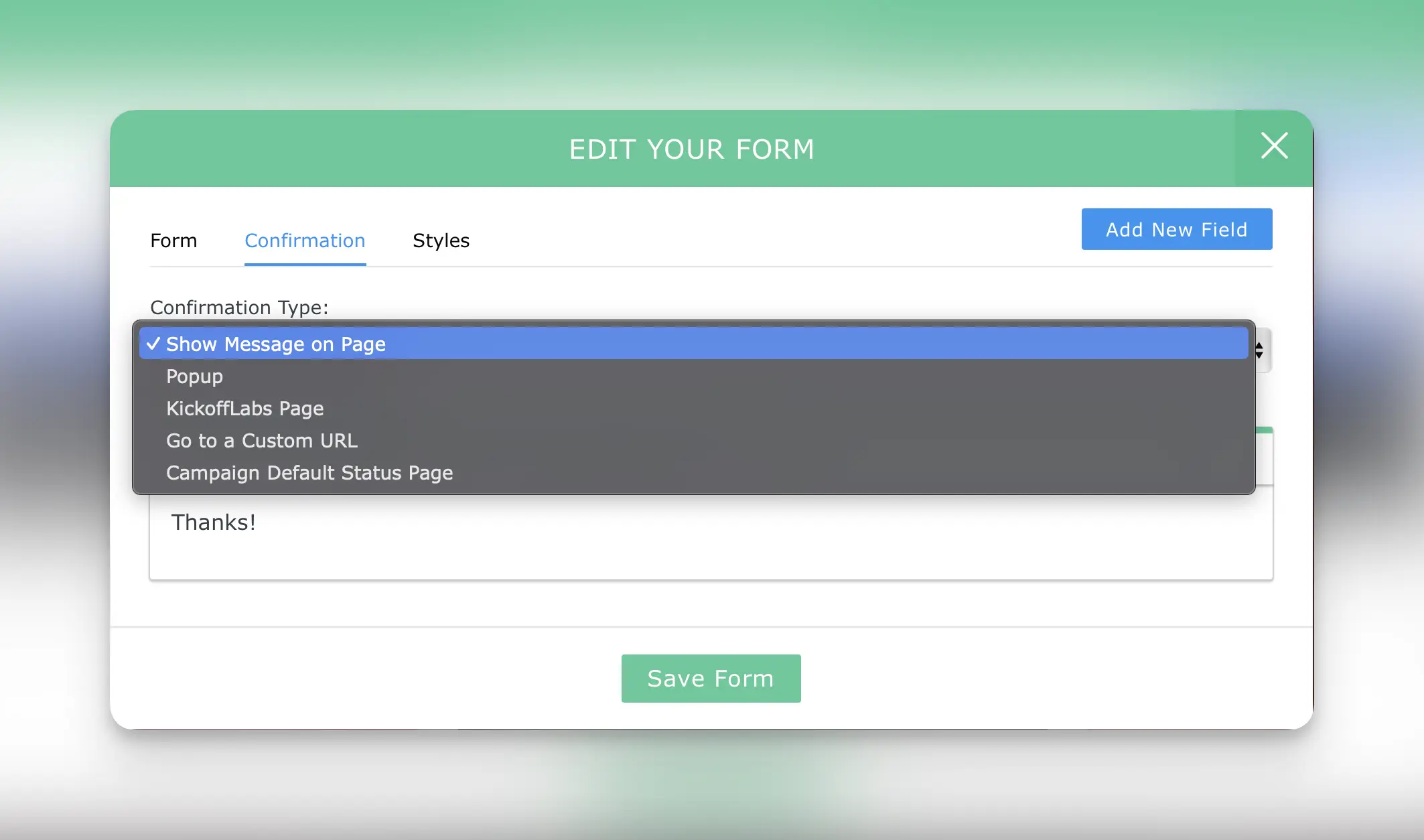
Section titled “Changing the Default Confirmation”In the form editor, you can also change whether to red…
irect the lead after the signed-up or even display a confirmation message. Learn more about the different confirmation options here.
Adding a Section
Section titled “Adding a Section”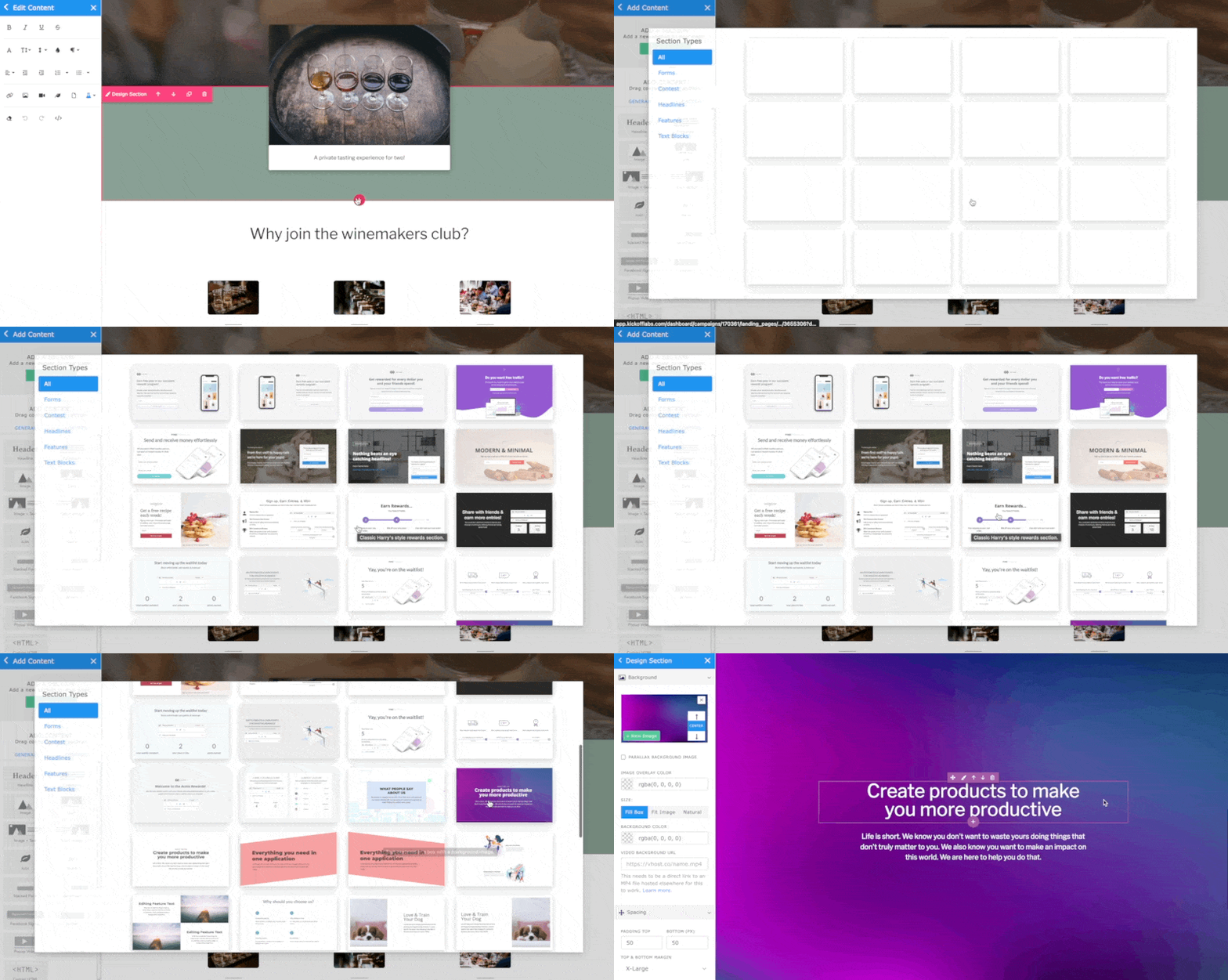
Publishing Your
Section titled “Publishing Your”KickoffLabs Page Once you’re ready for the changes to go live, simply select the green “Publish” button in the right corner of the KickoffLabs editor. Next, you’ll be redirected to the page level settings.
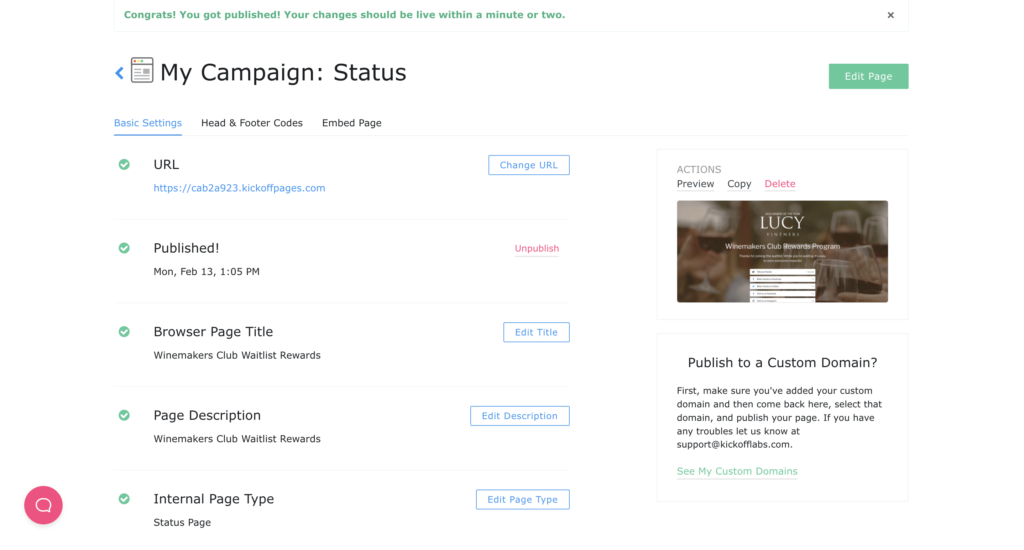
**Basic Settings - **In this section, you can customize the URL the page is published to, along with the browser title/description, and page type. By default, pages are published to a .kickoffpages subdomain, however, you can connect your own custom domain. **Head & Footer Codes - **in this area you can set page level scripts. This is rarely used, and most users opt to set the scripts at the campaign level **Embed Page - **This option allows you to embed a KickoffLabs page onto an external website, so that the landing/status page lives on your website instead of being hosted on KickoffLabs.
Need help? Email support@kickofflabs.com with your campaign URL, the lead email you tested with, and a screenshot of what you expected to happen.