Using Lead Tags to Recognize and Reward Custom Actions
Strategy guide: Want the bigger campaign playbook behind this setup? Read Referral Programs.
Of course we can give your contest leads points for actions we know about like sharing your contest, referring friends, liking you on Facebook, etc. But what if you want to give them point for things that happen outside of KickoffLabs? Learn more about creating an optional lead tag action here

What can you do with Lead Tags?
Section titled “What can you do with Lead Tags?”Lead tags allow you to define custom actions in your contest and award points to leads for completing those custom actions. Here are a few things that customers use lead tags for:
- Award points to leads for making a purchase.
- Reward a lead for having referred you someone that made a purchase.
- Credit leads for visiting pages outside of KickoffLabs.
- Create a post sign-up action based on a lead tag.
- Categorizing leads and grouping them into segments based on actions outside of KickoffLabs.
- Rewarding leads for taking a survey.
- Mark leads as completing an action like installing an app.
What Makes up a Lead Tag?
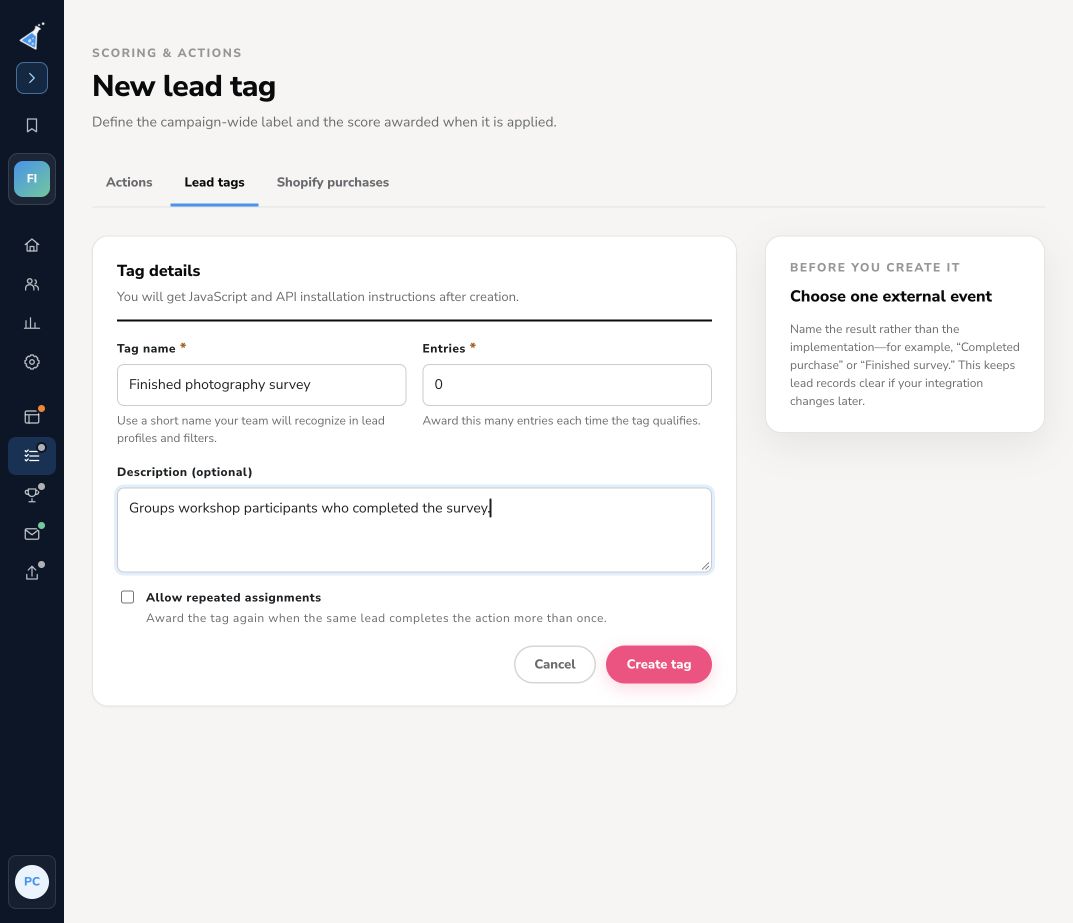
Section titled “What Makes up a Lead Tag?”A lead tag is comprised of a tag name, description, and optional point value.
How do I Define Lead Tags in my Contest?
Section titled “How do I Define Lead Tags in my Contest?”Lets assume you want to give someone additional points for having bought a product on your store.
- Open your campaign and click settings from the top menu.
- Select “Scoring” from the dropdown menu, then click “Custom Lead Tags.”
- Click “Add New Tag”
- Give your tag a short name like “Purchased.”
- Add a description for the tag for more details.
- Pick a number of points to award for the tag… say 5. :)
- Click to create the new tag.

Now that you’ve defined the tag you’ll want to start tagging your leads…
How do I Tag a Lead?
Section titled “How do I Tag a Lead?”There are a couple of different ways to tag a lead. You can put a script on a page such as your checkout page, use the API workflow described below, or manually tag a lead by editing them.
Installing Tag to Site Select “Lead Tags” from the menu
Section titled “Installing Tag to Site Select “Lead Tags” from the menu”On this page, you’ll find two parts to the script that have to be added to any page that will call a lead tag.

Tag a Lead Via KickoffLabs API
Section titled “Tag a Lead Via KickoffLabs API”You can use your own code to make an HTTP POST to the lead-tag endpoint shown in your campaign. The only required parameter is email. It can be set as a form or query string parameter. Use the campaign-specific URLs from your Lead Tag install screen for tagging the lead or, when applicable, tagging the referring parent lead.
Tag a Lead Manually via Lead Card From the “Lead” section of your campaign: Select t…
Section titled “Tag a Lead Manually via Lead Card From the “Lead” section of your campaign: Select t…”he lead you’d like to apply the tag to > Select “Edit Lead”, then scroll to the bottom of the settings to the “Lead Tag” area and check the tag you want to add to the lead.

Notes about Tagging Leads: The tag call does NOT have to be made on existing leads
Section titled “Notes about Tagging Leads: The tag call does NOT have to be made on existing leads”** If you called the tag script with a lead that’s not in your contest we would then add them to the contest with the tag used. The social ID/KID/Kolid can be used in place of email if you know the KOL ID of the person you want to tag. Need help? Let us know at support@kickofflabs.com!
Need help? Email support@kickofflabs.com with your campaign URL, the lead email you tested with, and a screenshot of what you expected to happen.