

Create a giveaway campaign
A giveaway trades a chance to win a prize for an email address. With sharing turned on, people earn extra entries or points by referring friends and completing actions, so each entrant helps spread the word. This guide walks through building one in the dashboard, from picking a recipe to drawing a winner.
Planning the giveaway, not just the page? The Running Viral Giveaways guide on kickofflabs.com covers prize ideas, promotion, and follow-up emails. The legal giveaway guide covers official rules. This article covers the setup.
Pick the right recipe
Section titled “Pick the right recipe”All giveaway recipes are under Giveaways in the new campaign screen. You can adjust points and actions later, but the recipe decides how the winner is chosen and how the page is laid out.
| Recipe | How it works | Use it when |
|---|---|---|
| Referral Giveaway | One prize, random winner. Each friend who signs up through an entrant’s link adds an entry. | You want a classic giveaway with a reason to share. |
| Basic Giveaway | One prize, random winner. Share links are included, but sharing doesn’t earn entries. | You want the simplest possible entry, or your rules can’t reward sharing. |
| Referral + Action Giveaway | Referrals earn entries, and so do actions like follows, videos, and surveys. | You also want social follows or other actions. See bonus-entry giveaways. |
| Leaderboard Giveaway | Entrants compete on points for the top spots. | Your audience enjoys competing and you’ll reward the top sharers. See leaderboard giveaways. |
| Giveaway + Milestone Rewards | A prize drawing, plus guaranteed rewards at referral milestones. | You want everyone who shares to win something. See reward-level campaigns. |
If you’re not sure, start with Referral Giveaway.
Build it step by step
Section titled “Build it step by step”-
Choose the recipe and describe the prize
Section titled “Choose the recipe and describe the prize”From Campaigns, select + New campaign, open Giveaways, and pick your recipe. The preview on the right lists what will be created, such as the entry box, countdown, rules, share links, and confirmation email.
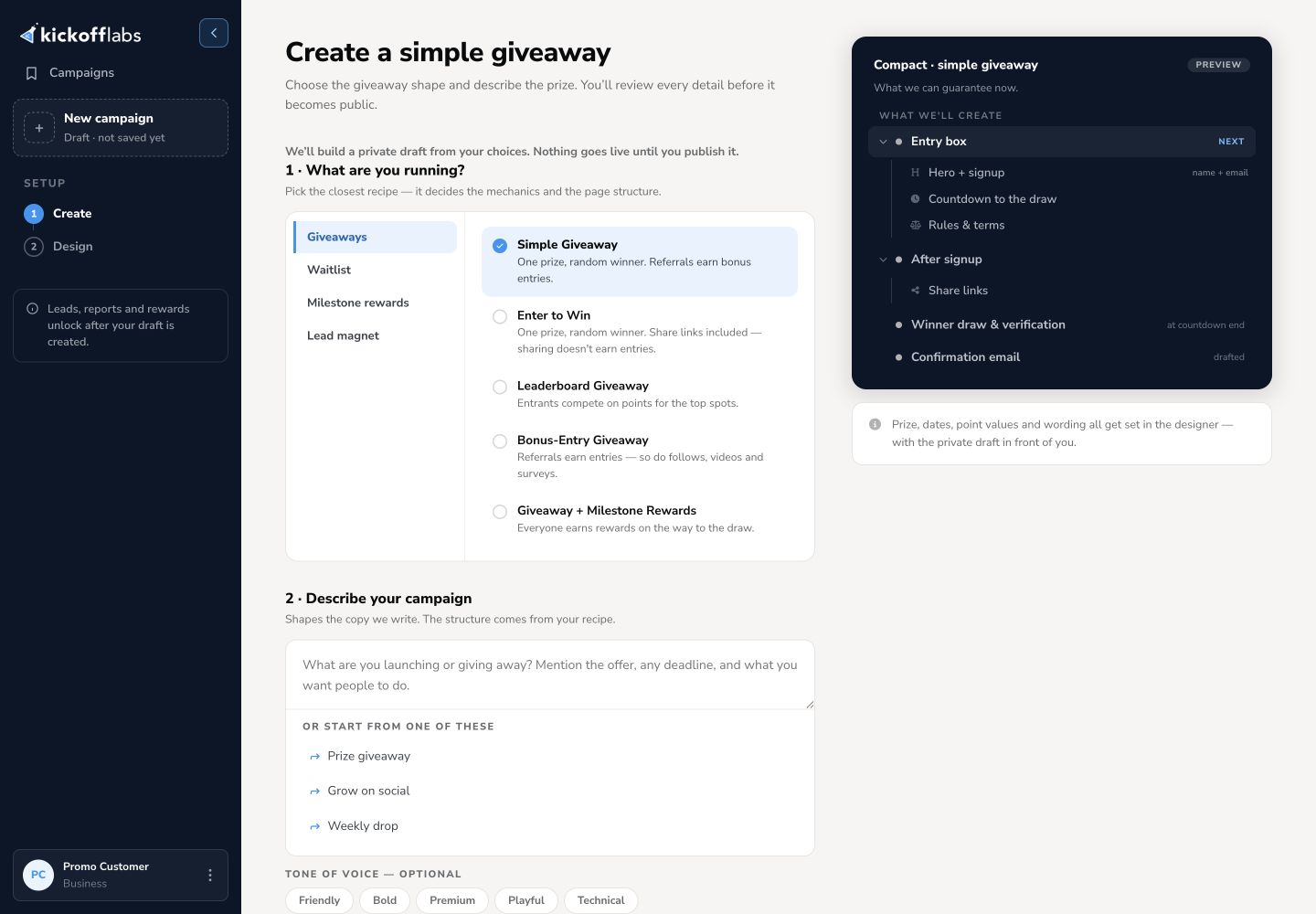
Under Describe your campaign, say what the prize is and what it’s worth, who can enter, and when the giveaway ends. Open Customize your draft to choose Compact (an entry box) or Long Form (a full page), a tone, and a starting style. Then select Create my draft.
-
Edit the page and the official rules
Section titled “Edit the page and the official rules”The draft opens in the designer. On the Signup view, click any text to edit it, and replace sample images with photos of the prize. If you use the Simple box layout, see header image size for simple box pages.
Open the rules and terms text and check every detail: the sponsor (you), the prize and its value, who can enter, start and end dates with time zone, how to enter, and how the winner is chosen. Edit your terms.
-
Check what entrants see after signup
Section titled “Check what entrants see after signup”Switch to Post-signup. This is the view people see right after they enter. It shows their entries or points, their share link, and the ways to earn more.
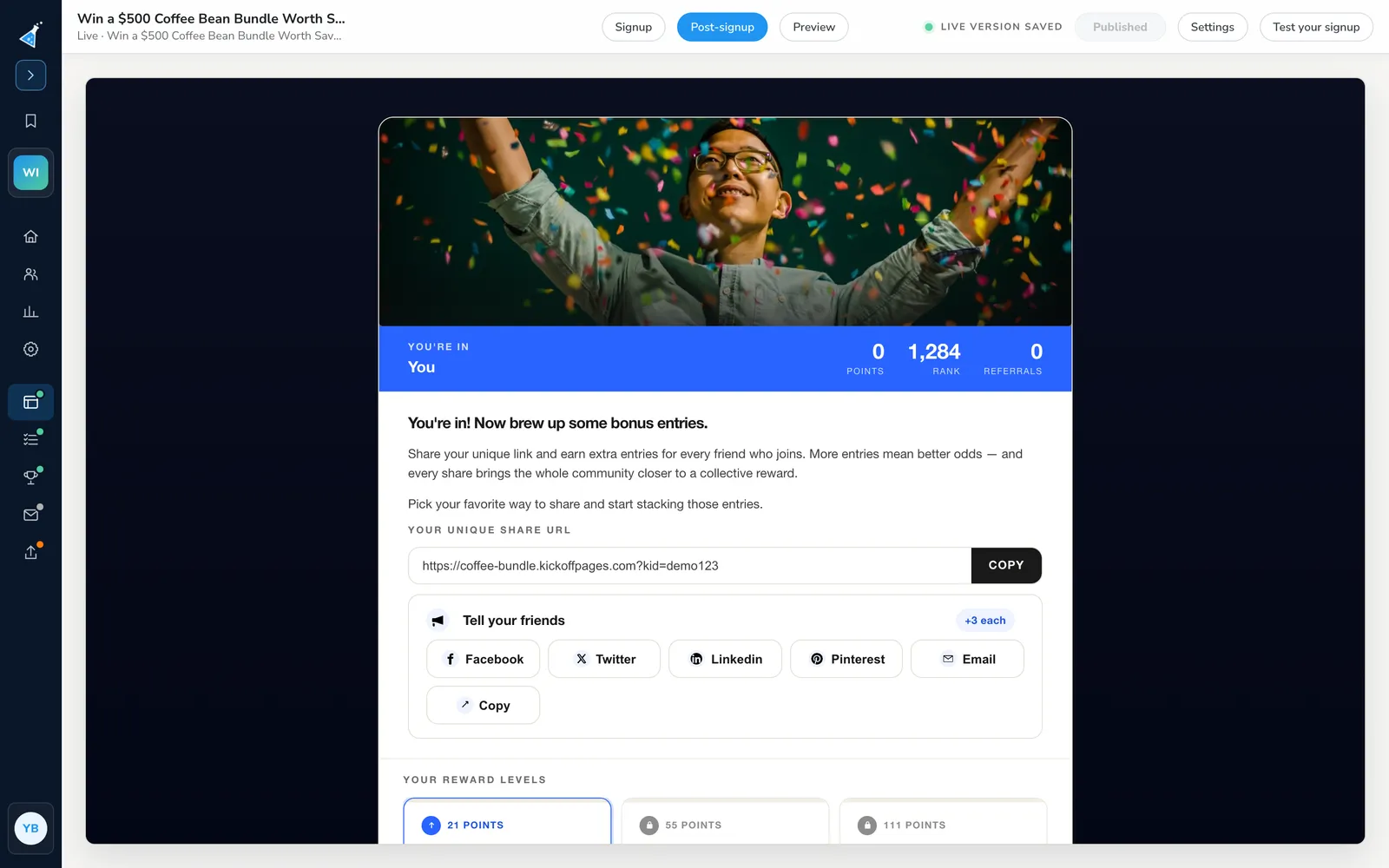
Make sure it says exactly what sharing earns, such as “+3 entries for every friend who enters”, and that this matches the rules.
-
Set entries and actions
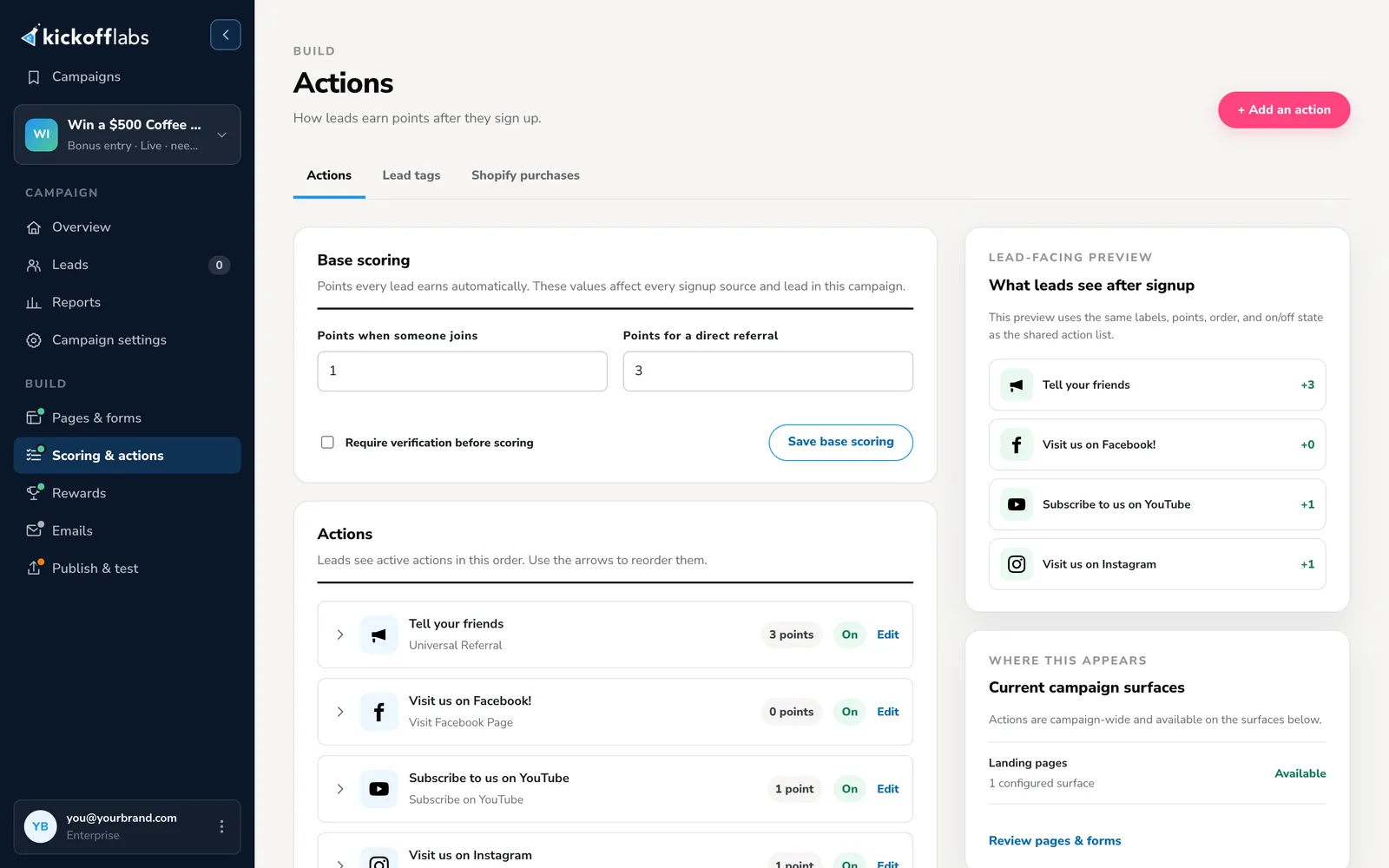
Section titled “Set entries and actions”Open Scoring & actions. Points when someone joins and Points for a direct referral decide how many entries people get. Add actions if people can also earn entries for things like following you on Instagram or watching a video.
-
Set the end date
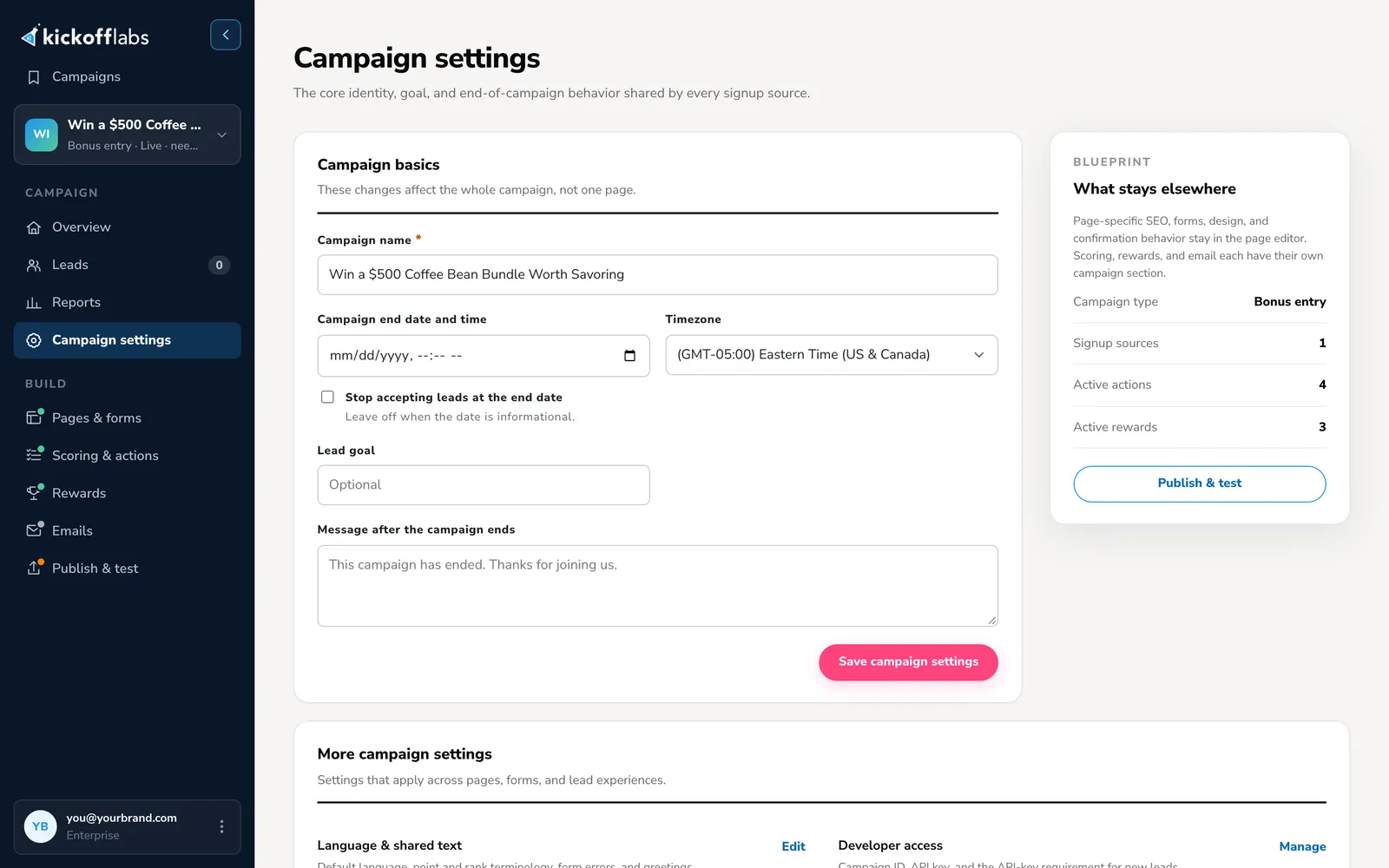
Section titled “Set the end date”Open Campaign settings. Set the Campaign end date and time and Timezone to match your rules. Turn on Stop accepting leads at the end date so no one can enter late, and write a Message after the campaign ends.
-
Turn on emails
Section titled “Turn on emails”Open Emails. The Automatic reply confirms each entry and sends the person their share link, so they can come back and share later. Each email has its own on/off switch: check its wording, turn it on, and save it. If you turned on Require verification before scoring, turn on the Verification email too, or referrals will never count.
-
Publish and test
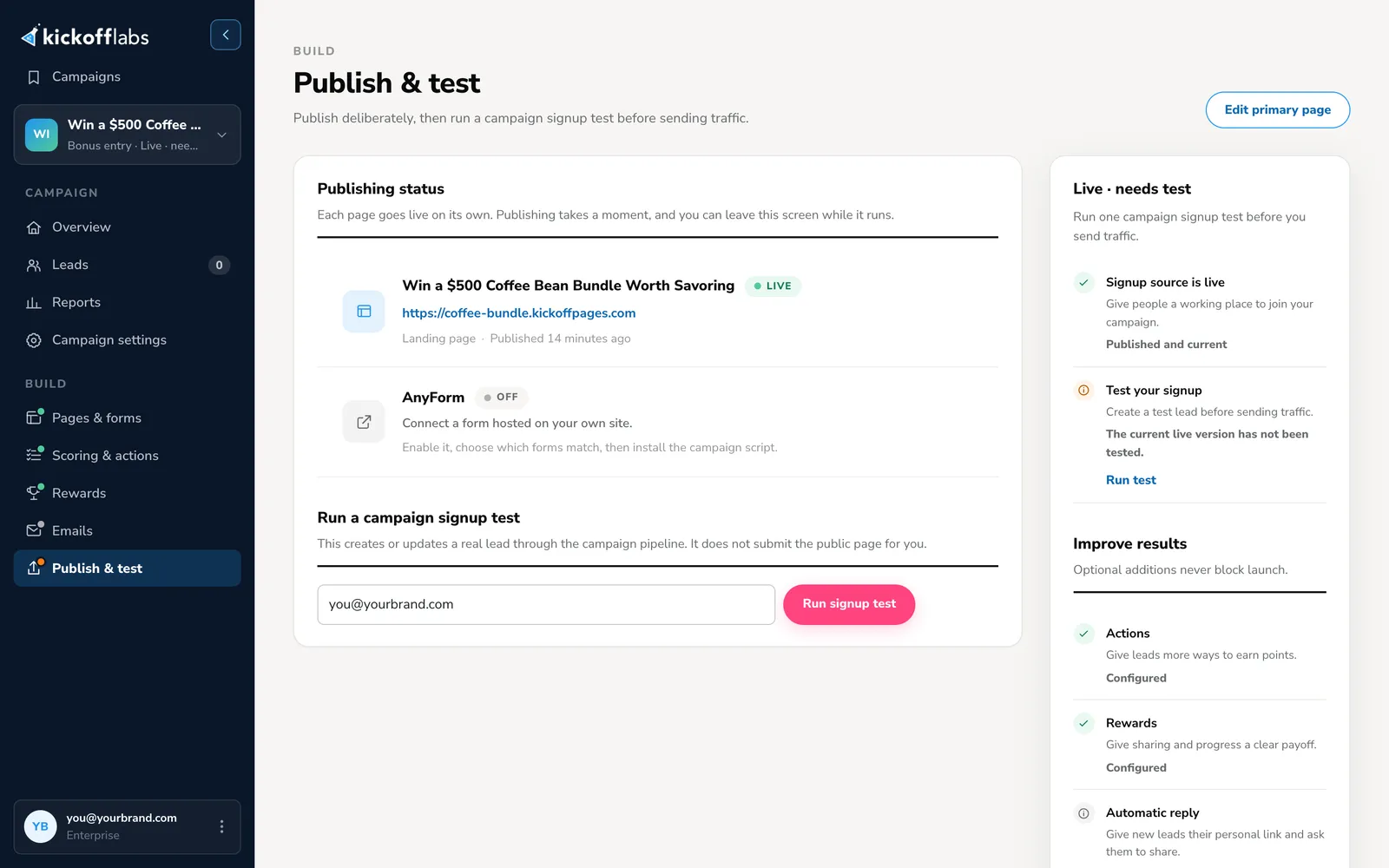
Section titled “Publish and test”In the designer, select Preview to check both views on desktop and mobile, then publish. Open Publish & test and select Run signup test.
Then test it as an entrant:
- Enter on the public page and copy your share link.
- Open that link in a private window or another browser and enter with a second email.
- If verification is on, confirm both addresses from their verification emails. Until then, the referral stays pending.
- Check that the first entry’s points went up and that the confirmation email arrived.
- Try any actions you added, and repeat the test on a phone.
-
Pick a winner when it ends
Section titled “Pick a winner when it ends”After the end date, open the campaign Overview and select Pick a winner. Choose the draw method that matches your rules, such as weighting by contest score or giving everyone an equal chance. Select Review eligibility, then Run winner draw.
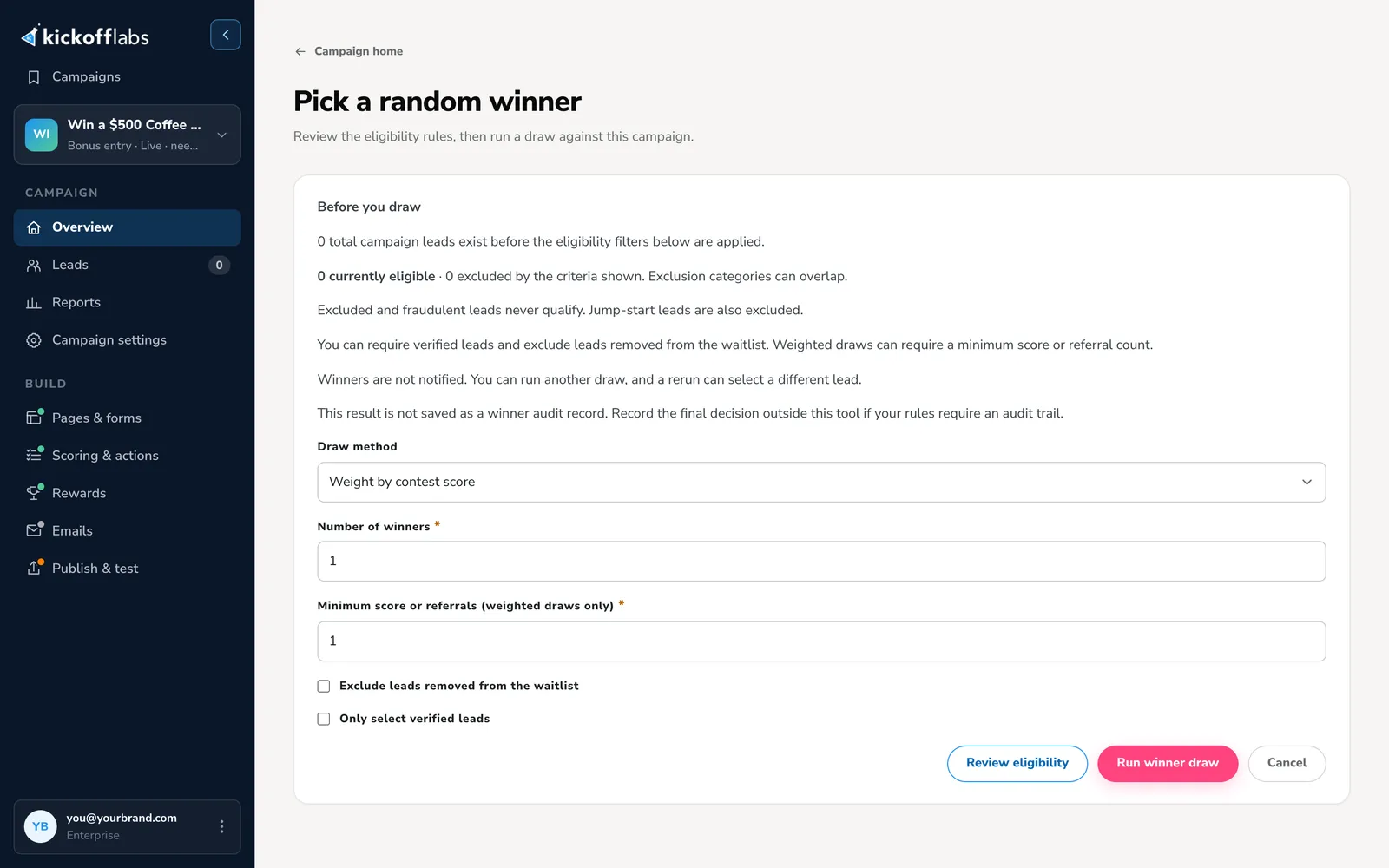
KickoffLabs doesn’t contact the winner for you, and the draw result isn’t saved. Record who won, then reach out to them yourself. More on picking a winner.
Tips for a giveaway that grows
Section titled “Tips for a giveaway that grows”- Keep the entry form short. Name and email are enough for most giveaways. Ask for more only if you need it to deliver the prize or will use it later.
- Say the prize and deadline in the headline. “Win a $500 coffee bundle. Ends June 30.” tells people everything they need to decide.
- Make every surface match. The page, rules, emails, and social posts should all name the same prize, dates, and entry methods.
- Run it for a few weeks, not months. A short deadline creates urgency. A countdown on the page helps. Use a countdown timer.
- Plan the follow-up. Most entrants won’t win. Send everyone a thank-you with a discount or a next step when the giveaway ends.
- Bring the first wave of traffic. Sharing multiplies interest that already exists. See giveaway marketing on a budget.
Go deeper
Section titled “Go deeper”- Running Viral Giveaways guide: the full strategy series.
- Legal giveaway best practices: official rules, platform policies, and choosing winners fairly.
- Giveaway checklist: a step-by-step launch plan.
- Giveaway actions guide: which actions to reward.
- Reducing giveaway fraud.
- In this help center: Bonus-entry giveaways · Leaderboard giveaways · Pick a winner
Need help? Email support@kickofflabs.com with your campaign URL, the test entry email, and the result you expected.