

Take signups at an event with kiosk mode
Kiosk mode turns one shared device, such as a tablet on a stand at your booth, into a signup station. Each person signs up on a blank form, scans a QR code to take their entry home on their phone, and the page resets for the next person.
Kiosk mode is included on Premium, Business and Enterprise plans.
Planning a booth giveaway? The kiosk mode page on kickofflabs.com has an event playbook for conferences, trade shows and pop-ups. This article covers the setup.
What changes on the kiosk
Section titled “What changes on the kiosk”| On the kiosk device | Why |
|---|---|
| The form is always empty, with autofill off. | Nobody sees the last person’s name or email. |
| A QR code appears after signup. | It opens the person’s own entry on their phone, with their share link and points. |
| An “I’m done” button and an idle reset. | The page forgets each person when they finish or walk away. |
| Share buttons are hidden (you can show them). | On a shared device they’d post from whoever is signed in there, often you. |
Only the device you set up behaves this way. Everyone else, including people who open their entry on their own phone and the friends they refer, sees your normal page, so referrals still count.
Kiosk mode also stops the duplicate IP address check from flagging these signups, because they all come from the same device. Other fraud checks still run.
Set it up
Section titled “Set it up”-
Open the kiosk mode settings
Section titled “Open the kiosk mode settings”Open your campaign, go to Campaign settings, and under More campaign settings select Set up next to Kiosk mode.
-
Turn it on and choose the options
Section titled “Turn it on and choose the options”Switch on Turn on kiosk mode, then check the options:
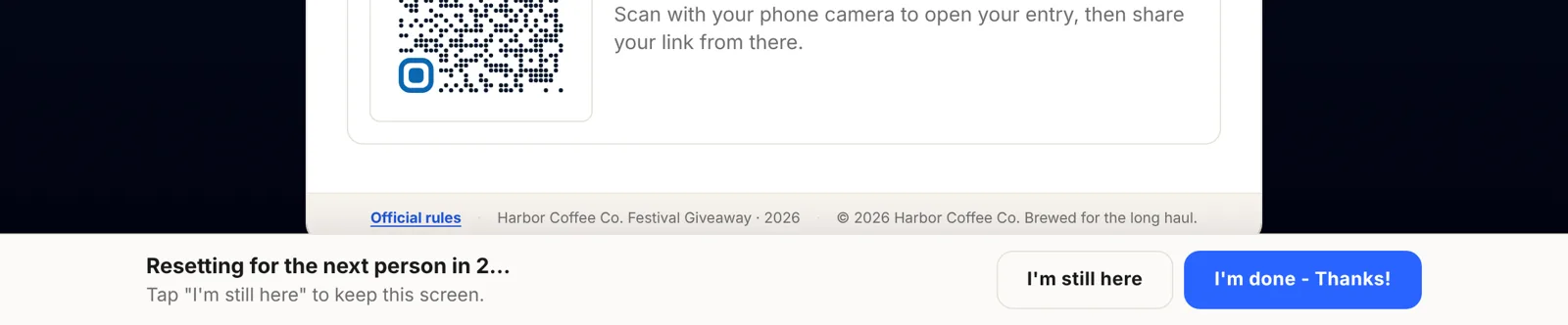
- Reset when the thank-you screen is left alone: after 30 seconds, 60 seconds (the default), 2 minutes, or never. A 10-second countdown with an I’m still here button shows before it resets.
- Start over button: the text on the button people tap when they’re done. The default is “I’m done - Thanks!”.
- Show a QR code for their phone: on by default. Keep it on so people can take their entry with them.
- Hide share buttons on the kiosk: on by default and recommended.
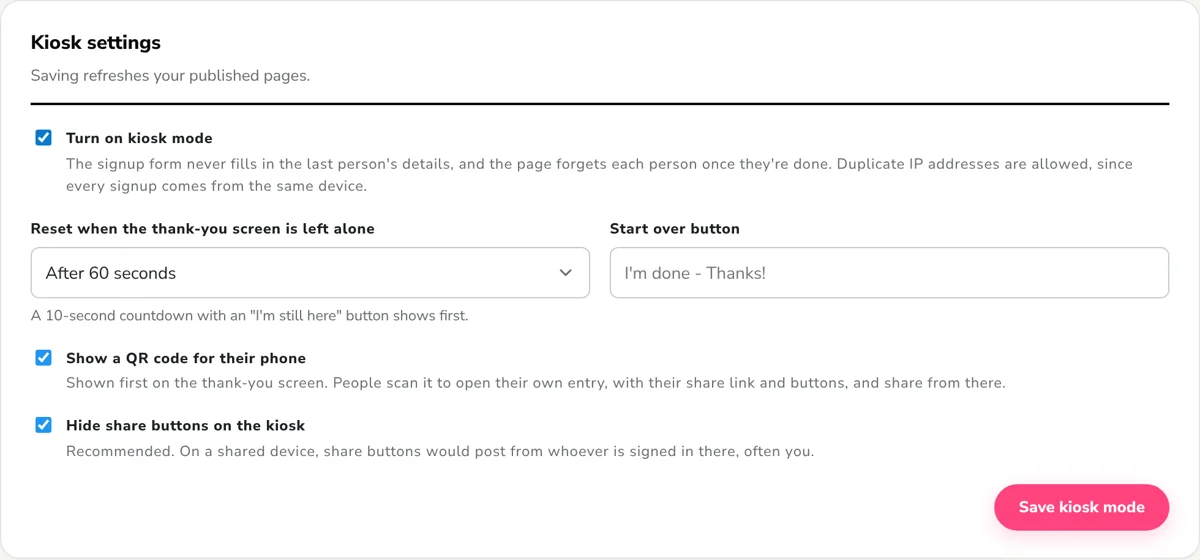
Select Save kiosk mode. Saving refreshes your published pages.
-
Turn on the automatic reply
Section titled “Turn on the automatic reply”People can’t come back to the kiosk, so the automatic reply is how most of them find their entry again. It emails their personal link after they sign up, or after they verify their email if Verification email is on. The kiosk mode page shows whether it’s On or Off, with a link to turn it on. Email only sends once a Postal address is saved in Sender & compliance, so check that too and send yourself a test.
-
Set up the kiosk device
Section titled “Set up the kiosk device”On the tablet or laptop you’ll bring, open the kiosk link shown at the bottom of the kiosk mode page. It’s your published page address with
?kiosk=1at the end.That browser stays in kiosk mode for this campaign, even after a refresh. To switch it back to a normal browser, open the page with
?kiosk=0at the end.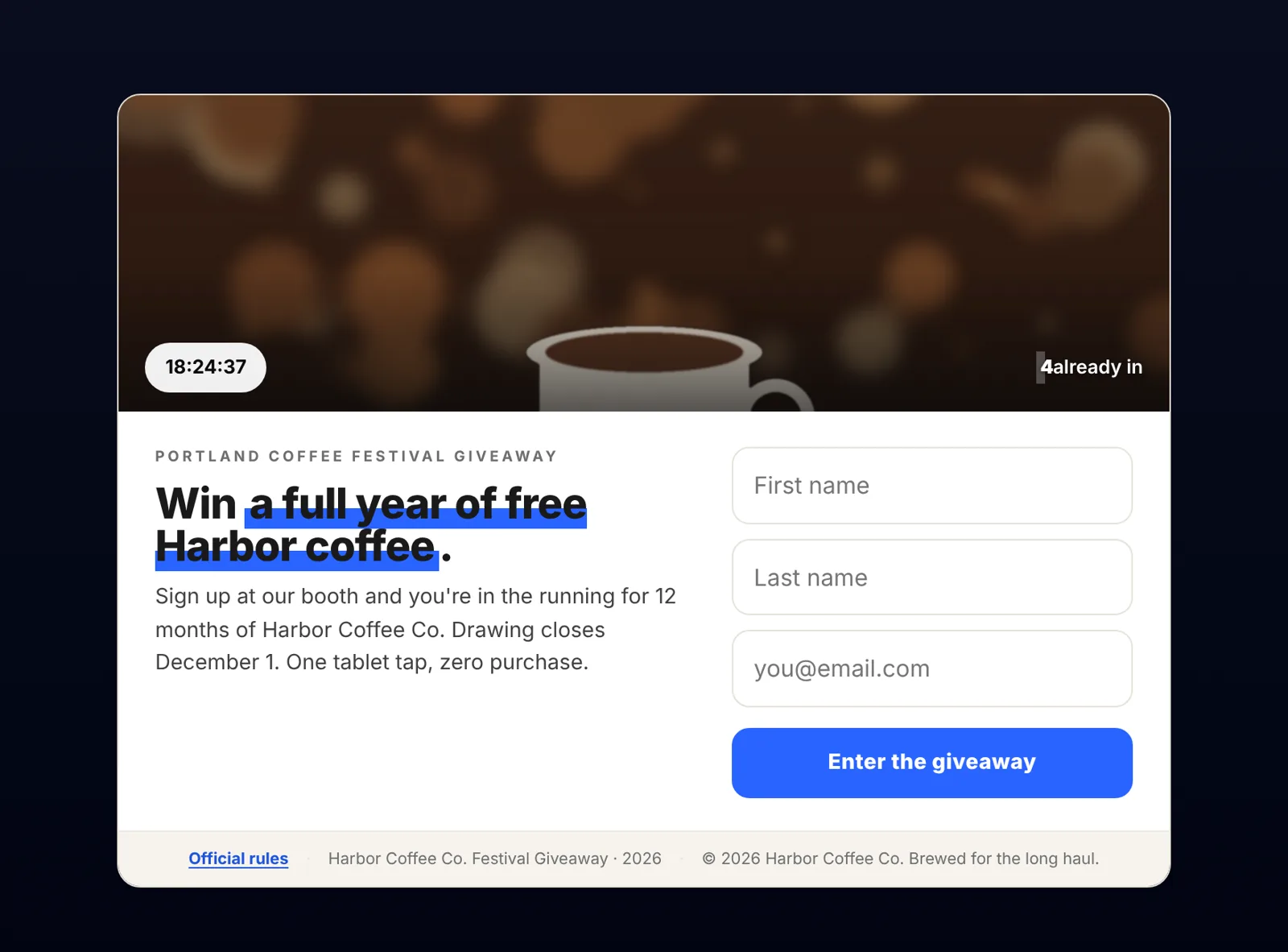
-
Test it before the event
Section titled “Test it before the event”Sign up once on the kiosk with your own email. After signup you should see a Take your entry with you QR code where the share link would be, and an All done? bar with your Start over button.
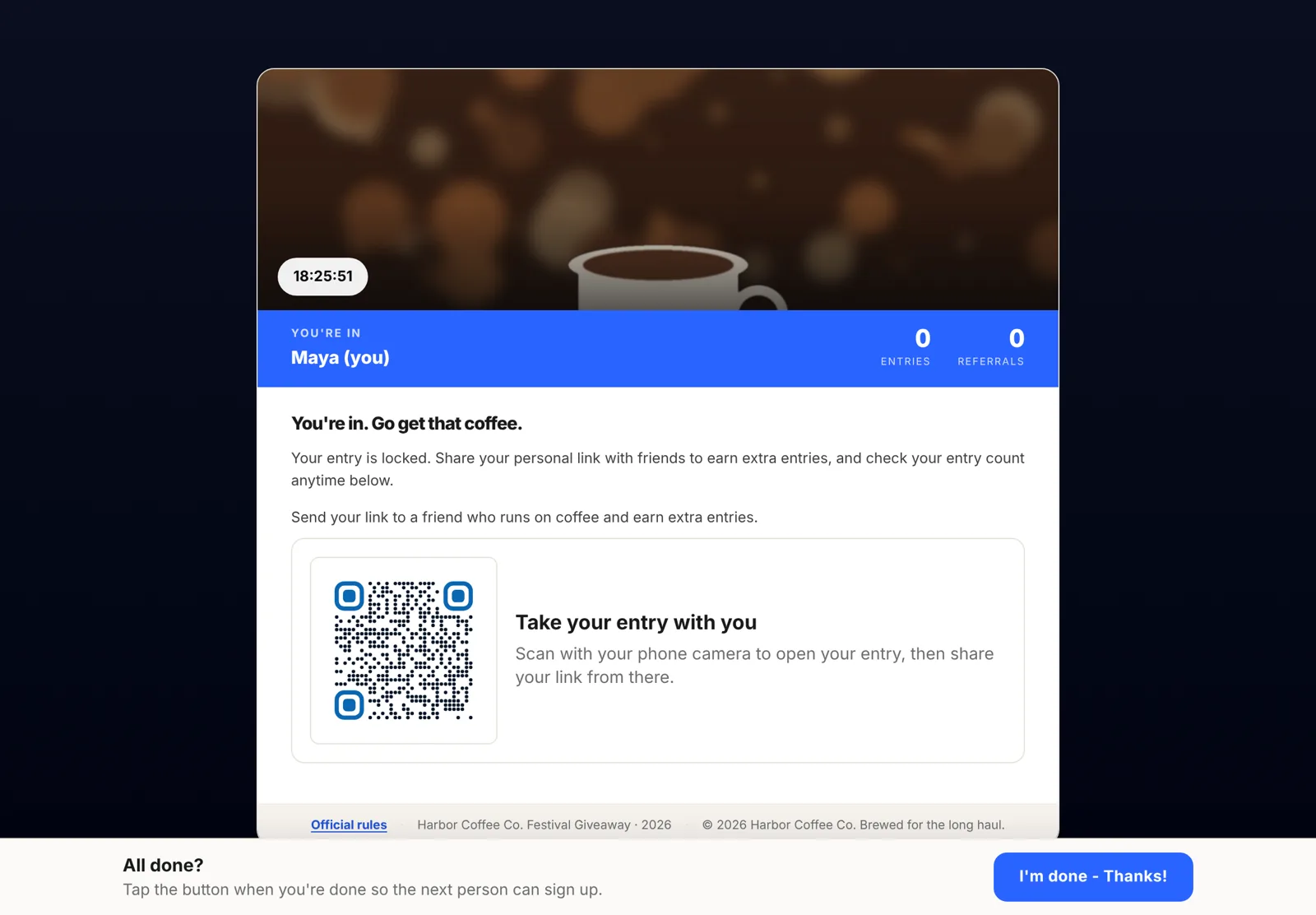
Scan the QR code with your phone. It should open your entry with your share link. Then tap the Start over button on the kiosk and check that the form is empty again. Leave the thank-you screen alone once to see the countdown.
After the event
Section titled “After the event”- Kiosk signups are marked Kiosk (shared device) on the lead’s profile, so you can tell booth visitors from online entries. See Understand a lead profile.
- Draw a winner as usual with Pick a Winner.
- To use the same tablet for a different campaign, open that campaign’s kiosk link on it. Each campaign remembers kiosk mode separately.
Troubleshooting
Section titled “Troubleshooting”- The form still shows the last person’s details. The device isn’t in kiosk mode. Open the kiosk link with
?kiosk=1again on that device, and check that kiosk mode is on and saved. - No QR code after signup. Check that Show a QR code for their phone is on, and that the device is online.
- Share buttons show on the kiosk. Switch on Hide share buttons on the kiosk and save.
- Kiosk mode turned off after a plan change. It’s active only on Premium and higher. Your saved settings come back when you upgrade.
Create a giveaway campaign · Detect and manage fraud · Kiosk mode on kickofflabs.com