

Choose a full page or a simple box
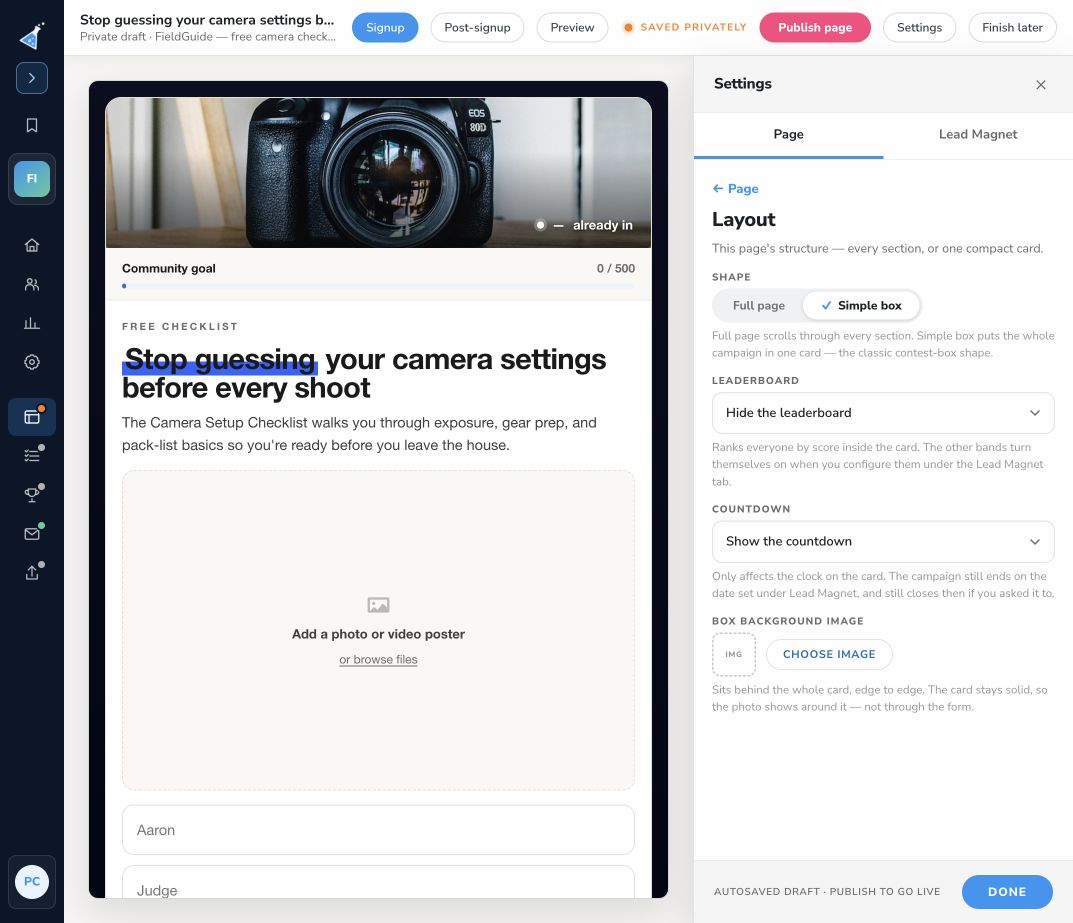
The editor offers Full page and Simple box layouts. Open Pages & forms → Edit → Settings → Page → Layout to choose one.
| Layout | Use it when |
|---|---|
| Full page | Visitors need a longer explanation, separate sections, images, FAQs, or reward details. |
| Simple box | A focused signup card can explain the offer and collect the information you need. |
Selecting a layout changes the draft presentation. Review the result instead of assuming every section will appear in the same place. Full-page sections support more ordering controls; a simple box keeps its content together.
The simple-box settings include its background image and options to show or hide a leaderboard or countdown when available. Hiding a countdown changes its display; it does not change the campaign’s end date or whether signups stop.
Review the switch
Section titled “Review the switch”- Check Signup: heading, offer, image, form, and terms.
- Check Post-signup: confirmation, personal link, actions, rewards, and any download.
- Preview desktop and mobile. Check button labels, image crops, and long text.
- Publish the draft only when both states work as intended.
Page layout changes affect this page. Campaign dates, scoring, actions, and rewards remain shared campaign settings. Use Manage page sections to refine a full page and Customize a signup form for its inputs.