

Set default share and post-signup URLs
These defaults help campaign content choose where to send people when a page or signup source does not supply its own URL. Check them when your campaign has multiple pages, an embed, a popup, or AnyForm.
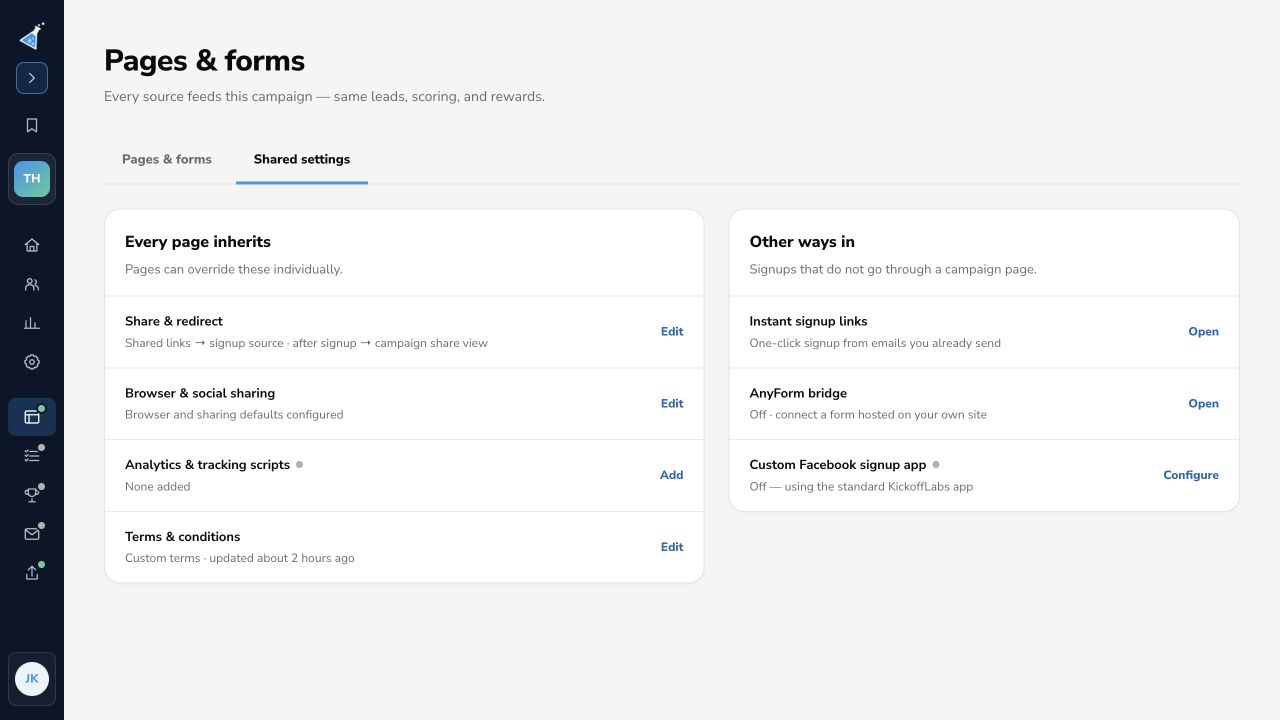
- Open the campaign and select Pages & forms.
- Select Shared settings, then open Share & redirect.
- For Default share destination, choose No default, a campaign page, or Custom URL. This is the canonical link used when campaign content needs a link to share.
- Turn on Always share the campaign default URL only if sharing should use that destination even when a lead joined from another page.
- For Default post-signup destination, choose No default, a campaign page, or Custom URL. This is used when a page does not define its own redirect.
- Select Save URL defaults. Submit a test lead through each relevant signup source and check the actual share and post-signup destinations.
A page-specific post-signup confirmation or redirect can override the campaign default. Edit it in the KickoffLabs designer under Settings → Post-signup confirmation. The two controls serve different purposes: one is the link people share, the other is where a visitor goes after signup.
Manage landing pages · Edit a page
Need help? Email support@kickofflabs.com with the campaign URL, the signup source, and the link you expected.