

Send KickoffLabs leads to HubSpot
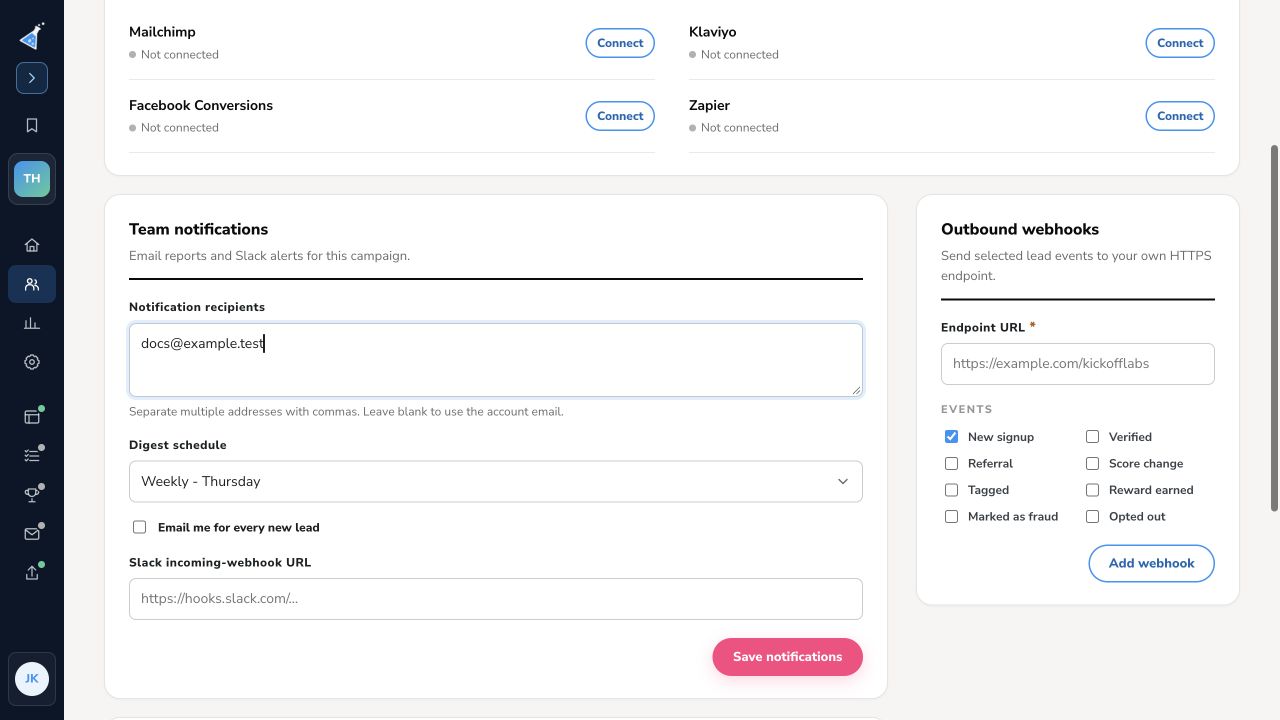
KickoffLabs dashboard lists Mailchimp, Klaviyo, Facebook Conversions, and Zapier under Leads → Lead delivery → Connected services. It does not list HubSpot as a KickoffLabs native connection. Use the Zapier route if a suitable HubSpot action is available for your account. The old Setup → Integrations screenshots refer to the classic dashboard.
The former native HubSpot connection is not in the tested KickoffLabs Lead delivery menu. Ask support for the current migration path if you depended on that connection. Ask support about migration before disconnecting a working classic campaign.
Set up a new-lead workflow
Section titled “Set up a new-lead workflow”- In KickoffLabs, open the campaign’s Leads → Lead delivery → Zapier page. It shows the campaign ID, a private Campaign API key, and a link to the KickoffLabs Zapier app. Treat the key as a credential.
- In Zapier, start a Zap with a KickoffLabs new-lead trigger for this campaign. Authenticate using the details shown in KickoffLabs.
- Choose HubSpot as the destination and select its appropriate create or update contact action, if the provider makes one available. Map the lead email as the primary identity field; map name, phone, and consent only when the destination supports and permits them.
- Send a new synthetic lead through the published KickoffLabs signup source. Confirm it appears under Leads, inspect the Zap run, and check the resulting contact in HubSpot. Resolve any required-field or consent error before enabling the workflow for real traffic.
A new-lead trigger does not automatically transfer people who signed up before the Zap was enabled. For existing leads, export a filtered CSV and use the destination’s import process after reviewing its duplicate and consent rules. If Zapier does not offer the action you need, KickoffLabs also has Outbound webhooks under Lead delivery for a custom HTTPS endpoint; that path needs development work and its own test.
For leads that joined before this connection was enabled, use HubSpot contact import instructions after exporting the appropriate KickoffLabs audience. Test the live connection separately with a new lead.
Need help? Email support@kickofflabs.com with your campaign URL, provider, and the failed test step. Do not send API keys.