

Add and replace page images
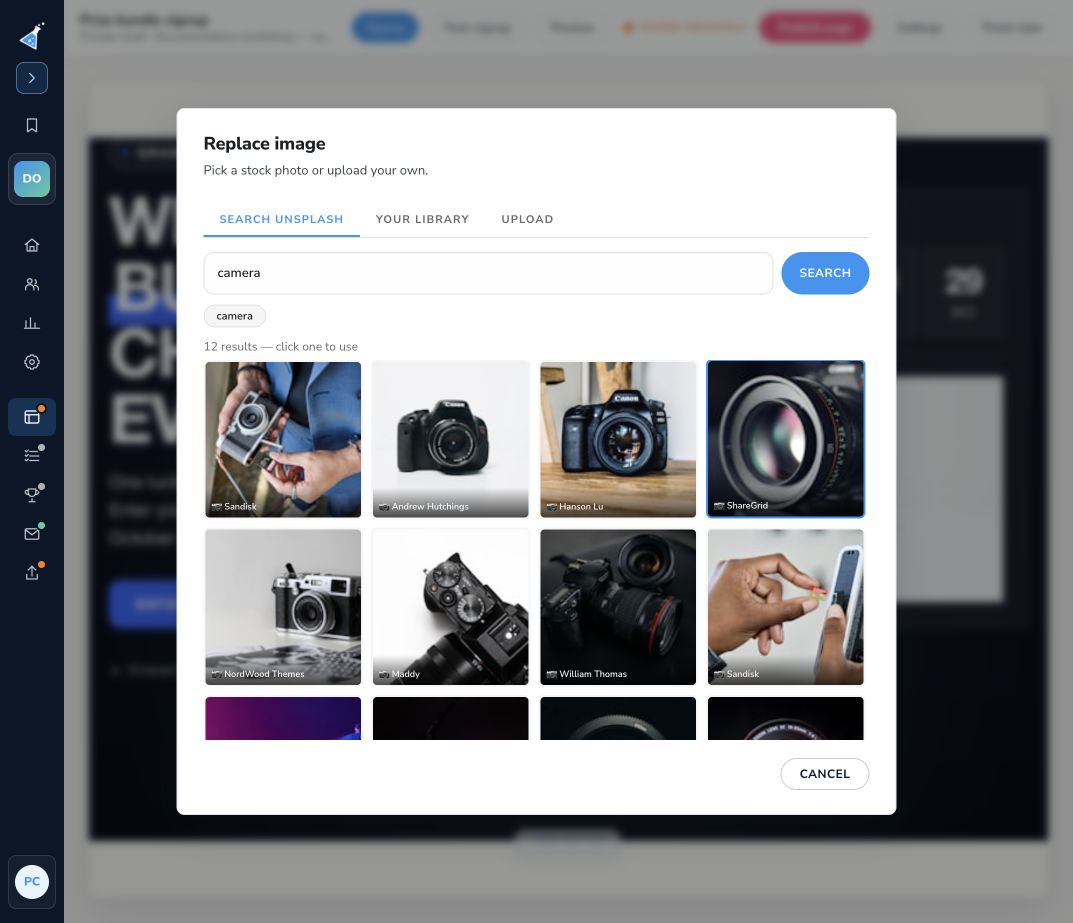
Open Pages & forms → Edit, select an image or its section, and choose Replace image or Choose or replace image, depending on the control shown.
Choose the source
Section titled “Choose the source”The image picker offers three options:
- Search Unsplash: enter a subject, run the search, and choose a result. Photographer credits help you identify the image.
- Your library: reuse an image already available in the account.
- Upload: add an image from your computer. Use an image you have permission to use.
When the picker closes, check that the intended image appears in the draft. The same file can look different in a wide background and a small card. Choose a subject that remains recognizable when cropped.
Check before publishing
Section titled “Check before publishing”- Preview desktop and mobile to check the crop, image clarity, and text contrast.
- Keep important words in page text so visitors can read them even when an image is cropped.
- Check logos against both light and dark backgrounds.
- Publish the draft to update the live page. If the old image remains, confirm the latest version finished publishing and reload the public URL.
Use the shared asset library to manage reusable images and files. Removing a shared asset can break pages that still use its URL. See page speed guidance for large images.