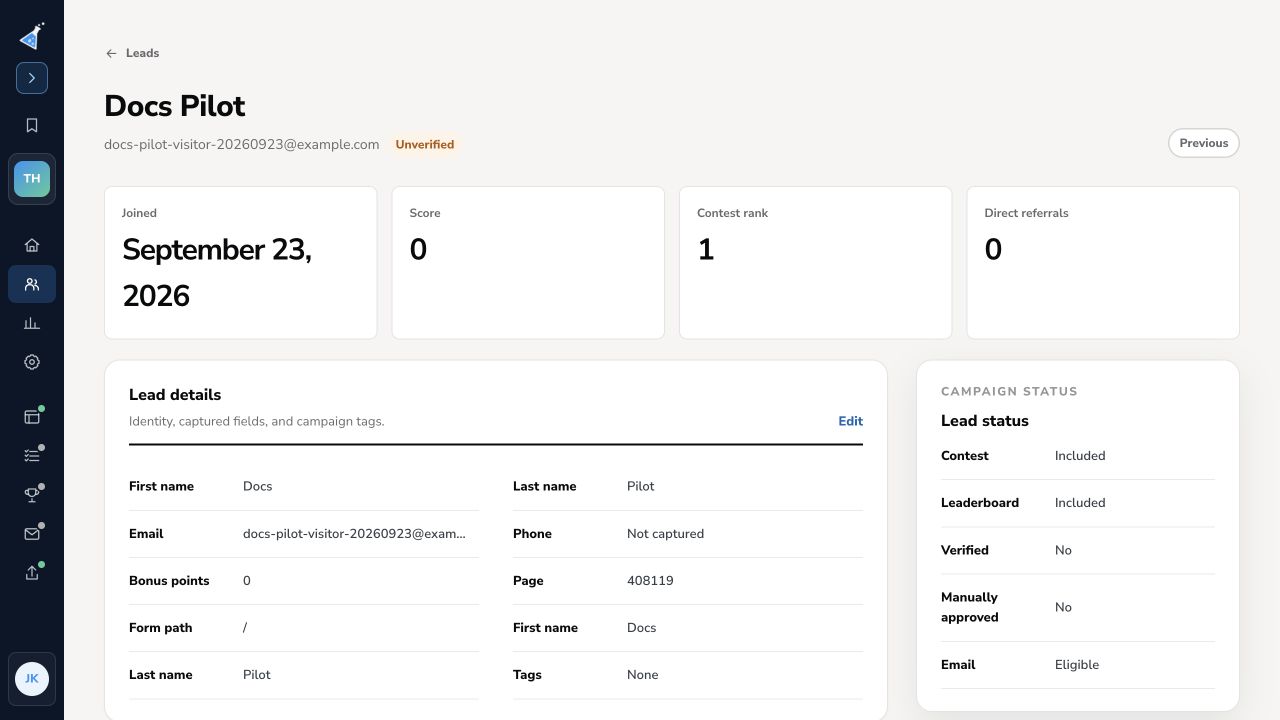
Lead cards: details, timeline, referrals, actions, and scoring
Use the lead card when you need to understand what happened with one specific lead: who they are, how they signed up, who they referred, which actions they completed, and how they earned points.
Open a lead card
Section titled “Open a lead card”- Open your campaign in KickoffLabs.
- Go to the Leads screen.
- Find the lead you want to inspect.
- Click View Card on the right side of the lead row.

The lead card includes these tabs:
- Lead Profile
- Timeline
- Referrals
- Actions
- Score
- Edit Lead

View lead details
Section titled “View lead details”Use the Lead Profile tab to review the lead’s submitted form data, source information, campaign details, score, rank, sharing links, and signup details.

This is the best place to confirm basic identity and attribution details before troubleshooting referrals, points, or integrations.
Review timeline activity
Section titled “Review timeline activity”Use the Timeline tab to see the history of events associated with the lead. This can include signup activity, status changes, and webhook events sent to other applications.

Check this tab when you need to understand the order of events or verify whether an integration/webhook fired.
See who a lead referred
Section titled “See who a lead referred”Use the Referrals tab to see who the lead referred and how many referrals have counted toward the contest or campaign.

If a referral is missing or not counted, compare the referred lead’s signup details, verification state, and fraud status against your campaign rules.
View or edit completed actions
Section titled “View or edit completed actions”Use the Actions tab to review a lead’s progress on campaign actions. Actions are usually marked complete automatically when the lead performs them, but this tab gives you a backup view and a manual verification path.

Most actions can be marked as completed from this screen. The Tell your friends! action may show NA in the Completed column because it is based on the number of friends referred and cannot be manually altered there.
For a broader action setup guide, see KickoffLabs actions.
Complete a lead tag action manually
Section titled “Complete a lead tag action manually”If you need to complete a lead tag action manually:
- Open the Lead section of your campaign.
- Select the lead.
- Click Edit Lead.
- Scroll to the Lead Tag area.
- Check the tag you want to apply to the lead.
Learn more about lead tag actions.

Understand scoring and points
Section titled “Understand scoring and points”Use the Score tab to see why a lead has points and to update the number of points assigned to the lead.

A few scoring notes:
- Values in the Custom Points field can be positive or negative.
- When custom points are added, they appear on the lead card’s Score tab with the reason you entered.
- Point changes can take a few minutes to process, update ranks, and appear throughout the contest.
For broader strategy, see KickoffLabs guides on referral programs and viral giveaways.
What to check after
Section titled “What to check after”- Submit or inspect a fresh test lead if you are troubleshooting a campaign behavior.
- Confirm the lead’s profile, referrals, actions, timeline, and score match what you expected.
- If points or ranks changed, wait a few minutes and refresh the campaign reporting before assuming the change failed.
- Save the campaign URL, test lead email, screenshots, and any error messages before contacting support.
Need help? Email support@kickofflabs.com with your campaign URL, the lead email you tested with, and a screenshot of what you expected to happen.