

Install KickoffLabs embeds, popups, and AnyForm on another site
KickoffLabs dashboard creates external-site signup sources from Pages & forms → + New page. Choose Embed or Popup for a KickoffLabs form, or Connect a form (AnyForm) to capture submissions from an existing external form. New embeds and popups use the classic editor; generated KickoffLabs landing pages use the KickoffLabs editor.
Install a KickoffLabs Embed
Section titled “Install a KickoffLabs Embed”- Create an Embed and edit its template. Open the Embed’s Manage → Embed code screen.
- Copy the campaign script into the external site once, preferably near the end of the page body. Use the exact code from the current KickoffLabs screen.
- Copy the placement tag into the HTML area where the form belongs. The tested screen offers a responsive height and a fixed-height variant.
- Publish the Embed in KickoffLabs and publish the external page. A draft Embed remains invisible on the host site.
- Submit a synthetic lead and confirm it appears under Leads in the intended campaign. Test on a phone as well as desktop.
Do not install duplicate copies of the campaign script on one page. An Embed, Popup, and AnyForm on the same site may share the same campaign script, but use each source’s current KickoffLabs setup instructions. External builders may sanitize scripts, put HTML in an iframe, or restrict code injection by plan.
Choose the installation type
Section titled “Choose the installation type”- Embed: KickoffLabs form appears inside a host page at the placement tag.
- Popup: KickoffLabs form opens in an overlay on the external page after its configured trigger.
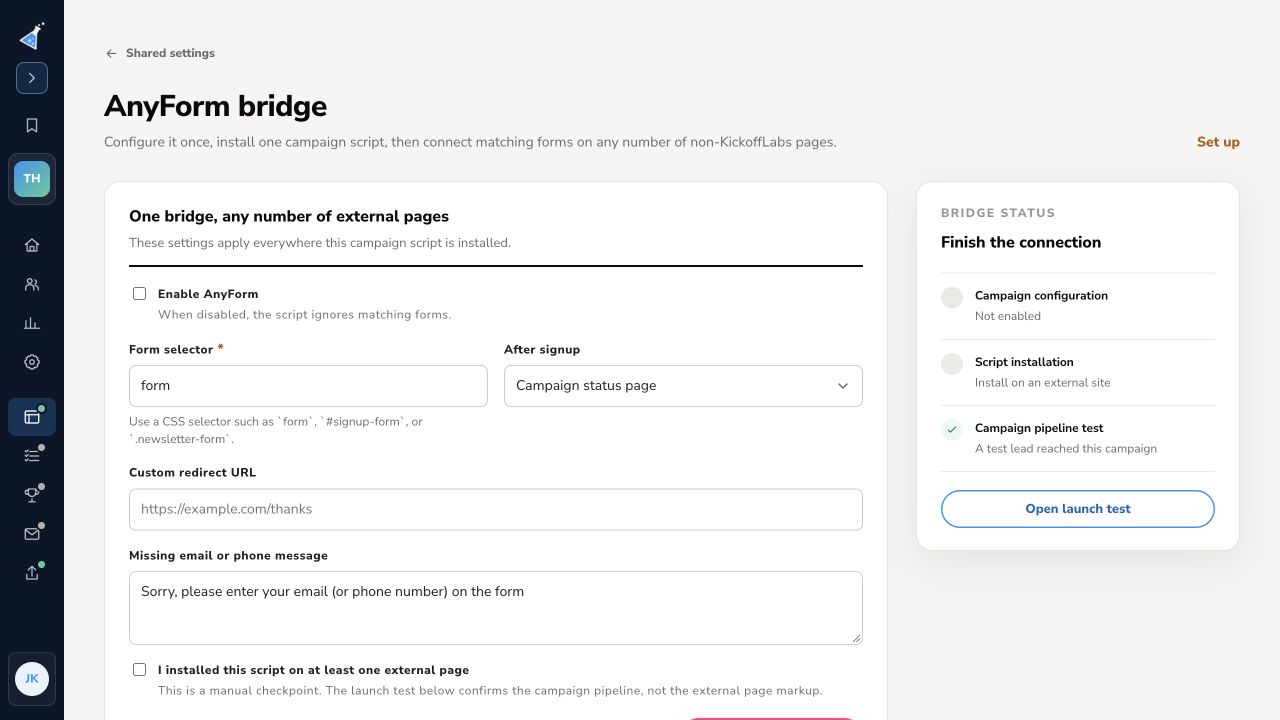
- AnyForm: An existing external form submits to KickoffLabs when its CSS selector matches and the campaign script is installed.
The sections below give placement guidance by builder. Their exact menu names can change independently of KickoffLabs. The KickoffLabs code shown in your campaign is the source of truth.
Hosted landing pages and embeds
Section titled “Hosted landing pages and embeds”A KickoffLabs landing page has its own published URL. To place a KickoffLabs form within another site, create an Embed in KickoffLabs and use its installation code. The old full-page embed menu was not observed in the tested KickoffLabs Pages & forms actions; do not use an archived code snippet for a newly created KickoffLabs page.
Instapage
Section titled “Instapage”Place the campaign script in the page or site code area and the placement tag in an HTML block where the form should appear. Publish, then test. Use the Instapage editor’s current custom-code controls. See Instapage custom HTML and JavaScript instructions for the host-site controls.
Leadpages
Section titled “Leadpages”Use a code or HTML widget for the placement tag and a page/site code area for the campaign script. Publish both changes and test the lead in KickoffLabs. See Leadpages HTML widget instructions for the host-site controls.
Shopify
Section titled “Shopify”Install the campaign script through an approved theme or page code area and place the Embed tag in a section that accepts custom HTML. Theme capabilities vary; test on the published storefront. See Shopify theme section instructions for the host-site controls.
Squarespace
Section titled “Squarespace”Use a code block for the placement tag and site/page code injection for the campaign script, when your Squarespace plan permits those controls. Check the published page, not only the editor preview. See Squarespace custom-code instructions for the host-site controls.
Unbounce
Section titled “Unbounce”Install the campaign script in the page’s script area and the placement tag in a custom HTML element. Verify the live variant used by visitors. See Unbounce Script Manager instructions for the host-site controls.
Webflow
Section titled “Webflow”Place the campaign script in site/page custom code and the placement tag in an Embed element. Publish the site and test the live URL. See Webflow Code Embed instructions for the host-site controls.
WordPress
Section titled “WordPress”Use an HTML block for the placement tag and a site-supported custom-code method for the campaign script. Avoid placing the script in content that the editor strips on save. See WordPress Custom HTML block instructions for the host-site controls.
Framer
Section titled “Framer”Use Framer’s supported custom-code and embed elements to place the script and tag. Verify the published page can run the script. See Framer custom-code instructions for the host-site controls.
Notion
Section titled “Notion”Notion pages may not run arbitrary scripts. If your published Notion surface cannot install both pieces of KickoffLabs code, link to a hosted KickoffLabs landing page instead. See Notion embed instructions for the host-site controls.
Use Wix controls that allow custom code on the published site and an embed/HTML element for the placement tag. If the builder isolates code in an iframe, verify whether the campaign script can reach the placement element. See Wix HTML embed instructions for the host-site controls.
Popup installation
Section titled “Popup installation”Create Popup from Pages & forms → + New page. Edit the classic popup template, publish it, then install the code shown for that popup on the external site. Test its trigger and a completed signup on the published page.
Connect an existing form with AnyForm
Section titled “Connect an existing form with AnyForm”Open Pages & forms → Connect a form (AnyForm). Set the CSS form selector, choose the after-signup destination, enable the bridge, save, and install the one campaign script on the external site. The selector must match the actual published form. Submit a synthetic lead and check KickoffLabs Leads.
If nothing appears or no lead arrives
Section titled “If nothing appears or no lead arrives”Check that the KickoffLabs source is published, the external page is published, the campaign script is present once, and the placement tag is present in the same page context. For AnyForm, inspect the published form selector and required email or phone field. Browser privacy settings and builder script isolation can affect behavior. If the form displays but lead capture fails, collect the external URL and a test lead address before contacting support.
Need help? Email support@kickofflabs.com with the campaign URL, external page URL, site builder, and what happened in a test signup. Do not send private keys.