

Connect your own form with AnyForm
AnyForm connects a form you already have on your website to a KickoffLabs campaign. Your form keeps its own design. When someone submits it, they become a lead in your campaign with a referral link, a score and everything else a KickoffLabs signup gets.
It works with almost any site: Webflow, WordPress, Squarespace, Shopify, Wix, Unbounce, Instapage, Leadpages, or your own HTML.
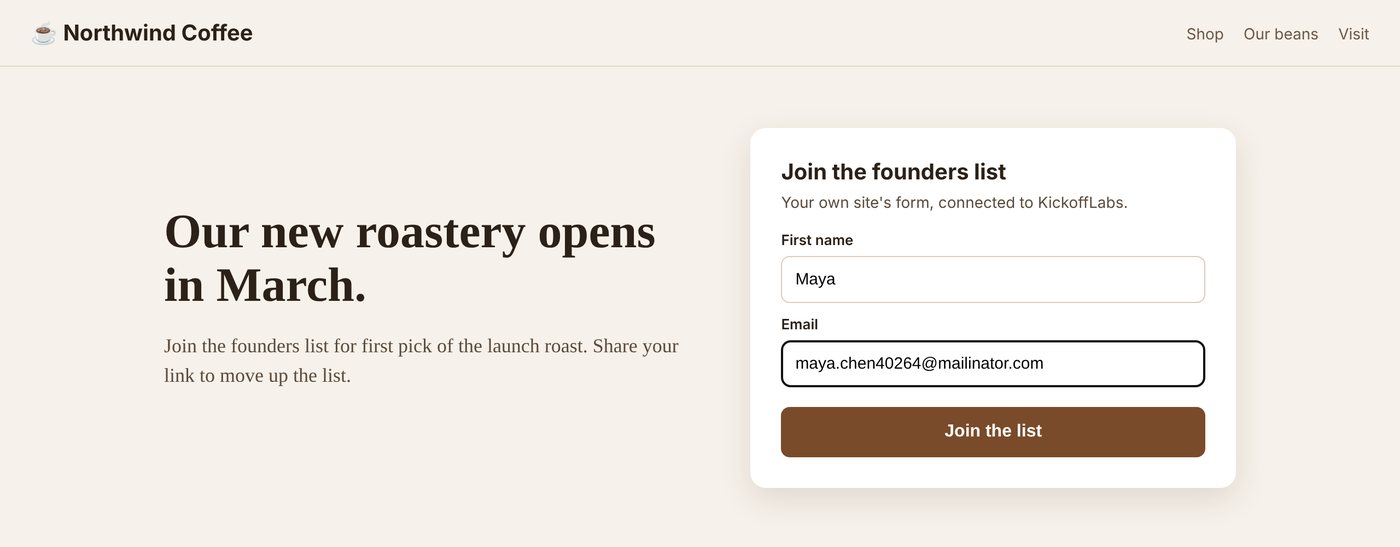
AnyForm or Embed?
Section titled “AnyForm or Embed?”| You want | Use |
|---|---|
| To keep your own form and its design | AnyForm (this guide) |
| A ready-made KickoffLabs form, with the thank-you view and share buttons inside your page | Embed. See Embed a KickoffLabs signup form. |
Before you start
Section titled “Before you start”- Your form needs an email field (or a phone field). AnyForm finds it automatically when the input is
type="email"(ortype="tel"for phone). - You need a way to add a script to your site, such as a footer code setting, code injection or a script manager.
- Know how to point at your form. If your page has only one form,
formworks. Otherwise use the form’s ID, like#signup-form, or a class, like.newsletter-form.
Set up AnyForm
Section titled “Set up AnyForm”-
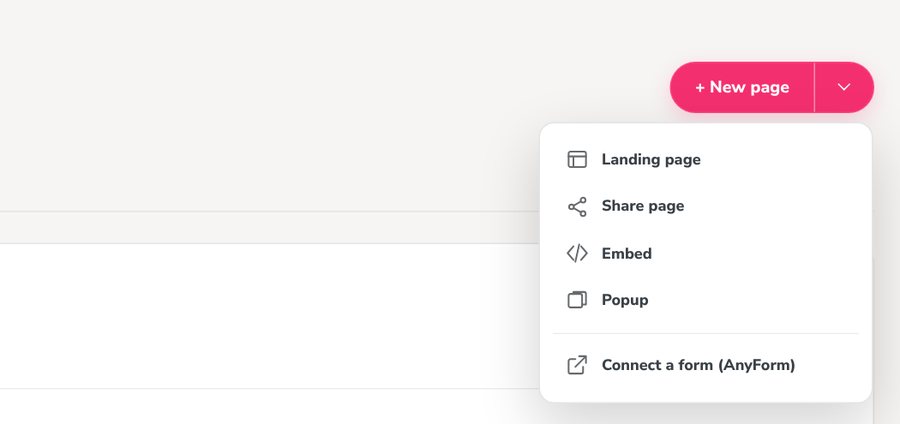
In your campaign, open Pages & forms. Select the arrow next to + New page, then Connect a form (AnyForm). You can also select Set up on the AnyForm row in the list.
-
Turn on Enable AnyForm and type your form’s CSS selector in Form selector, such as
#signup-form.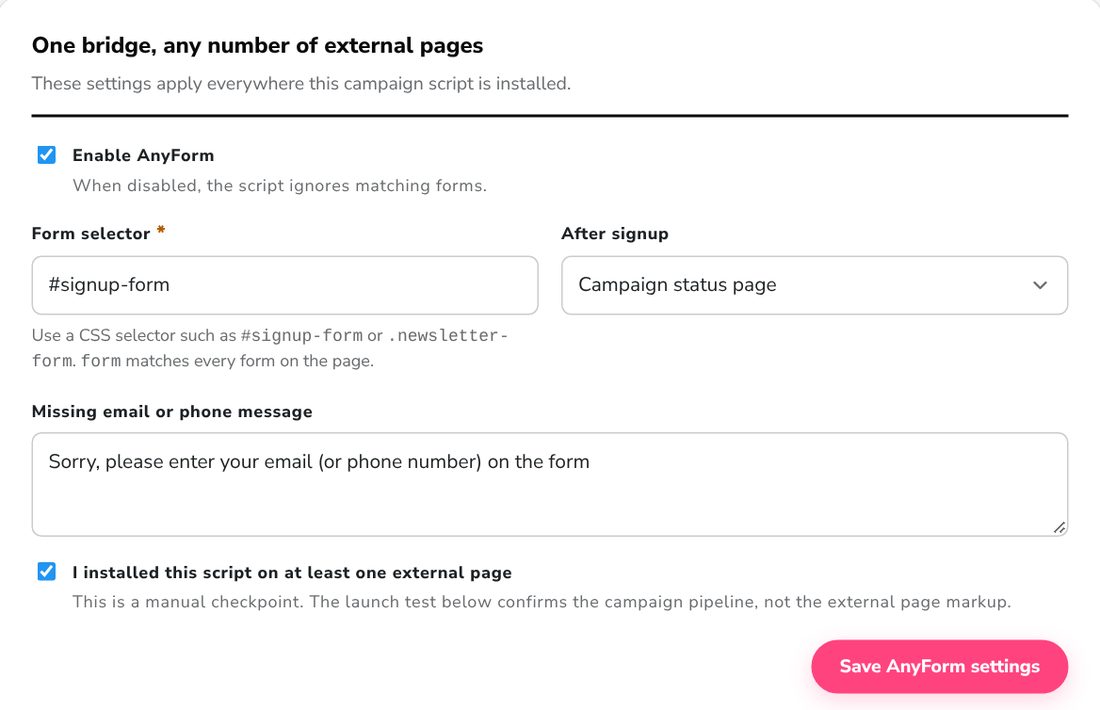
-
Choose what happens After signup:
- Campaign status page sends people to your campaign’s published KickoffLabs page, showing their position or score and their share link. Publish your campaign’s landing page first.
- Custom redirect sends people to a page you choose, such as a thank-you page on your own site. Paste its address in Custom redirect URL. KickoffLabs adds
?kolid=and the person’s referral code to the address.
-
Optionally edit Missing email or phone message. People see it if they submit without an email or phone number.
-
Select Save AnyForm settings. Changes can take a couple of minutes to reach your site.
-
Under Install the campaign script, select Copy script and add it to every page that has the form, ideally just before the closing
</body>tag or in your site’s footer code setting.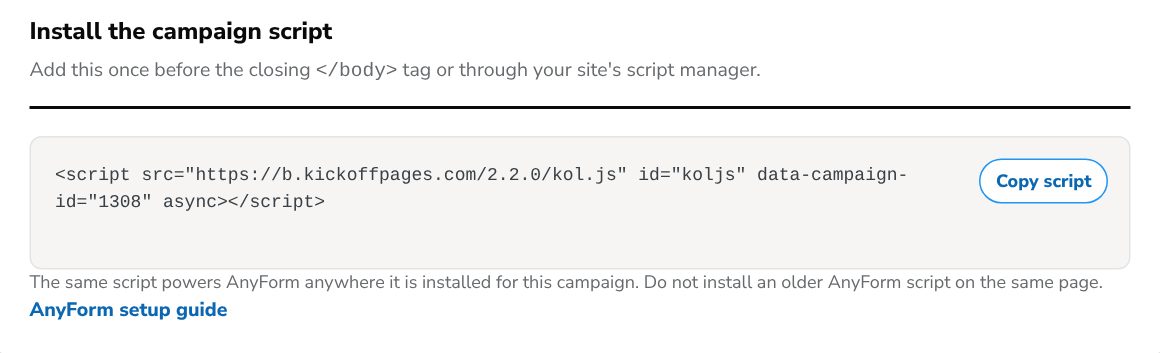
-
Publish your site, open the live page and submit the form with a test email address.
-
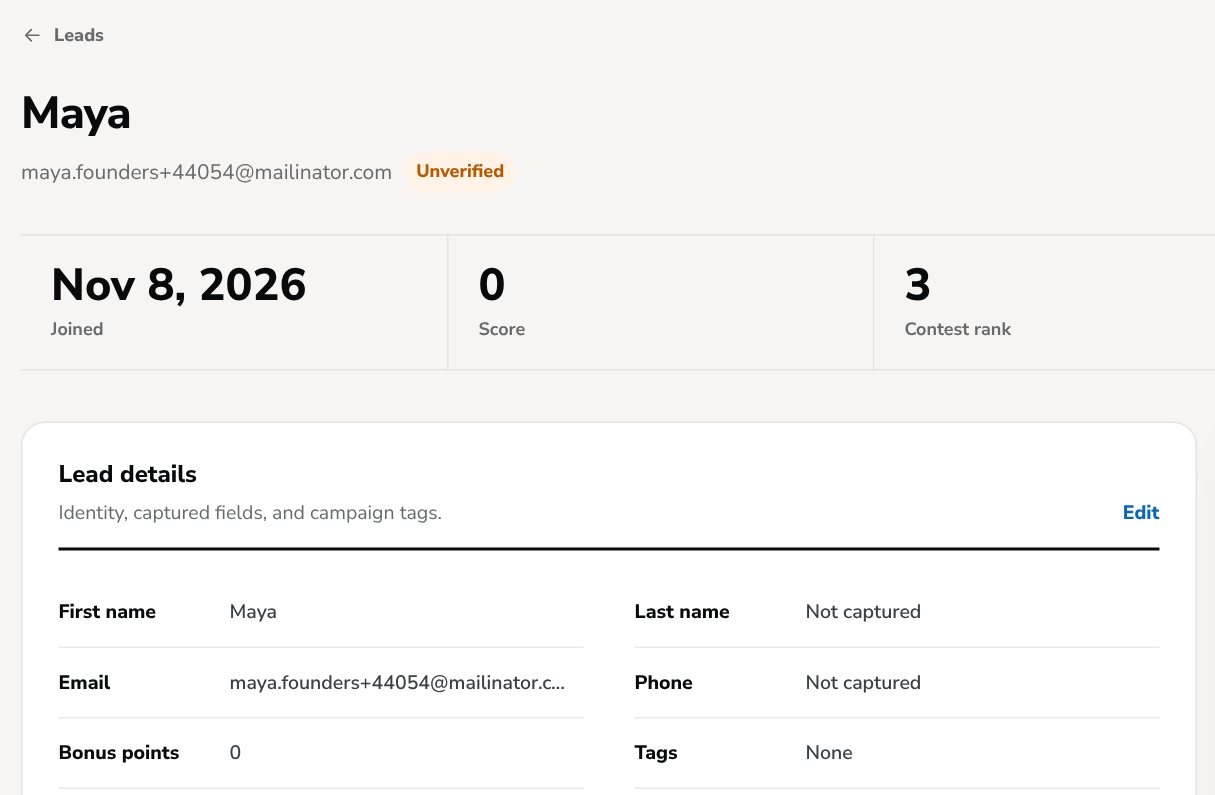
In KickoffLabs, open Leads and select your test signup. Fields like first name come across too.
-
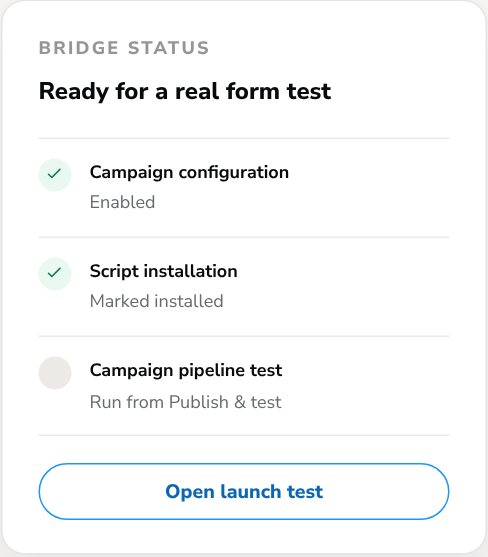
Back on the AnyForm screen, tick I installed this script on at least one external page and save. Bridge status then shows the connection is ready.
How your fields come across
Section titled “How your fields come across”- Email: the field with
type="email",id="email"orname="emailAddress". - Phone: the field with
type="tel",id="phone"orname="phoneNumber". - Name: name your fields
first_nameandlast_nameto fill in the lead’s name. - Everything else is sent by its field
name, so give every field you want to keep a clearname.
Stay on the page after signup
Section titled “Stay on the page after signup”To keep people on your page and show a short message in place of the form, add two attributes to your form tag:
<form id="signup-form" data-confirmation_type="onpage" data-confirmation_text="Thanks, you're on the list!">After a successful signup the form hides and your message appears where it was.
- One script covers every page. Add the same campaign script to each page that has the form. The settings apply everywhere, so you set them once.
- Use a precise selector.
formmatches every form on the page, including search and login forms. An ID like#signup-formonly matches the one you mean. - Test the live page. Many site builders don’t run scripts in their editor preview.
- Use one connection per page. If your campaign has an older AnyForm from a past setup, KickoffLabs shows a warning. Don’t install both on the same page.
- Give people a reason to share. With Campaign status page, new leads see their share link right away. Mention the reward for sharing on your own page too.
Where to paste the script by site builder
Section titled “Where to paste the script by site builder”AnyForm only needs the campaign script, added where your builder allows site-wide or page code. The Embed guide lists the exact place for each builder.
- WordPress: your theme’s footer setting or a header and footer scripts plugin. For forms made with a form plugin, target the form by its ID.
- Squarespace: Code Injection in the site or page settings.
- Unbounce: the page’s Javascripts panel or Script Manager, placed before body end.
- Instapage: the page’s Settings → Javascript in the footer.
- Leadpages: the page’s tracking code area.
If signups don’t arrive
Section titled “If signups don’t arrive”- Nothing happens on submit: check Enable AnyForm is on, the selector matches the published form, and the campaign script is on that page.
- The form submits but no lead arrives: make sure the form has an email field (
type="email") or a phone field (type="tel"), and that there’s no older KickoffLabs script from a past setup on the page. - People are sent to the wrong place: check After signup. Campaign status page needs a published KickoffLabs page in the campaign.
- Just changed a setting: wait a couple of minutes and reload your page.
Go deeper
Section titled “Go deeper”- Referral program guide
- How to launch a waitlist that grows itself
- Send leads to other tools with Zapier
Need help? Email support@kickofflabs.com with your campaign name, the page with your form, your site builder, and what happened when you submitted a test.