

Use KickoffLabs with Claude
The KickoffLabs connector lets Claude work in your KickoffLabs account. Describe a waitlist or giveaway and Claude sets it up. Ask how a campaign is doing or look up a lead without opening the dashboard.
What you can ask
Section titled “What you can ask”| Ask Claude to | What happens |
|---|---|
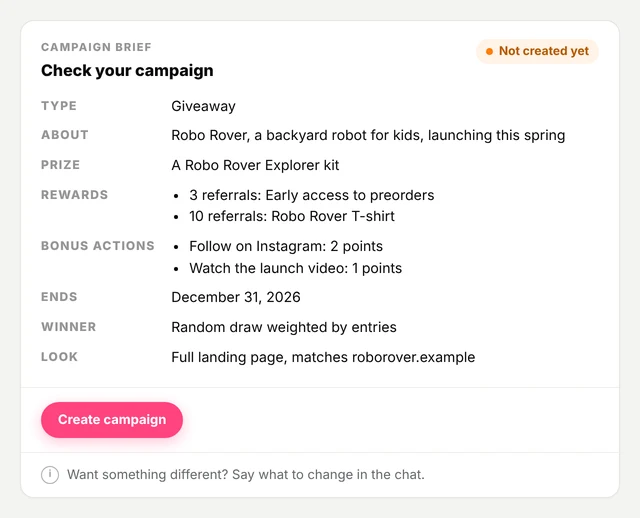
| Create a campaign | Claude asks a few questions, then shows a brief to check. Nothing is created until you say go. The page is built as a private draft. |
| Publish a campaign | Claude publishes the draft only when you ask. |
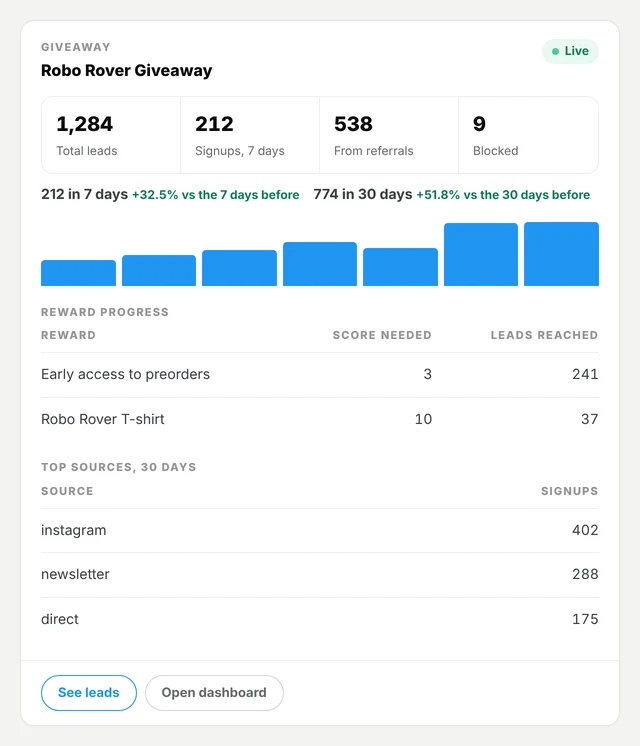
| Check how a campaign is doing | A card with signups for the last 7 and 30 days against the period before, reward progress and top sources. |
| Find leads | Your newest leads, or one lead’s referrals, rewards and points history. |
| Change leads | Block, approve, verify or award points. Claude confirms which leads first. |
| Pick a winner | A card shows how many leads can win and the draw’s rules. The draw runs only when you press Run the draw. Winners aren’t notified. |
| Show a campaign’s setup | Reward levels, scoring, bonus actions and emails, with links to change them. |
| Answer a how-to question | An answer from this help center with a link to the right dashboard screen. |
Connect KickoffLabs
Section titled “Connect KickoffLabs”-
In Claude, open Settings → Connectors and find KickoffLabs in the directory. Select Connect.
Before the listing is live, select Add custom connector instead and enter
https://app.kickofflabs.com/mcp. -
Sign in to KickoffLabs. If you don’t have an account yet, you can create a free one on the same screen.
-
Review the access Claude is asking for and select Allow. Claude returns to your chat, connected.
-
In a chat, ask something like “How is my giveaway doing this week?”
Team members connect as themselves. Claude can see and change only the campaigns their own access allows.
Using Claude Code? Add the same server from your terminal:
claude mcp add --transport http kickofflabs https://app.kickofflabs.com/mcpPrompts to try
Section titled “Prompts to try”- “Create a waitlist for my new app. Give early access at 3 referrals and a free month at 10.”
- “How is my Spring Giveaway doing this week?”
- “Show me my newest signups, then open the first one.”
- “Give 5 bonus points to jane@example.com for attending the launch call.”
- “How do I send my leads to Mailchimp?”
- “Pick 3 winners for my Spring Giveaway, weighted by points.”
What stays in the dashboard
Section titled “What stays in the dashboard”- Page design and copy. Claude gives you a link to the editor.
- Sending email to your leads. Use the dashboard.
- Deleting campaigns or leads. The connector can’t delete anything.
Disconnect
Section titled “Disconnect”- In Claude, open Settings → Connectors, select KickoffLabs and disconnect.
- In KickoffLabs, open Account, select Manage next to Connected apps, then select Disconnect. Account owners can disconnect a team member’s connection here too.
Changing your password or email also disconnects every assistant. Disconnecting stops new requests. It doesn’t undo changes Claude already made.
Privacy
Section titled “Privacy”Claude sees what the tools return: campaign names and stats, and lead details such as email, name, score and referrals. Lead names and other text your leads typed are treated as data, never as instructions to Claude. Read the KickoffLabs privacy policy for how we handle connected assistants.
Need help? Email support@kickofflabs.com with what you asked Claude and what happened.