

Add and arrange page sections
Open Pages & forms → Edit for the page. Select Signup or Post-signup before choosing the content to change.
Add a section
Section titled “Add a section”- For a full page, select Add a section here at the position where the new section belongs.
- Browse the horizontal tray. Available sections include feature rows, icon grids, capture, button and image bands, a countdown, how it works, video, FAQ, logos, winners, rewards, personal status, and a community goal.
- Choose the section, then replace its sample text and images.
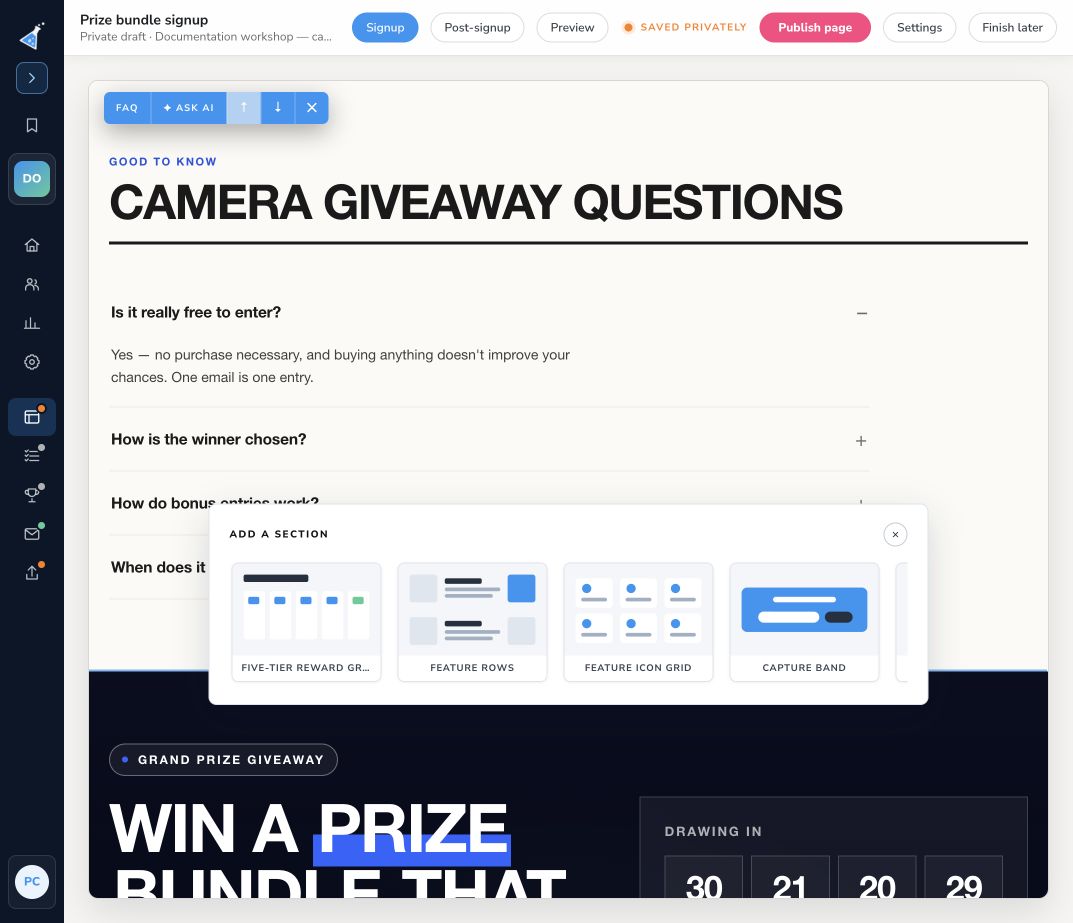
Select a section to show its toolbar. Use the up and down arrows to move it, duplicate to copy it, or the remove control to remove it from the draft. The ⚙ opens Section settings, where you choose whether the section shows before or after signup and, for capture bands, button bands and the Simple box hero, add a background image. Where a section offers variants, use its cards or arrows to choose a different arrangement. Controls depend on the section and page layout.
A Simple box keeps its content together; it does not offer the same section ordering as a full page. Choose a page layout if you need a longer page with separate sections.
Add a button band
Section titled “Add a button band”A button band is a headline, an optional line of text and one button that links anywhere, such as your store, a booking page or a product. It suits “Reserve yours” or “Shop the launch” buttons, especially when only entrants should see them.
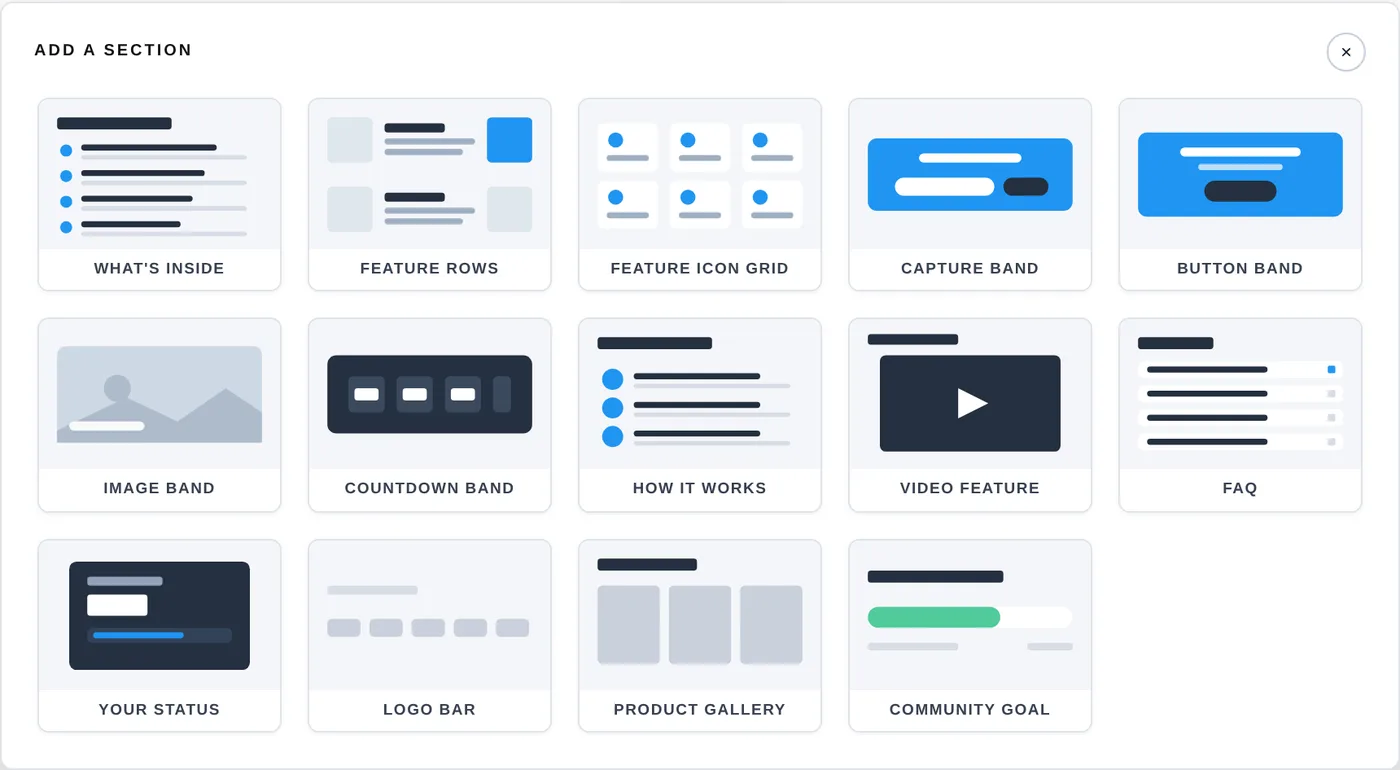
- Select + Add section where the band belongs, for example right under the hero, and choose Button band.
- Section settings open by themselves. Paste the full link, starting with
https://, into Button link. Leave Open in a new tab on so people keep your page open. - Optional: under Show this section, pick After signup to show the button to entrants only. New entrants only see it if the page’s post-signup confirmation is set to Stay on this page. With a redirect, they leave before the band appears. See Change what happens after signup.
- Click the headline and the button text on the page to change them.
- Publish the page.
Until a band has a valid link, it stays off your live page, so a half-finished band never shows a dead button. Add a Background image in the same settings to put a photo behind the band. It gets a dark tint so the text stays readable.
Keep content and mechanics aligned
Section titled “Keep content and mechanics aligned”Adding a countdown or rewards section does not replace campaign setup. Check dates in Campaign settings, point values in Scoring & actions, and milestones in Rewards. A community goal section uses the campaign’s Lead goal.
Use Ask AI for section wording and Replace image for its visual. Edit form fields through Signup form settings.
Preview both signup states and mobile layout after moving or changing a section. Designer changes save privately until you select Publish page.