

Configure landing page settings
From a campaign’s Pages & forms list, open Manage for the page and choose Page settings. This screen controls how the page is published, found, shared, and tracked. Its design stays in the editor.
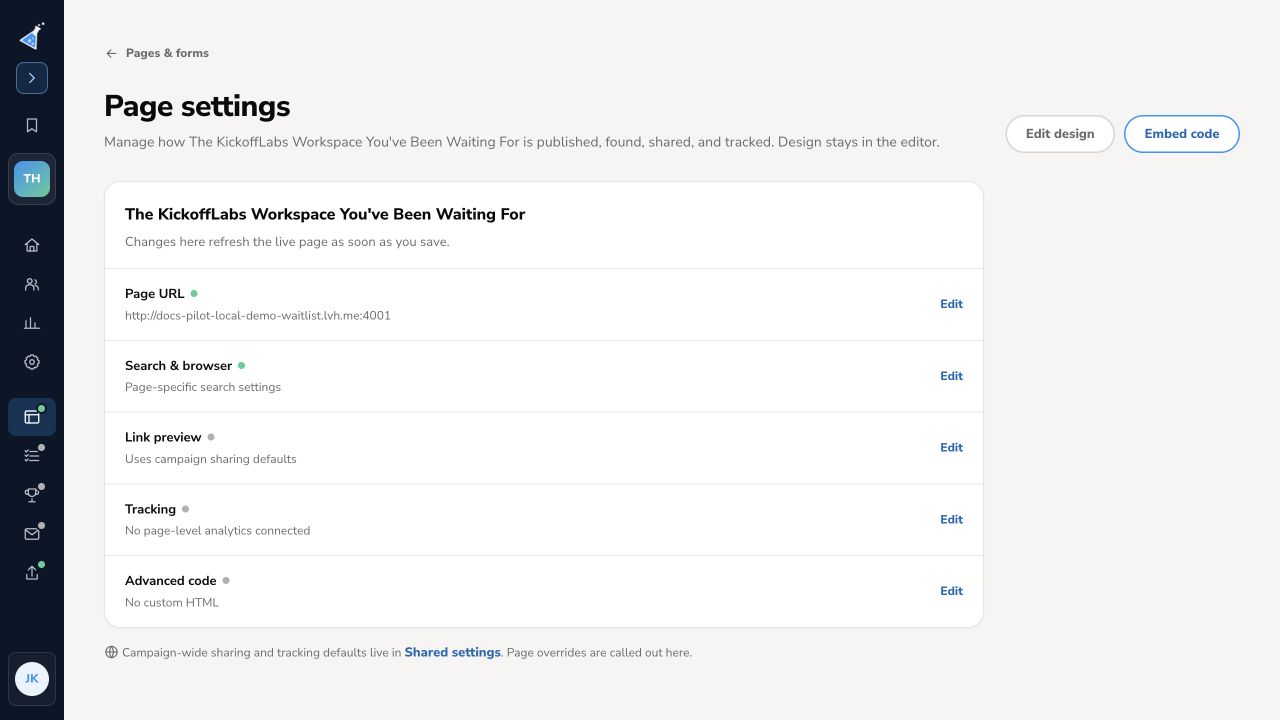
Choose the setting to change
Section titled “Choose the setting to change”- Page URL controls where the page publishes. You can also use Change URL on the page card. Saving a new URL republishes a live page right away. Check redirects and links to the old address.
- Search & browser contains page-specific search settings such as the browser title and description. Review the published page after saving.
- Link preview controls how the page appears when shared. It uses campaign sharing defaults until a page-specific value is set.
- Tracking accepts a page-level Google Analytics 4 ID and Meta Pixel ID. These run alongside campaign-wide scripts; adding them does not replace the shared tracking setup. See the tracking guide.
- Advanced code is for page-specific custom HTML. Test it on the public page after saving.
Use Shared settings under Pages & forms for campaign-wide sharing and tracking defaults. Use Edit design for the KickoffLabs page’s text, sections, form, confirmation, fonts, colors, and CSS. Those design edits save as a draft and need Publish page to reach visitors. The page settings screen says its saved changes refresh a live page immediately, so review the public page after each change.
Manage landing pages · Connect a custom domain
Need help? Email support@kickofflabs.com with your campaign URL, page name, and the setting that did not take effect.