

Customize page fonts, colors, and buttons
Open Pages & forms → Edit → Settings → Page. Changes in this panel save to the page draft and go live when you publish.
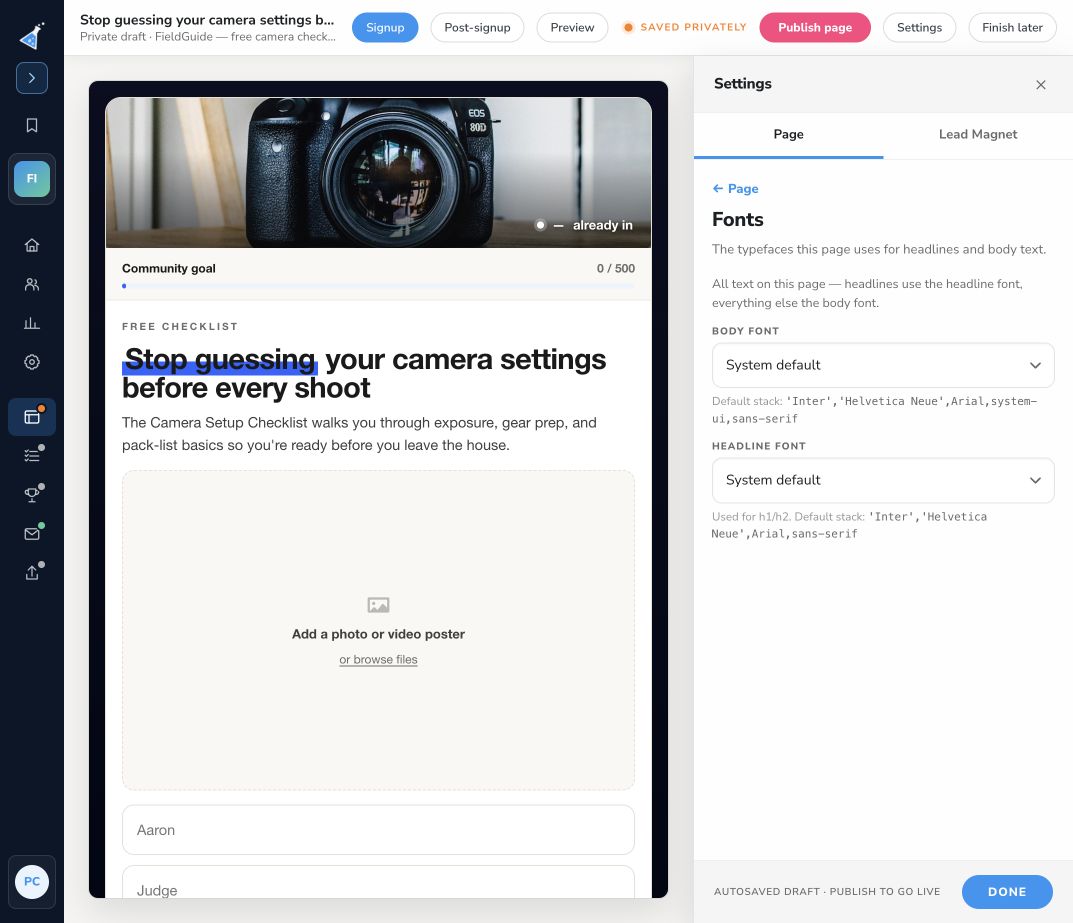
Open Fonts. Choose the Body font for paragraphs and the Headline font for headings. Use System default when you want the default font choice. Check a long heading and the smallest form text in both desktop and mobile previews.
Colors and buttons
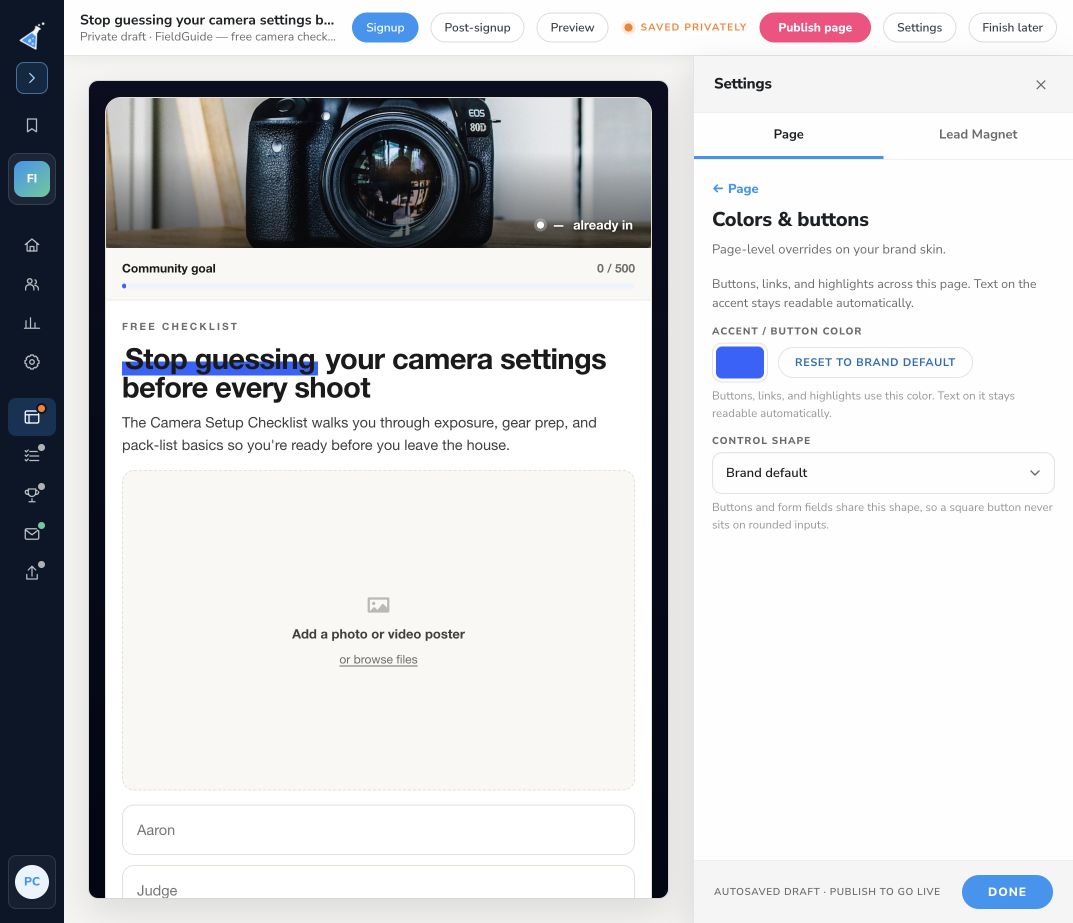
Section titled “Colors and buttons”Open Colors & buttons to choose the accent/button color. Use Reset to brand default to return to the brand color. Choose a Control shape: Brand default, Square, Rounded, or Pill.
Review every signup state. A color that works on the signup button may have poor contrast on sharing or reward content. Keep button labels readable and their purpose clear.
For page-specific CSS, use Custom CSS in the same panel. Follow custom CSS guidance and check the preview carefully after changes.
Publish the finished style
Section titled “Publish the finished style”Select Preview to inspect the saved draft, then Publish page to update visitors’ version. Search listing, sharing previews, tracking, and custom HTML in Page settings outside the designer go live when saved; they follow a different save behavior.