

Customize a signup form
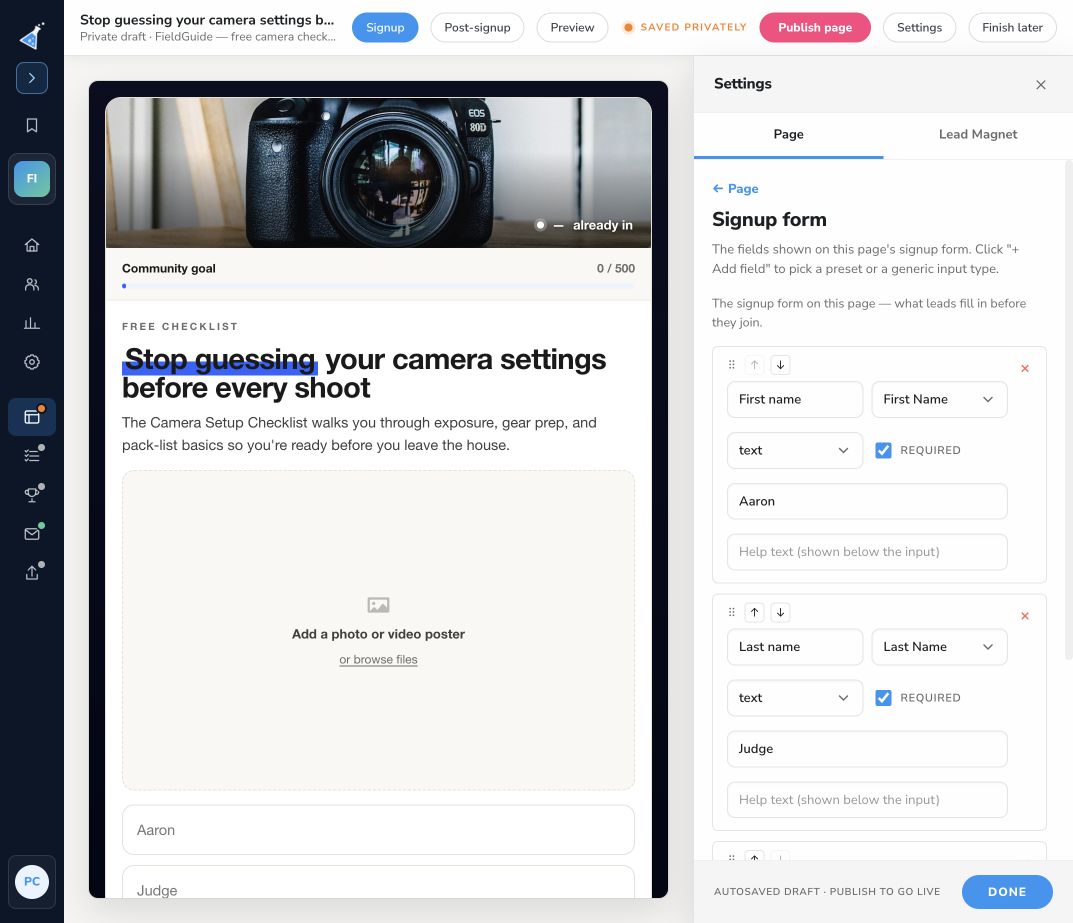
Open Pages & forms → Edit → Settings → Page → Signup form. These fields belong to this page; another page in the same campaign can use a different form.
Add and configure a field
Section titled “Add and configure a field”- Use the form’s add-field control.
- Choose a standard lead field such as Email, First Name, Last Name, Full Name, or Phone Number. For other questions, choose text, paragraph, checkbox, multiple choice, dropdown, consent, static text, or hidden field.
- Set the label and, where available, placeholder, help text, choices, and required setting.
- Map the answer to the intended lead field. For a new custom question, use + New custom field and a meaningful key so you can recognize it in lead data and integrations.
- Save the field configuration. Use the arrows or drag controls to arrange the form.
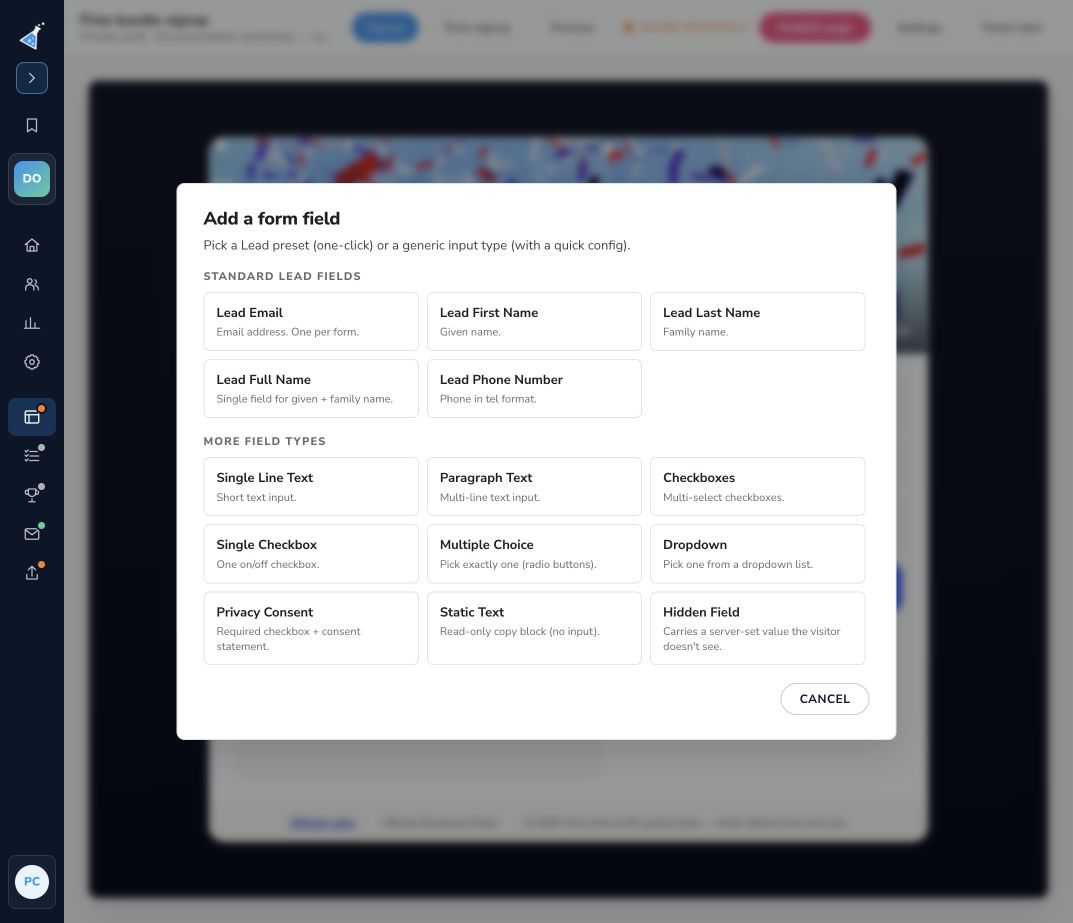
For example, a dropdown labeled “Favorite photography style” might offer Landscape, Portrait, and Street. Keep the field optional unless the answer is needed to deliver the offer. Hidden fields collect a supplied value; they do not ask the visitor a question.
Test the answers
Section titled “Test the answers”Preview on mobile and desktop. Make sure labels are clear, choices are complete, and required fields show the intended validation message. Publish, submit a fresh signup, then inspect the lead’s saved answers in Leads. Check mappings separately if an integration needs the custom field.
Adding a phone field collects a number; it does not configure SMS verification. For consent and a policy link, follow privacy checkbox guidance. Use Language & shared text for campaign-wide validation wording.