

Manage shared images and files
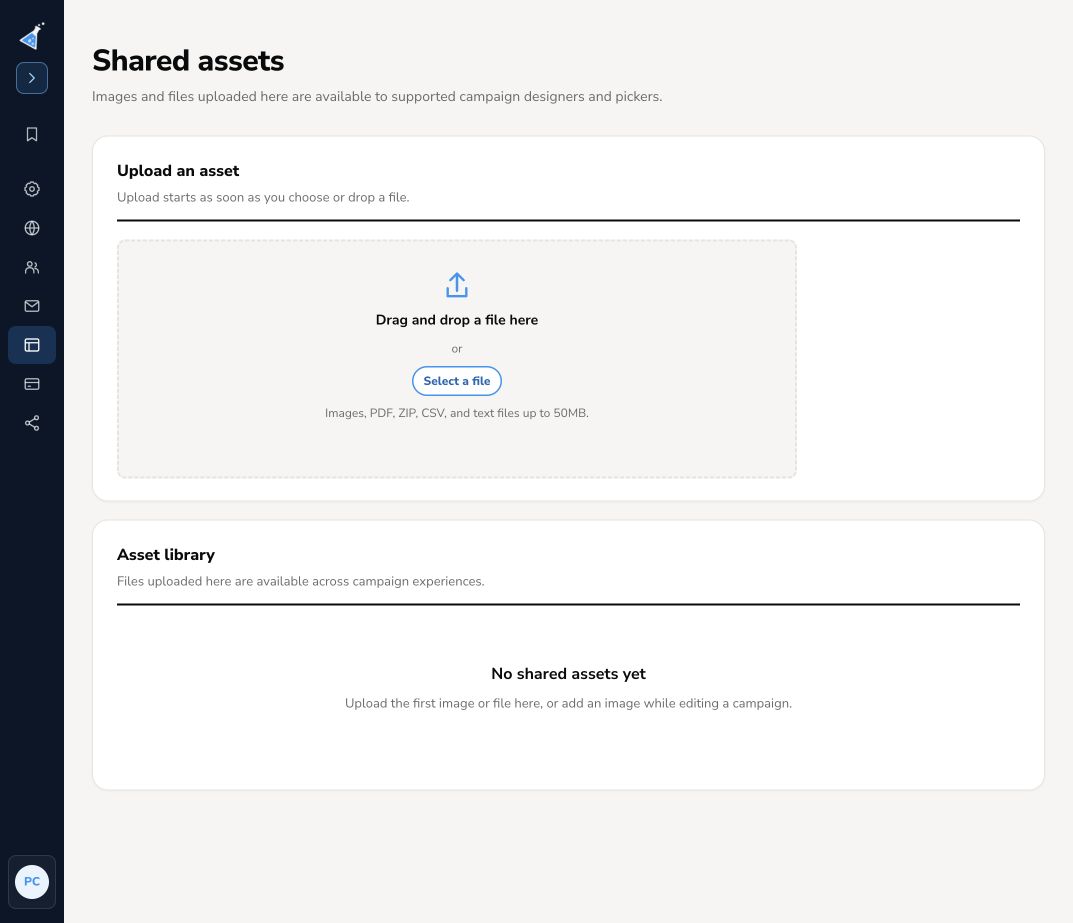
Open the account menu, select Account overview, then Asset library. The Shared assets screen holds files available across supported campaign designers and pickers.
Upload and reuse a file
Section titled “Upload and reuse a file”- Select a file or drag it into the upload area. Upload starts immediately; there is no second upload button.
- Use a supported image, PDF, ZIP, CSV, or text file up to 50 MB.
- Wait for the upload result, then find the file in the library.
- Use Open to inspect it and get its hosted address when you need a file link.
In the page editor’s image picker, choose Your library to reuse an image. For a lead magnet, use Download after signup → Choose or upload a file or paste the hosted file URL. See download delivery for the full setup.
Keep existing links working
Section titled “Keep existing links working”Check the file itself before using it in a page or email. A hosted URL can be forwarded; storing a file here does not restrict it to a specific lead.
Before removing an asset, check the pages, download buttons, and email links that use it. Removing a shared file can break those links. To replace a download, connect the new file, publish the page change, update any email links, and test the new URL first.