

Rewrite page copy with Ask AI
Use Ask AI to revise the wording of a selected section. Start with a concrete change and check the result before publishing.
- Open Pages & forms → Edit and choose Signup or Post-signup.
- Select the section you want to change, then choose Ask AI in its toolbar.
- Describe the revision. For example: “Change the FAQ heading to ‘Camera giveaway questions’. Keep the answers unchanged.”
- Submit the instruction and review the updated section when the change finishes.
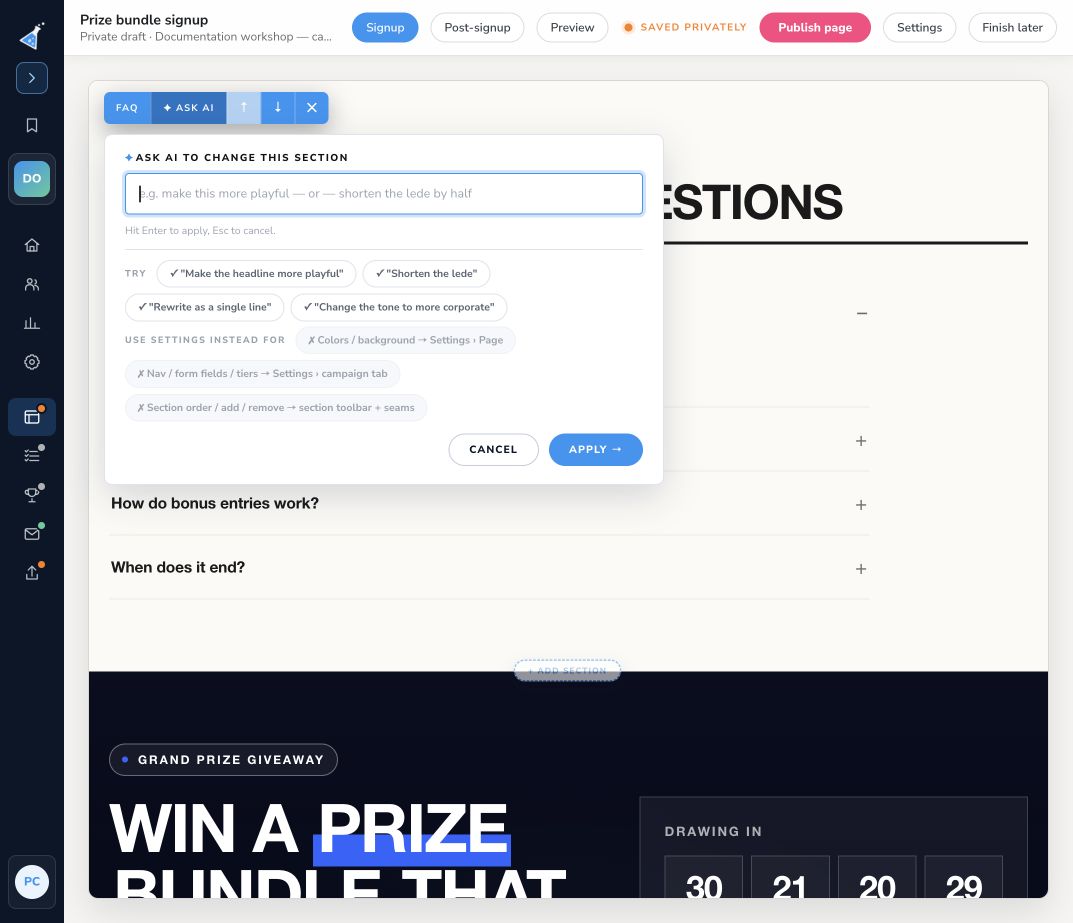
Good instructions specify the audience, the exact section, and what to keep. Try “Shorten this paragraph to two sentences and keep the signup offer” or “Rewrite this heading for beginner photographers.” Check dates, amounts, reward promises, names, and links after every rewrite.
Ask AI edits section copy and content. Use the relevant controls for other changes:
- Fonts, Colors & buttons, and Layout under Settings → Page for page appearance.
- Signup form for fields and required inputs.
- The section toolbar and Add a section here for ordering, insertion, and removal.
- Campaign settings, scoring, and rewards for shared campaign mechanics.
The result saves to the page draft. An existing live page continues showing its published copy until you publish the draft. Preview the changed section on mobile as well as desktop.