

Connect Brevo
Connect a campaign to Brevo and every new lead is sent there a few seconds after they sign up. Each lead is created or updated as a Brevo contact, matched by email, and added to the list you choose. Each lead brings their KickoffLabs share link, referral count, score and rank, so you can use them in your Brevo emails and automations.
Before you start
Section titled “Before you start”- A KickoffLabs plan that includes integrations (Starter and up). On Free, the Brevo page shows what the connection does and an upgrade option.
- Your Brevo API key. In Brevo, open SMTP & API → API keys and create a key. Brevo’s guide. Treat it like a password.
- A list in Brevo for the new leads.
Connect Brevo
Section titled “Connect Brevo”-
Open your campaign and select Leads, then Lead delivery.
-
Under Services (or More services if something is already connected), select Connect beside Brevo.
-
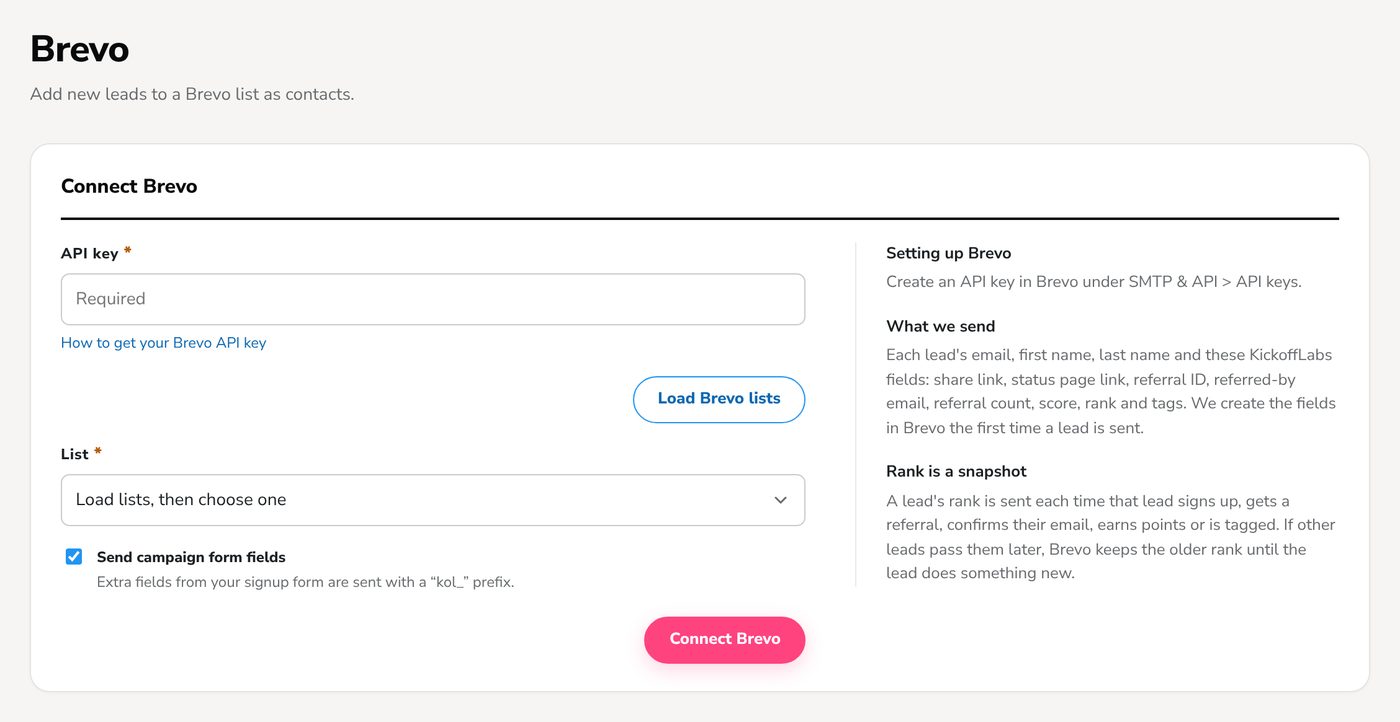
Paste your Brevo API key.
-
Select Load Brevo lists, then choose the list new leads should go to.
-
Leave Send campaign form fields on to also send the extra fields from your signup form (for example a company name or a “how did you hear about us” answer). They arrive as attributes with a
KOL_prefix. -
Select Connect Brevo. If Brevo rejects the API key, you’ll see an error right away and nothing is saved.
-
Sign up on your campaign with a test email address. Within a few seconds the lead appears in Brevo, and the Send log on the Brevo page shows Sent: 1.
What gets sent
Section titled “What gets sent”- Lead details: Email, first name and last name.
- KickoffLabs fields: share link, status page link, referral ID, referred-by email, referral count, score, rank and tags. Each KickoffLabs value is a contact attribute named like
KOL_SHARE_URL(Brevo uses capital letters for attributes). We create the fields in Brevo the first time a lead is sent. - Form fields: with Send campaign form fields on, up to 25 extra fields from your signup form, named like
KOL_COMPANY.
Leads stay up to date. When a lead gets a referral, confirms their email, earns points or is tagged, we send them again with their new counts.
Check the send log
Section titled “Check the send log”The Brevo page shows how many leads were sent and how many failed in the last 30 days, with the reason for each recent failure.
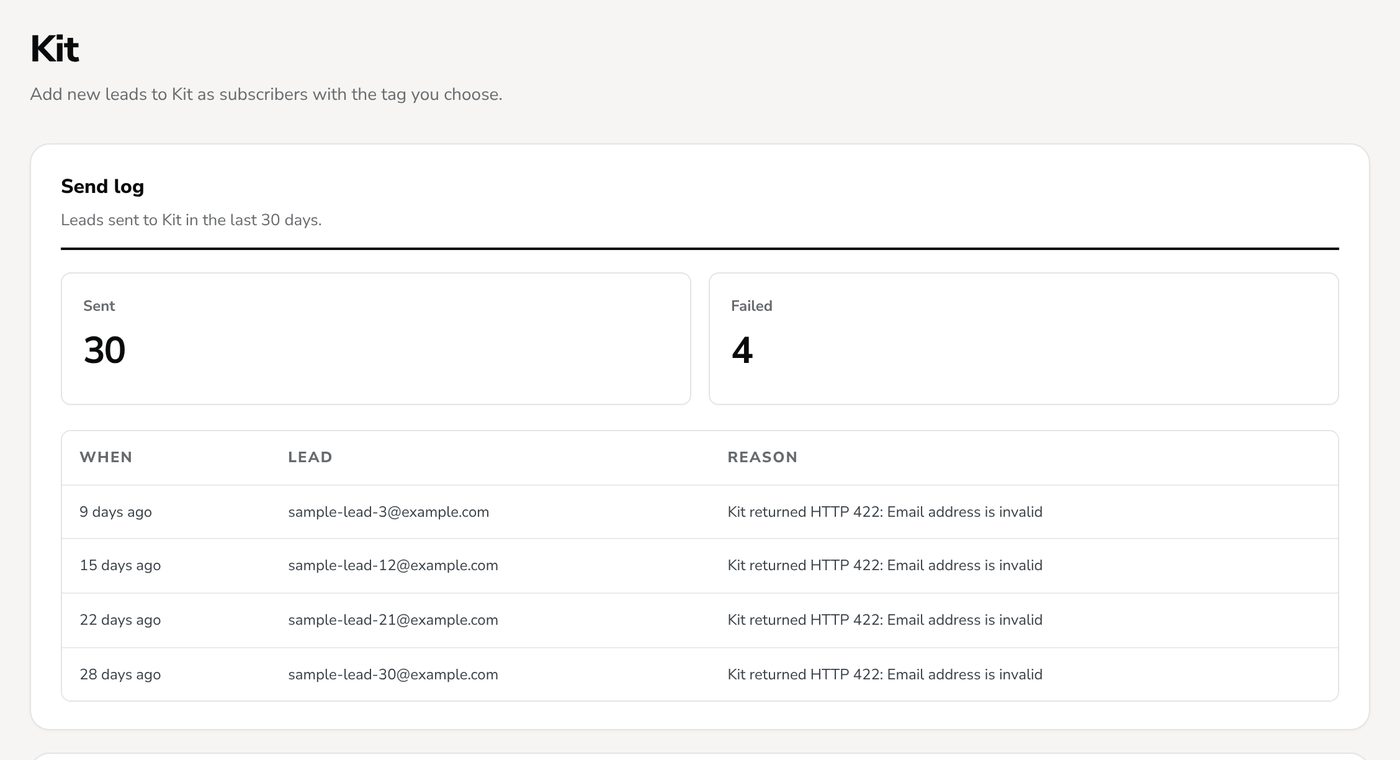
The most common reasons:
- Rejected key: the API key was deleted or changed in Brevo. Paste a new one and select Update Brevo.
- List not found: the list was deleted in Brevo. Load your lists again and pick another.
Temporary problems on Brevo’s side, like timeouts or rate limits, are retried automatically.
- Leads who signed up before you connected Brevo aren’t sent automatically. Export them and bring them in with Brevo’s import tool (Brevo help).
- Leads flagged as suspicious aren’t sent, so fake signups stay out of your Brevo account.
- To stop sending, open the Brevo page and select Disconnect Brevo. Contacts already in Brevo and your KickoffLabs leads stay as they are.
- Using KickoffLabs campaign emails too? Check both tools so new leads don’t get two welcome emails.
Go deeper
Section titled “Go deeper”- Brevo + KickoffLabs: campaign ideas for Brevo users.
- Connect a campaign to other tools: every way to send leads out of KickoffLabs.
Need help? Email support@kickofflabs.com with your campaign URL, the test lead’s email and the reason shown in the send log. Don’t send your API key.