

Managing your Lead Notifications and Status Reports
This guide walks through managing your lead notifications and status reports for getting started.
Strategy guide: Want the bigger campaign playbook behind this setup? Read Referral Programs.
KickoffLabs can send you and your team instant lead notifications, as well as daily or weekly lead reports. Lead Notifications are instant notices that are sent as soon as someone signs up to your campaign. They are sent immediately after every signup. Status Reports can be sent daily or once a week, on the day of your choosing. This report includes a quick snapshot of all of your leads collected during the chosen time period (that day or week). Follow along with our walkthrough video or step by step guide below!
Enable and Manage your Lead Notices:
Section titled “Enable and Manage your Lead Notices:”- From your Campaign Dashboard select the “Setup” in the top navigation then “Integrations.”
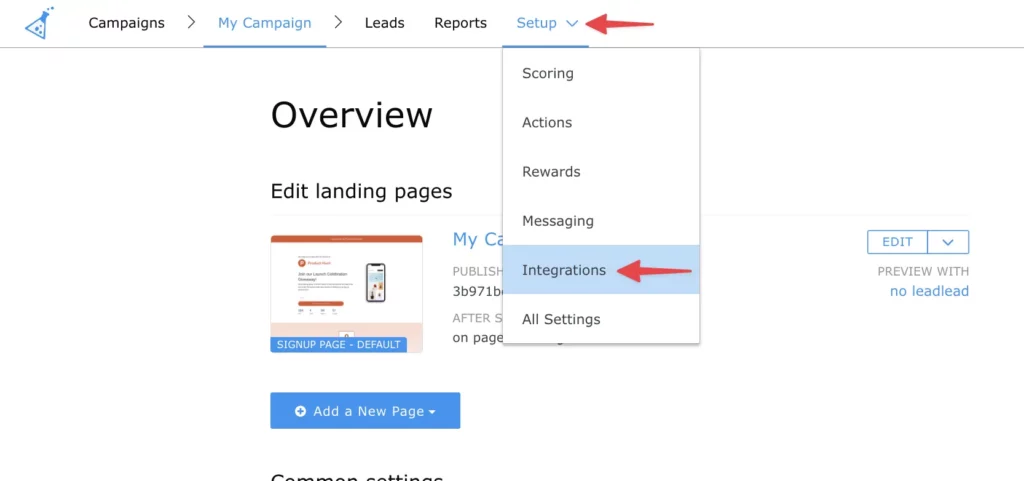
- Next, select “Email Notifications” from the integration options.

- Use the checkbox available to enable/disable your instant lead notifications. Use the dropdown to disable or change the frequency of your status reports. You can also let us know who should receive these notices using the “Who should receive these updates?” field. Enter 1 Email address, per line. By default, we will send them to the account Email address.

-
Be sure to save your changes by clicking the “Update Status Reports” button. Things to consider:
-
Real-time notifications may start to get a little overwhelming the more successful your campaign is. You may wish to create a separate Email account for these notices or disable them all-together.
-
There is a separate notification for reward level emails, which can be managed here.
-
Please ensure that any Email account that is receiving these notices does not have an auto-reply system enabled. We receive these auto-reply notices to our support inbox. If too many are received, we may disable real-time notifications on your account (we will send you an Email letting you know).
-
When following up with your leads via the notifications, you will need to be sure to reach out to the lead directly. Replying directly to the notification will send us your message to support@kickofflabs.com, rather than your lead.
What to check after
Section titled “What to check after”- Confirm the setting, export, integration, or message changed where you expected in KickoffLabs.
- If this affects leads, forms, referrals, emails, or integrations, submit a fresh test lead and verify the result end-to-end.
- Save the campaign URL, test lead email, screenshots, and any error messages before contacting support.
Need help? Email support@kickofflabs.com with your campaign URL, the lead email you tested with, and a screenshot of what you expected to happen.