

Install KickoffLabs on external sites: embeds, AnyForm, and popups
Use this guide when your campaign lives on an external website or builder. It consolidates embedded forms, full-page embeds, AnyForm, popup boxes, and provider-specific installation notes.
Overview
Section titled “Overview”KickoffLabs Embeds allow you to setup viral contests on your site in minutes. They support every KickoffLabs campaign type and can be customized to include campaign actions, rewards, leaderboards, and customer referral mechanics. We currently offer two embed types:
- Form Embeds
- Full Page Embeds
Our Embeds feature allows for you to directly embed a KickoffLabs powered form onto a page of any website! (aslong as you have access to add HTML to your website). Leads can easily opt-in to the contest via the embedded form and view their stats/share with friends. If you’d like to instead install a popup onto your website, follow these steps. Below we’ll walk you through, step by step, generating a KickoffLabs form embed and installing it on your external website
If you instead want to embed a full KickoffLabs landing/status page, follow the steps here.
KickoffLabs Form Embeds If this is your very first campaign, you’ll be taken to our onbo…
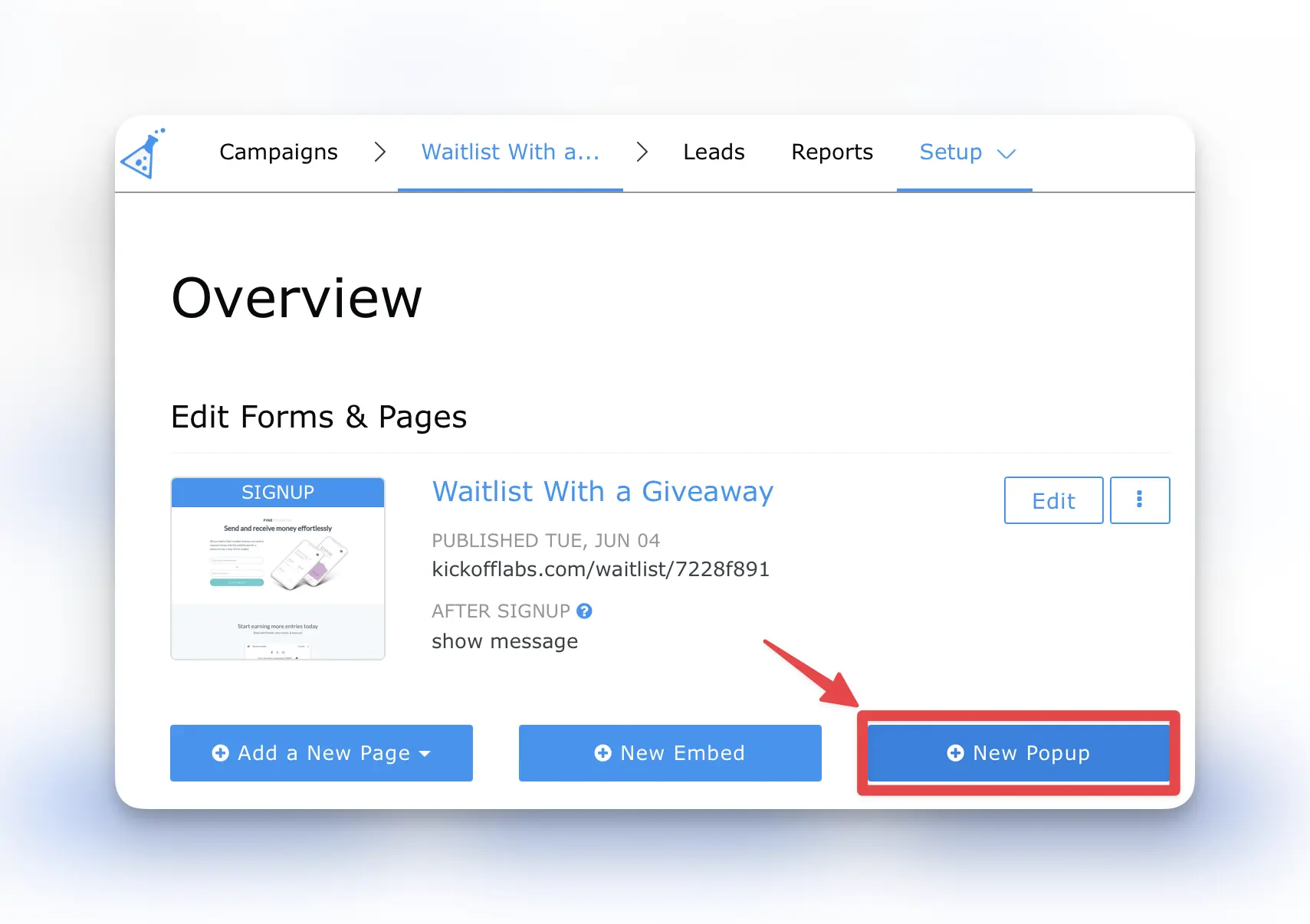
Section titled “KickoffLabs Form Embeds If this is your very first campaign, you’ll be taken to our onbo…”arding page to create your first campaign. If you already have existing campaigns you can either add an embed to an existing campaign by selecting** ” New Embedded Form.”**
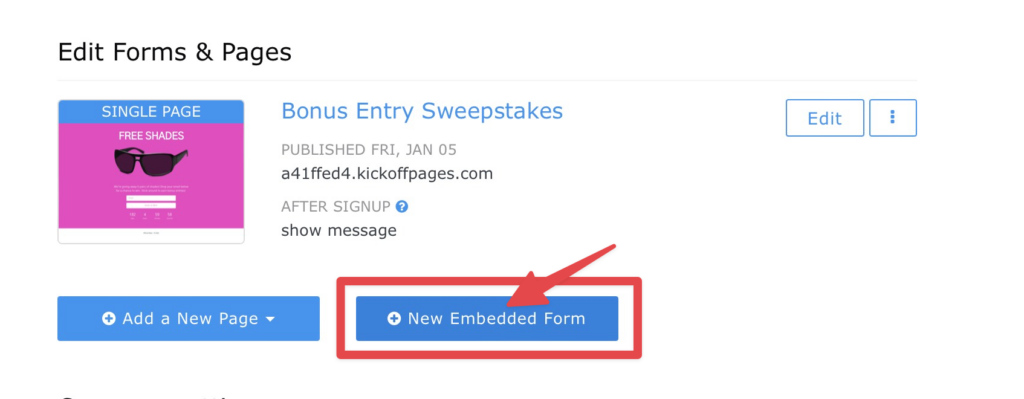
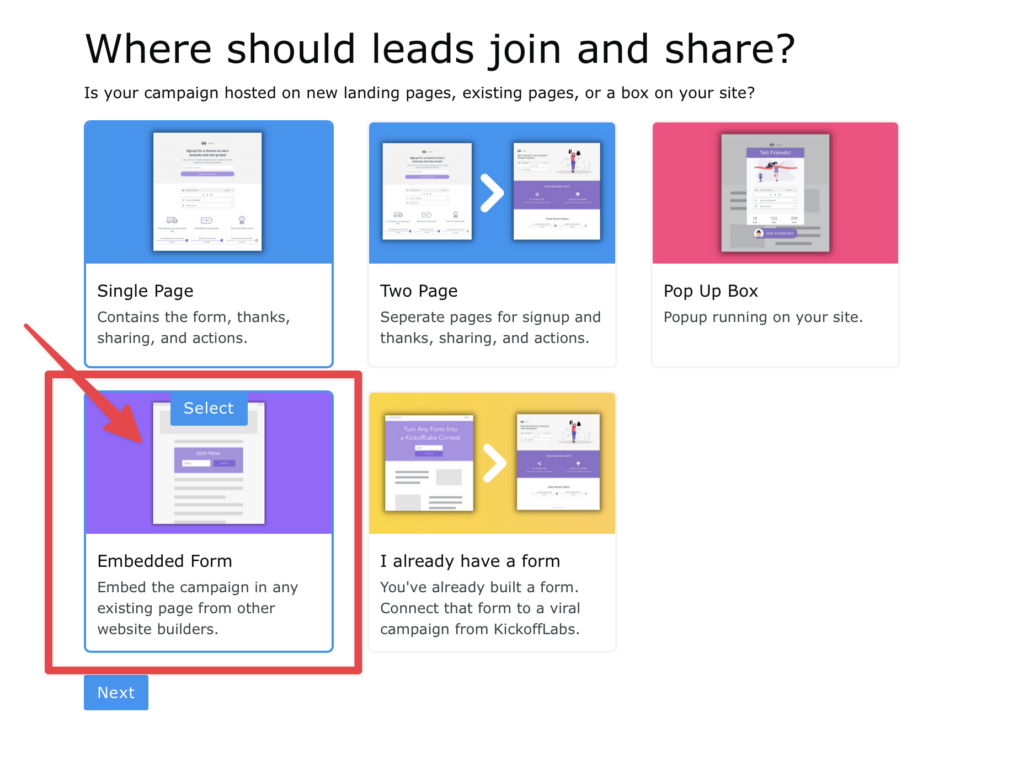
Or select **“Add New Campaign.” **This will take you through the onboarding flow where you can select your campaign options.

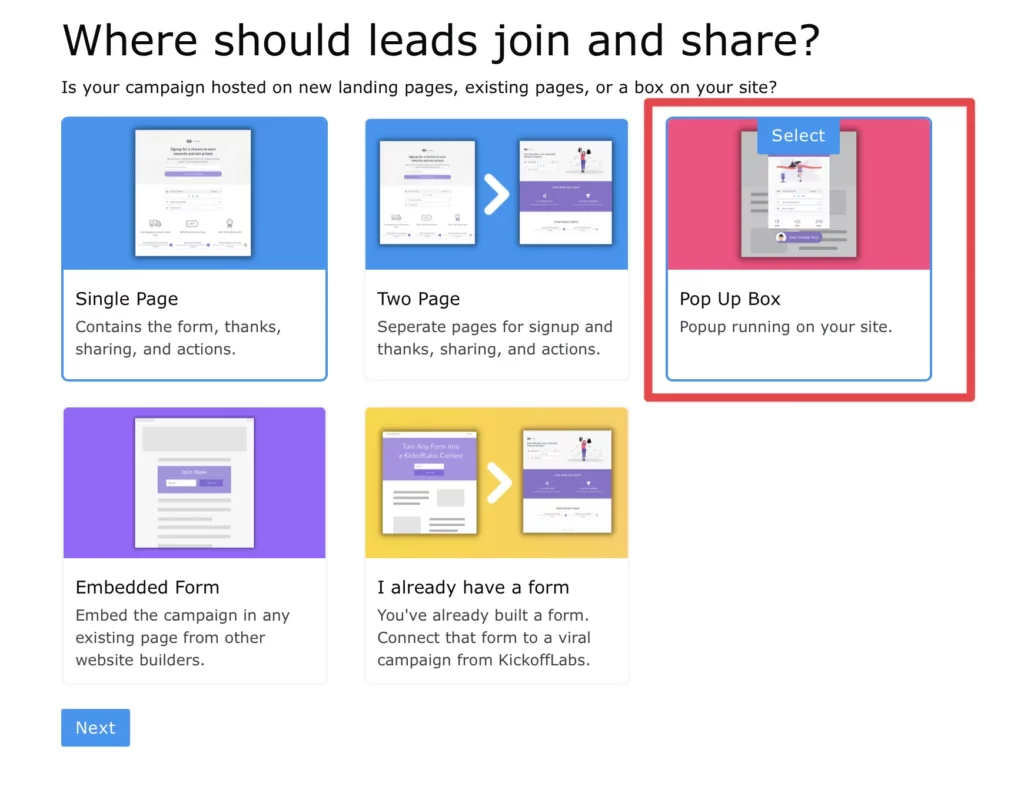
Then select **“Embedded Form” **once you get to the Where should Leads Join + Share step.
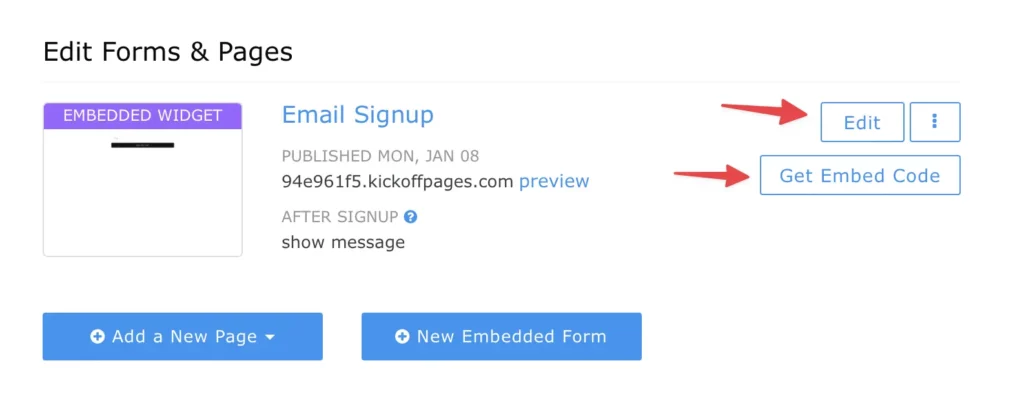
No matter which option you choose, you’ll be taken to the campaign dashboard where you can edit the form embed or get the embed code.
Installing KickoffLabs Form Embed
Section titled “Installing KickoffLabs Form Embed”This option embeds the KickoffLabs form into a page of…
your choosing. The form embed will take up the space of the container that you place it in. Once you’re done editing your form embed, select “Get Embed Code.”
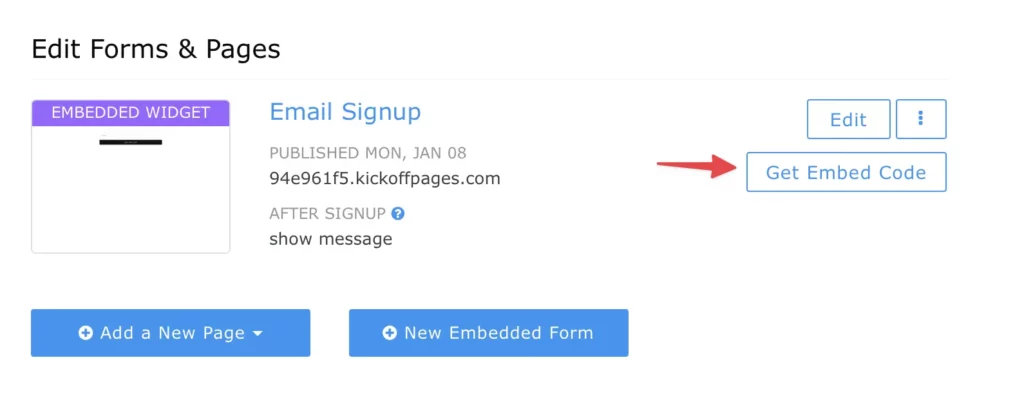
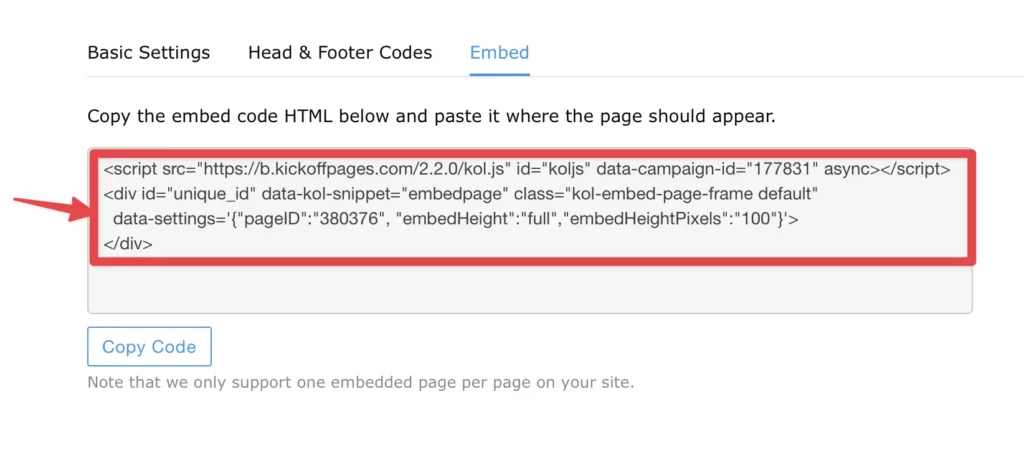
Then, copy the provided embed script and paste it into your website builder into an HTML block where you want the form to appear.
Important Notes Some things to keep in mind while installing embeds:
Section titled “Important Notes Some things to keep in mind while installing embeds:”- At this time we only support one embedded form installed on a page at a time.
- The embeds will always show where you have the HTML installed on your website until you remove the script.
- The embeds will fill full-width wherever it’s installed. If you have any questions, or need help, please send us an email at: support@kickofflabs.com
Embedding KickoffLabs Pages
Section titled “Embedding KickoffLabs Pages”KickoffLabs enables you to design landing and status pages using our drag and drop builder. We now offer the option to optionally embed the pages externally into a specific page or section of your website. For best results, we recommend creating a blank page on your website to place the embed so that it can take up the full area of the page.

Preparing Your
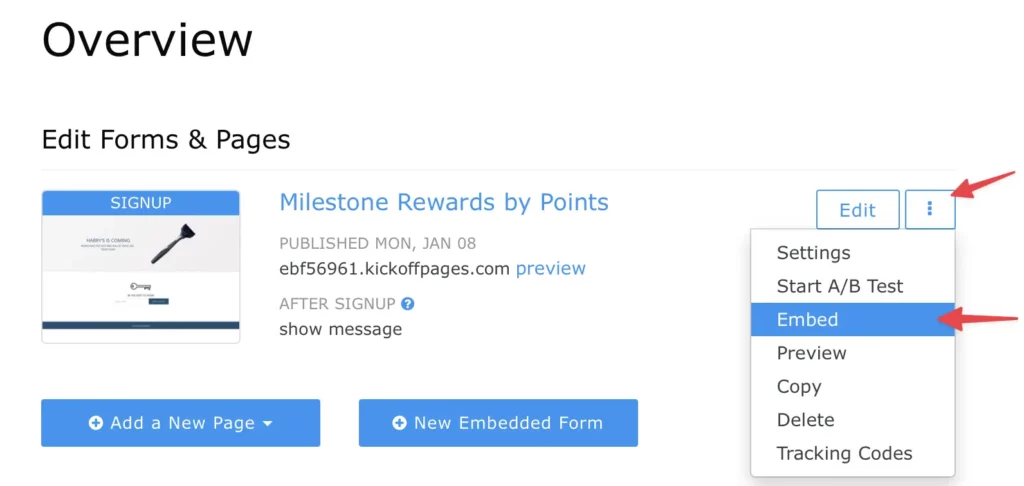
Section titled “Preparing Your”KickoffLabs Page for Embed After you’ve edited your pages (If you haven’t created the page yet, follow along here first), from the KickoffLabs dashboard select **“Embed” **from the dropdown.
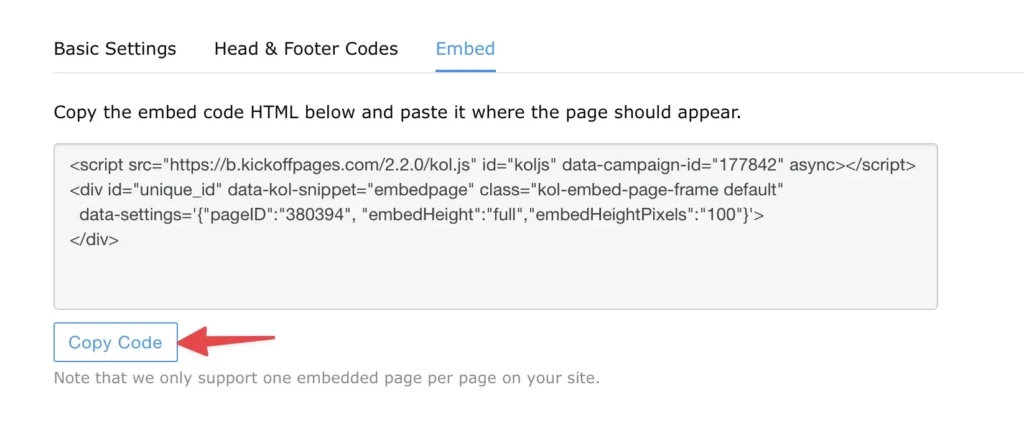
Next, copy the KickoffLabs script and paste it into an HTML block on your website where you want to embed to live. Best practice for our full page embeds is to create a blank page for the embed to live on.
If you have any questions, please feel free to reach out to our support team at support@kickofflabs.com!
Instapage Integration - Embed Form
Section titled “Instapage Integration - Embed Form”This tutorial goes through embedding your KickoffLabs Form onto your Instapage site. If you’d like to instead have a pop-up widget on your website, check out our step by step guide here. If you haven’t already edited the form, learn more how to do that here.
Installing KickoffLabs Form Embed
Section titled “Installing KickoffLabs Form Embed”This option embeds the KickoffLabs form into a page of…
your choosing. The form embed will take up the space of the container that you place it in. Once you’re done editing your form embed, select “Get Embed Code.”
Then, copy the provided embed script and paste it into an HTML block in the Instapage editor where you would like the form embed to display. We’ve included the steps from Instapage here.
Save your changes and test your embedded form! If you have any questions, or need help, please send us an email at: support@kickofflabs.com
Leadpages Integration - Embed Form
Section titled “Leadpages Integration - Embed Form”This tutorial goes through installing your KickoffLabs Form Embed onto your Leadpages site. If you’d like to instead have a pop-up installed on your website, check out our step by step guide here. If you haven’t already edited the form, learn more how to do that here.
Installing KickoffLabs Form Embed
Section titled “Installing KickoffLabs Form Embed”This option embeds the KickoffLabs form into a page of…
your choosing. The form embed will take up the space of the container that you place it in. Once you’re done editing your form embed, select “Get Embed Code.”
Then, copy the provided embed script
Next, open a new tab and navigate to the Leadpages editor and select to edit the page you would like to install the script on. Then paste your KickoffLabs script into an HTML block inside of the Leadpages editor. We’ve included the steps from Leadpages here. Save/publish your changes in Leadpages and test out the embedded form! If you have any questions, or need help, please send us an email at: support@kickofflabs.com
Shopify Integration - Embed Form
Section titled “Shopify Integration - Embed Form”This tutorial goes through embedding your KickoffLabs Form Embed onto your Shopify site. If you haven’t already edited the form, learn more how to do that here.
Installing KickoffLabs Form Embed
Section titled “Installing KickoffLabs Form Embed”This option embeds the KickoffLabs form into a page of…
your choosing. The form embed will take up the space of the container that you place it in. Once you’re done editing your form embed, select “Get Embed Code.”
Then, copy the provided embed script and head over to your Shopify editor.
Installing KickoffLabs Embed in Shopify Please note the steps vary, depending on the Sho…
Section titled “Installing KickoffLabs Embed in Shopify Please note the steps vary, depending on the Sho…”pify theme that you’re using. In this guide, we use the default Debut theme.
- Open your Shopify page in the Shopify page editor
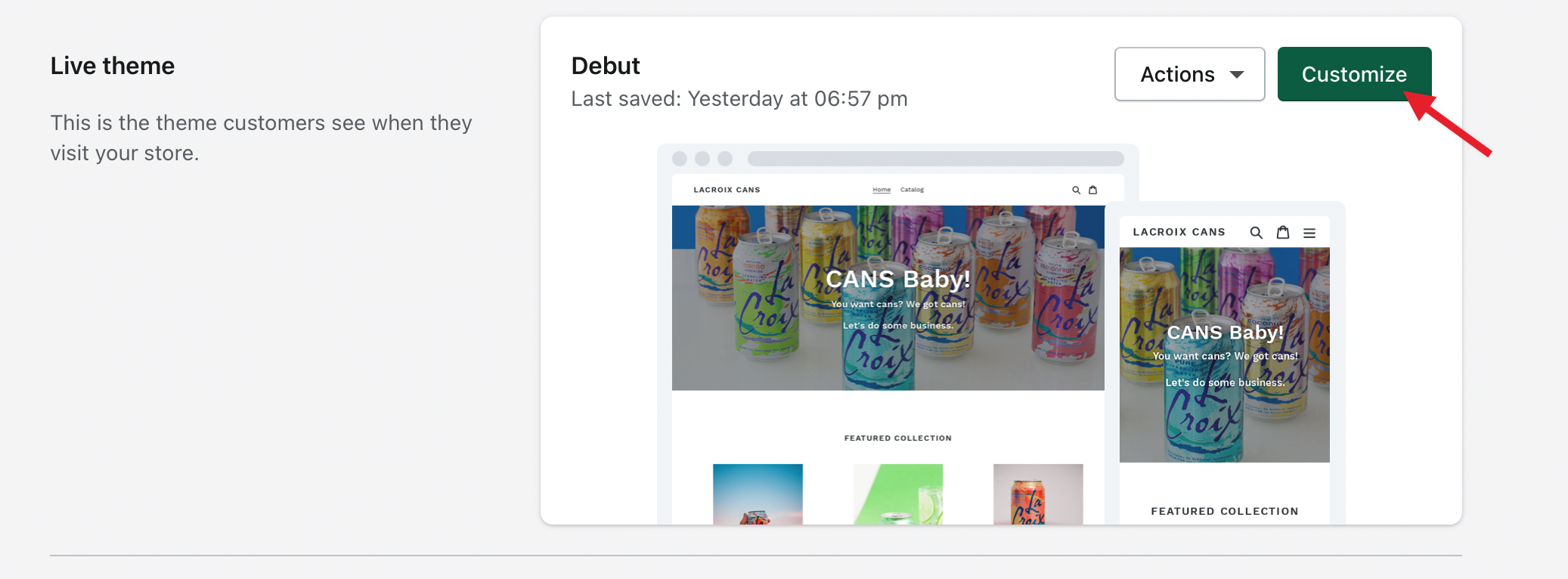
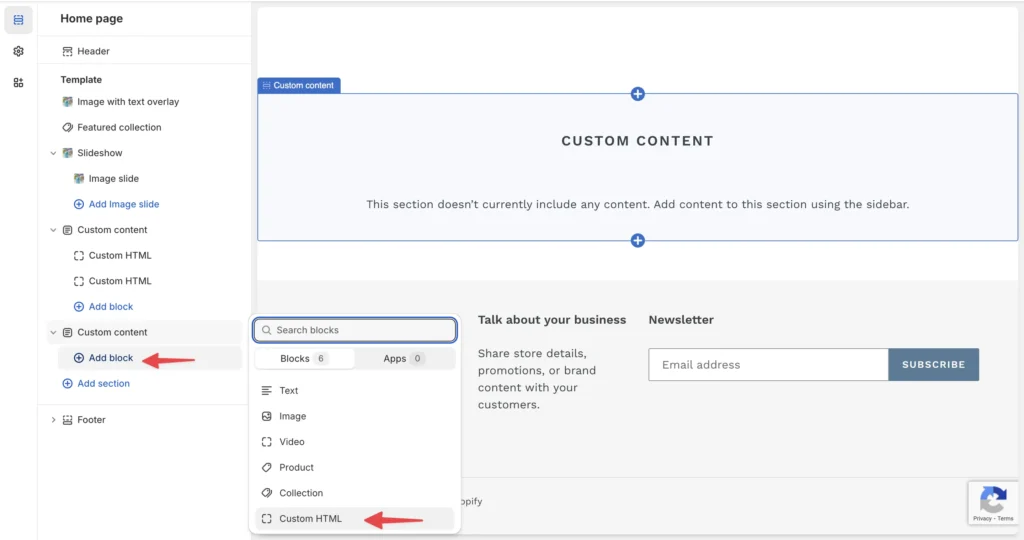
- In the editor add a custom HTML block from the left menu. In this example, we’re using the default Debut theme. This step can vary theme to theme.
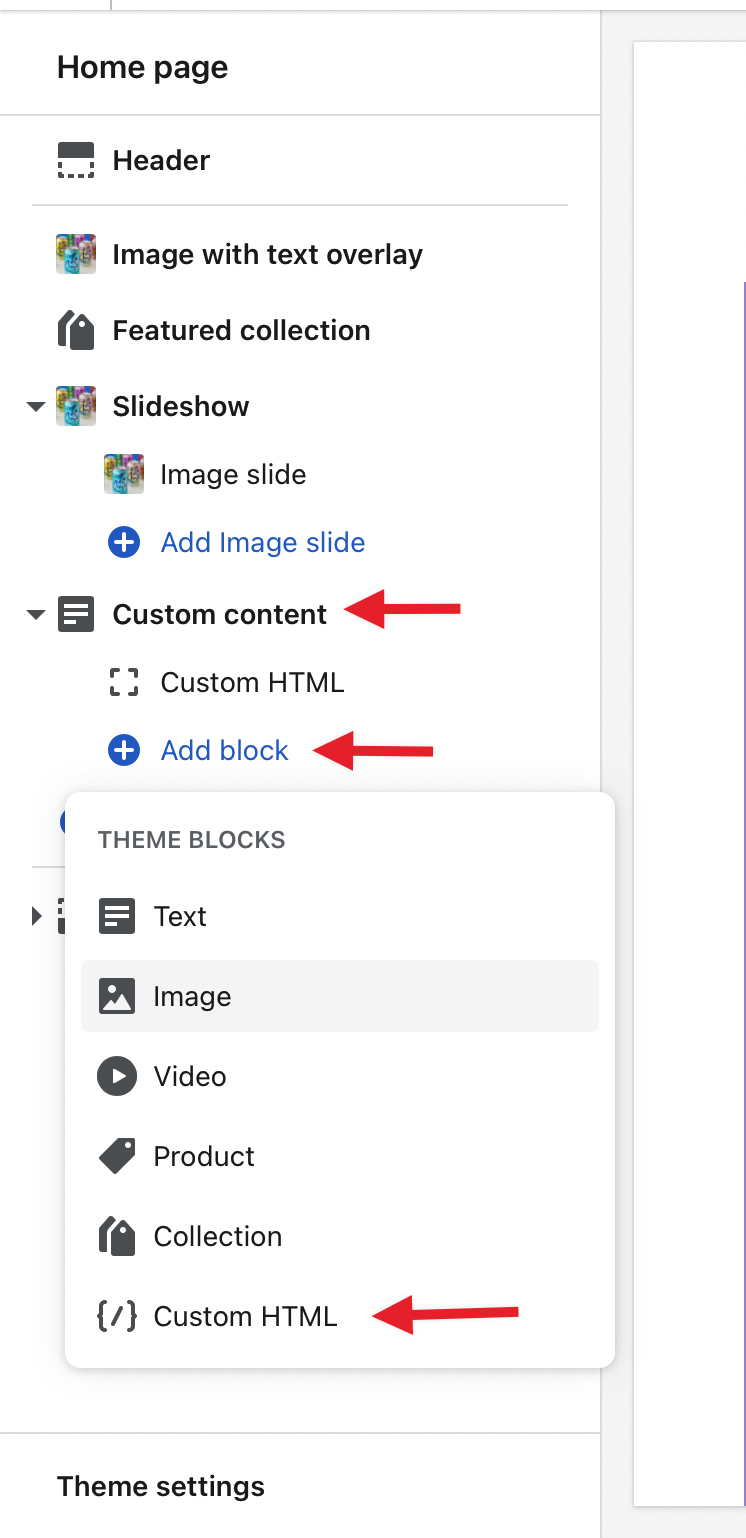
- Paste the KickoffLabs code into the HTML field and save your changes!
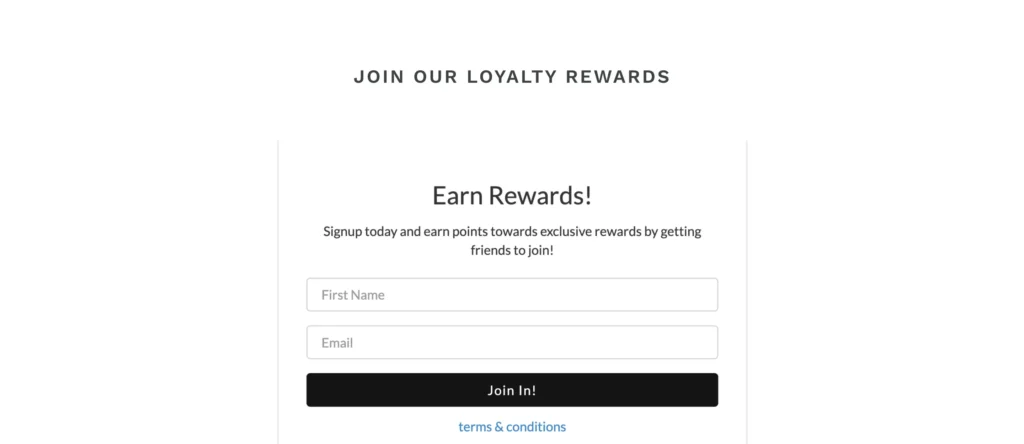
You should now see the embed on the live page (not visible in preview).
As always, if you have any questions please reach out to our support team at support@kickofflabs.com
Squarespace Integration - Embed Form
Section titled “Squarespace Integration - Embed Form”This tutorial goes through embedding your KickoffLabs Form Embed onto your Squarespace site. If you’d like to instead have a pop-up widget on your website, check out our step by step guide here. If you haven’t already edited the form, learn more how to do that here. select “Edit” to edit your form.
Installing KickoffLabs Form Embed
Section titled “Installing KickoffLabs Form Embed”This option embeds the KickoffLabs form into a page of…
your choosing. The form embed will take up the space of the container that you place it in. Once you’re done editing your form embed, select “Get Embed Code.”
Then, copy the provided embed script and paste it into an HTML block in the Squarespace editor where you would like the embedded form to display. We’ve included the steps from Squarespace here.
Save your changes and test your embedded form! If you have any questions, or need help, please send us an email at: support@kickofflabs.com
Unbounce Integration - Embed Form
Section titled “Unbounce Integration - Embed Form”This tutorial goes through embedding your KickoffLabs Form Embed onto your Instapage site. If you’d like to instead have a pop-up widget on your website, check out our step by step guide here. If you haven’t already edited the form, learn more how to do that here.
Installing KickoffLabs Form Embed
Section titled “Installing KickoffLabs Form Embed”This option embeds the KickoffLabs form into a page of…
your choosing. The form embed will take up the space of the container that you place it in. Once you’re done editing your form embed, select “Get Embed Code.”
Then, copy the provided embed script and paste it into an HTML block in the Unbounce editor where you would like the embedded form to display. We’ve included the steps from Unbounce here.
If you have any questions, or need help, please send us an email at: support@kickofflabs.com
Webflow Integration - Embed Form
Section titled “Webflow Integration - Embed Form”This tutorial goes through embedding your KickoffLabs Form onto your Webflow site. If you’d like to instead have a pop-up widget on your website, check out our step by step guide here. If you haven’t already edited the form, learn more how to do that here. *Please note that you will need a paid Webflow plan in order to add custom scripts. *
Installing KickoffLabs Form Embed
Section titled “Installing KickoffLabs Form Embed”This option embeds the KickoffLabs form into a page of…
your choosing. The form embed will take up the space of the container that you place it in. Once you’re done editing your form embed, select “Get Embed Code.”
Then, copy the provided embed script and paste it into an HTML block in the Webflow editor where you would like the embedded form to display. We’ve included the steps from Webflow here.
If you have any questions, or need help, please send us an email at: support@kickofflabs.com
Wordpress Integration - Embed Form
Section titled “Wordpress Integration - Embed Form”This tutorial goes through embedding your KickoffLabs Form onto your Wordpress site. Please note the steps may vary, depending on what theme/builder you’re using in Wordpress. If you’d like to instead have a pop-up widget on your website, check out our step by step guide here. If you haven’t already edited the form, learn more how to do that here.
Installing KickoffLabs Form Embed
Section titled “Installing KickoffLabs Form Embed”This option embeds the KickoffLabs form into a page of…
your choosing. The form embed will take up the space of the container that you place it in. Once you’re done editing your form embed, select “Get Embed Code.”
Then, copy the provided embed script and paste it into an HTML block in the Wordpress editor where you would like the form embed to display. The steps will vary, depending on what theme/builder you’re using in Wordpress. It’s best to reach out directly to your builder’s support team for any assistance with their builder. We’ve included some of the most popular below: DIVI Elementor Wordpress Gutenberg
Installing Embed on Default Wordpress Editor We’ve included the steps to install the emb…
Section titled “Installing Embed on Default Wordpress Editor We’ve included the steps to install the emb…”ed on the default Wordpress editor. For this walkthrough, we’ll be using a Wordpress Post. Scroll to the section of your page that you’d like to place the embed in and select the “Text” editor.
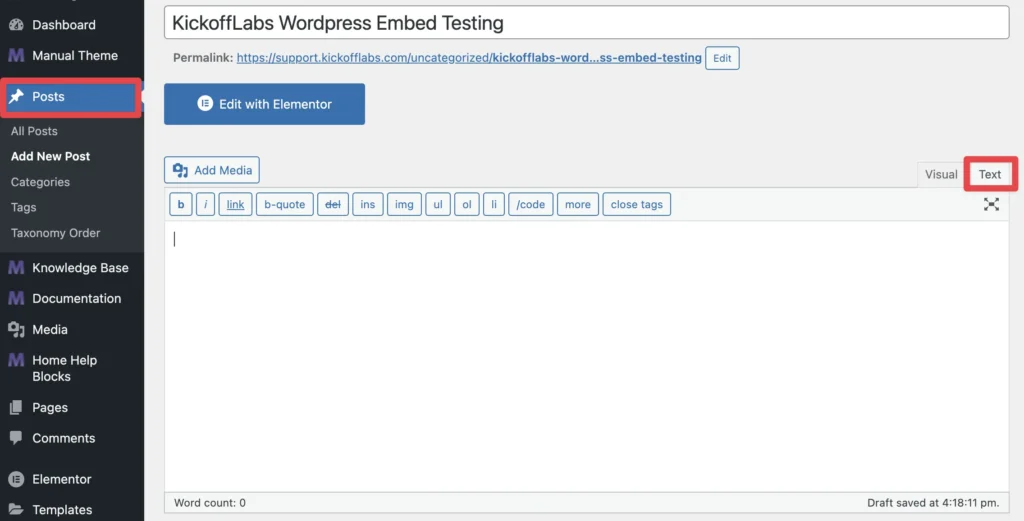
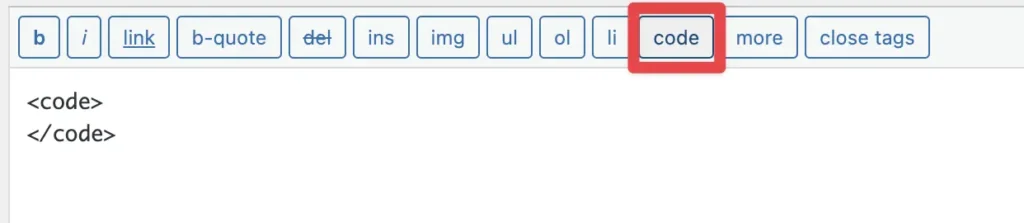
Select the “Code” button twice to create an opening and closing code tag.
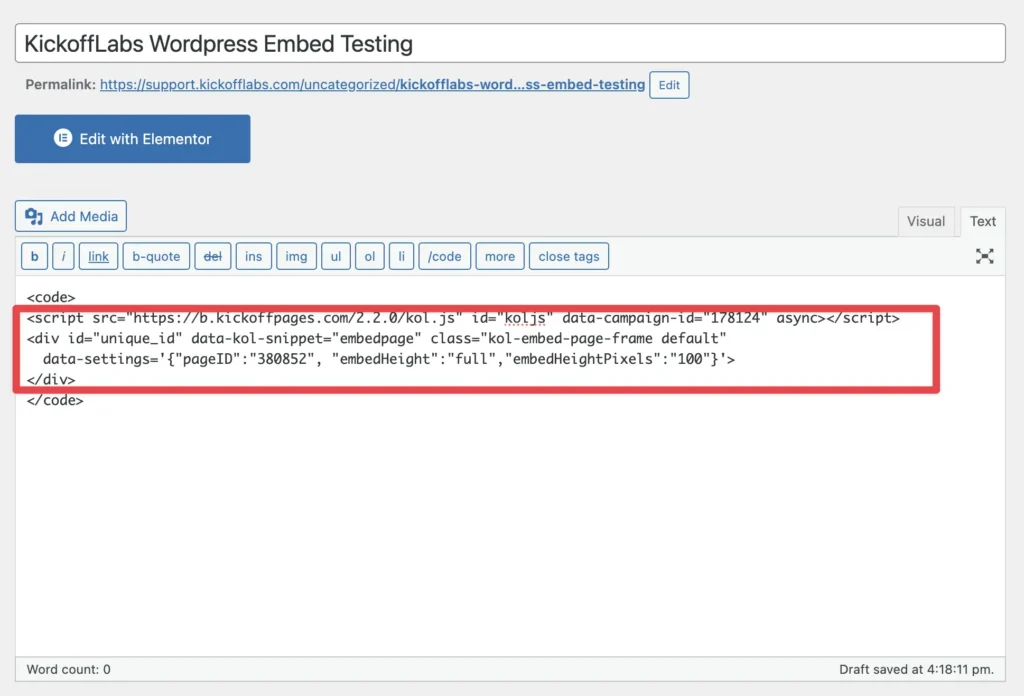
Next, paste the KickoffLabs embed script between the opening and closing code tags.
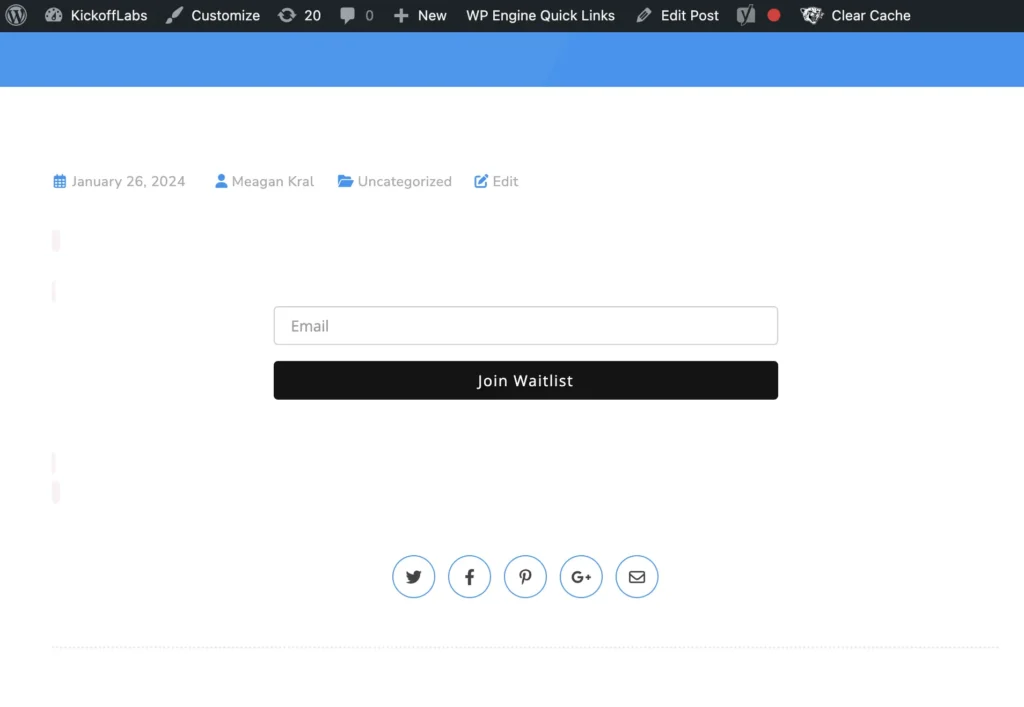
Save your changes and test your embedded form! You should see the embed on the Wordpress preview and the live verion of the page.
If you have any questions, or need help, please send us an email at: support@kickofflabs.com
Framer Integration - Embed Form
Section titled “Framer Integration - Embed Form”This tutorial goes through embedding your KickoffLabs Form onto your Framer site. If you’d like to instead have a pop-up widget on your website, check out our step by step guide here. If you haven’t already edited the form, learn more how to do that here.
Installing KickoffLabs Form Embed
Section titled “Installing KickoffLabs Form Embed”This option embeds the KickoffLabs form into a page of…
your choosing. The form embed will take up the space of the container that you place it in. Once you’re done editing your form embed, select “Get Embed Code.”
Then, copy the provided embed script from KickoffLabs, we’ll be needing this in a future step.
Installing KickoffLabs Embed in Framer Please note we try our best to stay up to date wi…
Section titled “Installing KickoffLabs Embed in Framer Please note we try our best to stay up to date wi…”th 3rd party platforms, but can’t make any guarantees. It’s always best to check out Framer’s official steps. We’ve included the steps from Framer here. Navigate to your Framer editor, select the ”+” insert icon and scroll down to the “Utility” section. Select the **“Embed.” **
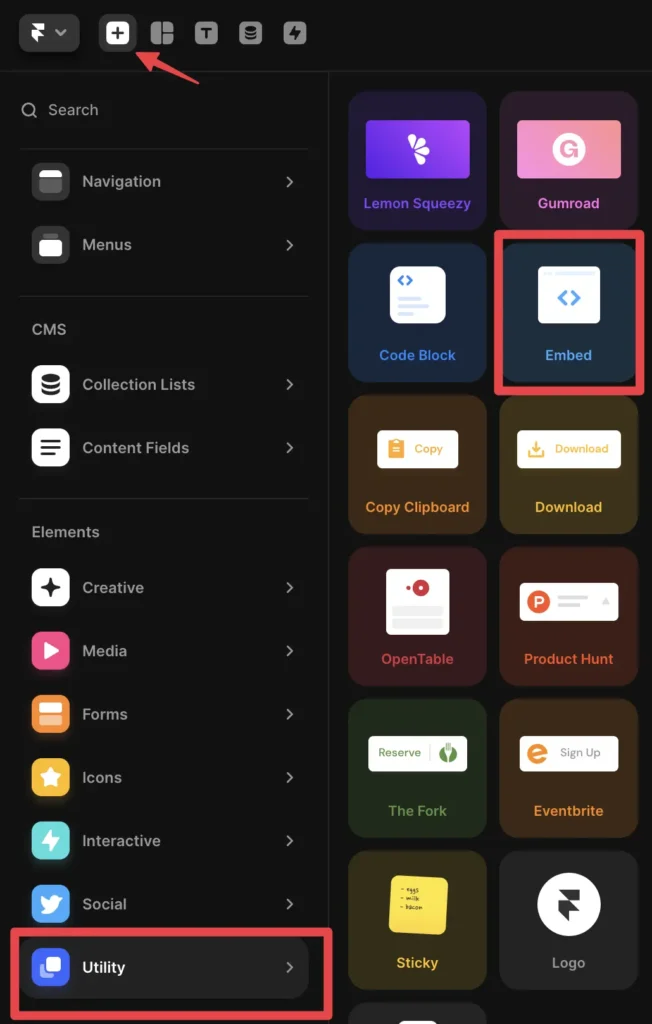
Next, drag the embed widget onto the Framer page where you’d like to display the KickoffLabs embed. Click into the embed box to bring up the embed settings and paste your KickoffLabs embed script into the HTML area.
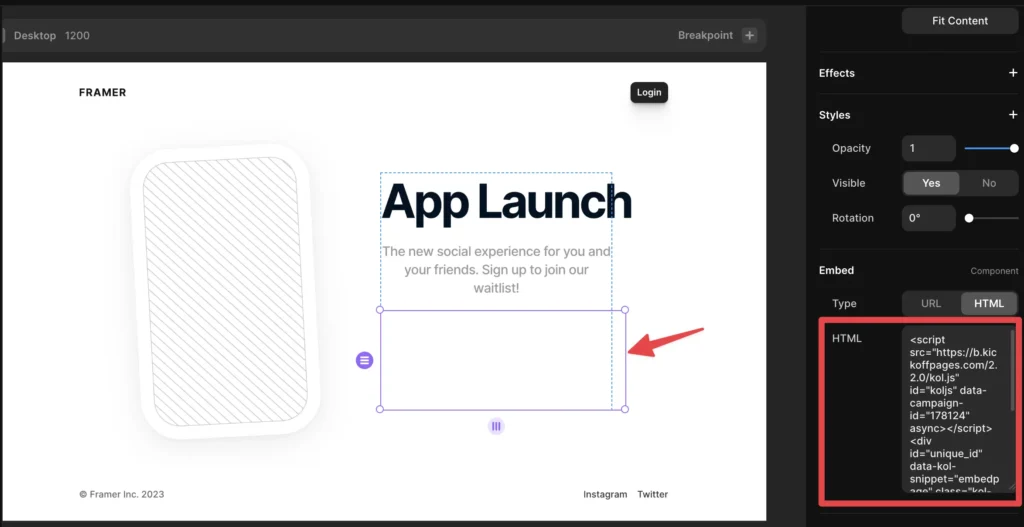
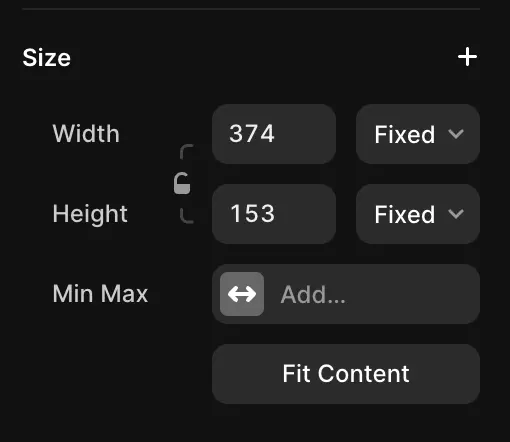
You can also change the height/width of the embed by dragging any of the 4 corners of the embed in Framer, or from the embed menu on the right side of the page.
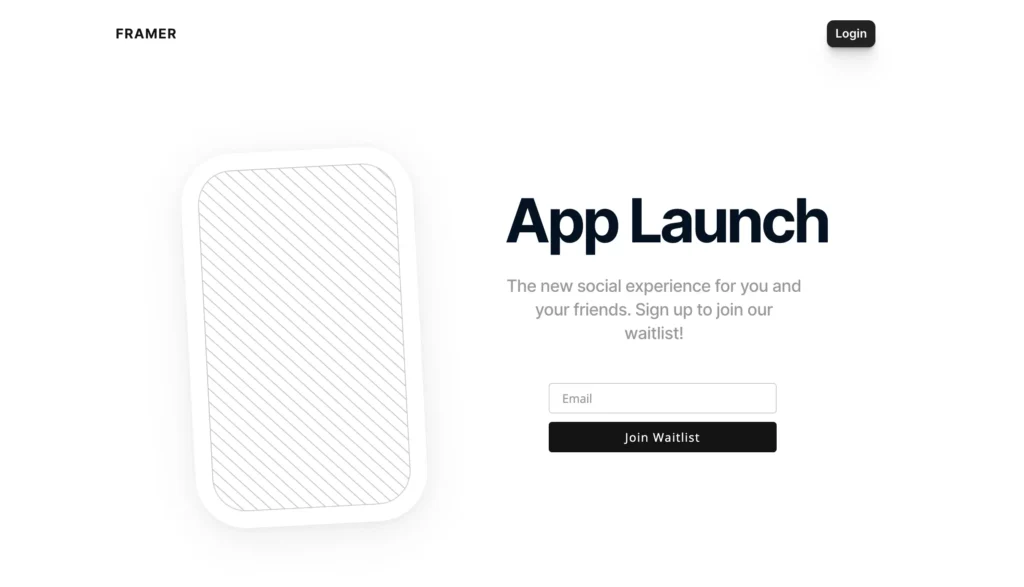
Save and publish your changes and test out your embed! You should now see the embed on the live version of the page.
If you have any questions, or need help, please send us an email at: support@kickofflabs.com
Notion Integration - Embed Form
Section titled “Notion Integration - Embed Form”This tutorial goes through embedding your KickoffLabs Form onto your Notion page. If you haven’t already edited the form, learn more how to do that here. ***Please note, due to Notion limitations, KickoffLabs embeds can only be used for lead capture and will not track referrals. ***
Installing KickoffLabs Form Embed
Section titled “Installing KickoffLabs Form Embed”This option embeds the KickoffLabs form into a page of…
your choosing. The form embed will take up the space of the container that you place it in. Once you’re done editing your form embed, copy the embed’s URL
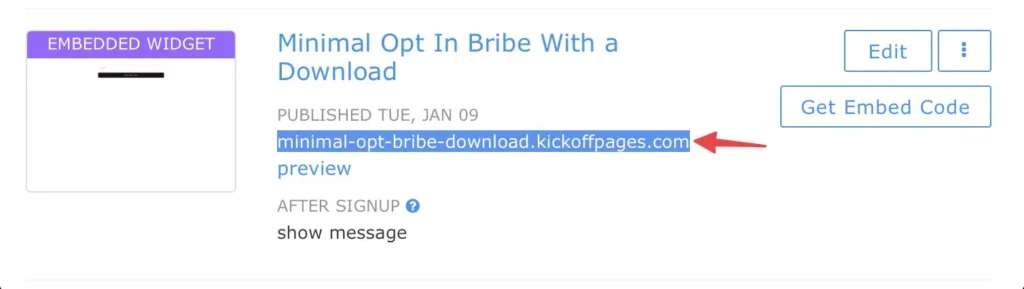
Then, in Notion type ”/” into the area you want to add the form to and type “embed.”
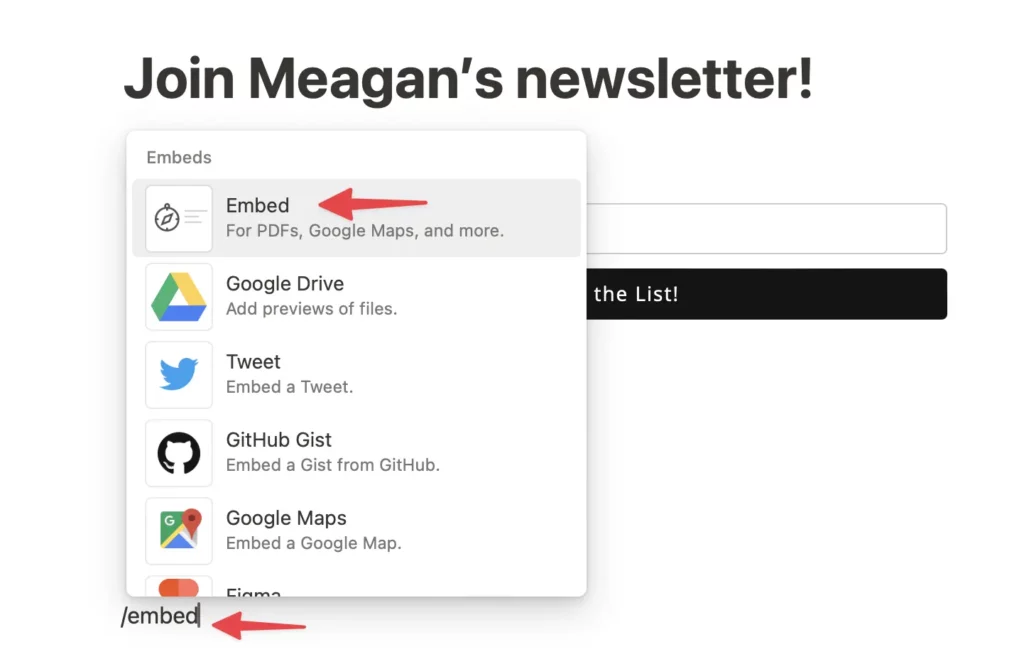
Paste in the embed URL into the URL field in notion and select “Embed link.”
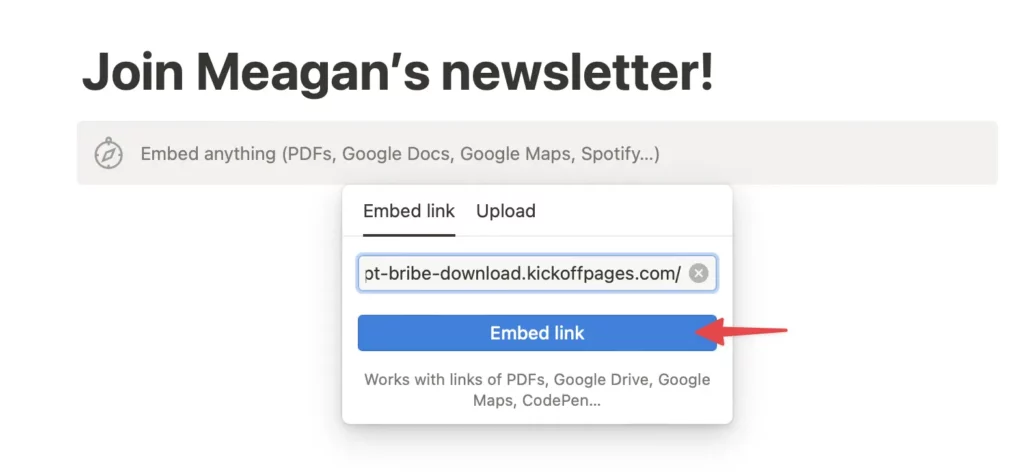
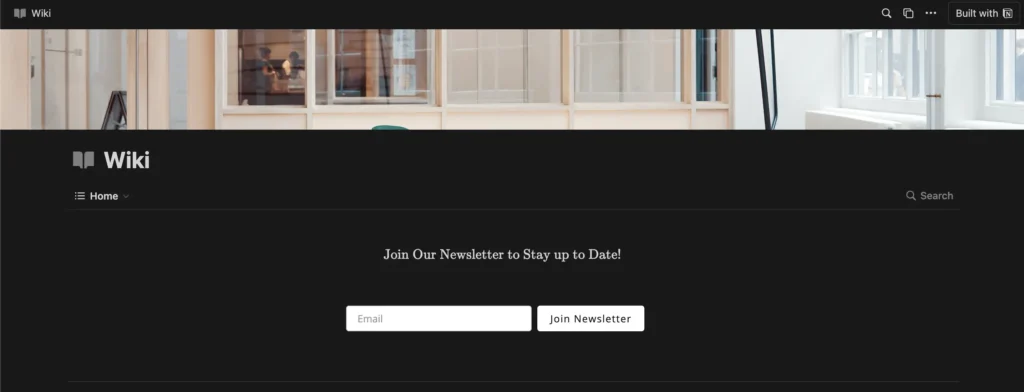
Your form should now appear on the page. Publish your Notion page and test out the form!
If you have any questions, or need help, please send us an email at: support@kickofflabs.com
WIX Integration - Embed Form
Section titled “WIX Integration - Embed Form”This tutorial goes through embedding your KickoffLabs Form onto your WIX page. If you haven’t already edited the form, learn more how to do that here. ***Please note, due to WIX limitations, KickoffLabs embeds can only be used for lead capture and will not track referrals. ***
Installing KickoffLabs Form Embed
Section titled “Installing KickoffLabs Form Embed”This option embeds the KickoffLabs form into a page of…
your choosing. The form embed will take up the space of the container that you place it in. Once you’re done editing your form embed, copy the embed’s URL
Installing the Embed in WIX In The WIX editor, select the blue ”+” icon to add an elemen…
Section titled “Installing the Embed in WIX In The WIX editor, select the blue ”+” icon to add an elemen…”t to the page. For this walkthrough, we’ll be using the “Embed a Site” option.
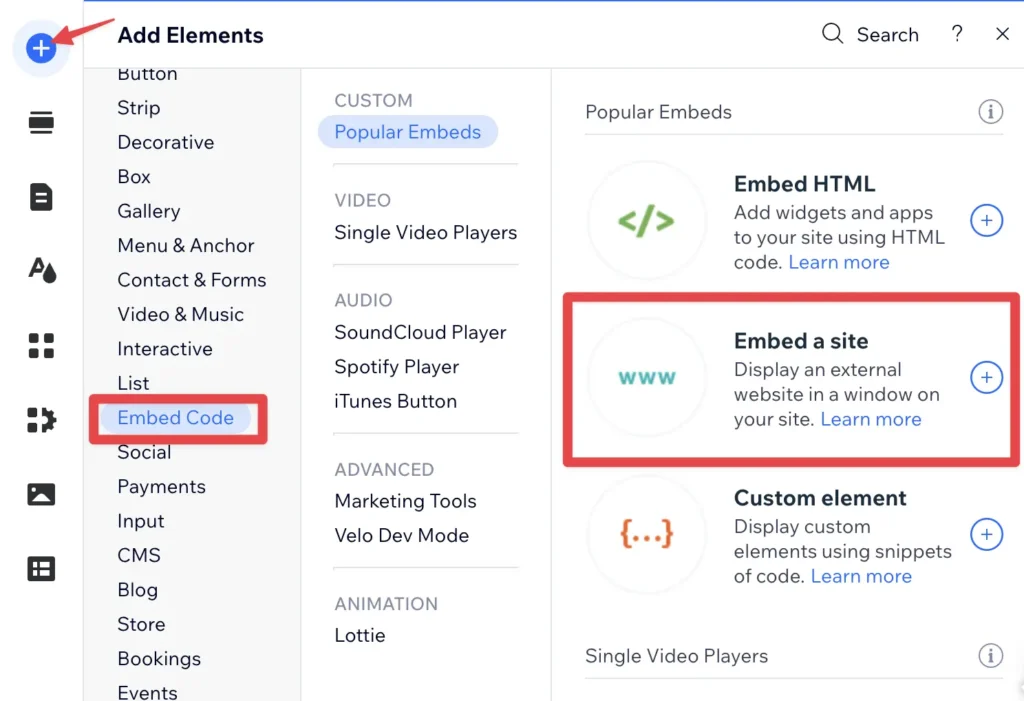
Next, position the embed box where you’d like your KickoffLabs embed to display. You can also use the gray dots in the embed perimeter to resize your embed. Paste the URL from KickoffLabs into the WIX embed settings. You should now see the embed on the page.
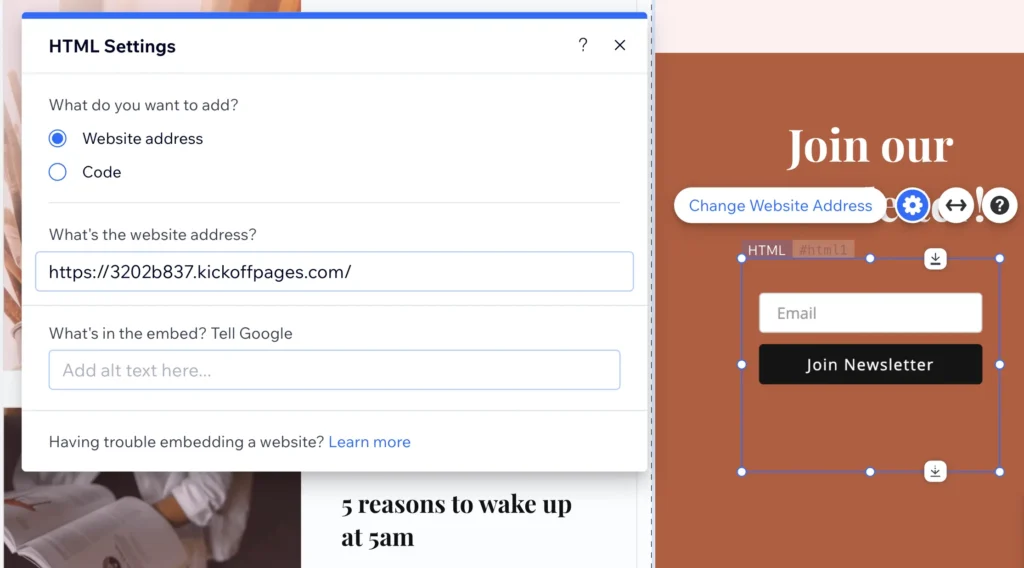
Save and publish your changes in WIX and test out your embed! If you have any questions, or need help, please send us an email at: support@kickofflabs.com
Install a popup box
Section titled “Install a popup box”What is a KickoffLabs Popup?
Section titled “What is a KickoffLabs Popup?”KickoffLabs pop-ups allow you to setup viral contests on your site in minutes without any technical knowledge! They support every KickoffLabs campaign type and can be customized to include campaign actions, rewards, leaderboards, and customer referral mechanics.
Editing Your Pop-up When you Chose a Popup Box Flow
Section titled “Editing Your Pop-up When you Chose a Popup Box Flow”During the initial campaign set-up, if you selected the Popup Box flow for where leads should sign-up, follow along with the below steps. If you instead chose a landing page set-up, skip over to the next section.
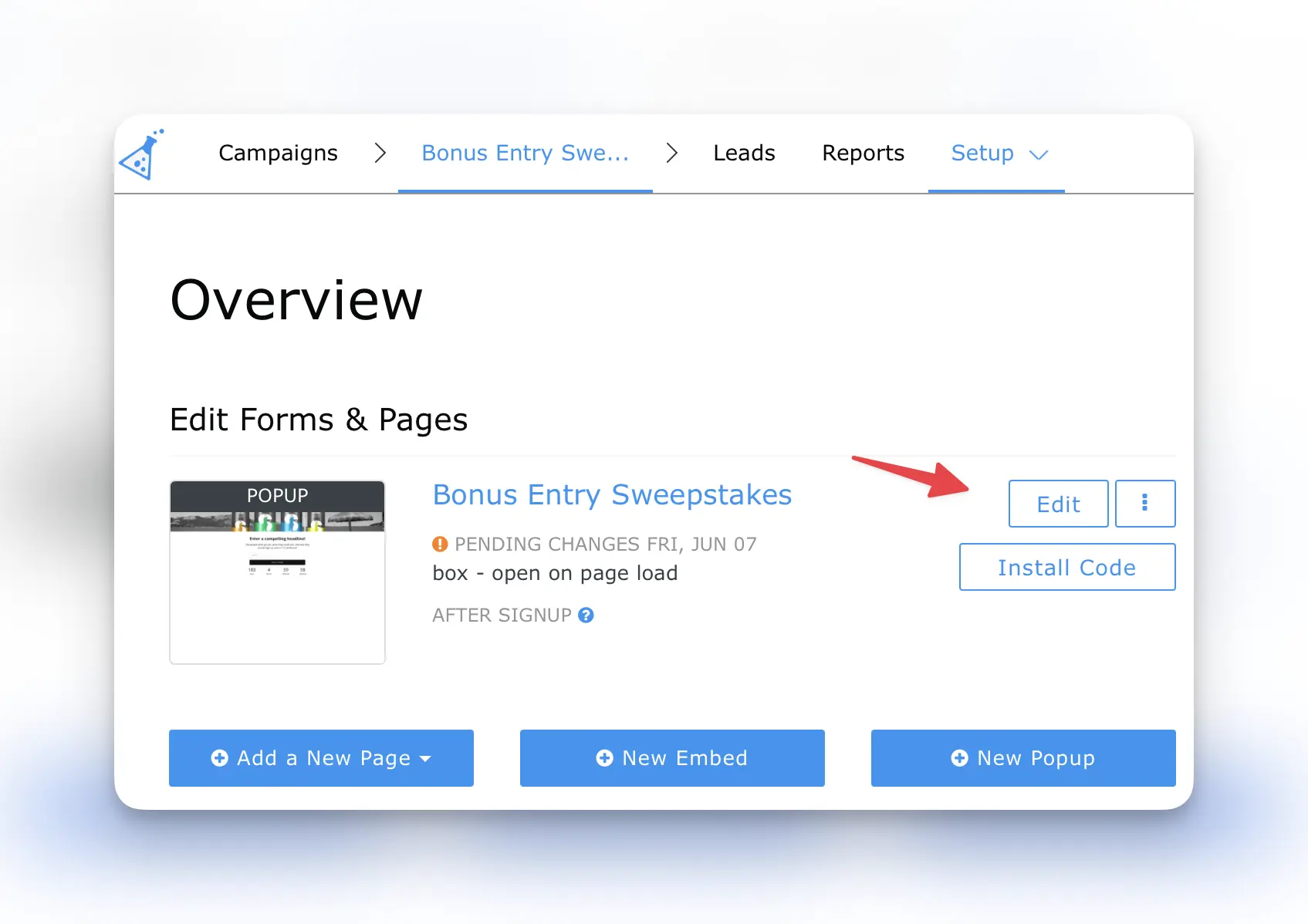
From your campaign dashboard, select to design the popup.
Editing Your Popup Box - When you Chose a Landing Page/Anyform/Form Embed Setup
Section titled “Editing Your Popup Box - When you Chose a Landing Page/Anyform/Form Embed Setup”During the initial campaign set-up, if you selected the landing page flow for where leads should sign-up, the Popup Box editor will instead be located underneath the form and pages area.
Popup Box Editor Options
Section titled “Popup Box Editor Options”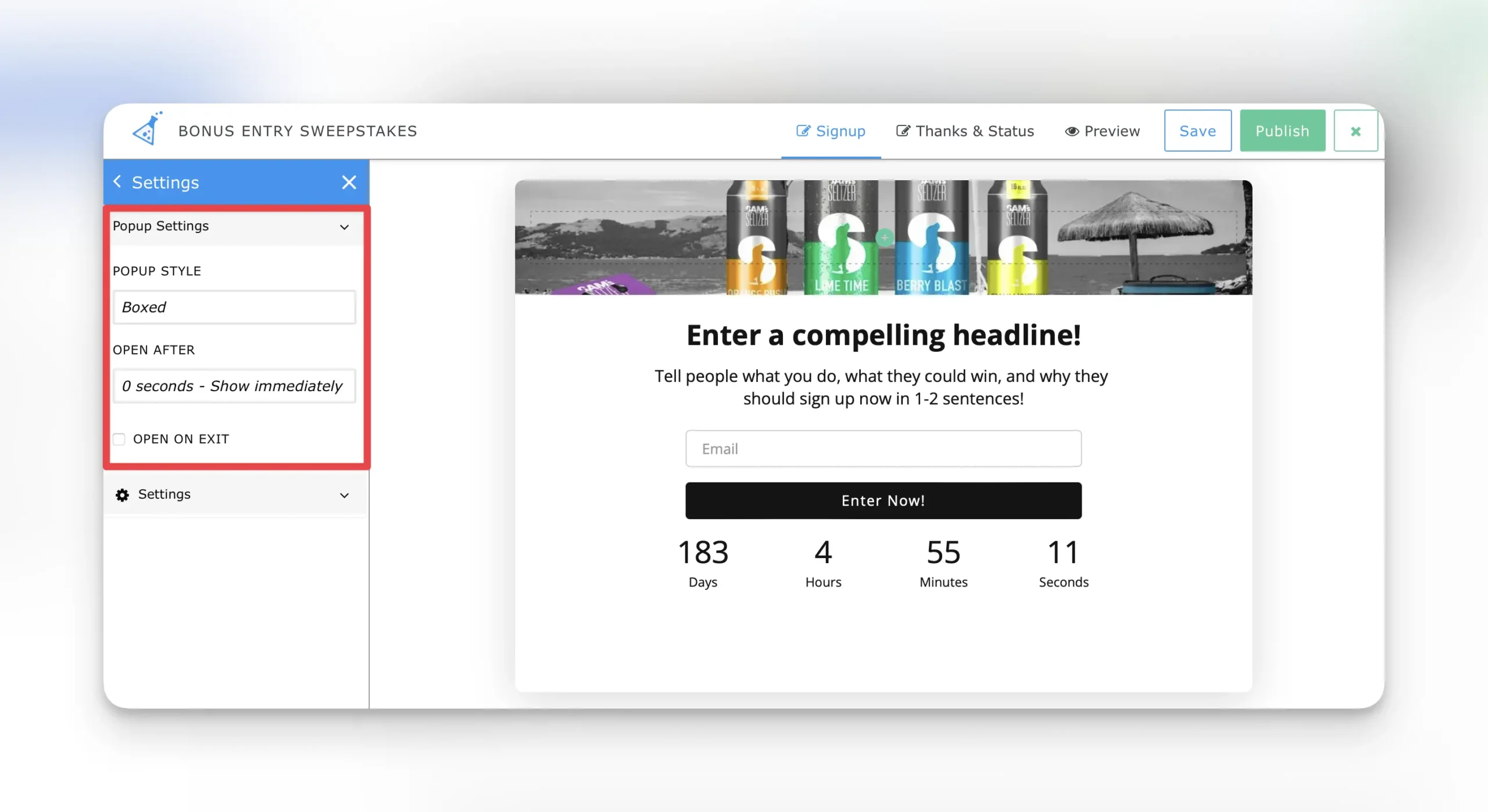
Popup Settings
Section titled “Popup Settings”From the left nav in the editor select “Settings” > Popup Settings
This area controls the layout and timer of the popup. Popup Style:Boxed: This is our default popup layout. The popup will open as a box centered on the page. Full Screen: This option will open the popup as a full page. Open After:
-
By default the popup is set to automatically immediately upon page load. This setting allows you to set the Popup Box on a timer after X seconds on the page.
-
When set to “Never - Don’t show on a Timer” the box will not trigger unless clicked.(ie triggering the box based on button/link click). Show on Exit Intent
-
When checked, the box will appear when a vistor goes to exit the page (mouse hovering toward browser “X”. Please note mobile devices restrict this option.
Popup Design Options KickoffLabs popups use the same editor as our landing pages and forms.
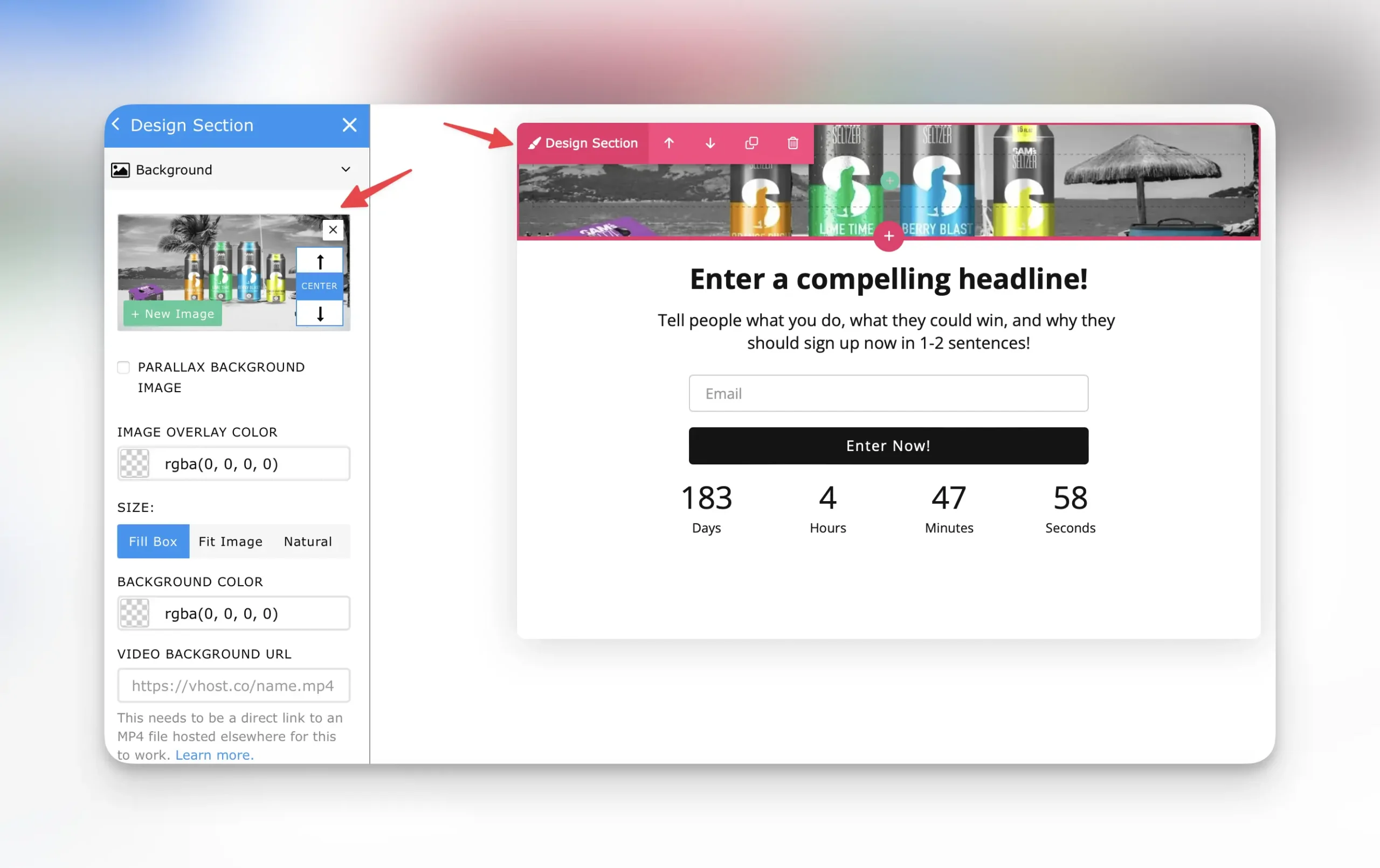
Section titled “Popup Design Options KickoffLabs popups use the same editor as our landing pages and forms.”Let’s walk through a few elements of the popup you’ll want to customize for your brand. Changing the Hero Background Image The hero image for the popup can be changed by hovering over the top left cover of the popup and selecting the pink design paintbrush.
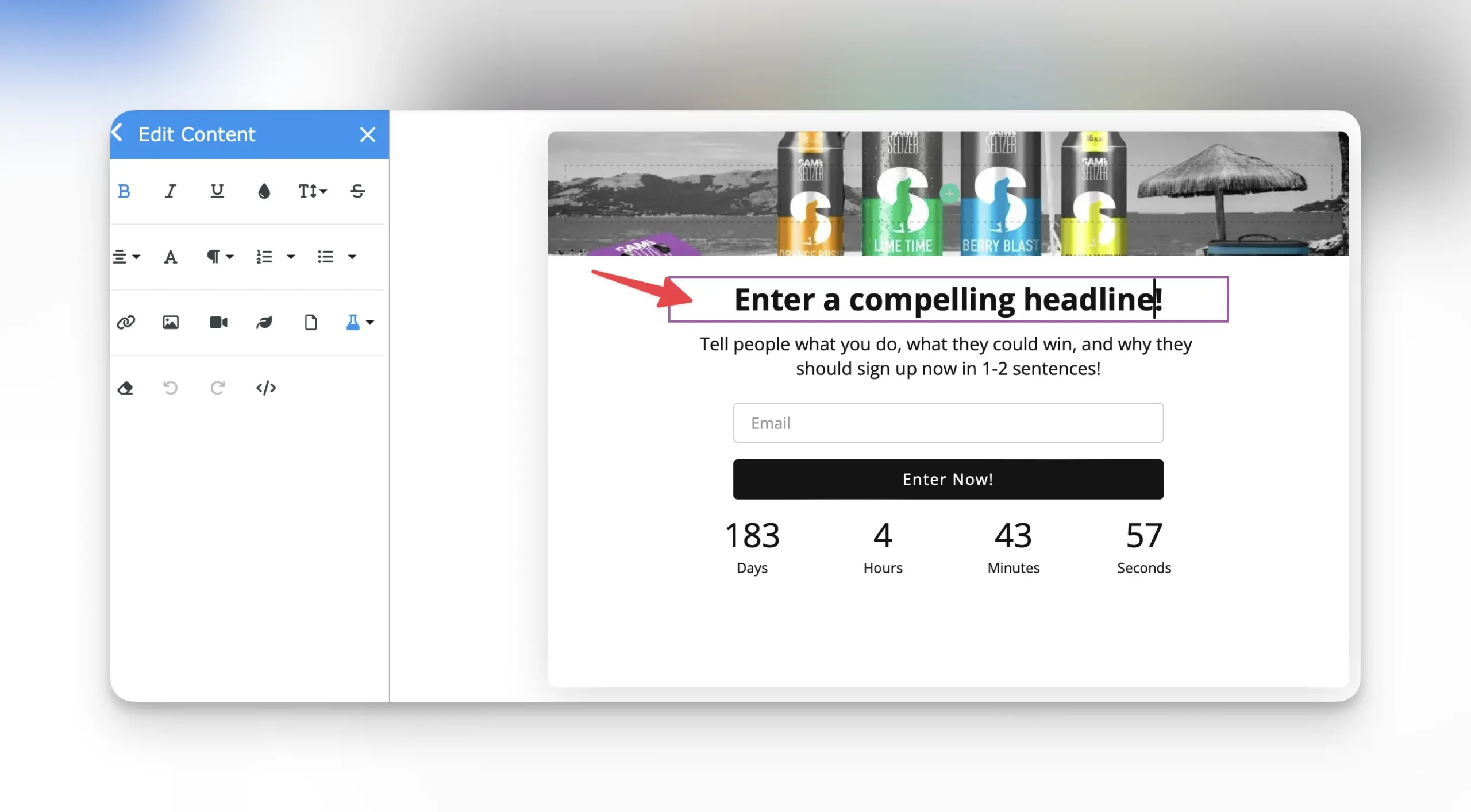
Editing Popup Text To customize the popup text, simply click into the placeholder text in the editor.
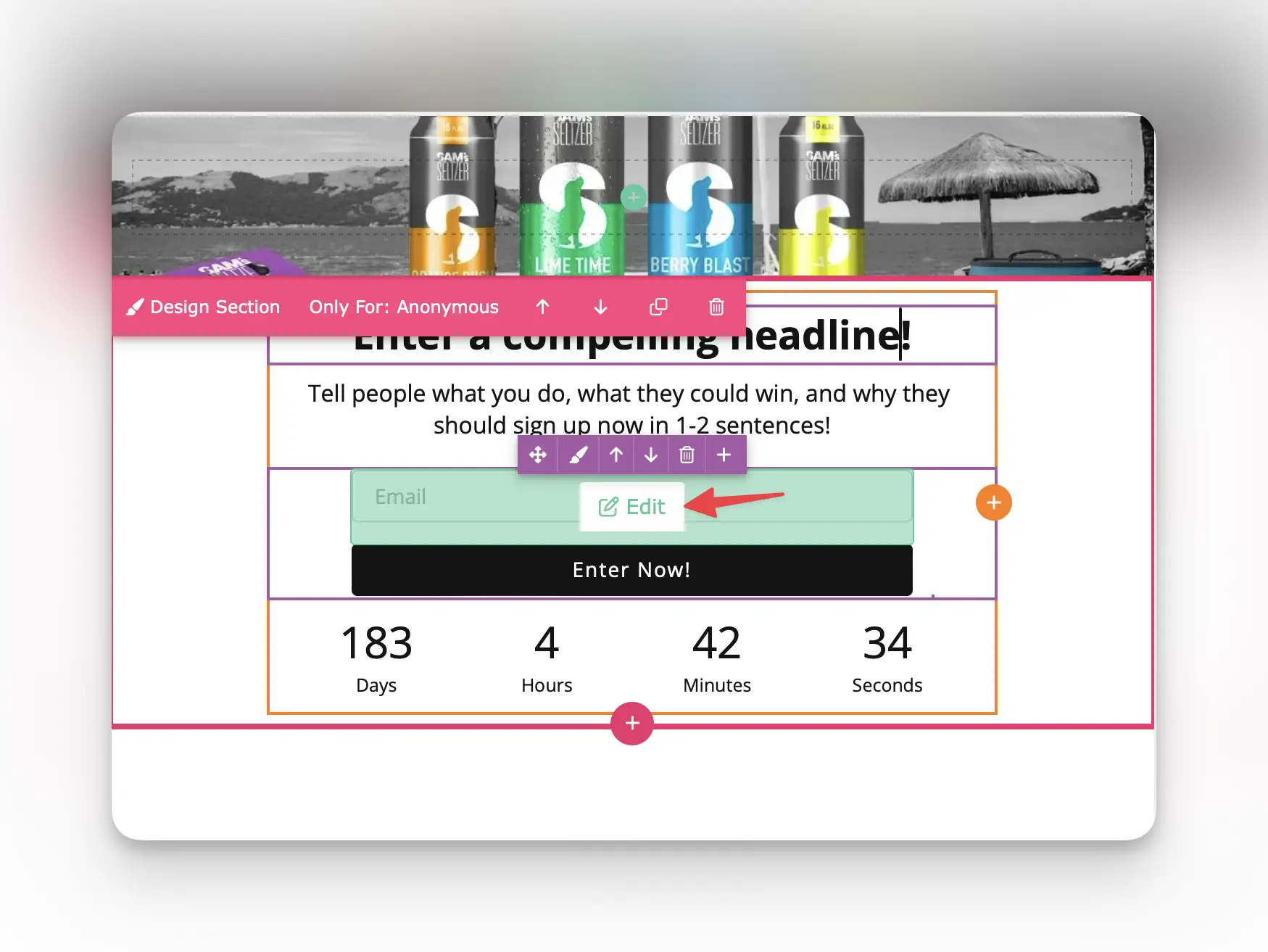
Editing Popup Form All KickoffLabs forms can be customized including having custom fields added. To get started, hover over the form and select the green “edit” button.
Designing the Thanks and Status Area
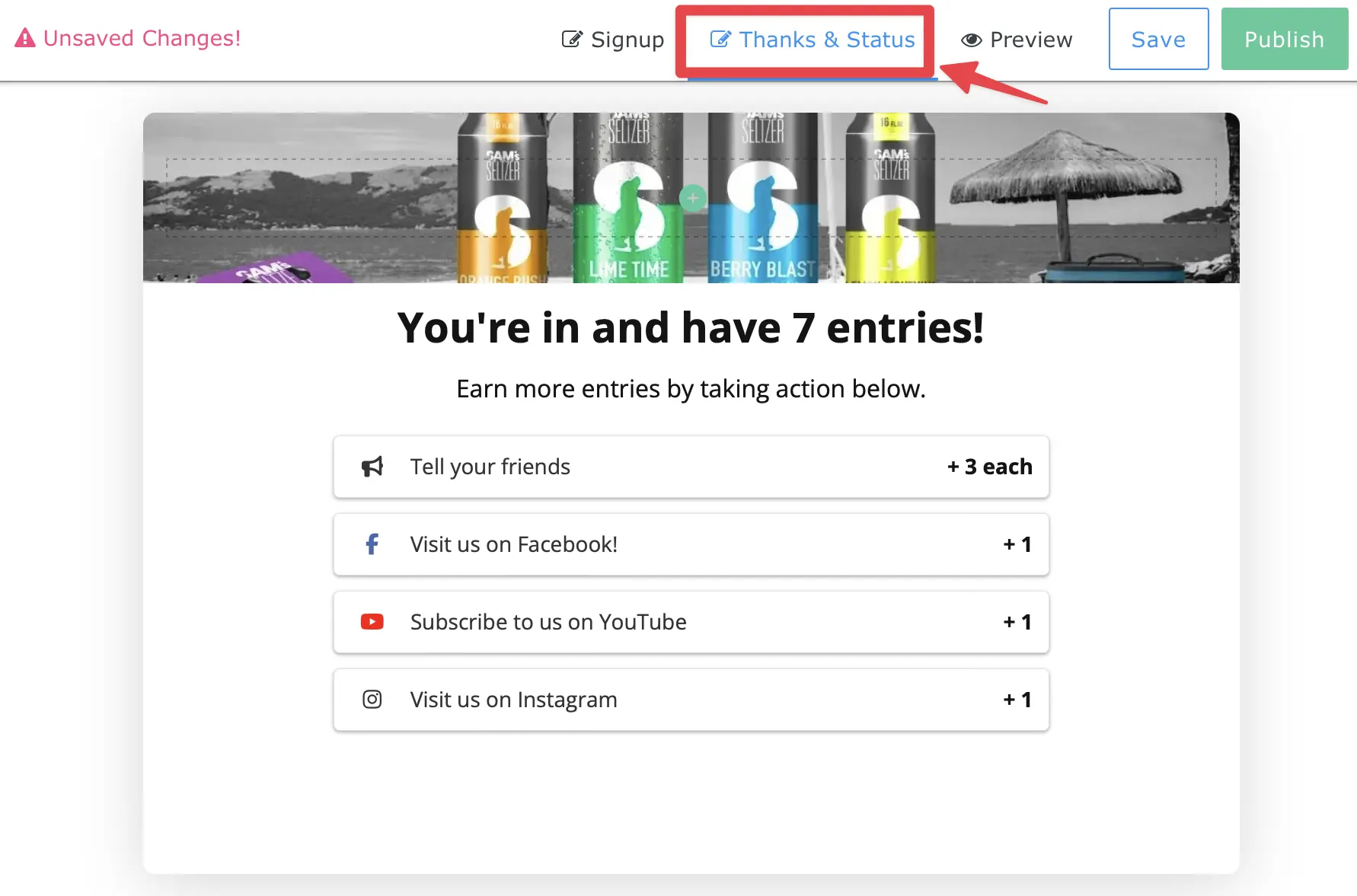
Section titled “Designing the Thanks and Status Area”After you’ve finished designing the signup portion of the popup, it’s time to edit what the lead sees after they’ve submitted the form and signed up. This is known as the Thanks and Status area. From your popup editor, select “Thanks & Status” from the top nav.
Display or Hide a Section or Snippet Based on Lead Properties
Section titled “Display or Hide a Section or Snippet Based on Lead Properties”In some cases, users may not want to display specific sections to a lead before they’ve signed up..or maybe they want to hide messages that are meant for visitors after the lead has submitted the form. Learn more about setting lead properties here.
Preview Mode
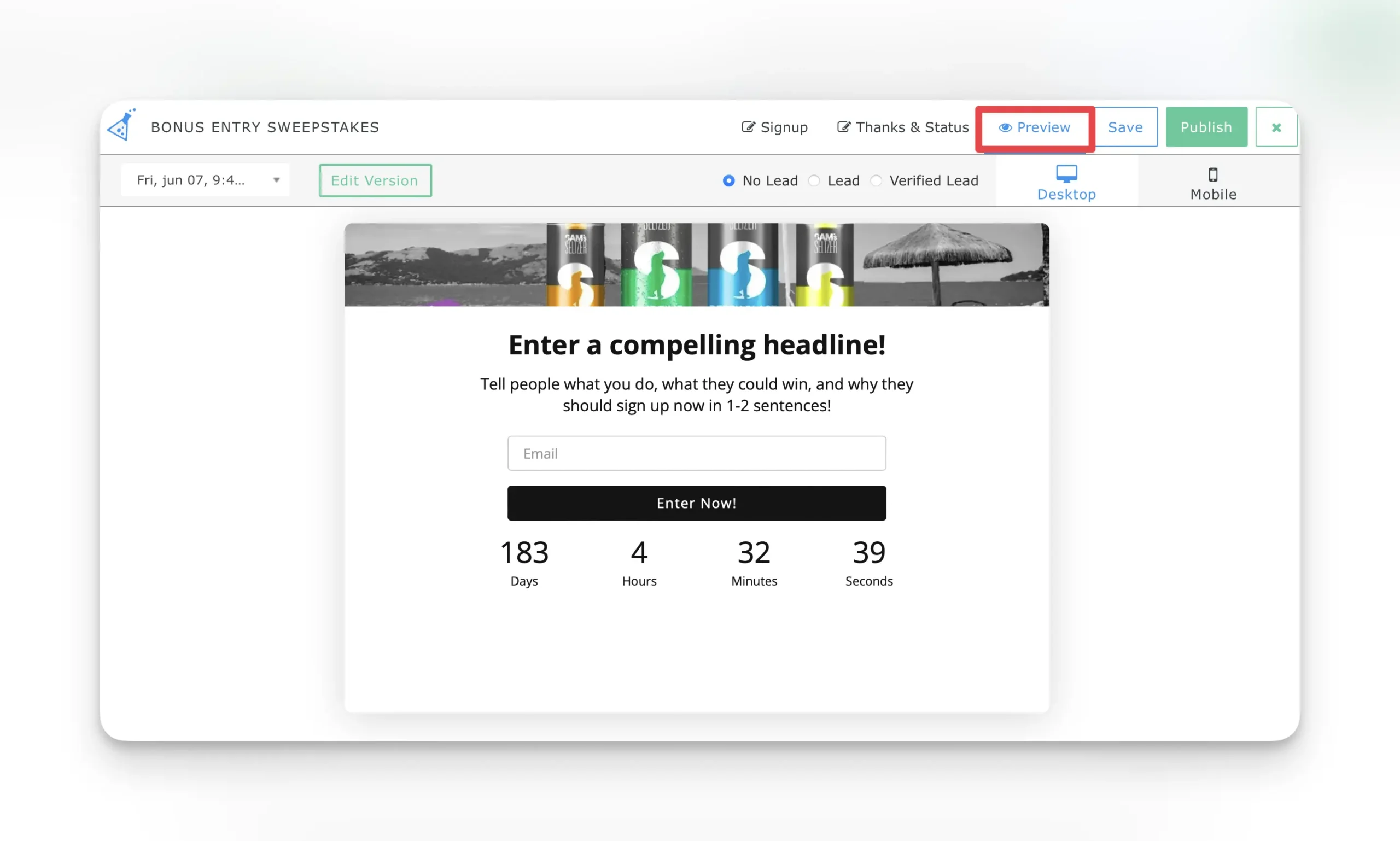
Section titled “Preview Mode”Preview the changes you’ve made to your popup before saving and publishing live! Select “Preview” from the top nav. Here you can toggle between previewing the sign-up box, what the box looks like after the lead has entered (thanks and earn entries), along with previewing the mobile and desktop views.
Installing Your Popup Box
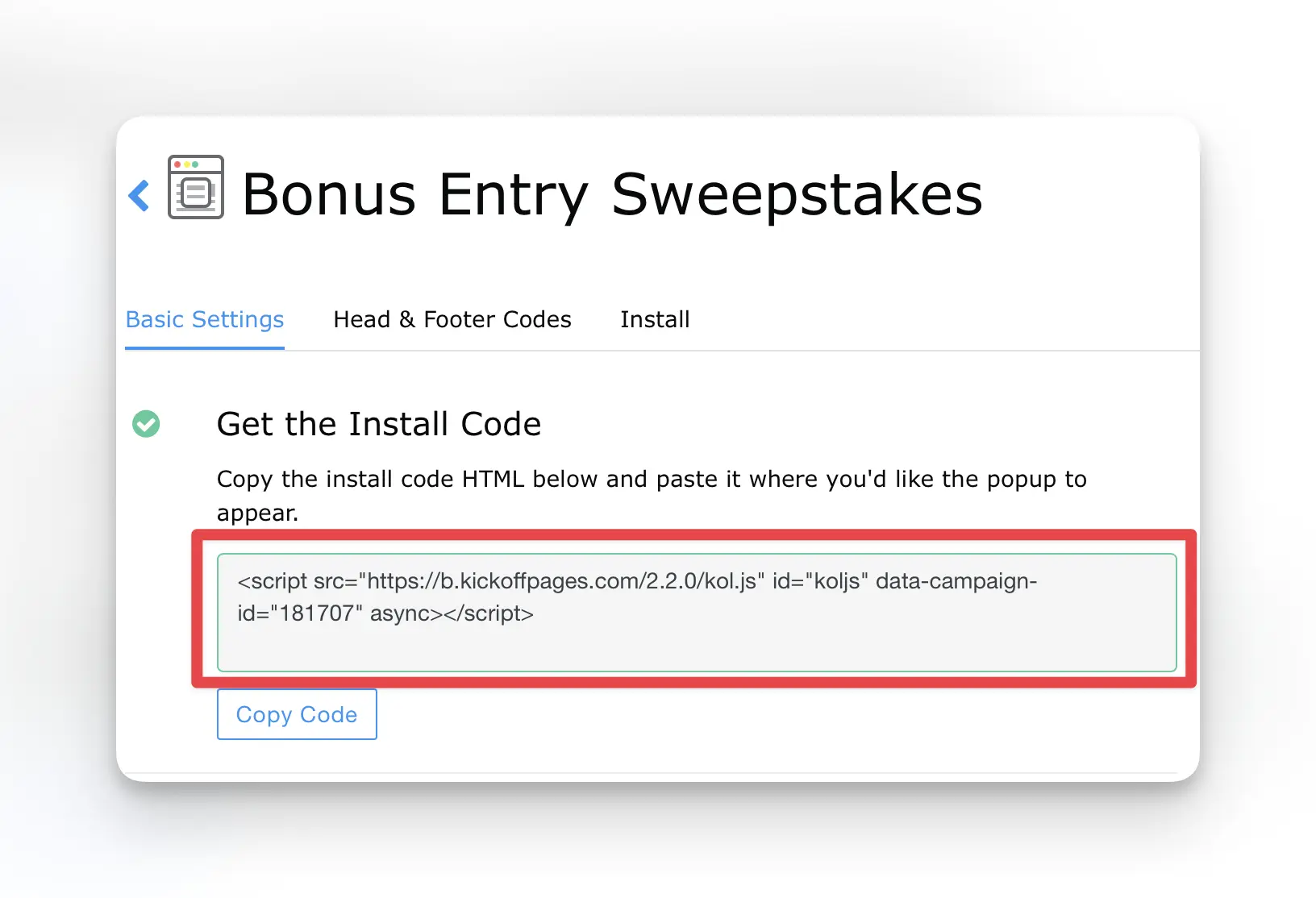
Section titled “Installing Your Popup Box”When you’re ready to install your designed Popup Box, select the green “publish” button in the editor. This will bring you out to the popup settings were you can copy the installation script and paste it into the header area of where you’d like it installed.
Platforms Popup Box is Currently Supported on
Section titled “Platforms Popup Box is Currently Supported on”This option allows a pop-up to be triggered on your website. It can also easily be set on a timer or even set to manually open with a click of a button. We currently support the following platforms: ClickFunnels popup installation guide Instapage Popup Box Installation Guide Leadpages Popup Box Installation Guide Shopify Popup Box Installation Guide Squarespace Popup Box Installation Guide Unbounce Popup Box Installation Guide Webflow Popup Box Installation Guide WIX Popup Box Installation Guide WordPress Popup Box Installation Guide Website builder not listed? Follow along with our general Popup Box guide here If you have any questions, or need help, please send us an email at: support@kickofflabs.com
Installing KickoffLabs Popup Box on External Websites
Section titled “Installing KickoffLabs Popup Box on External Websites”KickoffLabs Popup Box allow you to setup viral contests on your site in minutes. They support every KickoffLabs campaign type and can be customized to include campaign actions, rewards, leaderboards, and customer referral mechanics..all while keeping leads on your website! Our Popup Box feature allows for you to add a popup on a page of any website! (aslong as you have access to add header code to your website). Leads can easily opt-in to the contest via the pop-up and view their stats/share with friends. Below we’ll walk you through, step by step, installing the Popup Box on your external website! If you haven’t already, start off by customizing your popup box.
Installing Popup Box
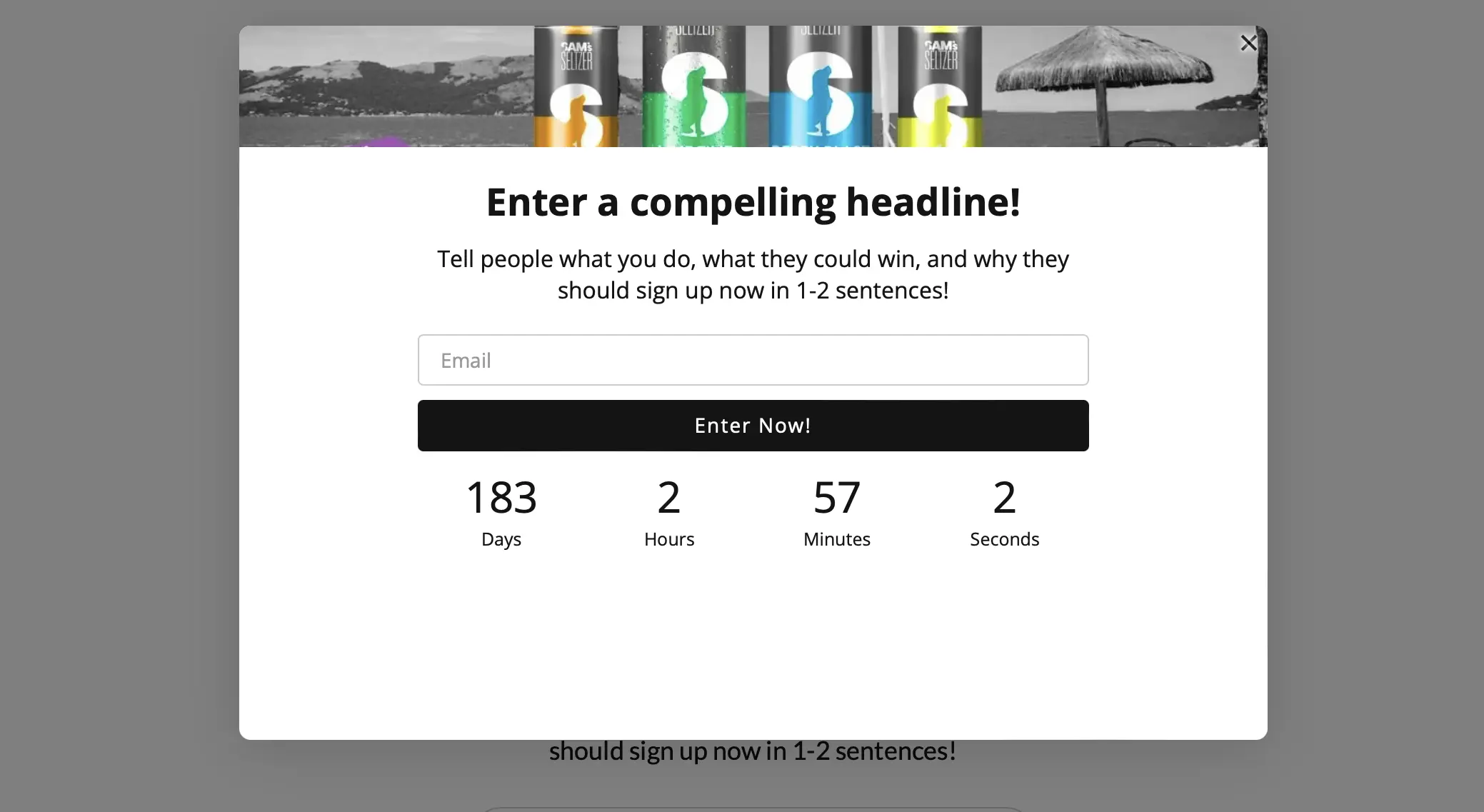
Section titled “Installing Popup Box”This option allows the Popup Box to display on your website
It can also easily be set on a timer or even set to manually open with a click of a button. We currently support the following platforms: ClickFunnels popup installation guide Instapage Popup Box Installation Guide Leadpages Popup Box Installation Guide Shopify Popup Box Installation Guide Squarespace Popup Box Installation Guide Unbounce Popup Box Installation Guide Webflow Popup Box Installation Guide WIX Popup Box Installation Guide WordPress Popup Box Installation Guide
From The KickoffLabs Dashboard:
Section titled “From The KickoffLabs Dashboard:”- Customize Your Popup for your campaign
- From your campaign dashboard, select “Install Code.”
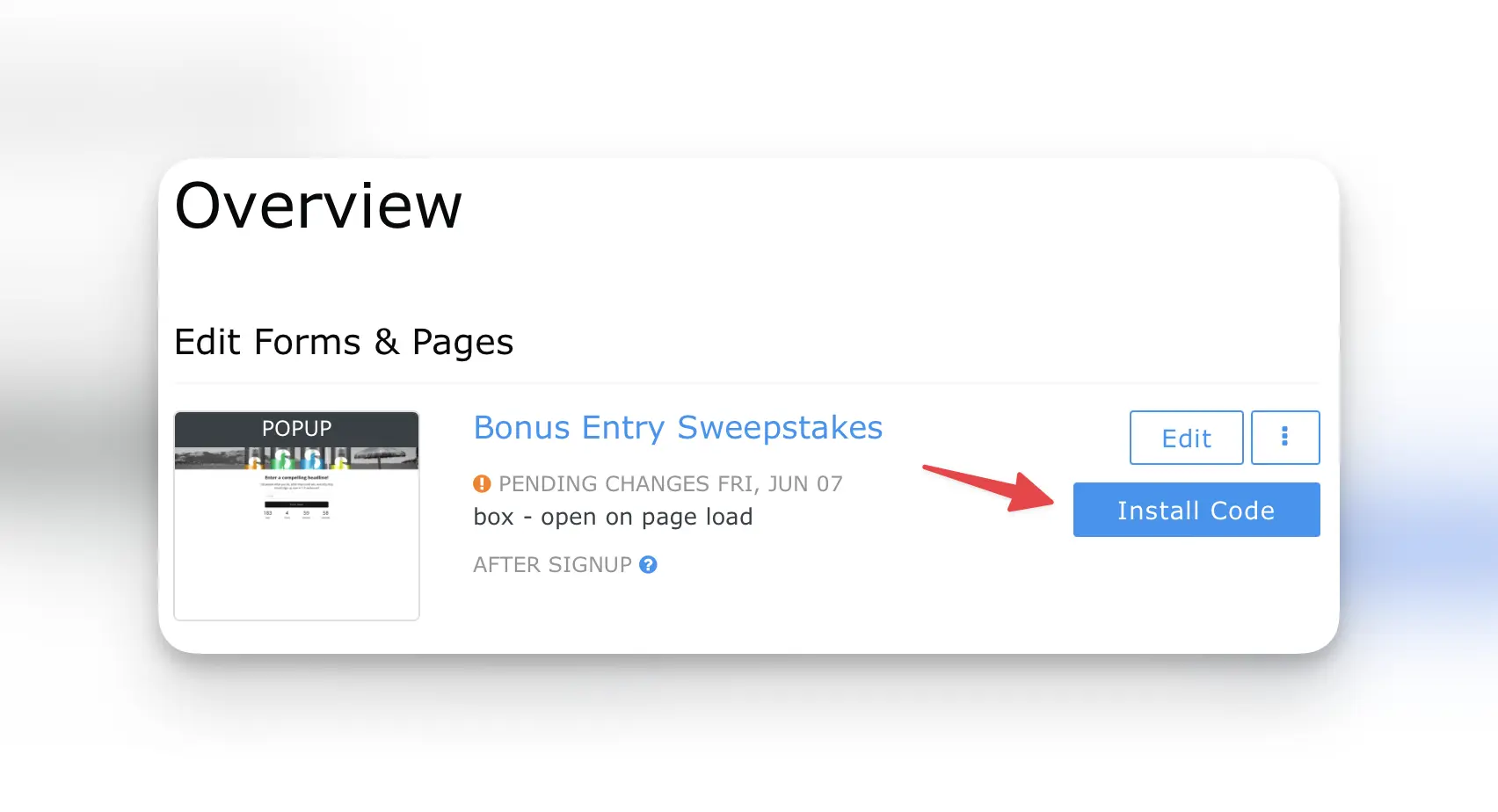
- Copy the provided script.
- Install the script in the header area of your website.
- If you want to trigger the popup based on a link/button click instead of it being automatically triggered, follow the steps here. *The Anyform and KickoffLabs form embed use the same script as the popup, so if you’ve already installed this no need to repeat this step. * If you’re seeing an error, reach out to us at support@kickofflabs.com and let us know.
Installing a Pop-up On KickoffLabs Landing Page
Section titled “Installing a Pop-up On KickoffLabs Landing Page”In addition to our one page sign-up flow, KickoffLabs also offers the option to trigger Campaign Boxes to display lead stats after a lead has signed up on a KickoffLabs landing page. This option allows the lead to be kept on the landing page instead of being redirected to a separate status page. The Campaign Box status mode supports every KickoffLabs campaign type and can be customized to include campaign actions, rewards, leaderboards, and customer referral mechanics. Our Campaign Box pop-up feature allows for you to pop-up the Campaign box on any KickoffLabs landing page.Leads can easily use the pop-up to view their stats/share with friends. Below we’ll walk you through, step by step, installing the Campaign Box pop-up on a KickoffLabs landing page to trigger the Campaign Box confirmation.
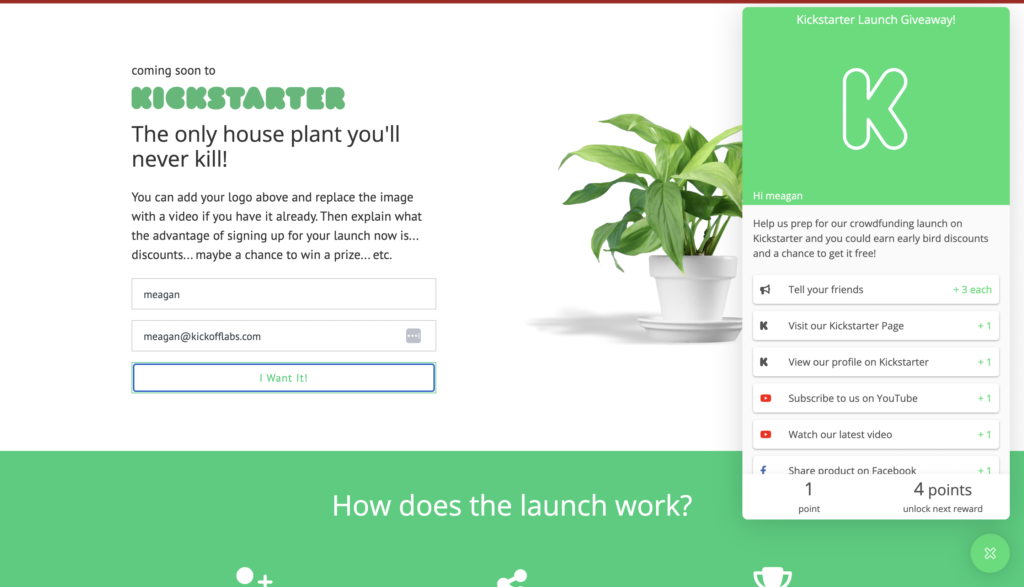
Choosing Campaign Box as a Status on an Existing Campaign
Section titled “Choosing Campaign Box as a Status on an Existing Campaign”- If you haven’t already, start off by customizing your Campaign box.
- Next, from the KickoffLabs Dashboard select to edit your landing page.
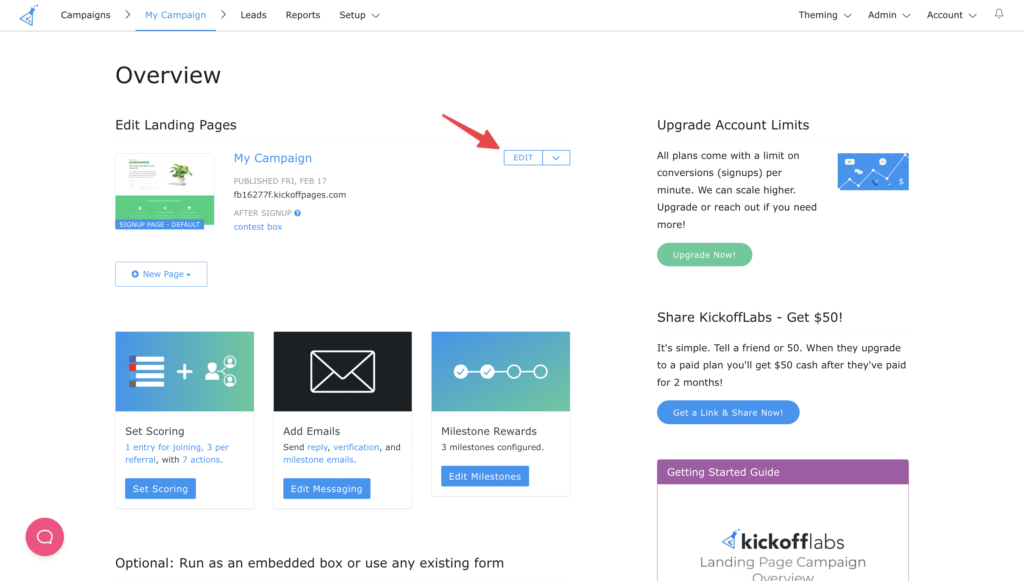
- Hover over the opt in form to edit.
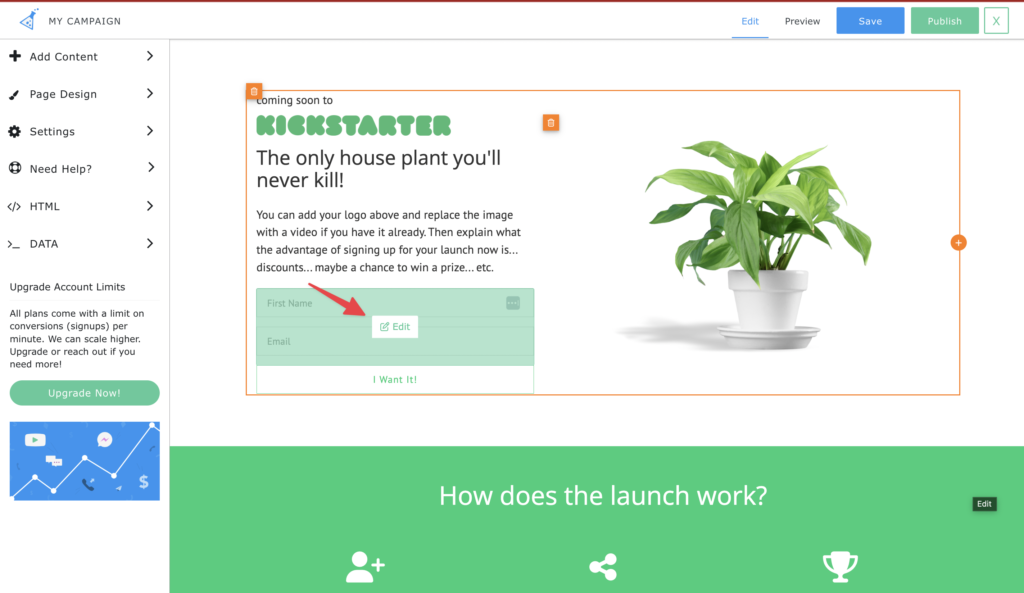
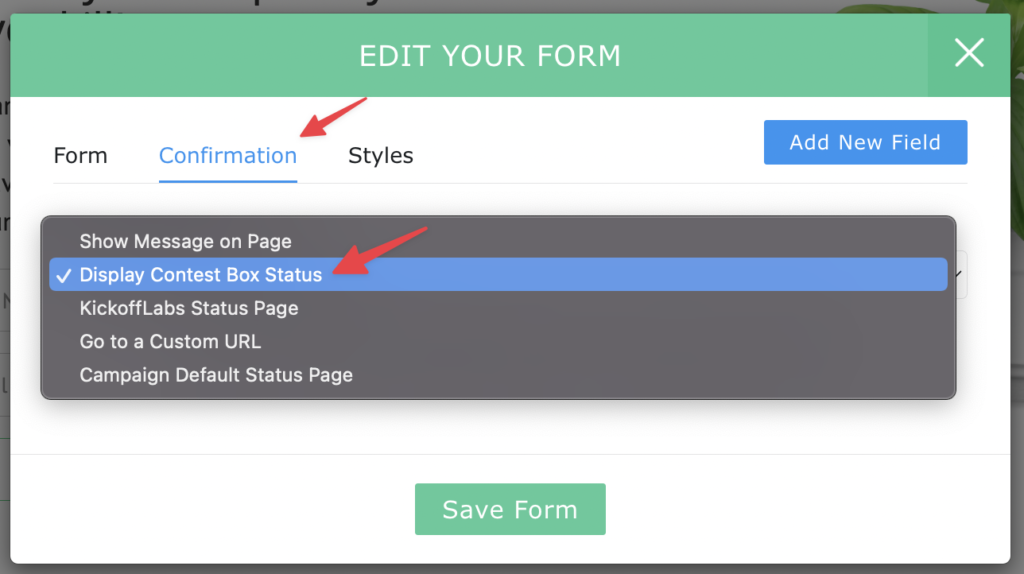
- Select the “confirmation” tab and choose “Display Contest Box Status” from the drop-down.
- Save and publish your changes!
Choosing Campaign Box Status On a New Campaign If you’re starting a new campaign, or thi…
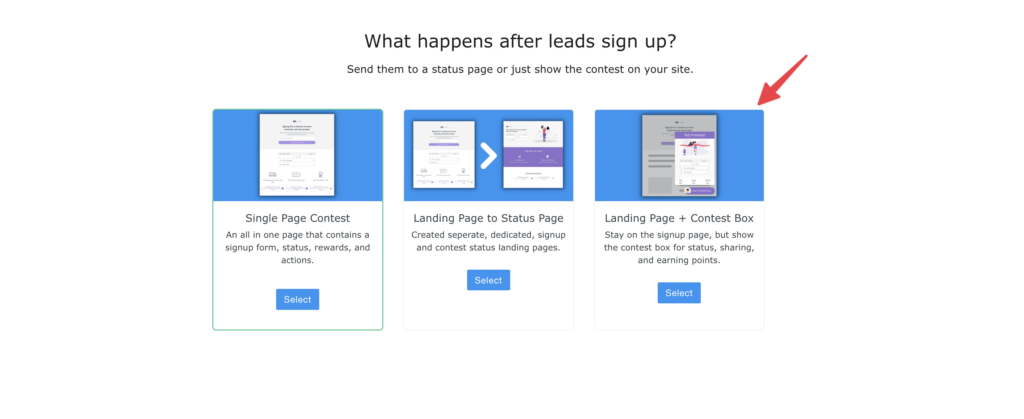
Section titled “Choosing Campaign Box Status On a New Campaign If you’re starting a new campaign, or thi…”s if your first campaign with KickoffLabs, we have this set-up automatically configured for you without having to do the above steps. Simply choose “Landing Page + Campaign Box” during the “Flow” step of onboarding.
Clickfunnels Integrations - Pop-ups
Section titled “Clickfunnels Integrations - Pop-ups”This guide will walk you through installing a Popup Box on a Clickfunnels page. Learn more about our Popup Box here. **Please note that Anyform integration is **not supported with Clickfunnels forms at this time If you’d instead like to connect a Clickfunnel form to KickoffLabs, follow these steps.
Installation
Section titled “Installation”- Customize Your Popup for your campaign
- From your campaign dashboard, select “Install Code.”
- Copy the provided script.
- In Clickfunnels select Settings > **Tracking Code **from the top nav and paste the script into the header area.
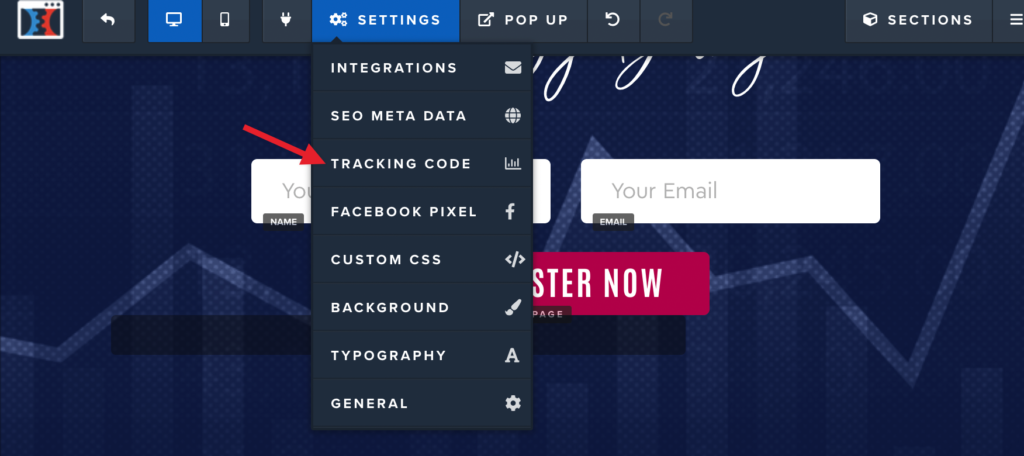
Save and publish your changes. You should now see Popup Box on the live page! We’ve also included the Clickfunnel guide here.
Setting the Default URL’s in
Section titled “Setting the Default URL’s in”KickoffLabs if you’d like leads to signup and share the Clickfunnels page with their friends, there’s one extra step in your KickoffLabs dashboard. The default share + status URL’s can be set via the campaign level settings here
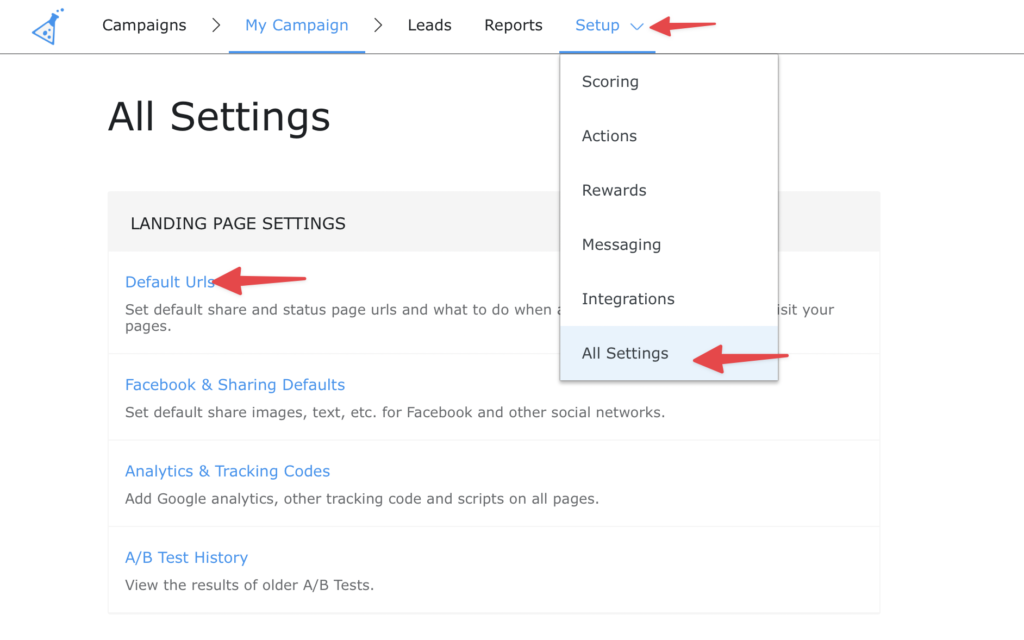
Once the default URL’s are set to the Clickfunnels URL where Popup Box is installed, you should be ready to test! If working properly, the test lead will be added to KickoffLabs. Then, sharing with yourself (or a friend) for testing will record a referral. If you run into any questions or issues, our support team is happy to help! Email us at: support@kickofflabs.com
Instapage Integration - Popups
Section titled “Instapage Integration - Popups”This guide will walk you through the integration of KickoffLabs with Instapage. In the below steps, we’ll go over installing a pop-up to your Instapage landing page. Learn more about our Popups here.
- Customize Your Popup for your campaign
- From your campaign dashboard, select “Install Code.”
- Copy the provided script.
- Install the script in the header area of your Instapage website. The code editor can be accessed via the right nav in your Instapage page editor. [We’ve included the steps from Instapage here.
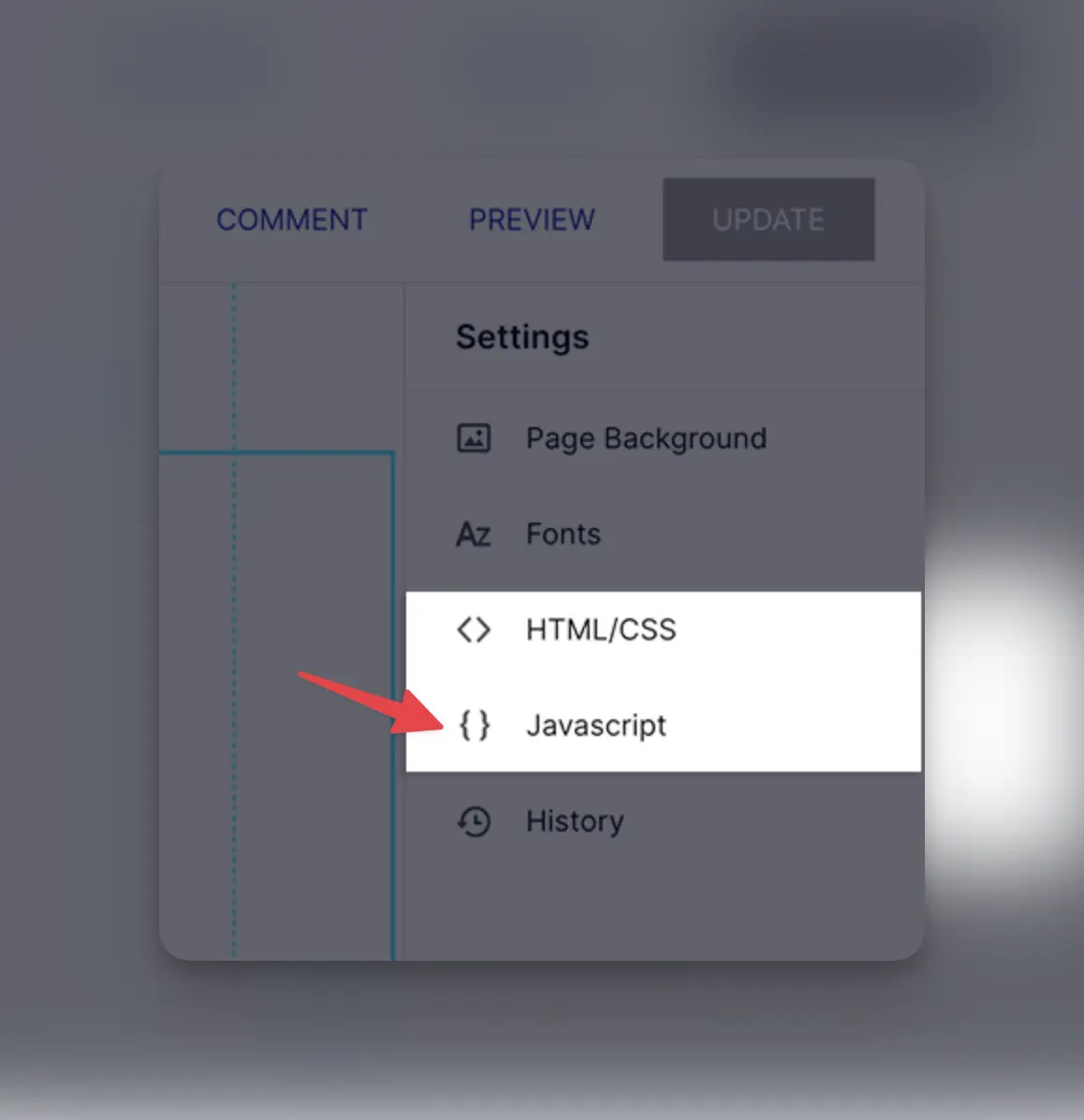
](https://help.instapage.com/hc/en-us/articles/205178068-Using-Custom-HTML-Javascript-and-CSS-on-Your-Landing-Page)
- If you want to trigger the popup based on a link/button click instead of it being automatically triggered, follow the steps here. *The Anyform and KickoffLabs form embed use the same script as the popup, so if you’ve already installed this no need to repeat this step. * If you’re seeing an error or you’re not seeing a social ID connected to the share URL on the thank you page, reach out to us at support@kickofflabs.com and let us know.
Leadpages Integration - Popups
Section titled “Leadpages Integration - Popups”This guide will walk you through the integration of KickoffLabs with Leadpages. In the below steps, we’ll go over installing a pop-up to your Leadpages landing page. Learn more about our Popups here.
- Customize Your Popup for your campaign
- From your campaign dashboard, select “Install Code.”
- Copy the provided script.
- Install the script in the header area of your Leadpages website. We’ve included the steps from Leadpages here.
- If you want to trigger the popup based on a link/button click instead of it being automatically triggered, follow the steps here. *The Anyform and KickoffLabs form embed use the same script as the popup, so if you’ve already installed this no need to repeat this step. * If you’re seeing an error or you’re not seeing a social ID connected to the share URL on the thank you page, reach out to us at support@kickofflabs.com and let us know.
Shopify Integration - Popups
Section titled “Shopify Integration - Popups”This guide will walk you through the integration of KickoffLabs with Shopify. In the below steps, we’ll go over installing a pop-up to your Shopify landing page. Learn more about our Popups here. Please Note the below steps are for the Default Shopify Debut Theme. For any other Shopify builders/themes, you may need to reach out to the builder/theme support for specific steps.
- Configure Popup Box for your campaign
- Open the Popup Box for your campaign
- Click Install and copy the first kol.js script. You will only need the first script for the popup.
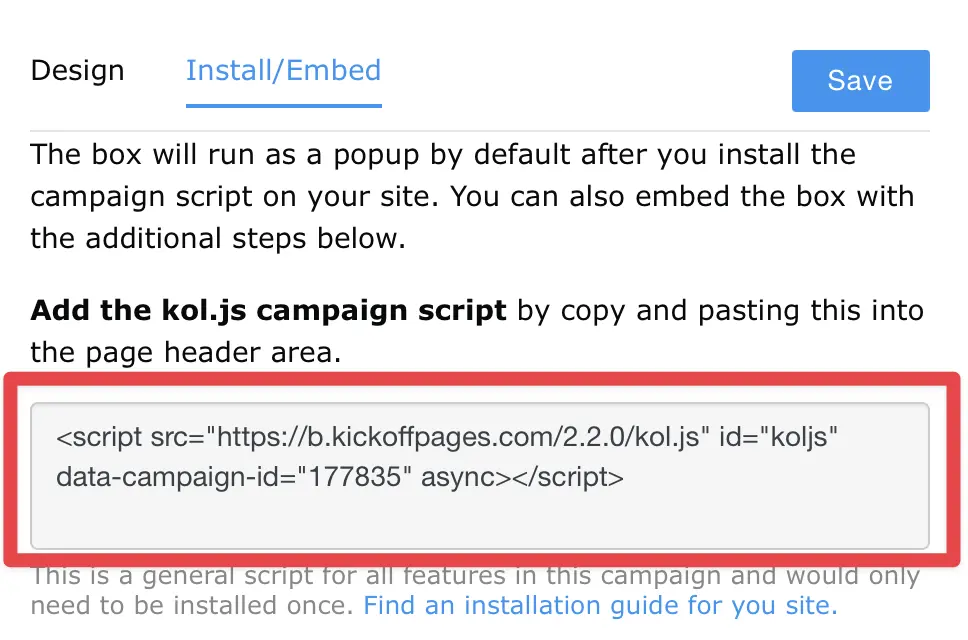
Preparing your Shopify platform for Kickofflabs Popups *We try to keep 3rd party steps u…
Section titled “Preparing your Shopify platform for Kickofflabs Popups *We try to keep 3rd party steps u…”p to date, but are not affiliated with the platforms. In the case the below screenshots are out of date, we’ve included Shopify’s guide here.***** When you first navigate to your Shopify page you are greeted by your dashboard. Within your dashboard, navigate to your online store and select “themes” Select the “actions” button on the theme you’d like to work on and choose “edit code” from the drop-down menu 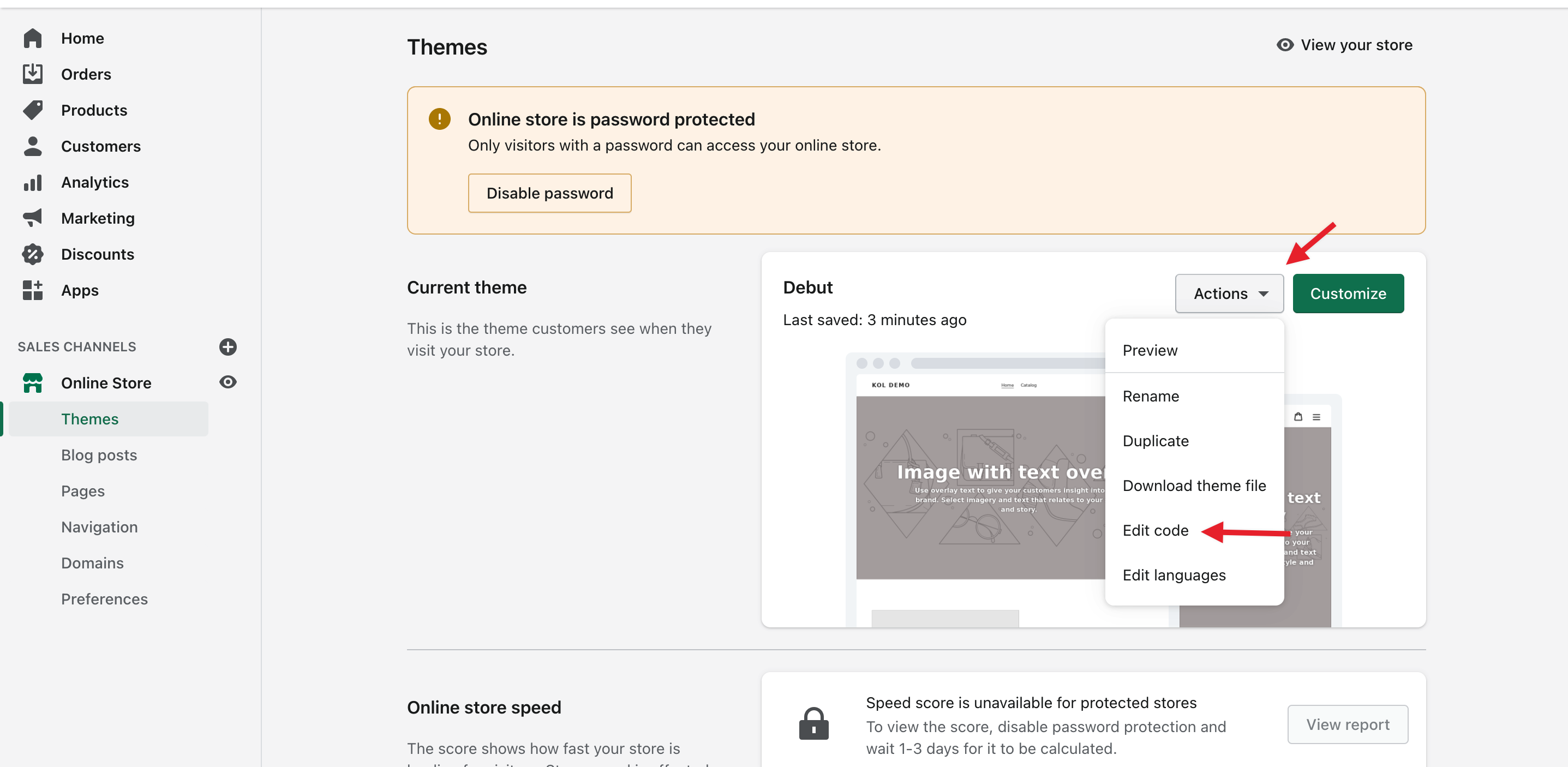
Next, navigate to the **“theme.liquid” *file and find an empty space before the closing </head> tag to paste your script. ***Save your changes and view your online store. Your pop-up should now appear on your website! *The Anyform and KickoffLabs form embed use the same script as the popup, so if you’ve already installed this no need to repeat this step. * If you’re seeing an error or you’re not seeing a social ID connected to the share URL on the thank you page, reach out to us at support@kickofflabs.com and let us know.
Squarespace Integration - Popups
Section titled “Squarespace Integration - Popups”This guide will walk you through the integration of KickoffLabs with Squarespace. In the below steps, we’ll go over installing a pop-up to your Squarespace landing page. Learn more about our Popups here.
- Customize Your Popup for your campaign
- From your campaign dashboard, select “Install Code.”
- Copy the provided script.
- Install the script in the header area of your Squarespace website. Official Squarespace Documentation can be found HERE
- If you want to trigger the popup based on a link/button click instead of it being automatically triggered, follow the steps here. *The Anyform and KickoffLabs form embed use the same script as the popup, so if you’ve already installed this no need to repeat this step. * As always, if you have any questions please reach out to our support team at support@kickofflabs.com
Unbounce Integration - Popups
Section titled “Unbounce Integration - Popups”This guide will walk you through the integration of KickoffLabs with Unbounce. In the below steps, we’ll go over installing a pop-up to your Unbounce landing page. Learn more about our Popups here.
- Customize your popup for your campaign
- From your campaign dashboard, select “Install Code.”
- Copy the provided script.
- Install the script in the header area of your Unbounce website. We’ve included the steps from Unbounce here.
- If you want to trigger the popup based on a link/button click instead of it being automatically triggered, follow the steps here. *The Anyform and KickoffLabs form embed use the same script as the popup, so if you’ve already installed this no need to repeat this step. * If you’re seeing an error, reach out to us at support@kickofflabs.com and let us know.
Webflow Integration - Popups
Section titled “Webflow Integration - Popups”This guide will walk you through the integration of KickoffLabs with Webflow. In the below steps, we’ll go over installing a pop-up to your Webflow landing page. Learn more about our Popups here..
Preparing Webflow for
Section titled “Preparing Webflow for”KickoffLabs Scripts If you are interested in adding a KickofLabs Popup Box to your Webflow site, you will first need to upgrade to a paid Webflow plan.
- Customize your popup for your campaign
- From your campaign dashboard, select “Install Code.”
- Copy the provided script.
- Install the script in the header area of your Webflow website. [We’ve included the steps from Webflow here.
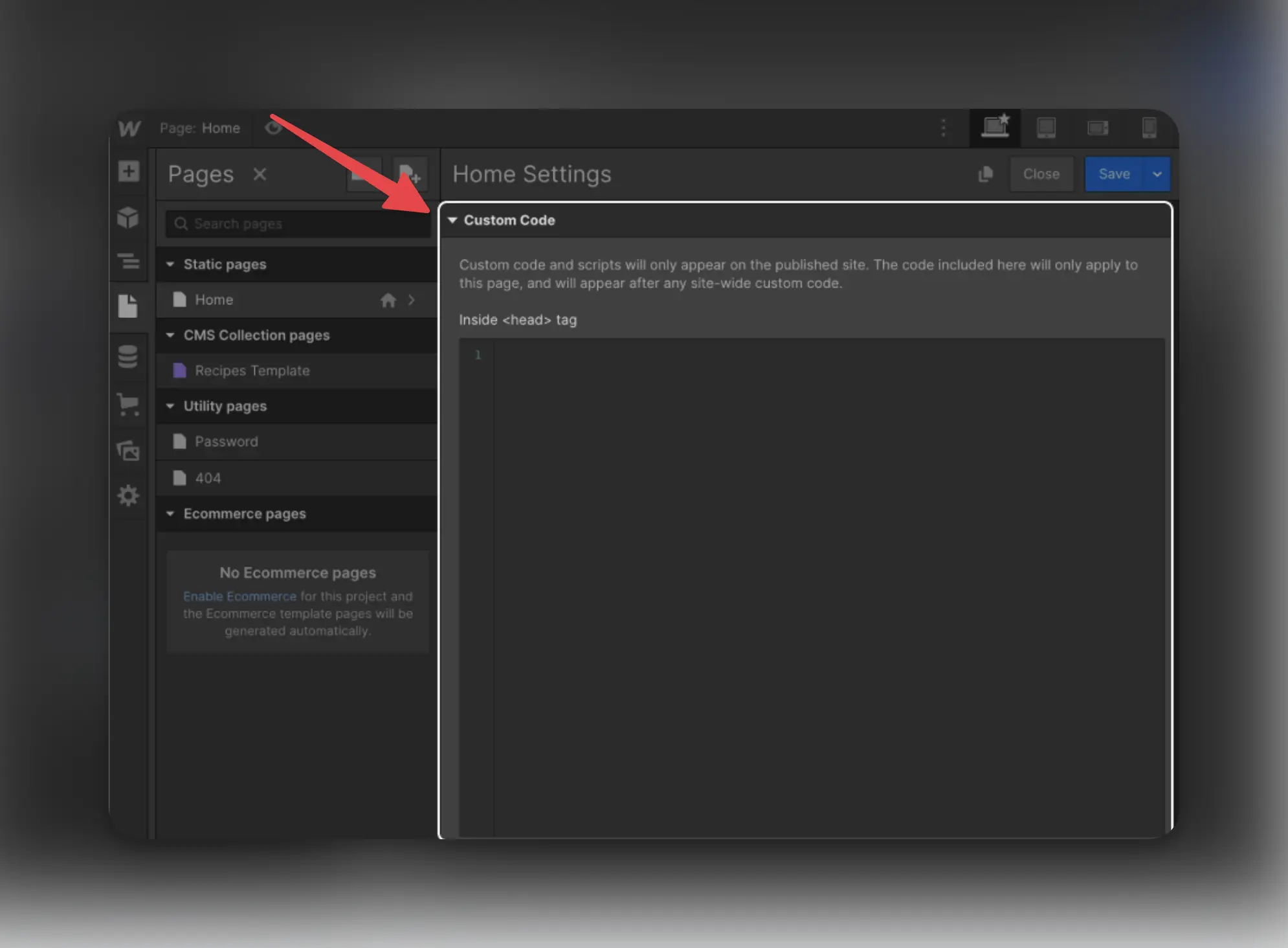
](https://university.webflow.com/lesson/custom-code-in-the-head-and-body-tags?topics=site-settings)
- If you want to trigger the popup based on a link/button click instead of it being automatically triggered, follow the steps here. *The Anyform and KickoffLabs form embed use the same script as the popup, so if you’ve already installed this no need to repeat this step. * Feel free to reach out to support@kickofflabs.com with any additional questions!
WiX Integration - Popups
Section titled “WiX Integration - Popups”This document covers the complete installation of a KickoffLabs Popup Box to your WIX website.
Installing Pop-up Box on WIX *Please Note: In order to add custom scripts to the WiX…
Section titled “Installing Pop-up Box on WIX *Please Note: In order to add custom scripts to the WiX…”website platform, you need access to their Tracking & Analytics plugin. This plugin is only available on select WiX Plans. Please be sure you have access to the plugin before contacting KickoffLabs support with any additional issues implementing your scripts.We try to keep 3rd party instructions up to date, but in case anything has changed in WIX, we’ve also included their steps here.*
- Customize your popup for your campaign
- From your campaign dashboard, select “Install Code.”
- Copy the provided script.
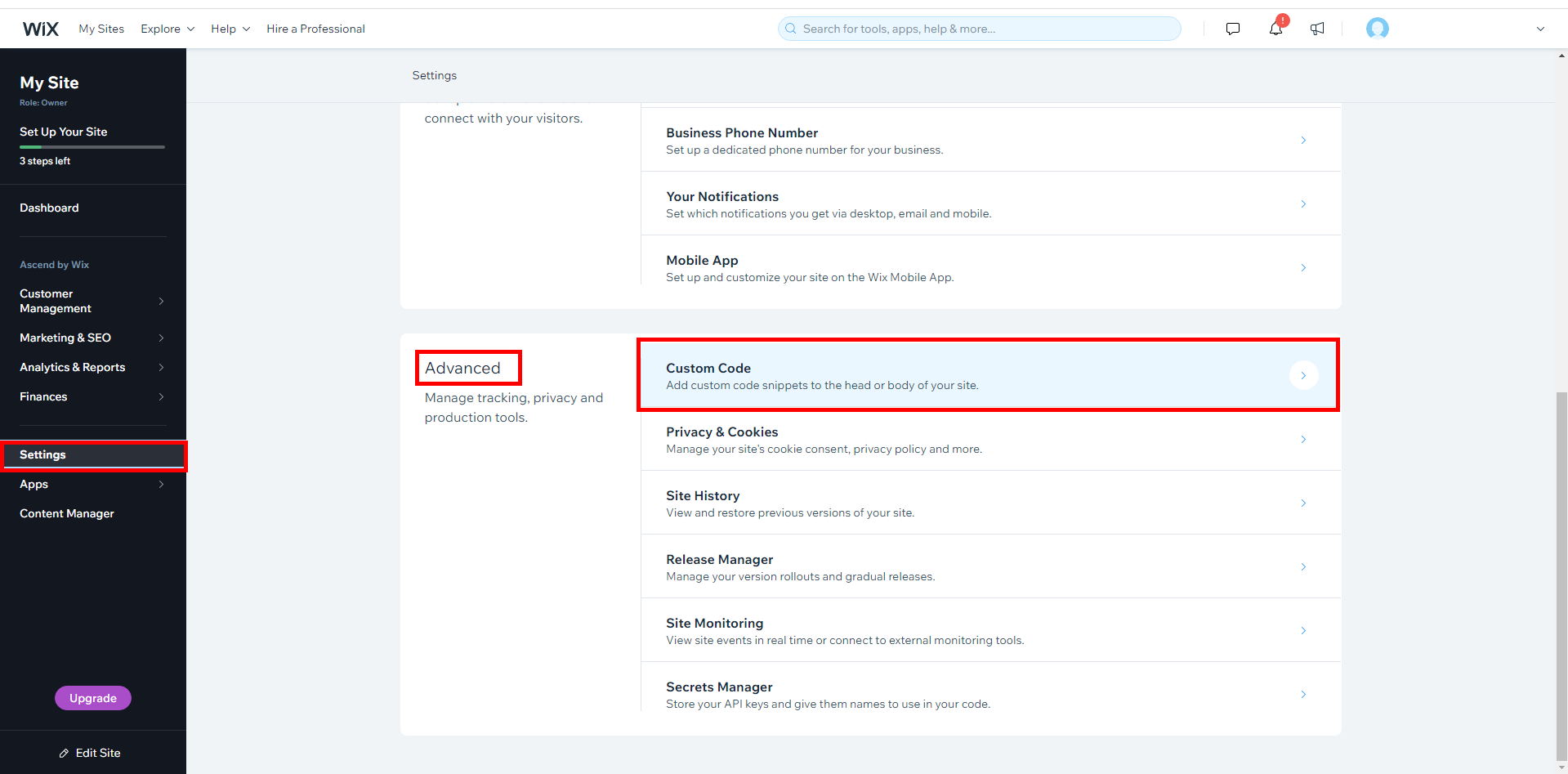
- Next, open a new tab and navigate to the WIX dashboard and select the **Settings **tab.
- Then, scroll to **Advanced, **and click on the Custom Code section as shown below
](/images/support/wp-content/uploads/2019/02/unnamed-2.png)
Important: Users must be premium in order to useCustom Code on their sites
- Select “Add Custom code” and paste the KickoffLabs script into the head section.
- You can also choose to install the script either on a specific page of your WIX site or load the script on all pages. Save your changes and test out the Popup Box integration. Your test lead should now appear in the “lead” section of your selected KickoffLabs campaign.
- If you want to trigger the popup based on a link/button click instead of it being automatically triggered, follow the steps here. The Anyform and KickoffLabs form embed use the same script as the popup, so if you’ve already installed this no need to repeat this step. * If you encounter any other issues with KickoffLabs, feel free to reach out to us at: support@kickofflabs.com
Wordpress Integration - Popups
Section titled “Wordpress Integration - Popups”This guide will walk you through the integration of KickoffLabs with Wordpress. In the below steps, we’ll go over installing a pop-up to your Wordpress landing page. Learn more about our Popups here.
- Customize Your Popup for your campaign
- From your campaign dashboard, select “Install Code.”
- Copy the provided script.
- Install the script in the header area of your Wordpress website. The steps will vary, depending on the theme you’re using.
- If you want to trigger the popup based on a link/button click instead of it being automatically triggered, follow the steps here. *The Anyform and KickoffLabs form embed use the same script as the popup, so if you’ve already installed this no need to repeat this step. * If you’re seeing an error or you’re not seeing a social ID connected to the share URL on the thank you page, reach out to us at support@kickofflabs.com and let us know.
Install AnyForm on an existing site
Section titled “Install AnyForm on an existing site”This guide will walk you through using a KickoffLabs Anyform to capture information on an existing E-Mail Sign-Up Form on your existing website. *Please note that Anyform will not work if your external form has a redirect set, or if your form is connected to other services (such as adding a lead to a mailing list on a CRM). *** Anyform is not a visual form. The AnyForm widget attaches itself to a form on your own web pages, using your own design, your own HTML, and thus your own naming conventions. **Please note that Anyform will not work if your form has a redirect set, or if your form is connected to other services (such as adding a lead to a mailing list on a CRM). ** In this document there will be:
- A walkthrough on how to generate a KickoffLabs AnyForm
- Links to guides on implementing your KickoffLabs AnyForm with different platforms
Generating a KickoffLabs AnyForm - When Anyform Flow is Selected
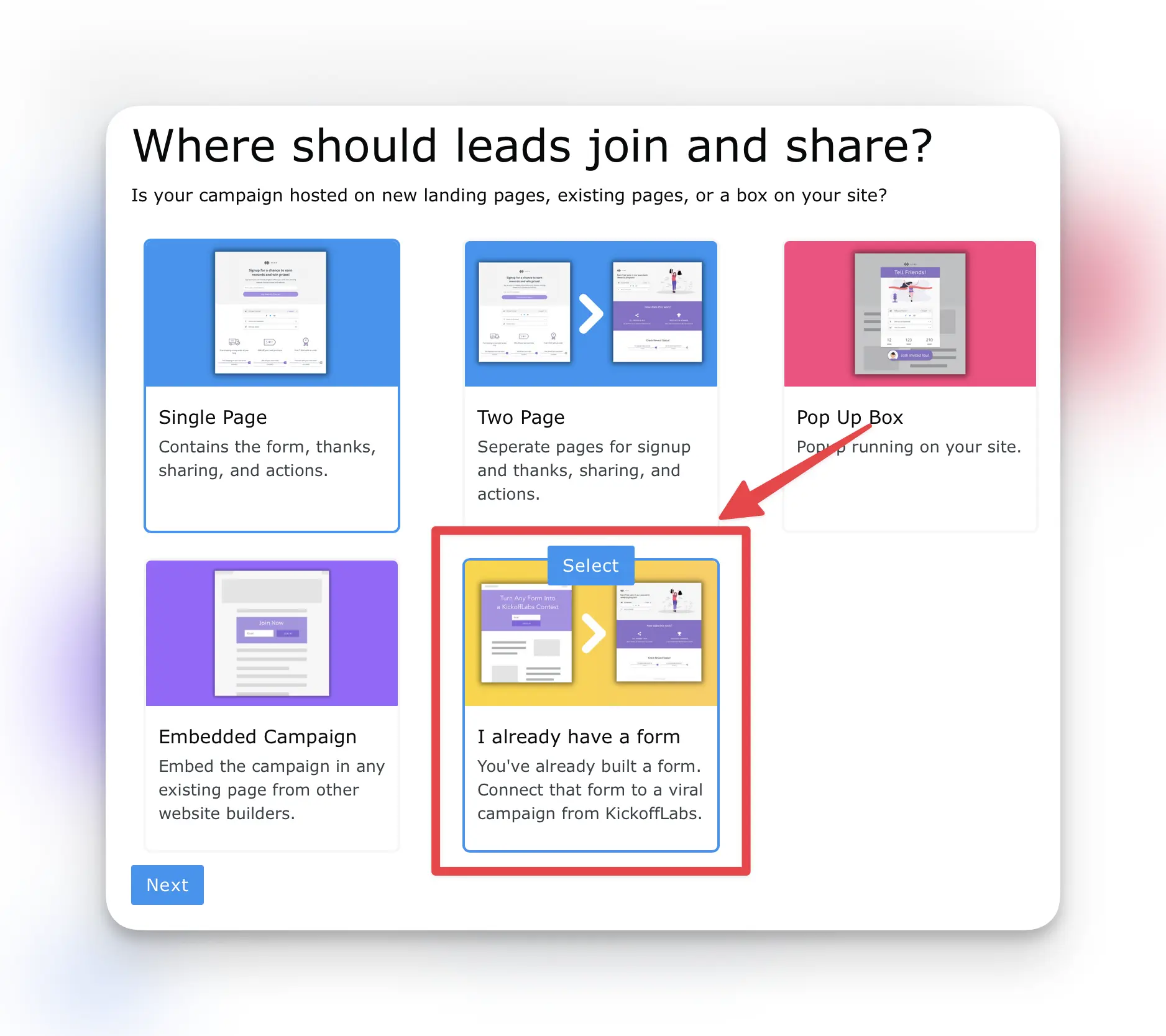
Section titled “Generating a KickoffLabs AnyForm - When Anyform Flow is Selected”During the initial campaign set-up, if you selected “Connect existing form(s)” for where leads should sign-up, follow along with the below steps. If you instead chose a landing page set-up, skip over to the next section.
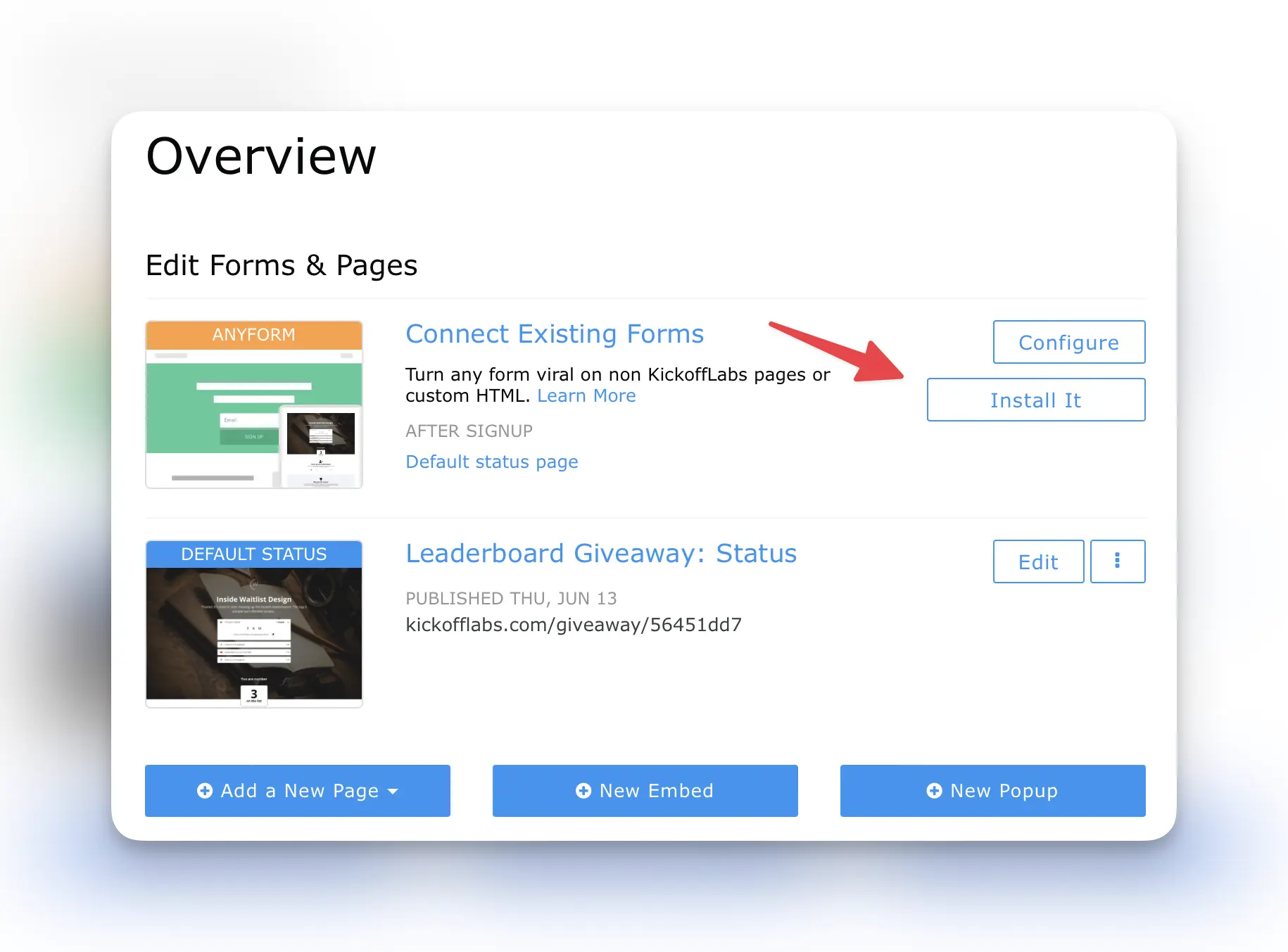
From your campaign dashboard select the “Install” button.
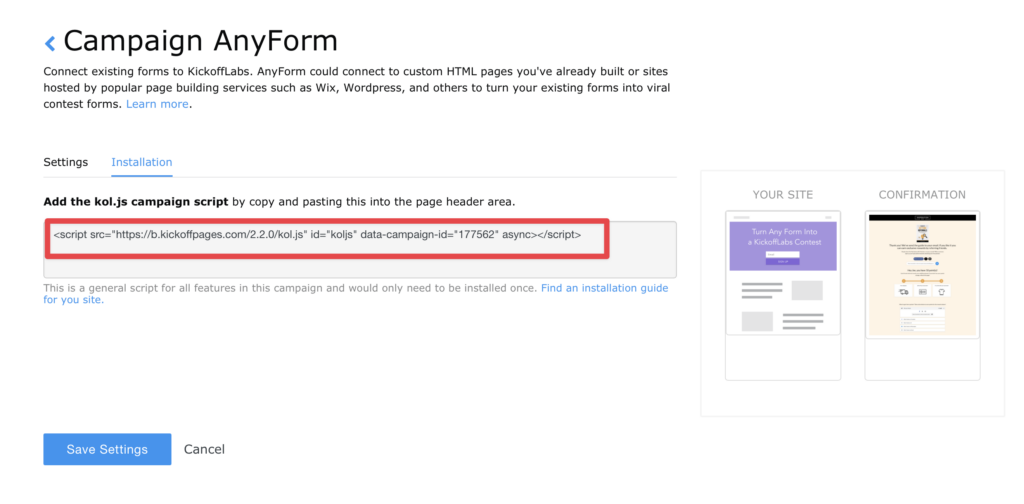
Copy the anyform code snippet and paste before the closing </header> tag on your external website. This step will vary, depending on what platform you used to build your website. We’ve included a list of guides on several builders that we currently support.
Generating a KickoffLabs Anyform - When a Landing Page or box Flow is Selected
Section titled “Generating a KickoffLabs Anyform - When a Landing Page or box Flow is Selected”During the initial campaign set-up, if you selected a landing page, pop-up box, or embedded campaign flow for where leads should sign-up, follow along with the below steps.
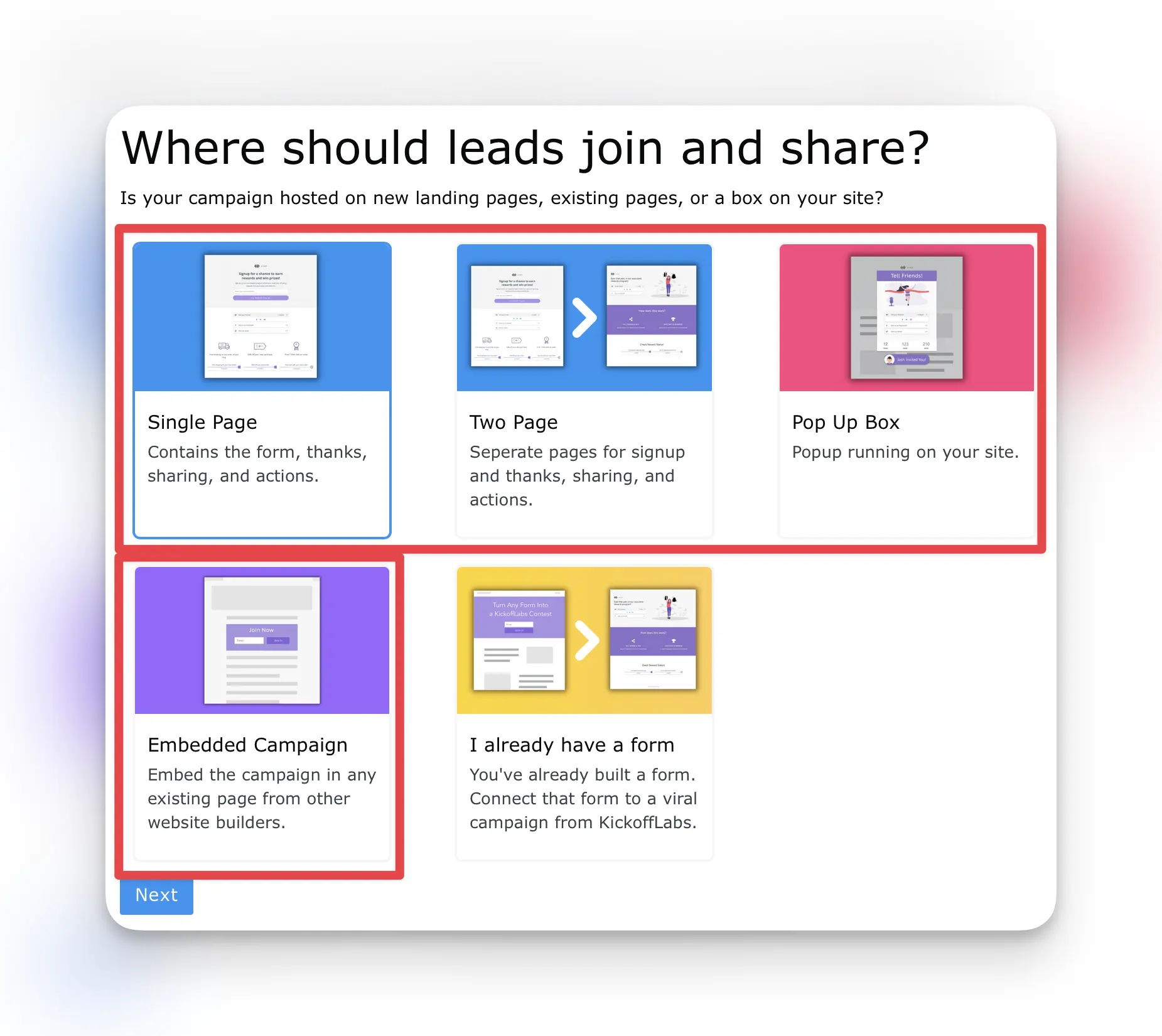
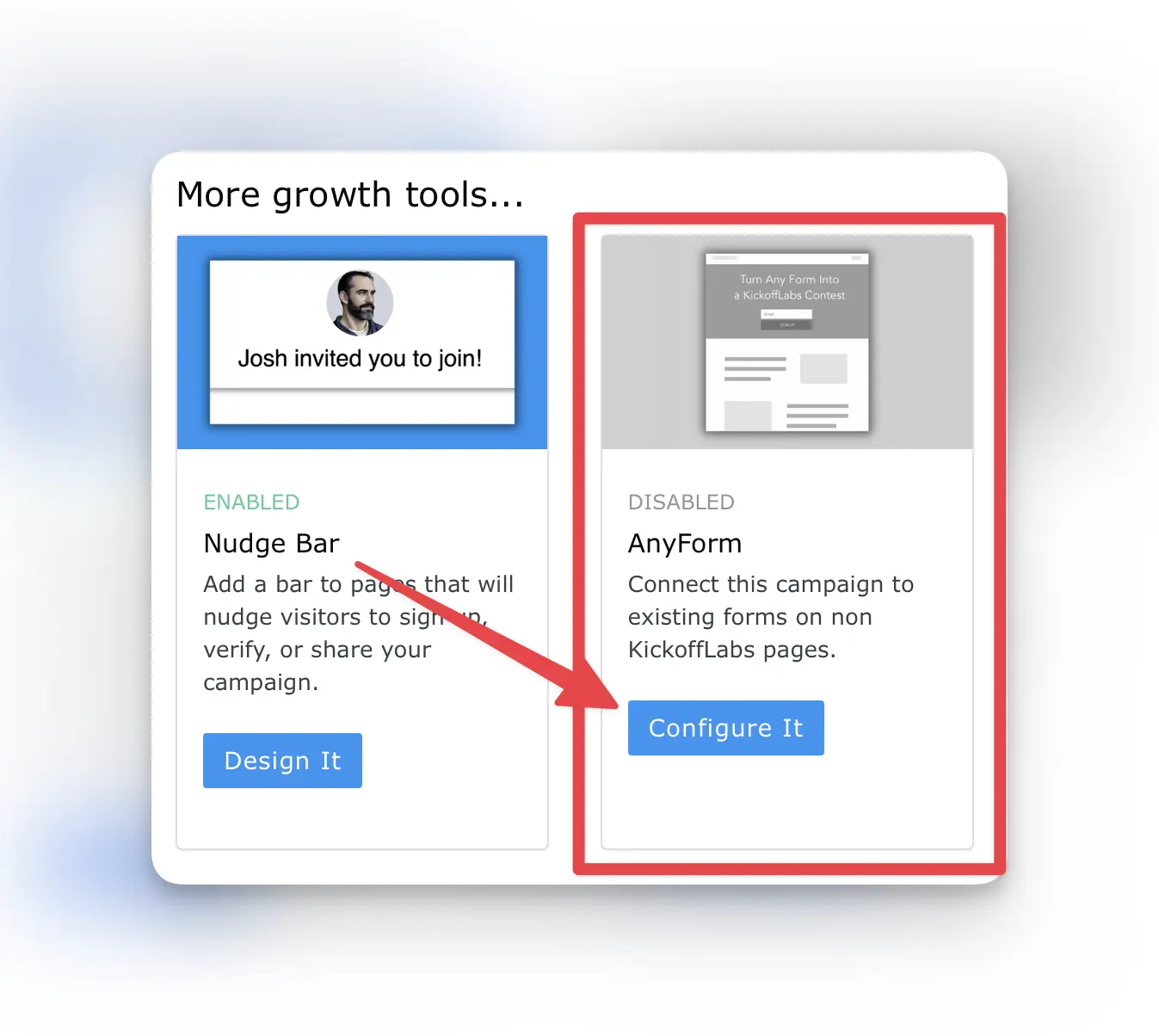
The Anyform will instead be located in your campaign dashboard in the “More Growth Tools” area, underneath any landing pages. Select the blue “Configure It” button.
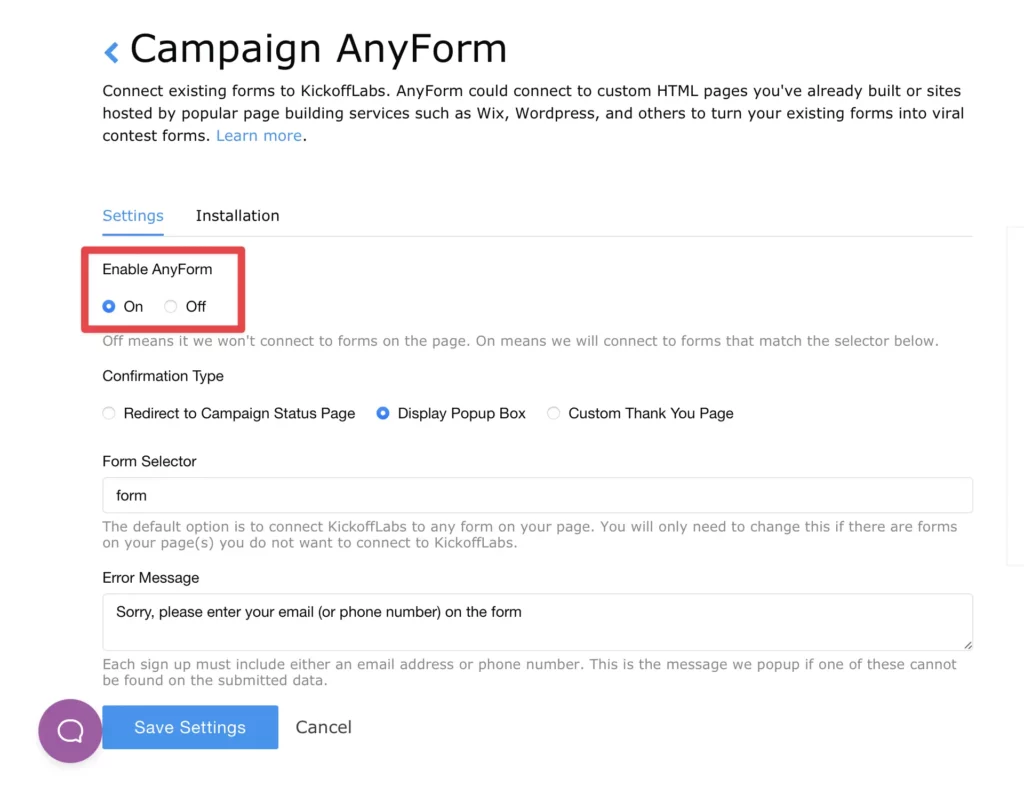
Next, make sure to toggle the Anyform to “on” and save the settings.
Select the “Installation” tab above the “Enable Anyform” setting that you just turned on. You should now see an installation page with a script.
Copy the code snippet and paste before the closing </header> tag on your external website. This step will vary, depending on what platform you used to build your website. We’ve listed the top platforms below, but if you get stuck, feel free to reach out to our support team at support@kickofflabs.com for additional assistance!
Platforms we currently support integrating Anyform With
Section titled “Platforms we currently support integrating Anyform With”We’ve listed the top platforms below, but if you get stuck, feel free to reach out to our support team at support@kickofflabs.com for additional assistance! Instapage Anyform Installation Leadpages Anyform Installation Shopify Anyform Integration Squarespace Anyform Installation Unbounce Anyform Installation Webflow Anyform Installation Wordpress Anyform Installation Please note not all Wordpress Themes are supposrted WIX Anyform Installation
Customizing Anyform Settings
Section titled “Customizing Anyform Settings”While Anyform is plug and play for the majority of users, there are a few settings to keep in mind. Enable Anyform: This allows you to toggle on and off connecting your external form to anyform without having to remove the anyform code from the site. Confirmation Type: There are three user experiences you can set-up with Anyform. You can redirect the lead to a Campaign Status Page, Custom page, or display a pop-up box. Form Selector: This setting is rarely changed. You will only need to change this if there are forms on your page(s) you do not want to connect to KickoffLabs. Error Message: Each sign up must include either an email address or phone number. This is the message we popup if one of these cannot be found on the submitted data.
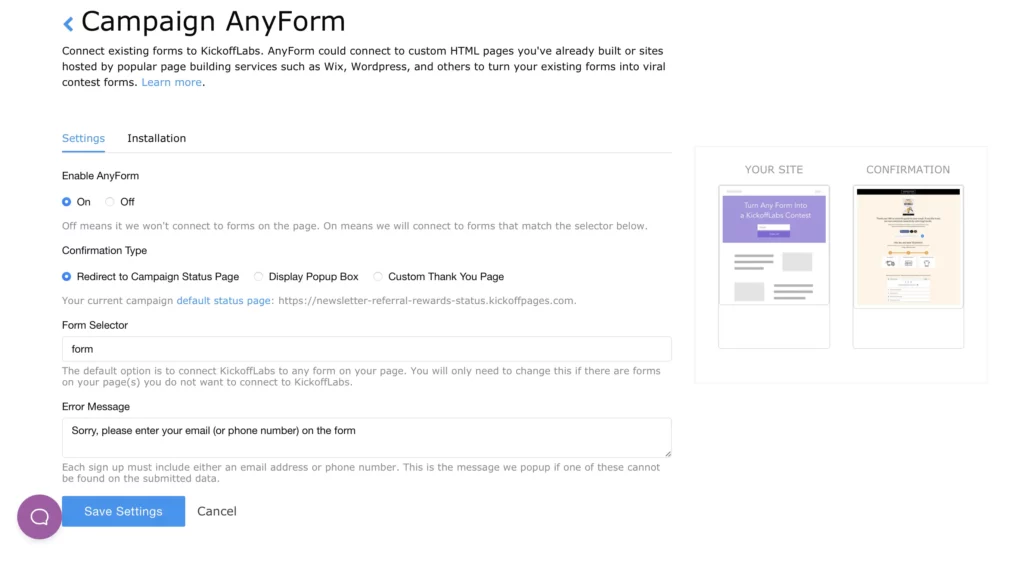
Requirements for AnyForm to Work
Section titled “Requirements for AnyForm to Work”KickoffLabs requires an email address or phone number field for every lead we collect. It will collect all the other data on the form (like hidden fields) or present in the URL such as UTM codes. The AnyForm widget attaches itself to a form on your own web pages, using your own design, your own HTML, and thus your own naming conventions. Please note that Anyform will not work if your form has a redirect set, or if your form is connected to other services (such as adding a lead to a mailing list on a CRM).
How we search for a form We try the following three defaults if you do not manually enter an email selector value:
Section titled “How we search for a form We try the following three defaults if you do not manually enter an email selector value:”- An input field with** type=email**. This is our most recommended option since it allows modern browsers to validate the email address.
- An input field with name=email.
- An input field with id=email If you cannot make your form fit one of the three defaults above, you can set the Email Selector directly in the AnyForm configuration shown above:
Installing the AnyForm to your Existing Site
Section titled “Installing the AnyForm to your Existing Site”The KickoffLabs AnyForm is the perfect solution for connecting your existing third-party form to our service so you can utilize all of our great features with your existing signup page design. (Not using the AnyForm yet? Learn more now!)
Adding the AnyForm to your Site:
Section titled “Adding the AnyForm to your Site:”-
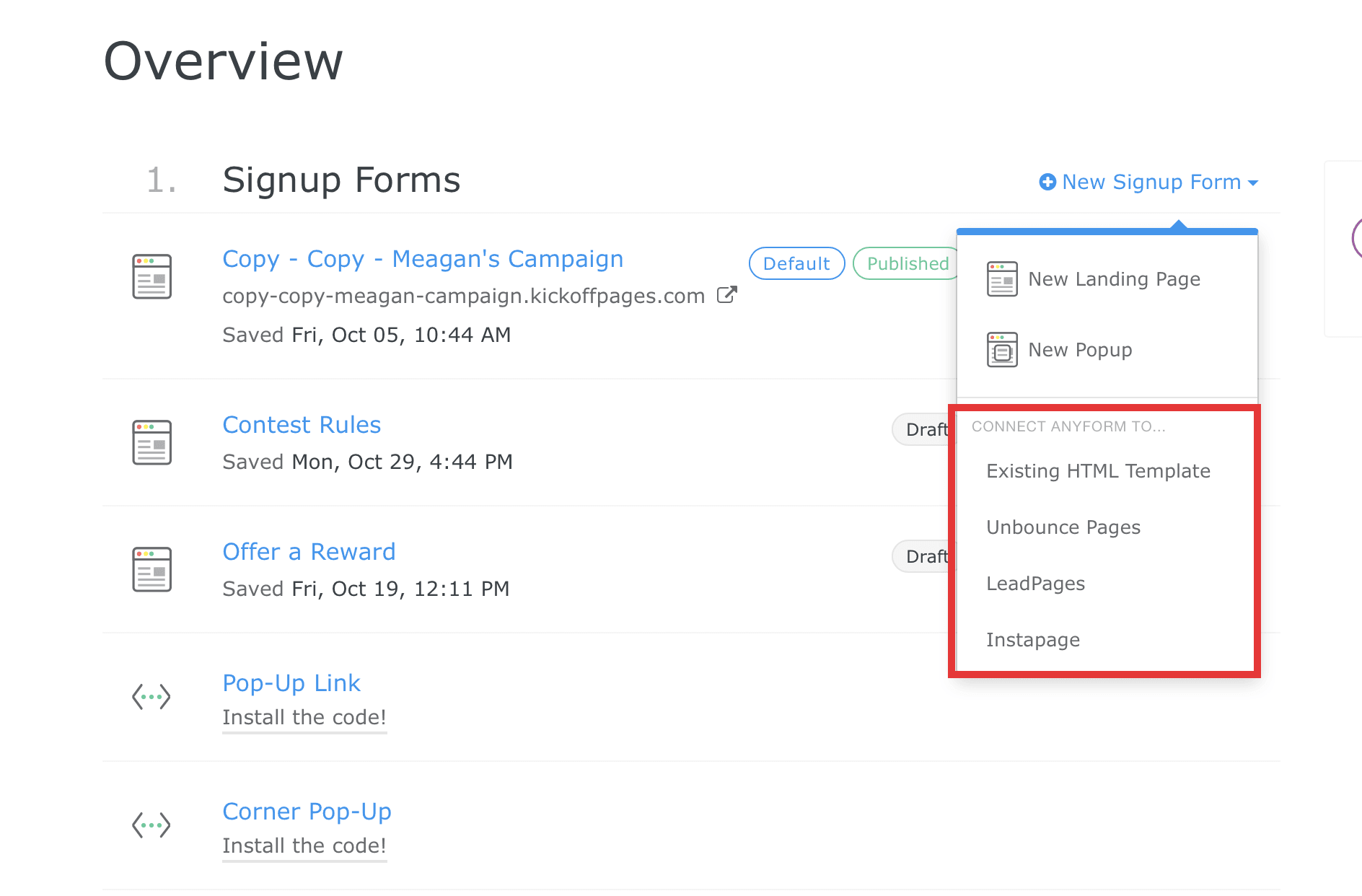
If you haven’t already, add an AnyForm to your campaign. If you’re using Unbounce, Instapage, or Leadpages, make sure you select the AnyForm specific for those sites. If you’re using any other site, choose the “Existing HTML Template” option. For this guide, we’ll be going over installation for the “Existing HTML Template” option.
-
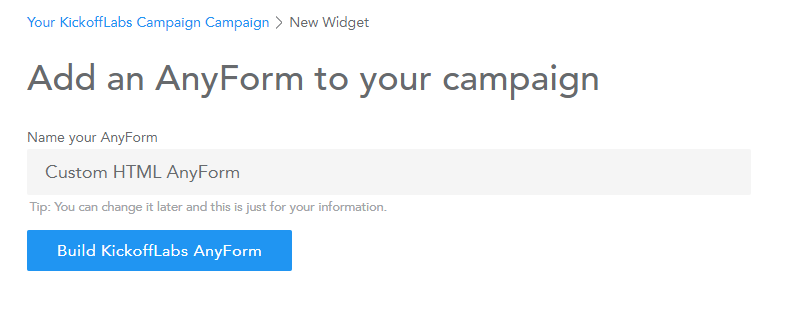
Give your AnyForm a name and then click “Build KickoffLabs AnyForm”
-
Click any of the “Edit AnyForm” buttons to access the editor and update your form options.
-
To start, you can leave the Form and Email Selector fields blank. We will automatically search for the form. It may be necessary to go back and update these fields later if we’re unable to automatically locate the form on your site.
-
When you’re finished updating your options, click the “Get the Code” button.
-
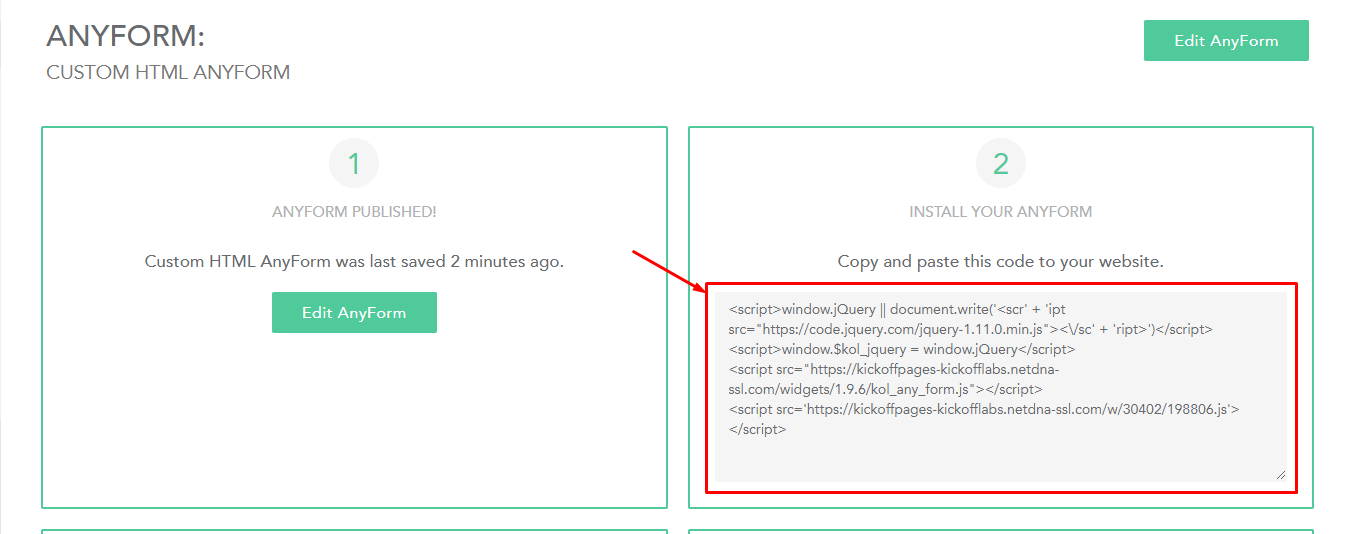
In box 2, copy the complete code for the AnyForm:
-
Access the code for your website/sign-up form. The code for the AnyForm will need to be on the same page your sign-up form is located. Paste the AnyForm code before the closing body tag on your site (</body>).
-
Once the AnyForm has been added to your sign-up page you will want to test that it’s working properly. To do this, access the live page. If you’re seeing an error pop up (Email Selector not found or Form Selector not found) you will need to set the Form Selector for your form in the AnyForm editor.If you’re not seeing any pop up errors, submit a test signup to your page. You should be redirected automatically to your KickoffLabs thank you page and you should see a unique share URL in the copy/paste area (meaning a social ID should be attached to your signup page URL, for example - https://www.example.com?kid=AB123If your page properly redirected with the unique share URL, you’re all set up! If not, reach out to us directly at support@kickofflabs.com with the URL of your signup page so we can take a look.
Connecting KickoffLabs Anyform to an External Landing Page
Section titled “Connecting KickoffLabs Anyform to an External Landing Page”Installing KickoffLabs Anyform This guide will walk you through using a KickoffLabs Anyf…
Section titled “Installing KickoffLabs Anyform This guide will walk you through using a KickoffLabs Anyf…”orm to capture information on an existing E-Mail Sign-Up Form on your existing website. *Please note that Anyform will not work if your external form has a redirect set, or if your form is connected to other services (such as adding a lead to a mailing list on a CRM). * Anyform is not a visual form. The AnyForm widget attaches itself to a form on your own web pages, using your own design, your own HTML, and thus your own naming conventions. Please note that Anyform will not work if your form has a redirect set, or if your form is connected to other services (such as adding a lead to a mailing list on a CRM). If you haven’t already, customize the Anyform settings as needed here. Then, from the campaign dashboard, Select “Anyform” and copy the Anyform script.
**If you initially chose a landing page campaign during the initial onboarding flow, you can still use Anyform! The script will instead be located in your campaign dashboard’s **“Other Growth Tools” section underneath any landing pages.
Copy the anyform code snippet and paste it before the closing </header> tag on your external website. This step will vary, depending on what platform you used to build your website. We’ve listed the top platforms below, but if you get stuck, feel free to reach out to our support team at support@kickofflabs.com for additional assistance! Instapage Anyform Installation Leadpages Anyform Installation Shopify Anyform Integration Squarespace Anyform Installation Unbounce Anyform Installation Webflow Anyform Installation Wordpress Anyform Installation Please note not all Wordpress Themes are supposrted WIX Anyform Installation
Instapage Integration
Section titled “Instapage Integration”This and following guides will walk you through, step-by-step, integrating KickoffLabs with Instapage. In the below steps, we’ll go over:
- Integrating an existing Instapage form with KickoffLabs Anyform
- Installing a Contest Box to your Instapage landing page. Learn more about our new contest box here If you’re seeing an error or you’re not seeing a social ID connected to the share URL on the thank you page, reach out to us at support@kickofflabs.com and let us know.
Unbounce Integration
Section titled “Unbounce Integration”This and the following guides will walk you through, step-by-step, integrating KickoffLabs with Unbounce. In the below steps, we’ll go over:
- Integrating an existing Unbounce form with KickoffLabs Anyform
- Installing a Contest Box to your Unbounce landing page. Learn more about our new contest box here As always, if you have any questions, please reach out to our support team at support@kickofflabs.com
How to connect AnyForm to your Unbounce Landing Pages
Section titled “How to connect AnyForm to your Unbounce Landing Pages”Is Unbounce your landing page builder of choice? It’s a great tool, but it’s not going to help you build smarter campaigns. That’s where Kickofflabs comes in. KickoffLabs AnyForm for Unbounce is a script you can copy & paste onto any Unbounce landing page to unlock features that will help you do better marketing.
Requirements
Section titled “Requirements”- A KickoffLabs Account
- An Unbounce account and at least one landing page.
Setting Up With a New
Section titled “Setting Up With a New”KickoffLabs Campaign If you already have an existing campaign skip this step and go below to the section on “Adding to an existing campaign”. We’ve made this super simple. 1. Log into KickoffLabs and choose to create a new campaign.
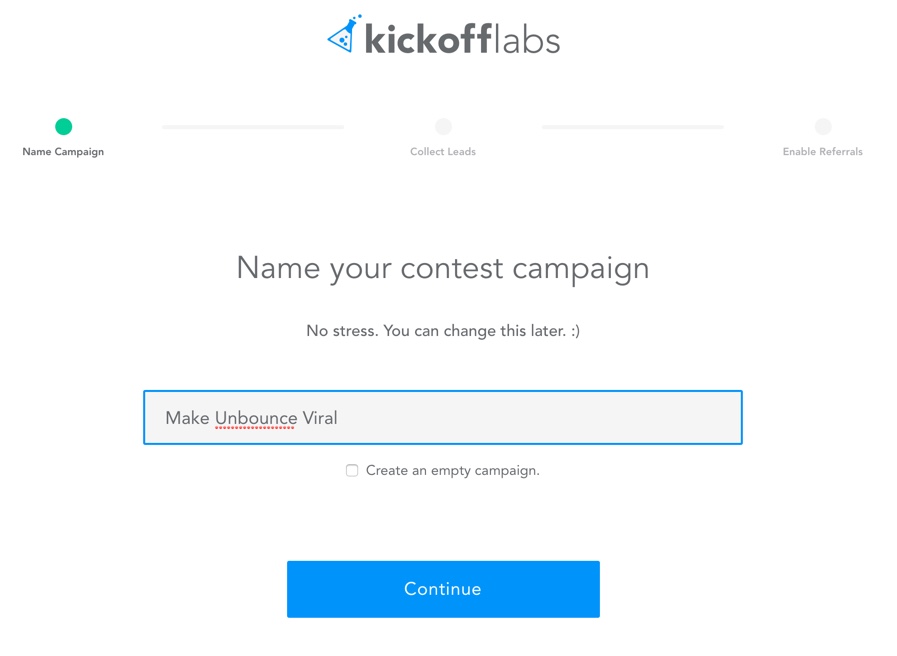
- Click Continue and then Choose “Use my Own Forms” as the answer to how people will enter.
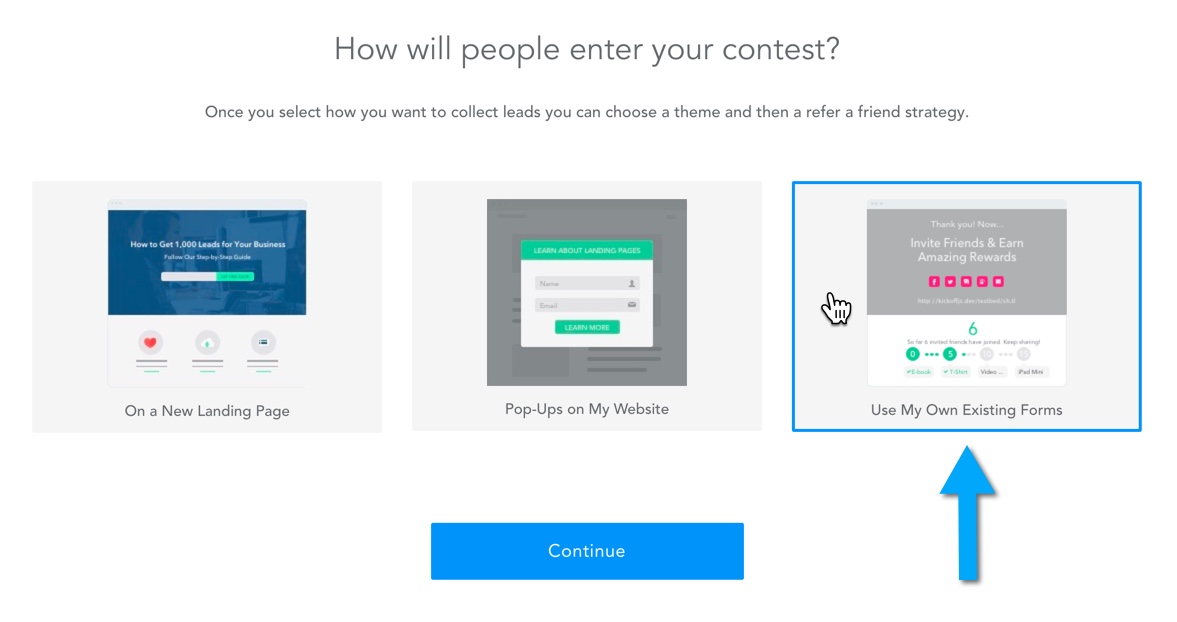
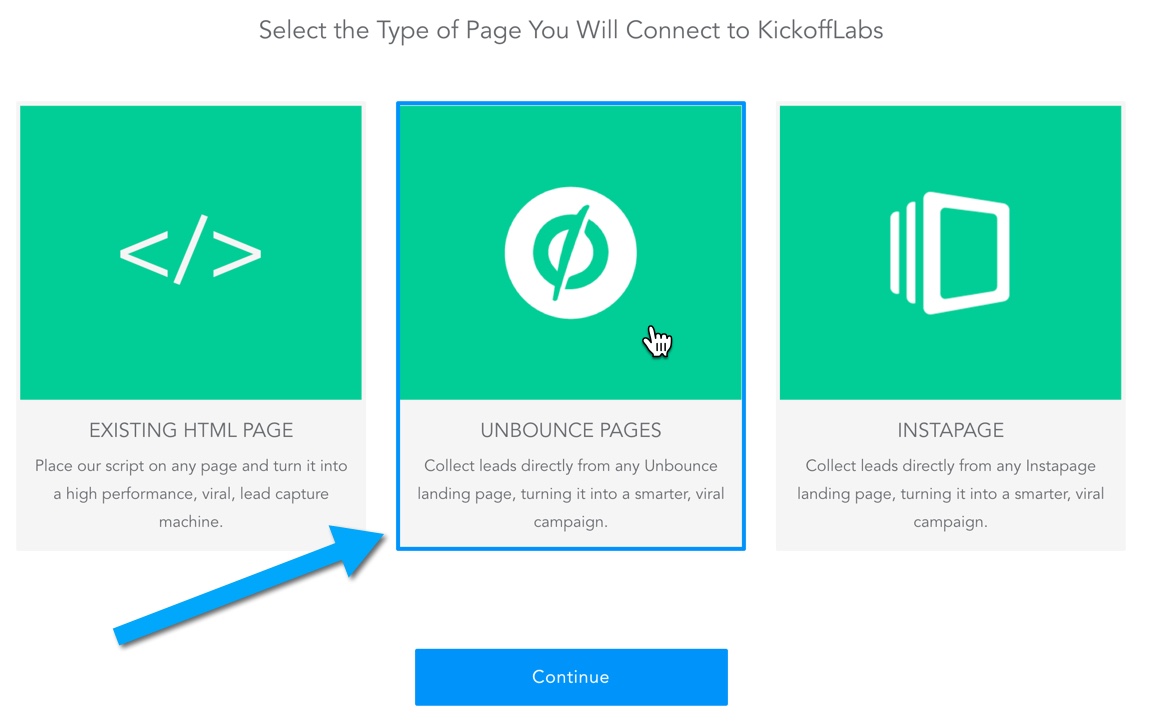
- Then select “Unbounce Pages” and press “Continue”
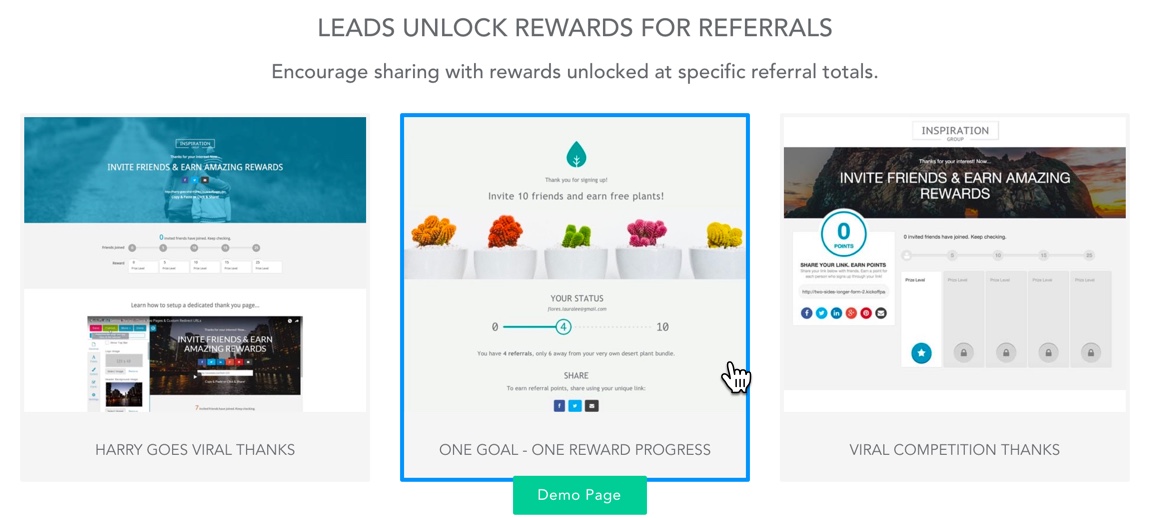
- Select a KickoffLabs viral contest page template that new leads will be re-directed to.
- Choose to “Create Campaign” 6. You’ll see a summary of what we created for you and you want to click “Start Editing”
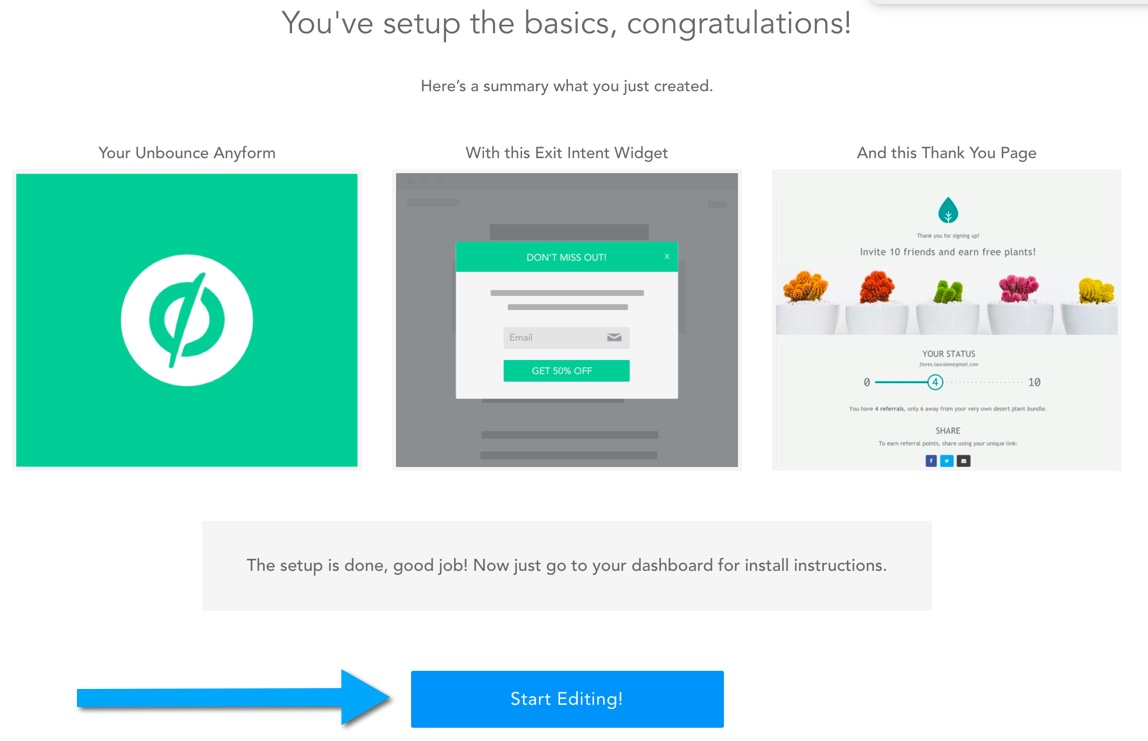
- Click to “Configure and Install Unbounce Anyform”.
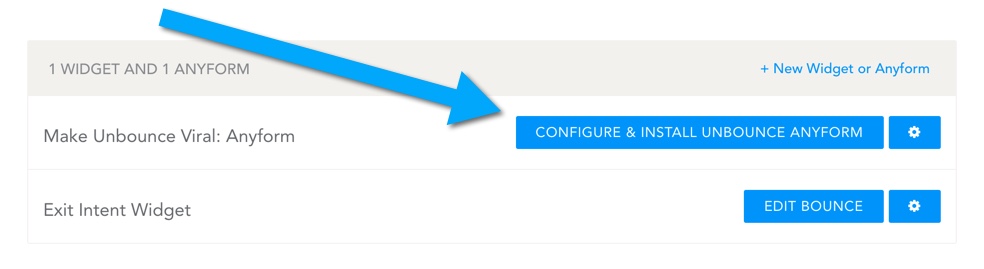
- Follow the steps on that page to install on Unbounce.
Adding an Unbounce Anyform to an Existing Campaign
Section titled “Adding an Unbounce Anyform to an Existing Campaign”If you’ve already created a campaign…
inside of KickoffLabs and you want to connect KickoffLabs to existing Unbounce Forms you can always add an Unbounce Anyform. Open “Pages and Forms” on your Campaign. 2. Click ”+ New Widget or Anyform” 3. Click “Unbounce Pages”
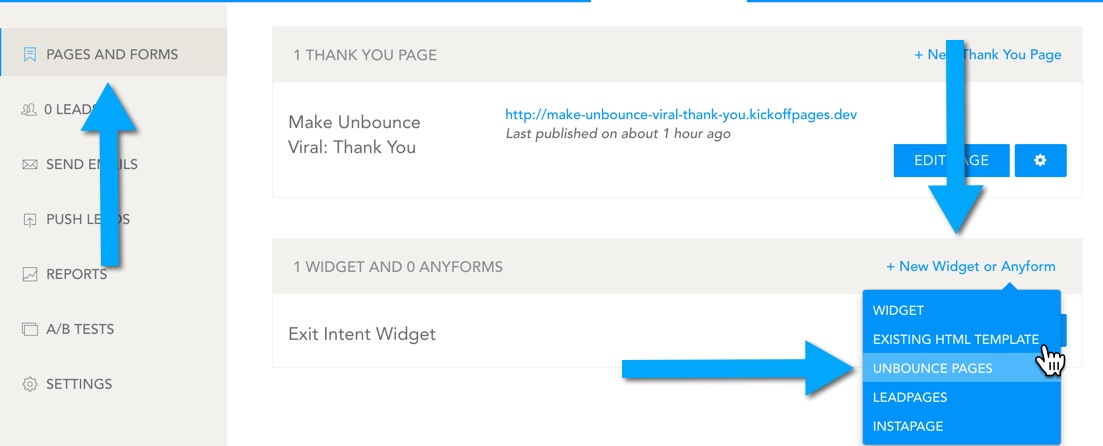
- Select the thank you page & exit intent. 5. Click “Add New Unbounce”
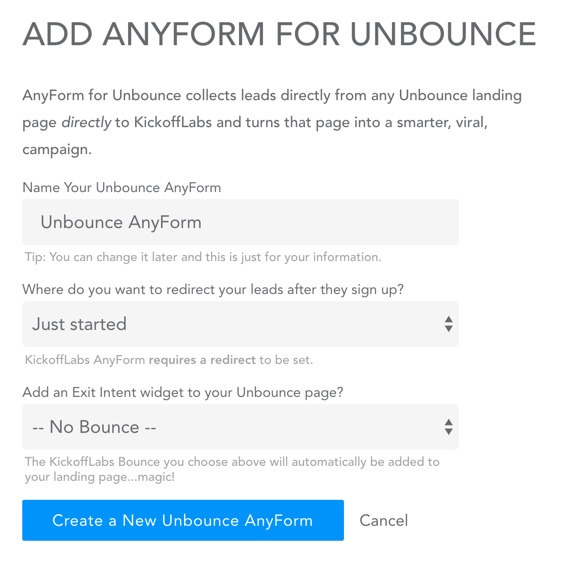
- Follow the instructions you are given on that page to install on your Unbounce pages.
Instapage Integration - AnyForm
Section titled “Instapage Integration - AnyForm”This guide will walk you through, step-by-step, integrating KickoffLabs with Instapage. In the below steps, we’ll go over integrating an existing Instapage form with KickoffLabs AnyForm.* **Please note that Anyform will not work if your form has a redirect set, or if your form is connected to other services (such as adding a lead to a mailing list on a CRM). ***
-
Configure AnyForm for your campaign
-
Open AnyForm for your campaign
-
Click Installation & Copy The script
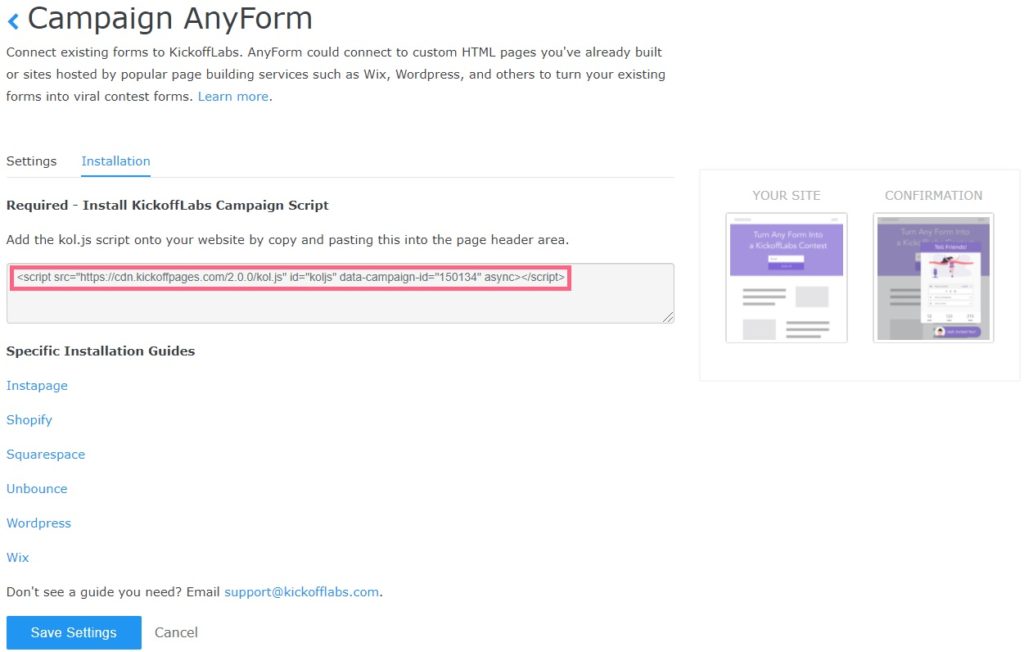
-
Next, open a new tab and navigate to the Instapage editor
-
At the bottom of the Instapage page, select “Scripts &GDPR”
-
Paste the anyform script into the script area and select “Head” from the placement options. Save your changes and test out the Anyform integration. Your test lead should now appear in the “lead” section of your selected KickoffLabs campaign.
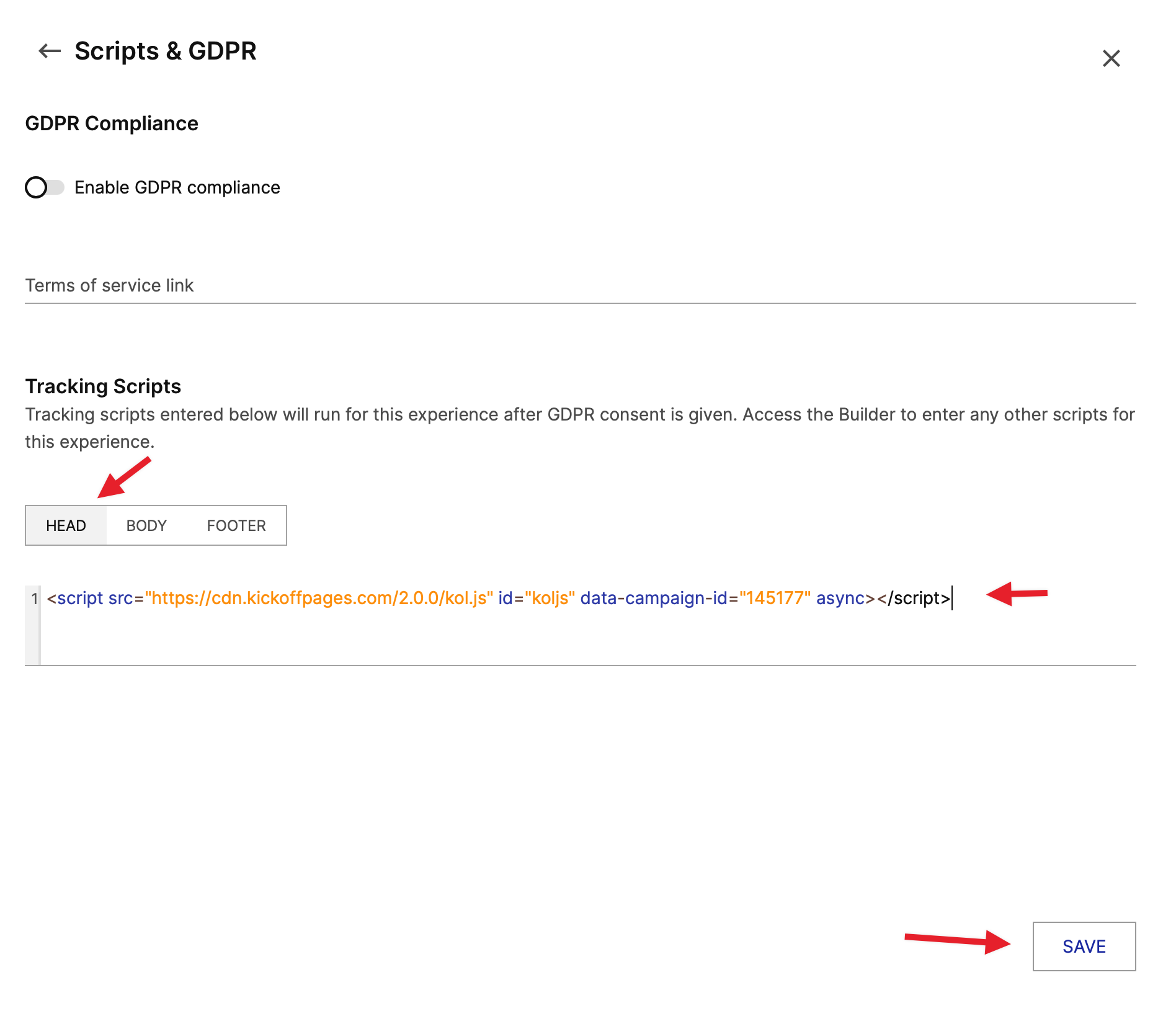
If you’re seeing an error or you’re not seeing a social ID connected to the share URL on…
Section titled “If you’re seeing an error or you’re not seeing a social ID connected to the share URL on…”the thank you page, reach out to us at support@kickofflabs.com and let us know.
Leadpages Integration - AnyForm
Section titled “Leadpages Integration - AnyForm”This document covers the complete integrating KickoffLabs with your Leadpages website. Throughout this document we will cover integrating your Leadpages site with KickoffLabs Anyform ***Please note that Anyform will not work if your form has a redirect set, or if your form is connected to other services (such as adding a lead to a mailing list on a CRM). ***
-
Configure AnyForm for your campaign
-
Open AnyForm for your campaign
-
Click Installation and copy the script
-
Next, open a new tab and navigate to the Leadpages editor and select to edit the page you would like to install the script on.
-
From the left menu, select “Settings” then “Analytics.”
-
Paste your KickoffLabs script into the Header area and save your changes.
-
Publish your page and test out the Anyform integration. Your test lead should now appear in the “lead” section of your selected KickoffLabs campaign.
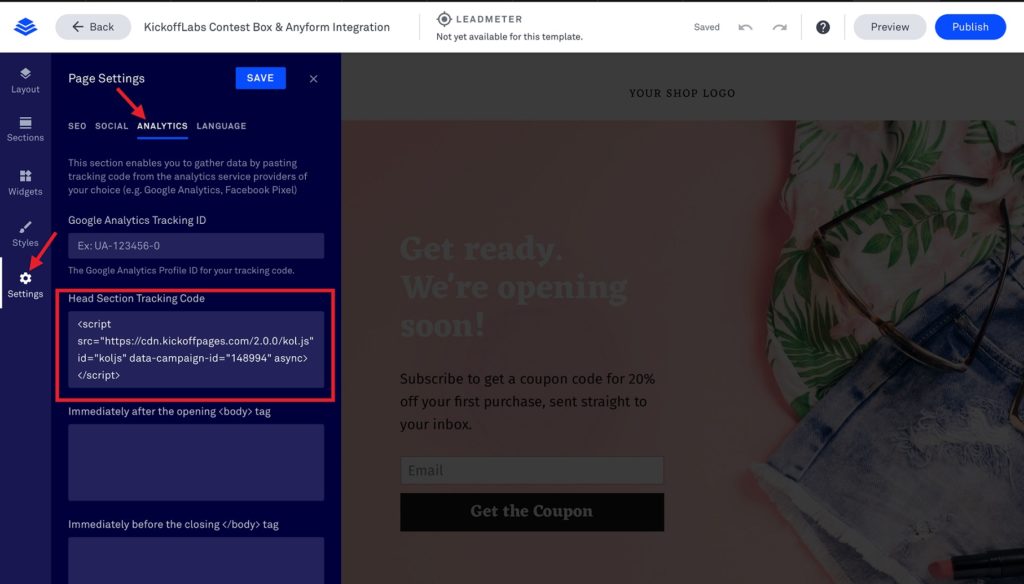
Feel free to reach out to support@kickofflabs.com with any additional questions!
Squarespace Integration - AnyForm
Section titled “Squarespace Integration - AnyForm”This document covers the complete integration of your KickoffLabs product into Squarespace. Throughout this document we will cover integrating your Squarespace site with KickoffLabs Anyform. **Please note that Anyform will not work if your form has a redirect set, or if your form is connected to other services (such as adding a lead to a mailing list on a CRM). **
-
Configure AnyForm for your campaign
-
Open AnyForm for your campaign
-
Click Installation and copy the script
-
Next, open a new tab and navigate to the Squarespace dashboard and select the settings of the page you would like to install the script on.
-
Select the “Advanced” tab and paste your KickoffLabs script to the header section.
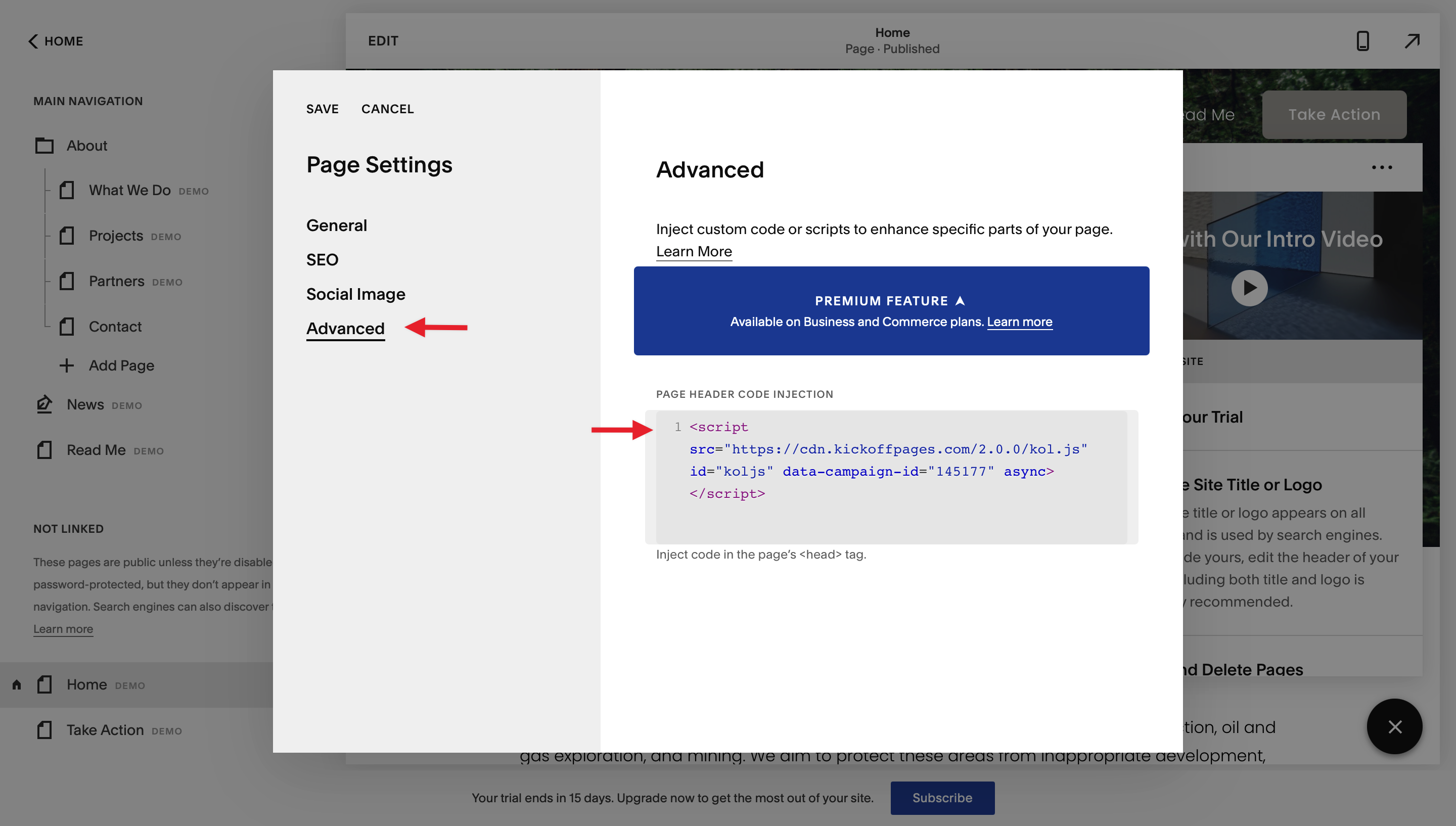
Save your changes and test out the Anyform integration. Your test lead should now appear in the “lead” section of your selected KickoffLabs campaign. Please note that your Squarespace page needs to be published in order for the script to load. Official SquareSpace Documentation can be found HEREPlease note, these features are only available on SquareSpace Business and Commerce Service Plans.*
Unbounce Integration - AnyForm
Section titled “Unbounce Integration - AnyForm”This guide will walk you through, step-by-step, integrating KickoffLabs with Unbounce. In the below steps, we’ll go over integrating an existing Unbounce form with KickoffLabs Anyform. **Please note that Anyform will not work if your form has a redirect set, or if your form is connected to other services (such as adding a lead to a mailing list on a CRM). **
-
Configure AnyForm for your campaign
-
Open AnyForm for your campaign
-
Click Install and copy the script
-
Next, open a new tab and navigate to the Unbounce editor
-
At the bottom of the Unbounce page, select “Javascripts”.
-
Paste the anyform script into the script area and select “Head” from the placement dropdown. Save your changes and test out the Anyform integration. Your test lead should now appear in the “lead” section of your selected KickoffLabs campaign.
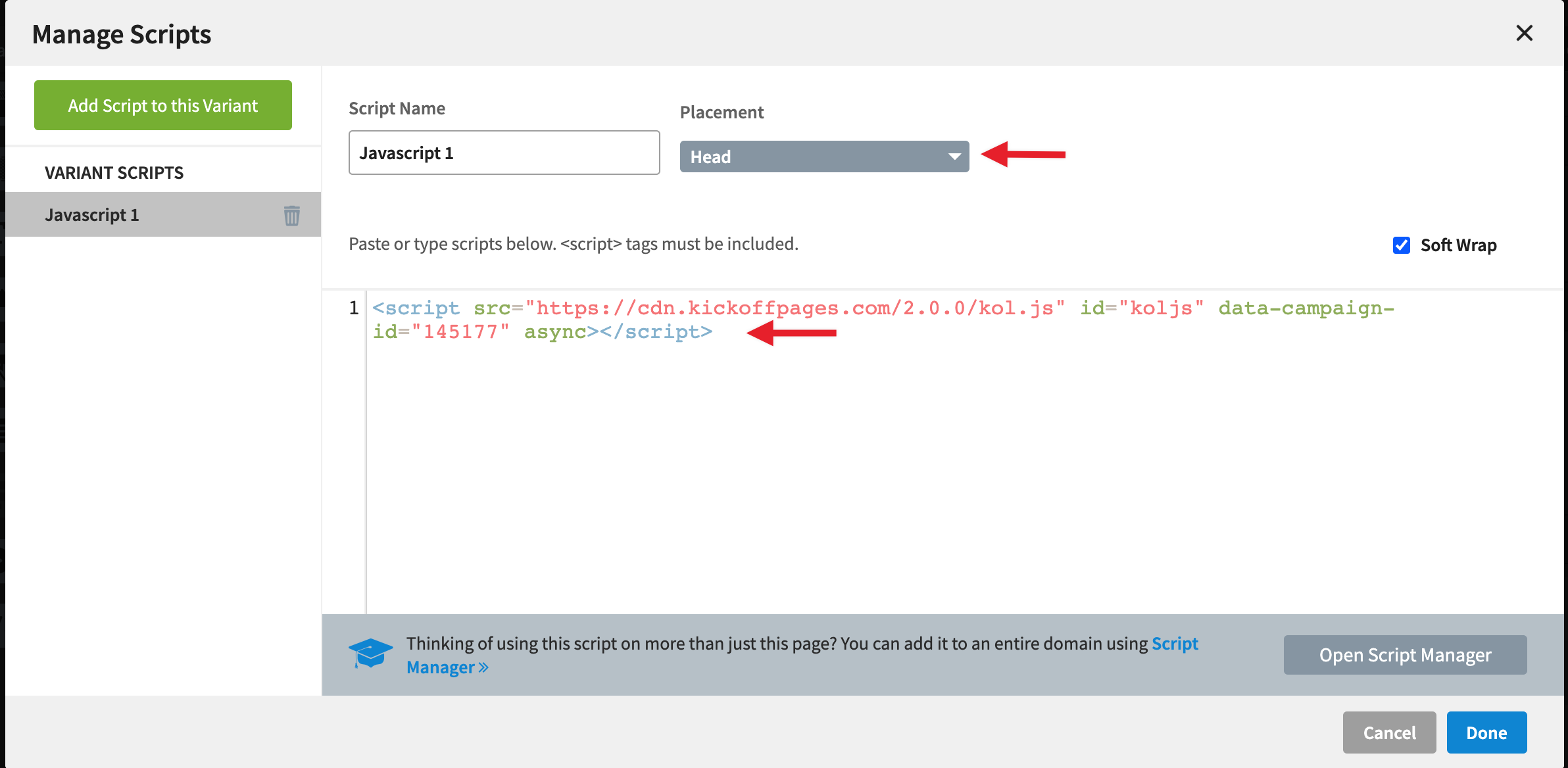
As always, if you have any questions please reach out to our support team at support@kickofflabs.com
Wordpress Integration - AnyForm
Section titled “Wordpress Integration - AnyForm”This document covers the complete integration of your KickoffLabs product into Wordpress. Throughout this document we will cover integrating your Wordpress site with KickoffLabs Anyform. **Please note that Anyform will not work if your form has a redirect set, or if your form is connected to other services (such as adding a lead to a mailing list on a CRM). **
Preparing Wordpress for
Section titled “Preparing Wordpress for”KickoffLabs Scripts If you are interested in integrating your existing form with KickoffLabs Anyform you will first need to find a plugin that allows you to add scripts to the form. Our current pick is Contact Form 7.
-
Configure AnyForm for your campaign
-
Open AnyForm for your campaign
-
Click Installation and copy the script
-
Next, open a new tab and navigate to the Wordpress editor and select to edit the page you would like to install the script on.
-
At the bottom of the page, select “HTML” and paste the script into the “head” section.
-
Save your changes and test out the Anyform integration. Your test lead should now appear in the “lead” section of your selected KickoffLabs campaign.
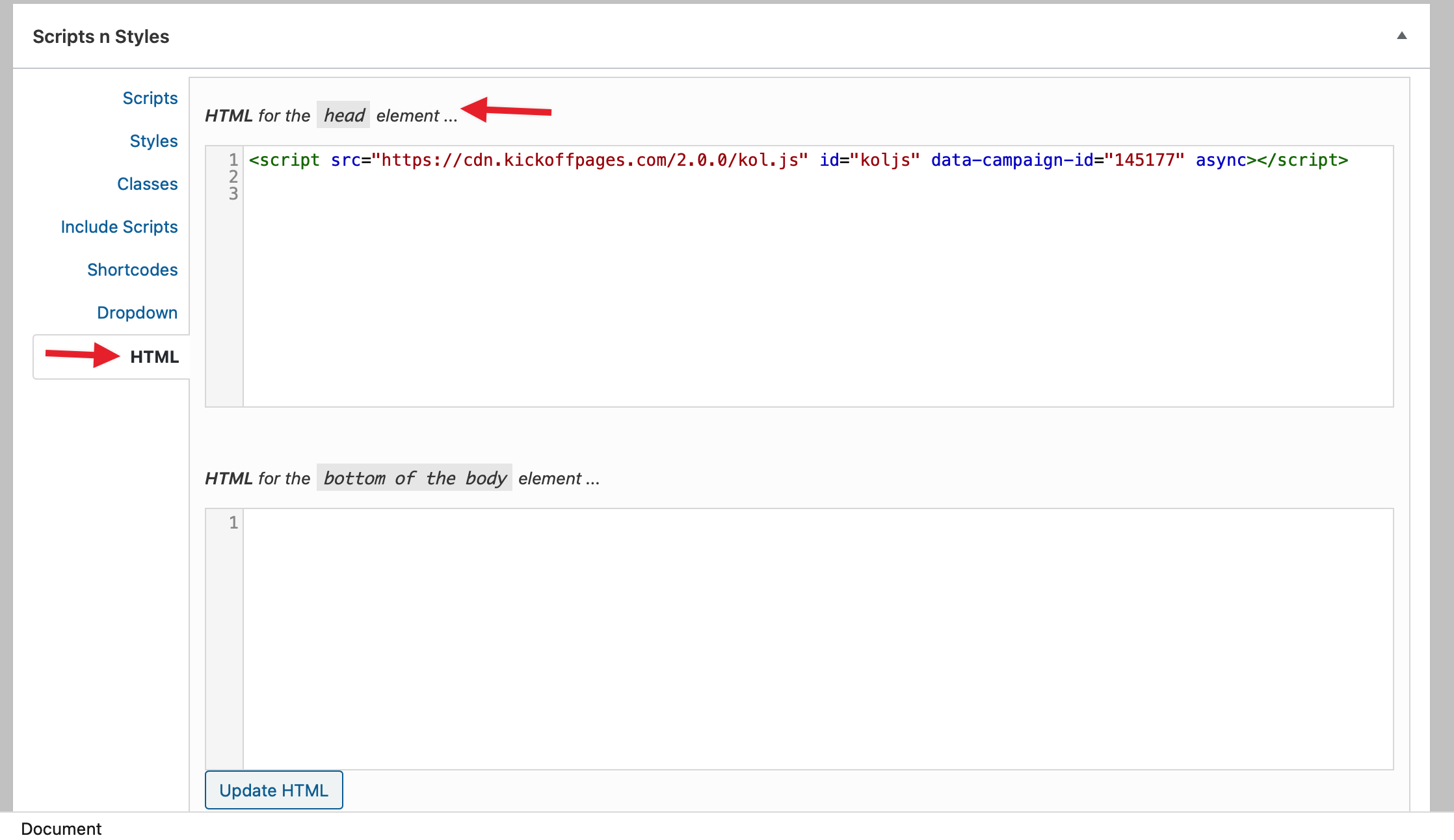
*The AnyForm, embeds, and popups use the same script, so if you’ve already installed one of them, no need to repeat this step. * Feel free to reach out to support@kickofflabs.com with any additional questions!
What to check after
Section titled “What to check after”- Preview the campaign or page after making changes.
- Submit a fresh test lead when the change affects forms, referrals, points, integrations, or tracking.
- Save the campaign URL, test lead email, screenshots, and any error messages before contacting support.
Need help? Email support@kickofflabs.com with your campaign URL, the lead email you tested with, and a screenshot of what you expected to happen.