

Edit and publish a KickoffLabs landing page
Open your campaign and select Pages & forms → Edit next to the page. The KickoffLabs designer has Signup, Post-signup, Preview, Publish page, Settings, and Done in its top bar. Done opens the page’s Share screen even if the page is still a private draft; it does not publish the page.
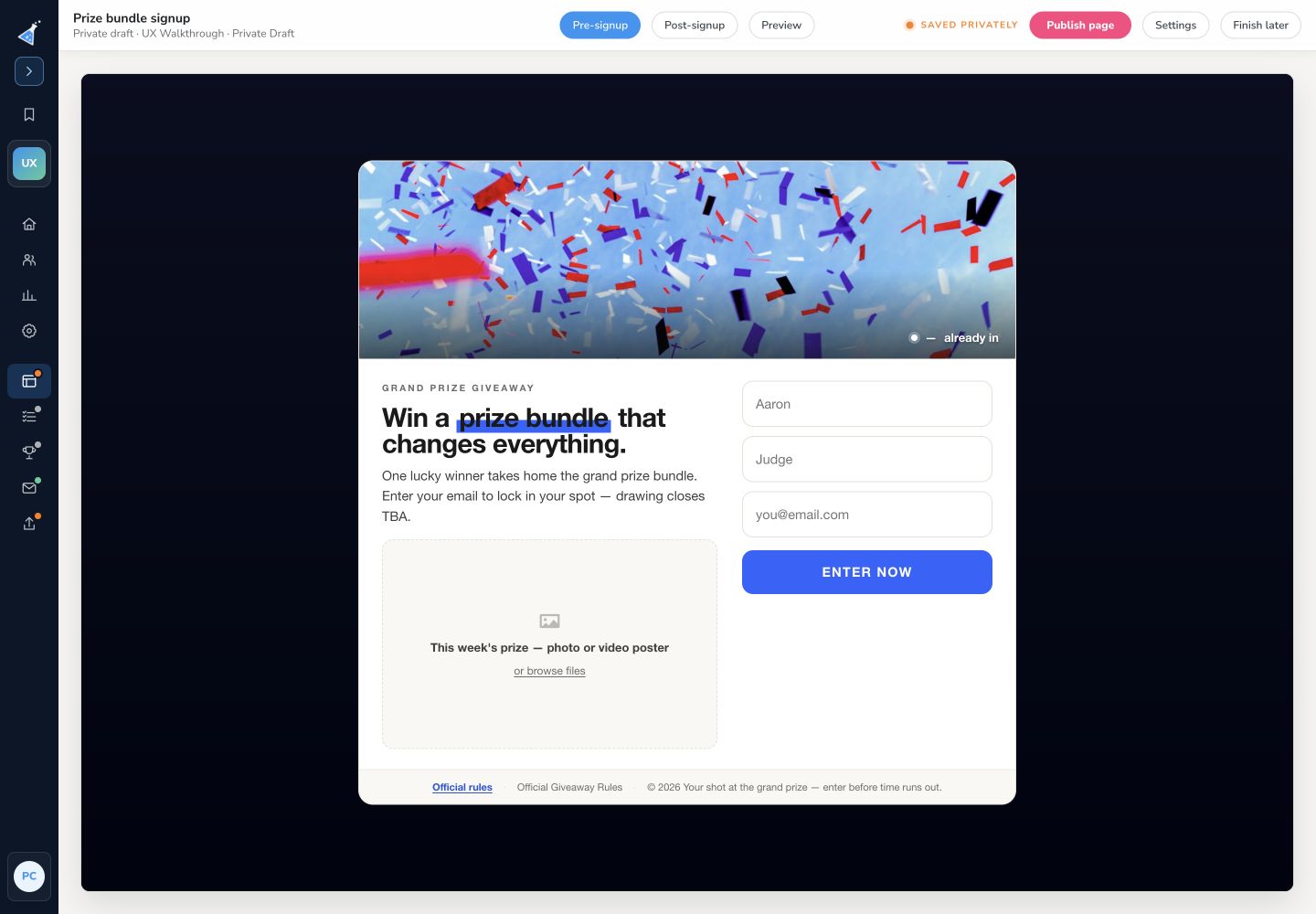
- Select Signup to edit what a new visitor sees. Select text to change copy. Select a section to edit its content or layout, move it, or remove it. Use Add a section here to insert content.
- Select Post-signup to edit what leads see after joining. Review the confirmation, referral link, rewards, and sharing instructions.
- Open Settings → Page for the signup form, layout, post-signup confirmation, fonts, colors, and buttons. Some campaign settings appear on another tab.
- Select Preview to check pre-signup, post-signup, and post-signup with points. Check desktop and mobile sizes.
- Select Publish page when the draft is ready. Design edits remain private until publication; an earlier published version stays live.
On a first successful publish, the Share screen opens automatically. For later publishes, you stay in the designer and see a confirmation with Copy link and Share & embed; select Done to leave. The Share screen shows the page status and public URL when live, or the planned URL when still a draft. Use the Share screen to copy a live link, embed the page, or check your domain. Page settings outside the editor contains search and browser metadata, sharing previews, tracking, custom code, and the page address. Those settings go live when saved, separately from the page design draft. Before sending traffic, open Publish & test and run a campaign signup test.
Edit signup forms
Section titled “Edit signup forms”Open Settings → Page → Signup form. Add or reorder fields, set labels and required fields, then preview the form on desktop and mobile. Review Post-signup for the confirmation experience. Follow the form guide for field types, mappings, and required answers. See privacy policy checkboxes when you collect consent.
Add and manage content
Section titled “Add and manage content”Use Add a section here between sections. Follow the section guide for the catalog, variants, and ordering controls. Select a section to change text, images, layout, or order. Check its mobile preview after changing columns or spacing.
Add and check images
Section titled “Add and check images”Select the image or section and use its image control to choose or replace the asset. Choose from Unsplash, your library, or an upload. Keep logos legible at mobile sizes. Use a high-quality source image sized for its displayed area, compress it before upload, and write alternative text when the editor offers that field. Avoid putting essential copy in a background image where mobile crops may hide it. If an old published page still shows the previous image, confirm you published the latest draft and reload its public URL. See improving page speed.
Set backgrounds
Section titled “Set backgrounds”Select a section and inspect its layout, color, and image controls. Available background options depend on the section. Check text contrast and mobile crops before publishing.
Adjust typography
Section titled “Adjust typography”Open Settings → Page for fonts, colors, and buttons. See the style controls and layout choices. Select text to edit its copy. Keep heading levels, contrast, and mobile line wrapping readable.
Check mobile layouts
Section titled “Check mobile layouts”Use Preview → Mobile to inspect text, image crops, buttons, forms, and section order. Shorten oversized headings and adjust layouts where the section controls allow it.
Check sharing controls
Section titled “Check sharing controls”Edit the relevant sharing action in Post-signup and preview its available networks. See mobile sharing options for the current workflow.
Existing pages in the classic editor
Section titled “Existing pages in the classic editor”An older page or embed may open the classic editor instead. It has Save, Publish, Add Content, Fonts & Colors, and Page Settings. Make the change there, then preview and publish that page. Its menus differ from the steps above.
Before you finish
Section titled “Before you finish”Preview pre-signup and post-signup content, verify the form and links, check mobile layout, and publish. Submit a fresh test signup through the public URL and inspect the saved lead.