

Choose campaign actions
Open a campaign, select Scoring & actions, then + Add an action. Choose an action, set its destination or answer options, assign points, and review What leads see after signup. Actions belong to the campaign and can appear on its published pages and other supported signup sources.
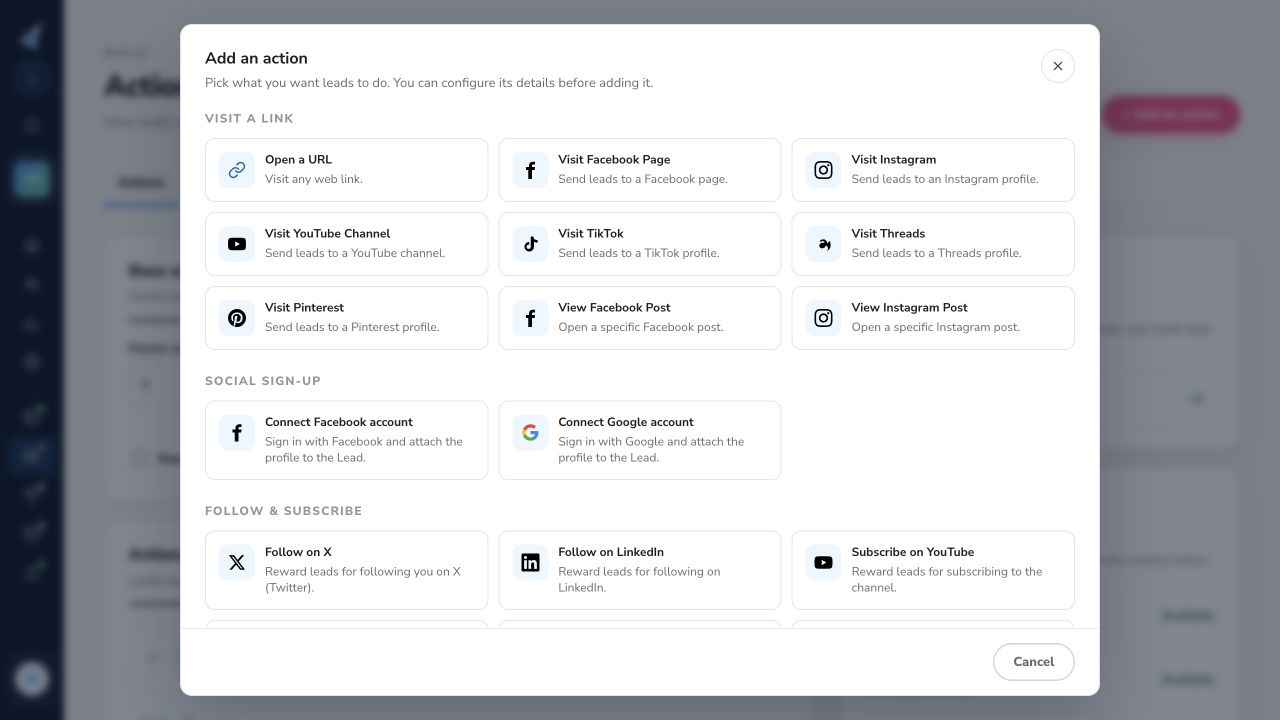
The picker groups 76 choices in 14 categories. Some choices appear only when the required integration or account feature is ready. The list below follows the action picker in the current KickoffLabs editor.
A click on a third-party link, share button, follow prompt, or app listing does not independently prove what happened on that service. Test the full lead journey and use an additional verification method when a reward depends on completion.
Visit a link
Section titled “Visit a link”Ask leads to open a destination. These actions can record the click; visiting a third-party page does not prove a later activity there.
- Open a URL
- Visit Facebook Page
- Visit Instagram
- Visit YouTube Channel
- Visit TikTok
- Visit Threads
- Visit Pinterest
- View Facebook Post
- View Instagram Post
Social sign-up
Section titled “Social sign-up”Connect a Facebook or Google account to an existing lead after signup. This differs from a social signup button on the landing page.
- Connect Facebook account
- Connect Google account
Follow & subscribe
Section titled “Follow & subscribe”Send leads to a profile or channel. Check the destination URL and treat a click as distinct from a verified follow or subscription.
- Follow on X
- Follow on LinkedIn
- Subscribe on YouTube
- Follow on Spotify
- Follow on Bandcamp
- Follow on Goodreads
Share this page
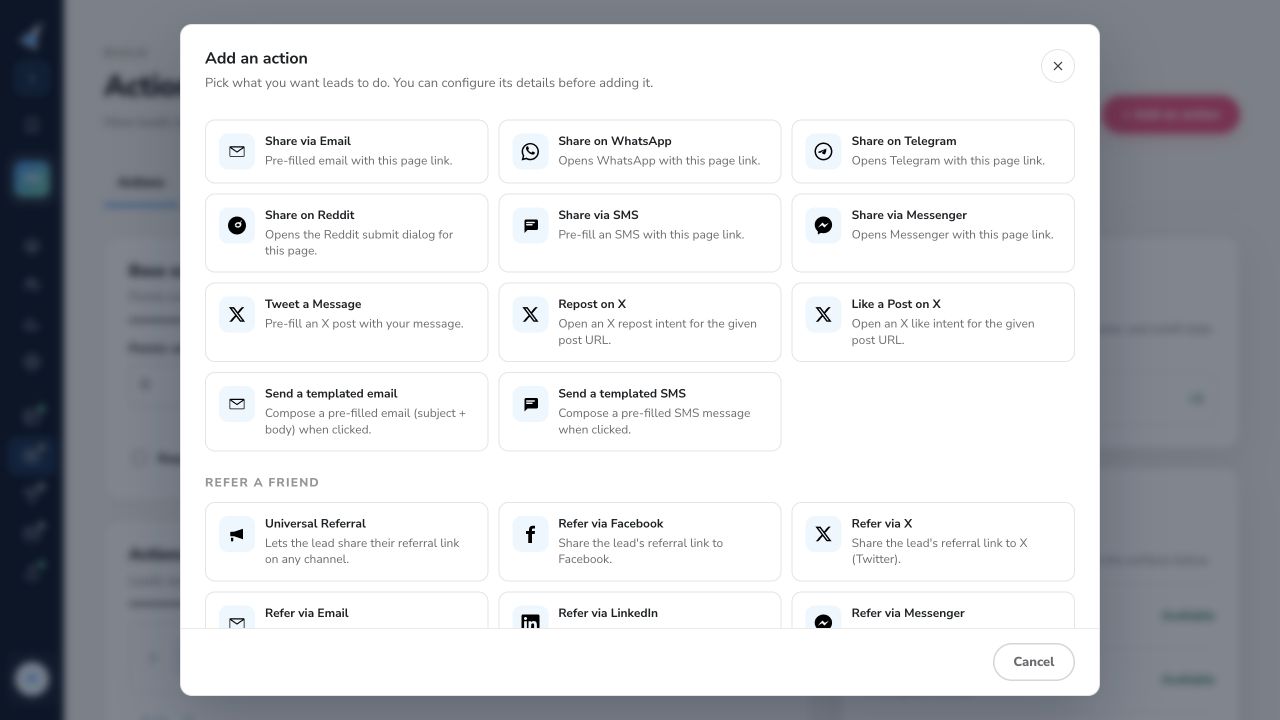
Section titled “Share this page”Open a channel’s share flow using the campaign page. A share action is different from a referral: it does not automatically use the lead’s personal referral link.
- Share on Facebook
- Share on X
- Share on LinkedIn
- Share via Email
- Share on WhatsApp
- Share on Telegram
- Share on Reddit
- Share via SMS
- Share via Messenger
- Tweet a Message
- Repost on X
- Like a Post on X
- Send a templated email
- Send a templated SMS
Refer a friend
Section titled “Refer a friend”Give leads a way to share their personal referral link. Referral credit depends on another person signing up through that link.
- Universal Referral
- Refer via Facebook
- Refer via X
- Refer via Email
- Refer via LinkedIn
- Refer via Messenger
- Refer via Pinterest
- Refer via Reddit
- Refer via SMS
- Refer via Telegram
- Refer via Tumblr
- Refer via WhatsApp
- Refer via Weibo
- Refer via Wordpress
Communities
Section titled “Communities”Send leads to a community or subreddit. Verify membership separately if it determines a valuable reward.
- Join Discord Server
- Join Telegram Group
- Visit Subreddit
Reading & funding
Section titled “Reading & funding”Link to a project, podcast, or Product Hunt page. An opened link does not verify a pledge or vote.
- Visit Kickstarter
- Visit Indiegogo
- Visit Patreon
- Visit Podcast
- Visit Product Hunt
- Upvote on Product Hunt
Audio & video
Section titled “Audio & video”Send leads to a video, audio item, or Twitch channel. Check the exact destination before launch.
- Watch a YouTube Video
- Watch a TikTok
- Listen on Spotify
- Visit Twitch Channel
App downloads
Section titled “App downloads”Link to an App Store or Google Play listing. A click does not confirm installation.
- Download on App Store
- Download on Google Play
Codes & gates
Section titled “Codes & gates”Ask for a secret code you distribute outside the page. Test a valid and an invalid code.
- Enter Secret Code
Custom
Section titled “Custom”Place an HTML widget in the action area. Preview the published page and check how it behaves on mobile.
- Custom HTML Embed
Apply a lead tag when the action is clicked. For events completed outside KickoffLabs, connect a verified automation to the tag.
- Apply a Tag
Uploads
Section titled “Uploads”Collect a photo or file from the lead. Check accepted sources, file types, and the submitted lead record.
- Upload a Photo or File
- Upload from Instagram
- Upload from Webcam
Questions
Section titled “Questions”Collect an answer on the lead record. The form choices and available fields depend on the selected action and campaign setup.
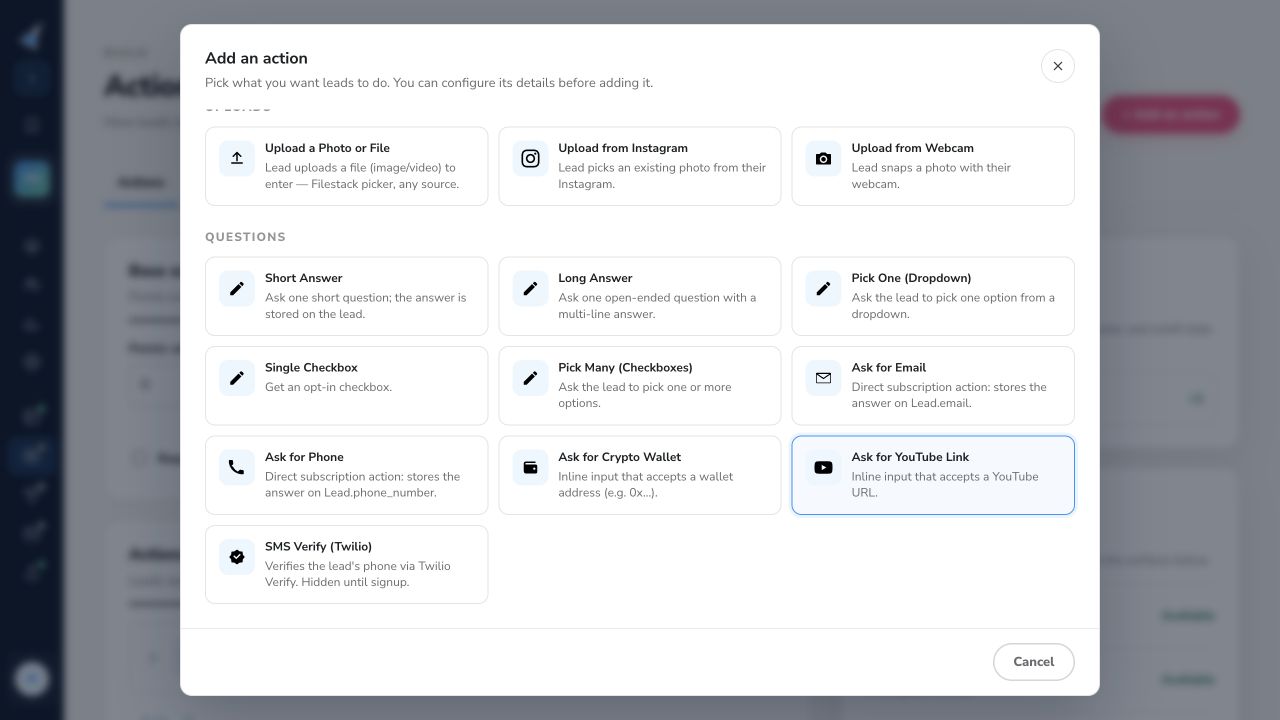
- Short Answer
- Long Answer
- Pick One (Dropdown)
- Single Checkbox
- Pick Many (Checkboxes)
- Ask for Email
- Ask for Phone
- Ask for Crypto Wallet
- Ask for YouTube Link
- SMS Verify (Twilio)
Set base scoring and action order · Review a lead’s score · Use lead tags for external events
Need help? Email support@kickofflabs.com with the campaign URL, action name, and the lead behavior you want to reward.